Best SVG Converter for Cricut: Our Picks by Project
Our pick for cut-ready Cricut SVGs is PerfectVector. See when Design Space, Inkscape, Adobe Express, Canva or a free web converter fits your project better.
On this page
- Our picks at a glance
- What makes a converter good for Cricut
- The converters, one by one
- PerfectVector: our pick for cut-ready files
- Cricut Design Space: the option you already have
- Inkscape: free, with full control
- pngtosvg.com: quick, free online traces
- Adobe Express: a fast one-off conversion
- Canva: when your design already lives there
- Picsvg: filter experiments on small images
- Comparison table
- Which converter should you choose?
- How to test a converter on your own image
- When a converter isn't the answer
- What this looks like with PerfectVector
- FAQ
- Sources
The best SVG converter for Cricut depends on what you plan to cut. For logos, decals, lettering and flat illustrations, our pick is PerfectVector: it turns a PNG or JPG into editable vector paths, and you can preview the result free before you spend a credit. For a simple one-layer silhouette, the upload tool already inside Cricut Design Space may be enough. If the converter has to be free and you don't mind editing paths yourself, use Inkscape.
A note on transparency: we make PerfectVector. We list it first because it is built for files you will edit and cut. Where another tool fits a job better, we say so. That includes photos and shaded full-color art, which rarely become tidy cut files whichever converter you use.
Our picks at a glance
- PerfectVector — Best for cut-ready SVGs from logos, decals and illustrations: editable paths you can judge in a free preview, then an editor for merging colors and removing background shapes.
- Cricut Design Space (built-in upload) — Best for simple single-layer silhouettes: upload a PNG or JPG, erase the background and preview the cut lines without leaving Design Space.
- Inkscape — Best free desktop option for hands-on control: open-source Trace Bitmap plus a full vector editor for fixing paths yourself.
- pngtosvg.com — Best for quick free traces of clip art and line drawings online: no signup, a simplified color palette and optional registration marks.
- Adobe Express — Best for a fast one-off conversion if you already use Adobe: a free quick action that turns a JPG or PNG into an SVG download.
- Canva — Best if your design already lives in Canva: sign in, convert, and keep working on the result in the same account.
- Picsvg — Best for experimenting with filter effects on small images: free uploads up to 4 MB, with effects you can try before downloading.
What makes a converter good for Cricut
A Cricut cuts the paths in the file, not the preview you saw on screen. Judge every converter by what you get when you open the SVG:
- Real vector paths. An SVG can wrap a pixel image instead of tracing it. That file opens fine and still gives you nothing useful to cut. Select the shapes in an editor to check; the PNG-to-SVG diagnosis guide for Cricut shows what to look for.
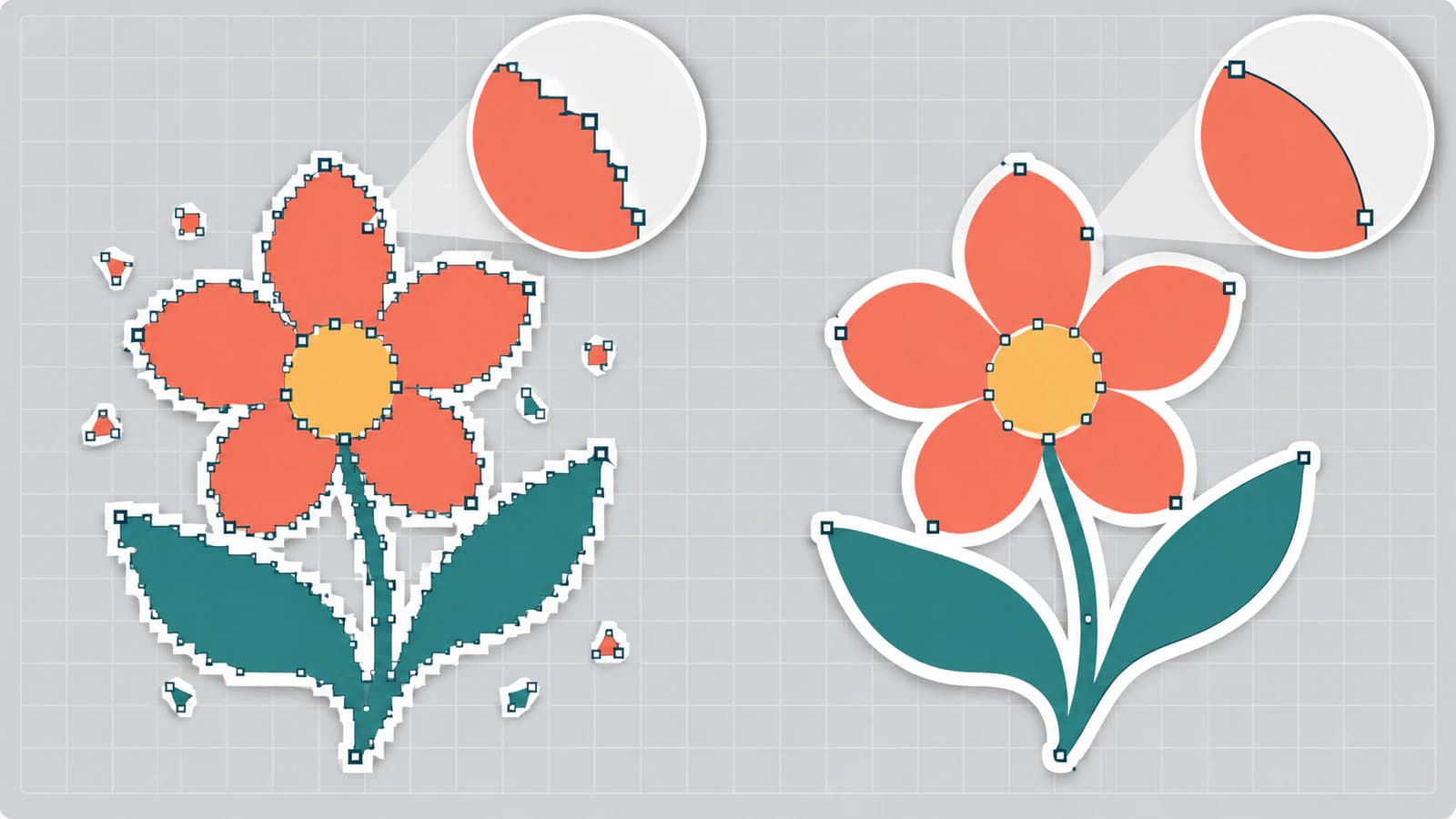
- Smooth, closed shapes without excess nodes. Stair-stepped edges and crowded anchor points make curves rough and editing slow. Here is why auto-traced SVGs end up with too many nodes.
- Colors you can plan as material layers. Cricut's upload guide says SVG and DXF files upload as previously designed and are separated into layers after you save them. Near-duplicate colors become extra layers you have to merge or delete.
- No stray background box or tiny fragments. A traced white background becomes a shape you would cut. Check for it before you load material; removing an SVG background cleanly covers the fix.
- A clear cost to get the finished file. Some tools are free end to end, some need an account, and some charge only for the final download.
How we chose: we read each tool's current official page on October 23, 2026, and judged it against the criteria above, using what each tool documents plus our hands-on work with PerfectVector. We did not run a controlled same-image benchmark across every tool, so this guide gives no scores. Test your shortlist on your own image with the method further down.
The converters, one by one
PerfectVector: our pick for cut-ready files
PerfectVector is built for flat and illustrative art you plan to edit or cut. Upload a PNG or JPG, and it returns editable vector paths tuned for clean curves and low node counts. Vectorizing and previewing are free, so you can judge the trace before paying anything; one credit unlocks a finished result, and downloading it again is free. Once the result is unlocked, the editor lets you merge similar colors and remove unwanted background shapes before you export the file for Design Space.
- Pros: clean, editable paths you can judge in a free preview; an editor for merging near-duplicate colors and trimming background shapes; works with the PNG or JPG you already have.
- Cons: purpose-built for flat and illustrative art. Photos and shaded, full-color artwork turn into simplified shapes, so they usually belong in Print Then Cut instead. Downloading the finished file uses a credit.
- Best for: our top pick for logos, decals, monograms, lettering, stickers and AI-made illustrations you'll cut from vinyl, iron-on or cardstock.
Cricut Design Space: the option you already have
Cricut's upload guide lists PNG, JPG, SVG, DXF, GIF and BMP uploads. For a raster image you choose whether it is simple, moderately complex or complex, remove the background with Select & Erase, Erase and Crop, then preview the cut lines. Some extras sit behind Cricut's subscription. Its 2021 announcement introduced the Automatic Background Remover as a Cricut Access feature while keeping the manual tools available to everyone. Its 2024 announcement describes Convert to Layers, which splits a multicolored upload into up to nine layers, as exclusive to Cricut Access subscribers. Menus change between versions, so check what your copy of Design Space shows.
- Pros: nothing extra to install; a cut-line preview before you commit; manual cleanup tools for every user.
- Cons: cleanup works by erasing pixels rather than editing paths; Cricut's announcements put one-click background removal and multi-layer conversion behind Cricut Access; detailed artwork can take a lot of erasing.
- Best for: single-layer silhouettes and simple shapes you want to cut today.
Inkscape: free, with full control
Inkscape is a free, open-source vector editor. Its manual describes Trace Bitmap as a way to turn a raster image into paths you can use and edit. A single scan such as Brightness cutoff makes a silhouette-like path. Multiple scans give more detail, but each scan becomes a separate, stacked object that you ungroup and sort out.
- Pros: free and offline; a full editor for deleting fragments, joining shapes and editing nodes; no account.
- Cons: a real learning curve; you pick thresholds and clean up the result yourself; multicolor traces arrive as stacked objects.
- Best for: makers who want a free tool and are comfortable editing paths. Our Inkscape Trace Bitmap guide covers the settings that matter.
pngtosvg.com: quick, free online traces
pngtosvg.com describes its converter as free with no signup. It suggests simplified palettes, lets you knock out a color such as a white background, and can add registration marks for layered vinyl.
- Pros: free, no account; palette simplification and color knockout before download; options aimed at cutting-machine users.
- Cons: like any automatic trace, inspect small fragments and node density before cutting.
- Best for: quick, free traces of clip art, line drawings and simple logos.
Adobe Express: a fast one-off conversion
Adobe Express offers a free SVG converter quick action for JPG and PNG files up to 40 MB. You upload the image, it converts automatically, and the SVG downloads.
- Pros: free and fast; nothing to configure; handy if you already use Adobe Express.
- Cons: the converter page describes a one-step conversion without trace settings, so check the paths in Design Space before you cut.
- Best for: one-off conversions when you already work in Adobe Express. See what the Adobe Express SVG converter actually produces before relying on it for layered work.
Canva: when your design already lives there
Canva's SVG converter page converts one JPG or PNG at a time, accepts files up to 50 MB and 250 megapixels, and asks you to sign in before converting. The result can go straight into your Canva designs.
- Pros: convenient when the rest of your project is in Canva; editing tools in the same place.
- Cons: requires an account; export options depend on your Canva plan, so confirm SVG download works on yours.
- Best for: designs you already build in Canva. Read whether Canva can vectorize an image for the details.
Picsvg: filter experiments on small images
Picsvg is a free online converter for JPG, GIF and PNG files up to 4 MB, with effects you can apply to change the SVG result before downloading.
- Pros: free; quick to try several looks on the same image.
- Cons: the 4 MB upload limit; filter-driven results still need a path check before cutting.
- Best for: experimenting with effects on small, simple images. For other options, compare Picsvg alternatives for cut files.
Comparison table
| Converter | Best for | Where it runs | Cost to get the SVG | Check before cutting |
|---|---|---|---|---|
| PerfectVector | Cut-ready files from logos, decals and illustrations | Web app | Free conversion and preview; one credit unlocks the finished file | Background shapes, merged colors, small pieces |
| Cricut Design Space | Simple single-layer silhouettes | Design Space app | Upload is built in; some features need Cricut Access | Erased background, cut-line preview |
| Inkscape | Free hands-on control | Desktop | Free, open-source | Stacked scans, node density |
| pngtosvg.com | Quick free online traces | Web app | Free, per its site | Palette, small fragments |
| Adobe Express | Fast one-off conversions | Web app | Free quick action | Path quality, background |
| Canva | Designs that live in Canva | Web app, Canva apps | Sign-in; export options vary by plan | SVG export on your plan, layers |
| Picsvg | Filter experiments on small images | Web app | Free | Filter artifacts, fragments |
The "Best for" verdicts are our editorial picks. Features and prices come from each tool's official page as of October 23, 2026; they change, so confirm them before you rely on them. This table is not a controlled quality benchmark.
Which converter should you choose?
- Choose PerfectVector if you'll cut the result: logos, decals, lettering, stickers or illustrations where clean paths and sensible colors matter. Start with the image-to-SVG converter for Cricut and compare the free preview with your original.
- Choose Design Space's own upload if the design is a single-color silhouette and you want to cut it today without another tool.
- Choose Inkscape if it must be free and you are happy to edit paths and nodes by hand.
- Choose pngtosvg.com if you want a quick free trace of clip art or line drawings online.
- Choose Adobe Express if you need one fast conversion and already use Adobe.
- Choose Canva if your whole design is already in Canva.
- Choose Picsvg if you want to try filter effects on a small, simple image.
- Choose Print Then Cut instead of a converter if the image is a photo, a watercolor or shaded art. Here is how to decide between Print Then Cut with a PNG and an SVG cut file.
How to test a converter on your own image
No list can predict how one specific image will trace. Run this short test before committing material:
- Pick one real project image. Use the logo or decal you actually plan to cut, and keep the same file for every tool you compare.
- Convert it in two or three shortlisted tools. Download or export each SVG.
- Select the shapes in an editor or in Design Space. If the whole design selects as one picture, the file wraps pixels instead of paths.
- Look for the background and the small stuff. Hide or select any rectangle behind the art, then check letter counters such as "o" and "e" and tiny islands at the size you will cut.
- Zoom into a curve. Crowded anchor points and stair-stepped edges mean rough cuts and slow editing.
- Upload the best file to Design Space. Check the layers and dimensions, preview the mat, and test-cut a small piece on scrap.
For a fuller pre-cut routine, use the checklist for checking an SVG before cutting.
When a converter isn't the answer
Some images shouldn't become cut files at all. Photos, gradients and painterly art turn into many small color shapes that are miserable to weed and layer. Print Then Cut keeps their look instead. Very thin hand-lettering may need to be redrawn or thickened before any trace holds together in vinyl. And if the "image" is just words, typing them in Design Space with a font you like is often simpler than tracing a picture of text. More on this in what image vectorization can and can't do.
What this looks like with PerfectVector
Upload the PNG or JPG you want to cut to PerfectVector and look at the SVG preview, free. Compare its edges, colors and small pieces with your original. When the trace looks right, unlock the result with a credit. Then, in the editor, merge colors that should be one material, remove any background shape, and export the SVG. Upload it to Design Space, confirm the layers and size, and run a small test cut. If you are building a multicolor project, the guide to layered SVGs for Cricut shows how to plan the layers.
FAQ
What's the best SVG converter for Cricut? For logos, decals, lettering and flat illustrations you plan to cut, our pick is PerfectVector: it creates editable vector paths you can preview free before spending a credit, and its editor lets you merge colors and remove background shapes. For simple one-layer silhouettes, Design Space's own upload may be enough, and Inkscape is our free desktop pick if you can edit paths yourself.
What's the best free SVG converter for Cricut? Inkscape is free, open-source and gives you full control, but you clean up the trace yourself. Design Space's upload handles simple silhouettes inside the app. pngtosvg.com and Picsvg are free online converters. PerfectVector makes converting and previewing free, and one credit unlocks the finished file.
Can Cricut Design Space convert an image into a cut file by itself? Yes, for simpler images. Upload a PNG or JPG, choose its complexity, erase the background and preview the cut lines. Cricut's announcements describe the Automatic Background Remover and Convert to Layers as Cricut Access features, so multicolor artwork usually needs more work or a dedicated converter.
How can I tell if a converted SVG will actually cut? Select its shapes in an editor or Design Space. If the whole design selects as one picture, the file contains pixels rather than paths. Then check for a background rectangle, tiny fragments and crowded anchor points, confirm the size in Design Space, and test-cut a small piece on scrap.
Can I turn a photo into an SVG for Cricut? Usually you shouldn't. Photos and shaded art become many small color shapes that are hard to cut and weed. Use Print Then Cut to keep the photo's look, or simplify the image to a few flat colors before converting.
Sources
- Cricut — How to upload images — supported upload file types, the raster complexity choice, manual cleanup tools, cut-line preview and how SVG layers import.
- Cricut — Restore Brush and Automatic Background Remover — the Automatic Background Remover as a Cricut Access feature and manual tools for all users.
- Cricut — New in Design Space: Convert to Layers — Convert to Layers, its nine-layer maximum and Cricut Access requirement.
- Inkscape — Tracing an image — Trace Bitmap, single scan modes and stacked objects from multiple scans.
- Adobe Express — Free SVG converter — the free JPG/PNG quick action and its 40 MB upload limit.
- Canva — SVG converter — upload limits, one-at-a-time conversion and sign-in before converting.
- pngtosvg.com — PNG to SVG converter — free, no-signup conversion, palette simplification, color knockout and registration marks as described by the site.
- PerfectVector — Pricing and credits — free vectorizing and preview, one credit per finished result and free re-downloads.
Have a logo or decal you want to cut? Start free with your own image, compare the SVG preview with your original, and check the background, colors and small pieces before you send it to Design Space.
More from the blog
How to Make a Sticker SVG (From Your Own Art, Ready to Cut)
A sticker SVG is the clean cut path behind a die-cut sticker. Here's how to turn your own image into one, when you need a vector vs a PNG, and what won't work.
Convert an Image to SVG With Clean CNC Cut Paths
A CNC follows vector paths, not pixels, so your design has to become a clean SVG or DXF first. Here's how to convert an image into CAM-ready, closed-path vectors.