Adobe Express SVG Converter: Features and Limits
What Adobe Express's free SVG converter offers, per its own docs: formats, limits, and the flow. Plus the three checks any SVG should pass, whatever made it.
On this page
Adobe Express includes a free SVG converter, and it's the tool many people try first for good reason: it's Adobe, it's free, and it's one upload away. The current Adobe Express converter page lists JPEG, JPG, or PNG files up to 40MB, labels the quick action free to use with no credit card required, and offers SVG download or continued editing.
That covers a real set of jobs well. It also has boundaries worth knowing before your project depends on it: the formats it accepts, where the output is headed, and the fact that an SVG's usefulness is decided less by which converter made it than by what's inside the file. This guide covers what the tool offers per Adobe's own documentation, the three checks worth running on any converted SVG, and the cases where a dedicated vectorizer is the better fit.
The quick version
- What it is: a free Adobe Express quick action, per its page: JPEG, JPG, or PNG in (up to 40MB), SVG out, no credit card.
- Where it shines: quick conversions that feed design work inside the Express ecosystem.
- Formats it doesn't take: HEIC, GIF, PDF, or WebP; re-export those as PNG first, or send a WebP directly to a WebP to SVG converter.
- Whatever converts your image, check the output: selectable paths, crisp edges at deep zoom, and a sane node count.
- Reach for a dedicated vectorizer when the SVG is headed for editing, recoloring, or a cutting machine rather than an Express design.
What the converter offers, per Adobe's pages
The facts as the tool's own page states them: it's free to use, requires no credit card, accepts JPEG, JPG, and PNG files up to 40MB, and converts in a few clicks: upload, convert, download. Adobe positions it for logos, illustrations, and graphics you want scalable, and the output can flow straight into an Express design if that's where you work.
Two practical notes follow directly from that page. First, the format list still has gaps: HEIC, GIF, PDF, and WebP aren't listed for the quick action, so those need a re-export to PNG before Express will take them. Second, this is a quick action, a lightweight one-shot utility at the edge of the Express suite, not a vector editor; refinement happens elsewhere, either in Express itself or in whatever tool opens your SVG next.
The three checks that judge any converted SVG
Here's the part that matters more than the brand on the converter. Two SVGs of the same image can be worlds apart in usefulness, and you can tell them apart in about ten seconds. Whatever tool produced your file, Express included, check:
- Do shapes select individually? Open the SVG in any editor and click a shape. A real traced vector gives you separate, movable paths; one flat un-selectable block means the pixels are still in there, just wearing an .svg extension.
- Do edges stay crisp when you zoom far in? Vector edges hold at any magnification. Softening or blockiness at 800% zoom means raster content survived the trip.
- Is the node count sane? Clean curves need a handful of anchor points. Hundreds of points per shape make a file painful to edit and slow to cut, even when it looks fine at arm's length.
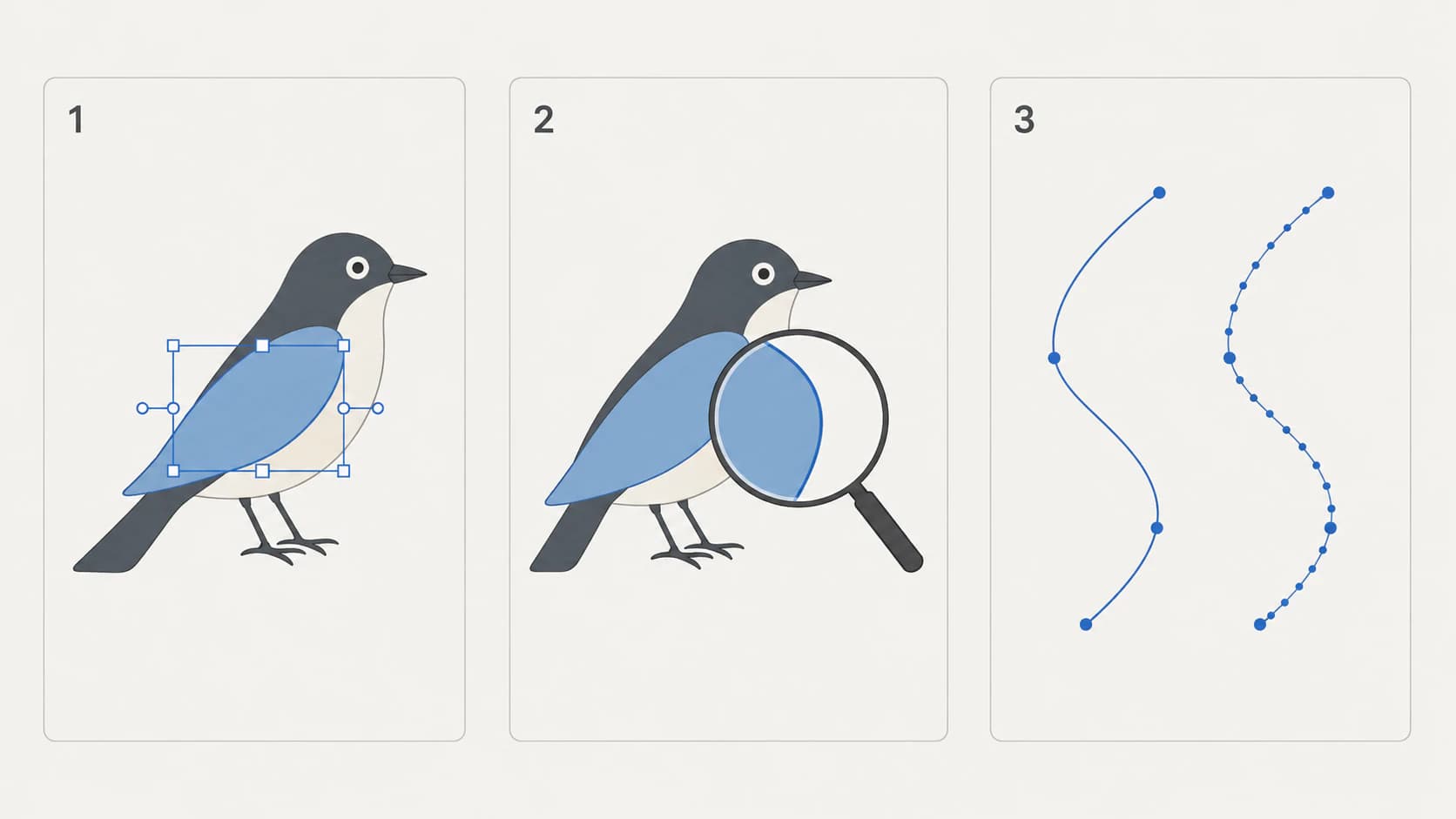
A file that passes all three is ready for real work. A file that fails any of them will fight you downstream, whichever converter produced it, and re-converting from the original image is usually faster than repairing it. These three are the fast subset of a longer preflight; if the file is headed for a cutting machine, the full five-check audit adds the stray-background and size checks that matter on a mat.
If the conversion errors out
Start with the requirements Adobe documents for this quick action: confirm the source is a JPEG, JPG, or PNG and is no larger than 40MB. Renaming an unsupported file does not convert its contents, so export a HEIC, GIF, or PDF as a supported image format first. If a supported file within the limit still fails, retry once and use Adobe's support channel rather than assuming the file was converted correctly.
When a dedicated vectorizer is the better fit
This isn't about quality rankings; it's about where your SVG is going. The workflows differ on documented capabilities:
| Your situation | Better fit | Why |
|---|---|---|
| The SVG feeds an Express design | Adobe Express | Converted file lands directly in your project |
| Your source is an iPhone HEIC photo | A converter that takes HEIC | HEIC isn't on Express's accepted list |
| You need to recolor or merge colors before download | A converter with a color editor | Simplifying colors up front beats path-hunting later |
| The file is headed for a Cricut or laser | A cut-oriented vectorizer | Cut files live and die by clean single paths |
| You want free and fully offline | Inkscape's Trace Bitmap | No account, no service dependency |
For the middle three rows, that's the job PerfectVector is built around: convert your image (HEIC, PNG, JPG, or WebP up to 5MB) into clean, low-node paths with each color as its own editable shape, recolor or merge colors in the built-in editor before you download, and take the result to Illustrator, Figma, Inkscape, or a cutting machine. First conversions are free, no credit card required. And the same three checks above apply to our output too; run them on everything, ours included.
For the wider field and how the tools compare on the criteria that bite later, our honest comparison of AI vectorizers covers the landscape.
What no converter changes
A quick boundary that applies to Express, to us, and to everyone: converters trace what they're given. Flat art, logos, icons, and drawings convert into clean shapes; photographs posterize into approximations no matter whose engine runs the trace. If your source is a photo and the goal is print, a high-resolution raster usually serves you better than any SVG.
FAQ
Is the Adobe Express SVG converter free? Per the tool's own page, yes: it's a free quick action with no credit card required, accepting files up to 40MB. Adobe Express as a whole has free and paid tiers, but the converter is on the free side per its page.
What file types does the Adobe Express SVG converter accept? JPEG, JPG, and PNG, up to 40MB, per the current quick-action page. HEIC, GIF, PDF, and WebP aren't listed there; re-export those as PNG first, or use a converter that accepts them directly.
Can Adobe Express vectorize a photo? It will convert one, but the vectorize-a-photo problem is universal: photos are continuous tone, so any tracer produces a posterized approximation rather than a clean vector. For photos, keep a high-resolution raster; save vectorizing for flat art and logos.
How do I know if the SVG I downloaded is good? Run the three checks: shapes select individually in an editor, edges stay crisp when you zoom far in, and paths carry a sane number of anchor points. They take ten seconds and apply to any converter's output.
Why does the Express converter sometimes fail to convert? First rule out the documented input constraints: the quick action accepts JPEG, JPG, or PNG files up to 40MB. Renaming an unsupported file does not change its format. If a supported file within the limit still fails after one retry, use Adobe's support channel rather than treating a partial or missing download as a successful conversion.
When should I use a dedicated vectorizer instead of Express? When the SVG's destination is outside the Express ecosystem: files you'll recolor or edit heavily, cut files for Cricut or laser work, HEIC sources, or batch jobs. Match the tool to where the file is going, then verify the output with the three checks.
Sources
- Adobe Express — Convert JPG to SVG — current quick-action formats, 40MB limit, free-use label, and workflow.
- Adobe Express Help — Minimum image requirements — broader Express editor import formats and limits, distinct from the converter quick action.
- Adobe Illustrator — Convert images to vector graphics — how a raster trace becomes editable vector paths.
- W3C — SVG Embedded Content — why an SVG can contain a raster image instead of traced paths.
The converter on the label matters less than the paths in the file. Know what Express's tool offers, run the ten-second checks on whatever it hands you, and when your SVG is headed for editing or a blade, convert it with a tool built for that road and check that output too.
More from the blog
Can GIMP Vectorize an Image? Try Its Paths Tool
GIMP has no auto-trace: 'Trace Bitmap' is Inkscape's feature. What GIMP's selection-to-path trick can and can't do, and the free routes to a real SVG.
Can Canva Vectorize an Image? What the App Does
Canva can trace your image into a vector, but only with Vectorify, a paid add-on app. The free editor and AI generator don't trace your image. Here's the honest answer.