Can GIMP Vectorize an Image? Try Its Paths Tool
GIMP has no auto-trace: 'Trace Bitmap' is Inkscape's feature. What GIMP's selection-to-path trick can and can't do, and the free routes to a real SVG.
On this page
Short answer: no, GIMP can't auto-trace an image into an SVG, and the feature people half-remember, Trace Bitmap, belongs to Inkscape, not GIMP. GIMP is a raster editor through and through: brilliant at preparing pixels, unable to redraw them as vector paths. What it does have is one genuinely useful trick, Selection to Path, that can get a clean single-color shape out as an SVG outline, and it's worth knowing both because it's free and because knowing its limits explains why the full job needs a different tool.
So this is the honest map: what the trick can do, what "vectorize in GIMP" tutorials actually do behind the scenes (spoiler: they open Inkscape), and the free routes when your image is more than one flat shape.
The quick version
- No auto-trace in GIMP, including current versions. "Trace Bitmap" is Inkscape's feature.
- The built-in trick: Select By Color → Select → To Path → export the path as SVG. One color, one outline, jaggy edges included.
- G'MIC filters help prep, not trace: they simplify and posterize the raster so a real tracer has an easier job.
- GIMP opens SVGs by rasterizing them back into pixels, so it can't be your vector editor either.
- For multi-color art: Inkscape's tracer, or a dedicated vectorizer, with GIMP as the prep tool it's actually great at being.
First, untangle GIMP, Inkscape, and "Trace Bitmap"
The free-software world splits the design job the same way Adobe does: GIMP is the raster editor (the free Photoshop), Inkscape is the vector editor (the free Illustrator). Auto-tracing lives on the vector side, which is why searching "GIMP trace bitmap" leads you to Inkscape documentation and why nearly every "vectorize in GIMP" tutorial quietly opens Inkscape halfway through. Like Photoshop, which has vector tools but no auto-trace, GIMP works in pixels and stays there.
One more boundary that surprises people: when you open an SVG as an image in GIMP, the ordinary image workflow renders it into pixels. GIMP can separately import and export SVG path data through the Paths dialog, but it is not a full SVG object editor; its own paths-and-SVG documentation points to dedicated vector editors for more powerful path manipulation. If you also use Paint.NET, check which SVG plugin operations actually trace an image before applying the same advice there.
The trick GIMP does have: Selection to Path
For a clean, single-color shape, a silhouette, a bold logo mark, a stencil-like graphic, GIMP can genuinely produce an SVG outline with no other software:
- Select the shape, typically with Select By Color on a flat area, or any selection tool.
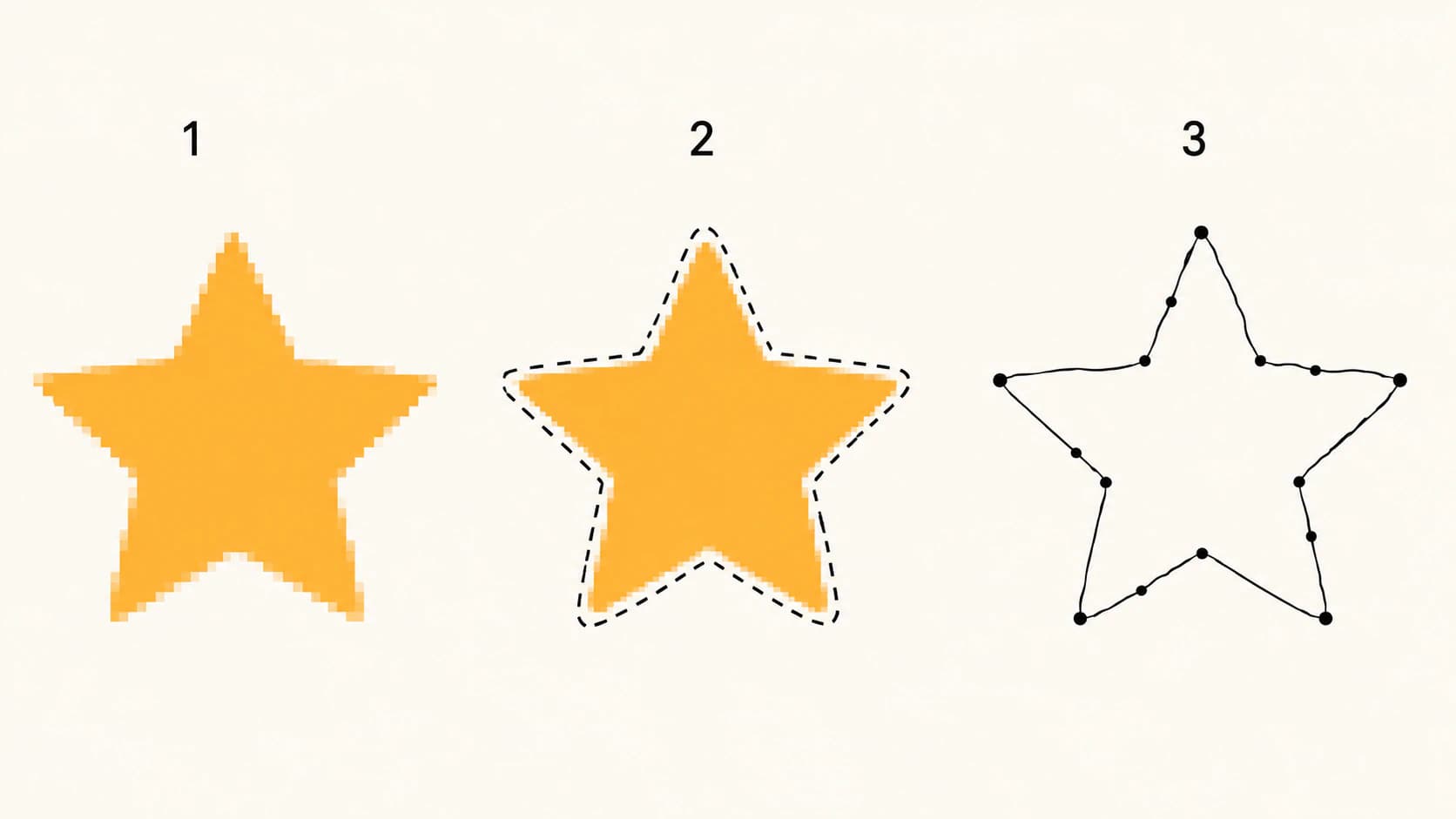
- Run Select → To Path. GIMP converts the selection boundary into a Bézier path.
- Open the Paths dialog (Windows → Dockable Dialogs → Paths), right-click the path, and choose Export Paths to save it as an SVG. This is the workflow documented in GIMP's current Paths dialog reference.
That's a real vector file, and for the right image it's a perfectly good free answer. Now the honest limits, because they're structural. It captures one selection at a time, so multi-color art means repeating the whole dance per color with no layer management on the vector side. The path follows the pixel selection boundary, so anti-aliased or noisy edges come out wobbly and node-heavy, the classic too-many-nodes problem. And the export carries path outlines without your image's fills and colors, so what comes out is a bare shape rather than your artwork.
What about G'MIC?
The G'MIC plugin suite comes up in every GIMP forum thread on this topic, and its role is worth stating precisely: G'MIC's filters can posterize, flatten, and simplify an image so that a tracer, elsewhere, produces cleaner results. It's preprocessing, and GIMP is excellent at preprocessing. It still isn't tracing.
The free routes, honestly compared
| Your image | Best free route | Why |
|---|---|---|
| One flat, clean shape | GIMP's Selection to Path | No extra tools; good enough for a silhouette |
| Simple black-and-white line art | Inkscape's Trace Bitmap | A real tracer, built for exactly this |
| Multi-color art or a logo | Inkscape (multiple passes) or a web vectorizer | Color separation by hand vs automatically |
| Anything you'll edit, cut, or sell | A vectorizer tuned for clean paths | Node count and layer quality decide the edit |
| A photograph | None; keep it raster | Photos don't become clean vectors |
What this looks like with PerfectVector
The division of labor that actually works: GIMP for the pixels, a real tracer for the paths. Do what GIMP is great at, crop, boost contrast, remove the background, clean up noise, then upload the prepped image (PNG, JPG, or WebP up to 5MB) and let the tracer produce what the Selection to Path trick can't: every color as its own clean, editable, low-node shape, with fills intact, mergeable in the built-in color editor before you download. First conversions are free, no credit card required. The SVG opens in Inkscape for any hand-editing afterward, which is the vector editor's job anyway. (Weighing all the options first? The vectorizer comparison covers the field, free tools included.)
FAQ
Does GIMP support vector graphics? Only barely. GIMP has paths internally and can export them as SVG, but it edits rasters: opening an SVG rasterizes it into pixels, and there's no auto-trace to go the other way. For actual vector editing, the free answer is Inkscape.
Does GIMP have a Trace Bitmap feature? No. Trace Bitmap is Inkscape's auto-tracer. GIMP's closest feature is Select → To Path, which converts a selection boundary into a path you can export, one shape at a time.
How do I trace an image in GIMP? Select the shape (Select By Color works well on flat art), run Select → To Path, then export the path as SVG from the Paths dialog. It yields a single-color outline that follows the selection edge, so it suits silhouettes and bold shapes, not multi-color artwork.
Can GIMP save an image as SVG? It can export paths as SVG, but not your image itself. A raster image has no paths to save; converting the picture into vector shapes is a tracing job GIMP doesn't perform.
Should I use GIMP or Inkscape to vectorize? Use both for what they are: GIMP to prep the raster (contrast, cleanup, background removal), Inkscape or a dedicated vectorizer to trace it. Inkscape's Trace Bitmap is the free tracer; a dedicated tool typically wins on clean paths and color handling for less manual work.
What's the best free way to vectorize an image? For one flat shape, GIMP's Selection to Path costs nothing. For line art, Inkscape's Trace Bitmap. For multi-color art you want as clean, editable layers, a web vectorizer's free tier gets you there without the per-color manual passes.
Sources
- GIMP 3.0 Documentation — Paths dialog — Selection to Path and SVG path export behavior.
- GIMP Documentation — Paths and selections — what is retained and lost when converting a selection to a path.
- GIMP Documentation — Paths and SVG files — GIMP's limited SVG path interoperability and raster-oriented role.
- Inkscape Beginners' Guide — Tracing an image — the Trace Bitmap workflow that GIMP itself does not provide.
GIMP was never the wrong tool, just the wrong half of the job. Prep the image where pixels are edited best, trace it into clean paths where tracing is the whole point, and finish in the vector editor of your choice.
More from the blog
Adobe Express SVG Converter: Features and Limits
What Adobe Express's free SVG converter offers, per its own docs: formats, limits, and the flow. Plus the three checks any SVG should pass, whatever made it.
Vectorizer.AI Alternatives: Compare Cost and Control
Free Vectorizer.AI alternatives exist, and most of the reviews are written by the alternatives. Here is the real trade, and how to test any converter yourself.