
Can Photoshop Vectorize an Image? Know Its Limits
Photoshop has manual vector tools, but it cannot auto-trace an image into clean paths. See what its work-path trick does and which alternatives to use.
On this page
Short answer: no, not through an automatic tracing feature. Photoshop is primarily a raster, or pixel, editor. It does have manual vector tools: the Pen tool, shape layers, and a documented way to turn a selection into a work path. So you can draw or hand-trace vectors in it, or pull an outline from an image, but Photoshop does not offer Illustrator's multi-color Image Trace workflow. Here's what Photoshop actually does, what the "vectorize in Photoshop" tutorials produce, and which tracing alternatives fit the job.
The quick version
- Photoshop is a raster editor. It has no auto-trace (no Image Trace equivalent) to turn your image into clean vector paths.
- It does have manual vector tools, the Pen tool, shape layers, and "Make Work Path" from a selection, so you can draw or hand-trace vectors.
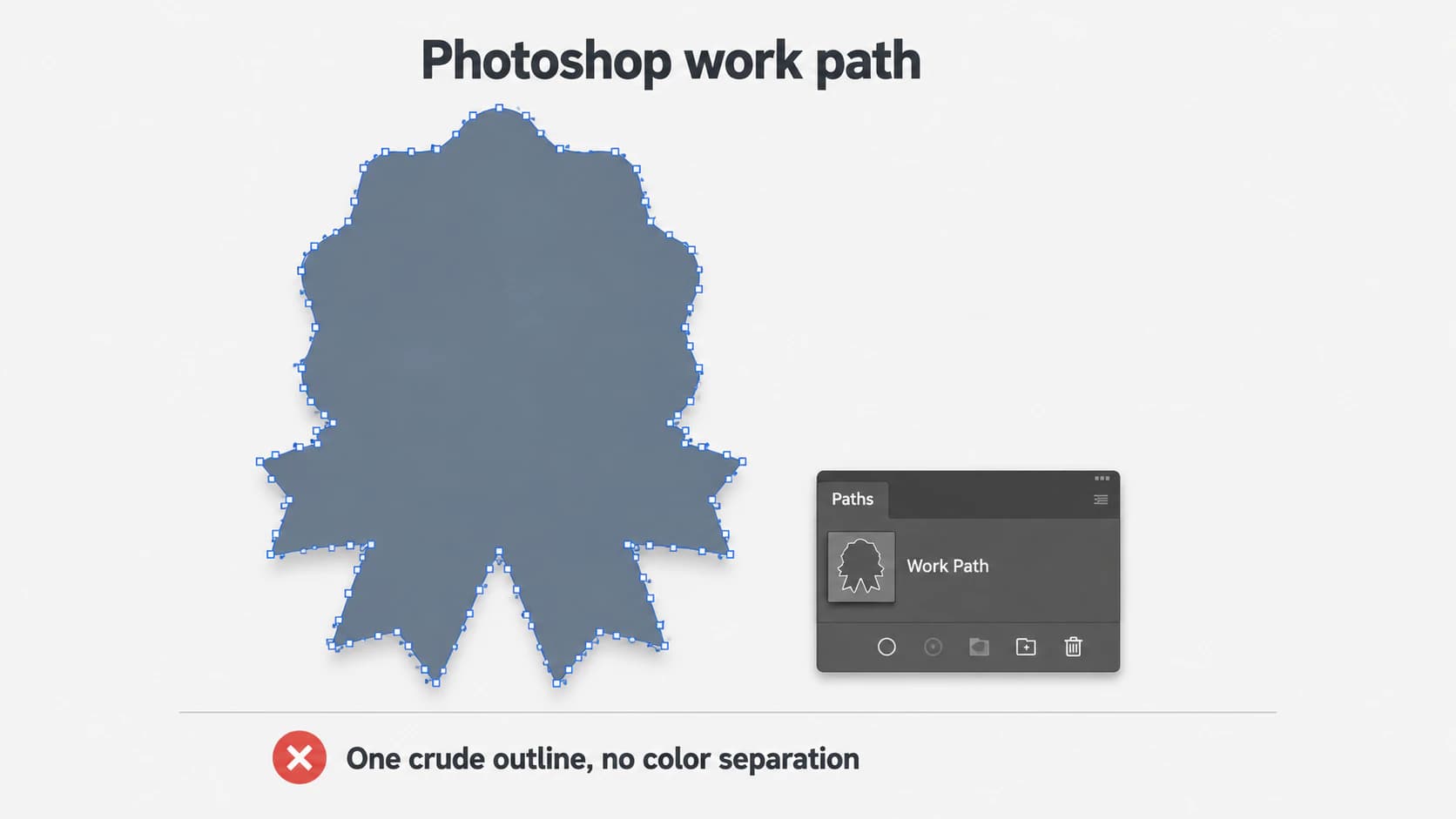
- The popular "vectorize in Photoshop" trick (select, Make Work Path, convert to a Shape) gives you a jagged single outline, fine for a silhouette, not a real logo or illustration.
- Adobe discontinued the supported Export As > SVG workflow in Photoshop 22.5. Adobe's current help pages are inconsistent, so do not assume the command exists in your installed version.
- For a clean, multi-color vector of your image, use Illustrator's Image Trace, redraw it with the Pen tool, or follow a dedicated Photoshop to SVG workflow.
- Same pattern as ChatGPT, Gemini, and Canva: the tool you already have usually isn't the one built to trace your image.
What Photoshop's vector tools actually do
Does Photoshop have a tool to auto-vectorize an image? No. Photoshop's drawing documentation covers the Pen tool, shape layers, and path-editing tools for creating vector geometry by hand. These are genuine vector tools, and a shape you draw with them scales cleanly. But Photoshop does not provide the multi-color automatic tracing panel that Adobe documents for Illustrator.
The "vectorize in Photoshop" trick, and what it really gives you
The tutorials that promise vectorizing in Photoshop often describe the same workaround: make a selection around your subject, then in the Paths panel choose Make Work Path, and convert that path into a Shape layer. Adobe documents that conversion and notes that a lower tolerance adds more anchor points while a higher tolerance produces a smoother path. For a simple, high-contrast silhouette it can be serviceable.
But know what you're getting. Make Work Path traces the edge of a selection, so you end up with one outline, not a color-separated automatic trace. A Tolerance setting controls how tightly it follows the selection: low tolerance adds more anchor points, while high tolerance smooths the path and preserves less detail. A logo with several colors, fine lettering, or soft edges therefore needs repeated manual work, one selection at a time.
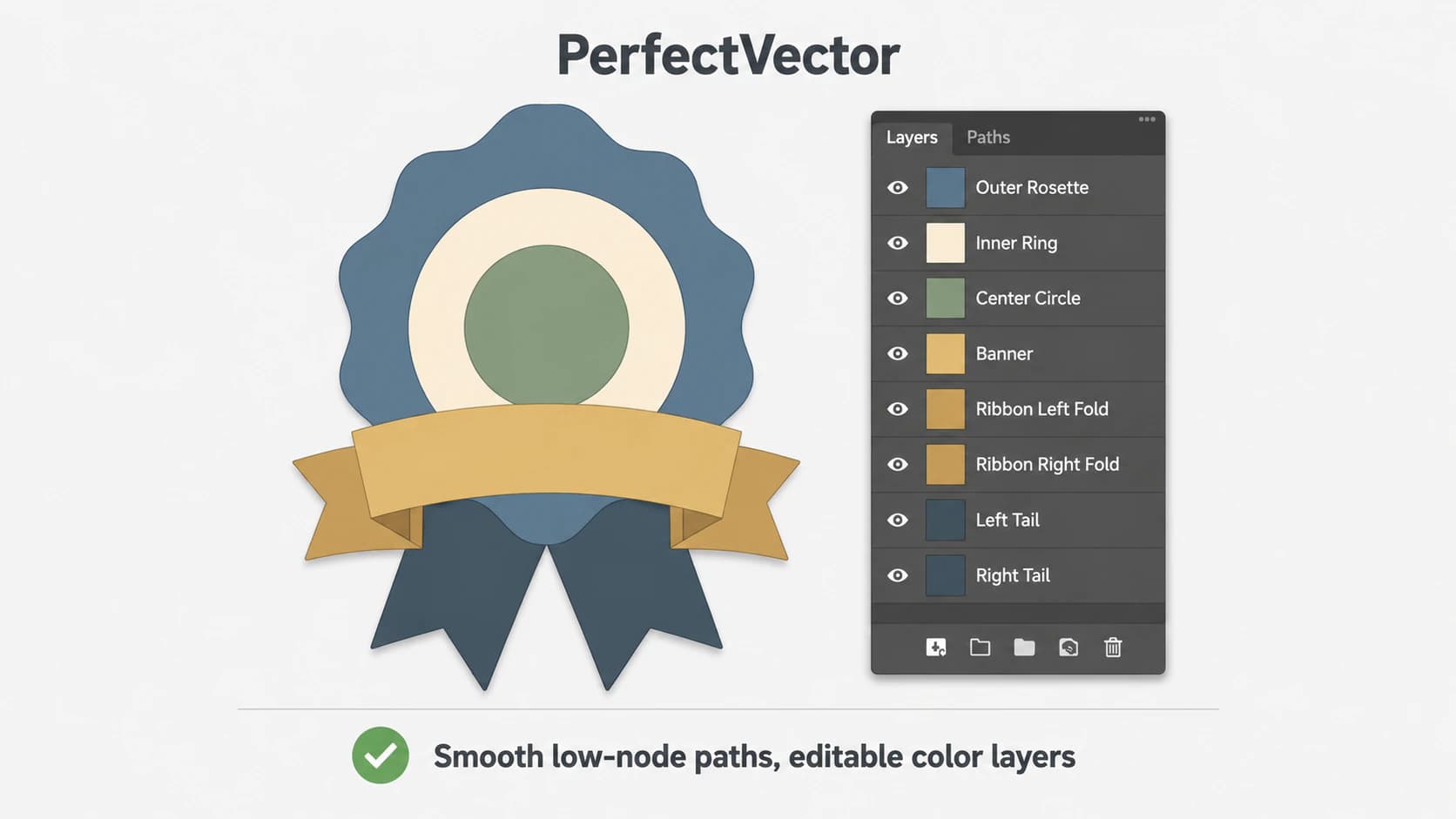
You'll also see makers say Photoshop "vectorized" their graphic and even split it into color layers. What's usually going on is a manual, selection-by-selection version of the trick above, repeated once per color, or a third-party plugin doing the tracing. Photoshop itself has no color-separated auto-trace.
The Export-as-SVG trap
Adobe discontinued supported Export As SVG in Photoshop 22.5 because of low usage and known limitations. However, a current Export As help page still names SVG in the format dropdown, while Adobe's current supported-format overview omits it. Because the documentation conflicts and legacy behavior varies by version and platform, do not plan a production workflow around that command.
More importantly, an SVG export command does not auto-trace a flattened raster into vector paths. Save the Photoshop source, move existing shape or path content into a vector editor for dependable SVG export, or trace the raster with Illustrator or a dedicated vectorizer.
If your starting point is a layered PSD, use the PSD-to-SVG layer-survival workflow to separate reusable shape and text content from the pixels that actually need tracing.
What you want vs what Photoshop gives you
| What you want | In Photoshop | The catch |
|---|---|---|
| Auto-trace my image into clean vectors | Not available | No Image Trace equivalent exists |
| A quick outline of a simple subject | Make Work Path | Jagged single path, silhouette only |
| Draw a vector logo or icon from scratch | Pen tool and shapes | Manual, and a real skill |
| A dependable SVG export of existing vector content | Not a reliable current workflow | Adobe discontinued supported Export As SVG in 22.5; use a vector editor and inspect the result |
| A clean, multi-color editable vector of a photo or logo | none | Use Illustrator's Image Trace or a dedicated vectorizer |
Alternatives built for image tracing
If your goal is a clean vector from an image you already have, three tools do what Photoshop can't:
- Illustrator's Image Trace. Adobe documents Image Trace as the raster-to-vector workflow for turning an image into editable vector artwork. Before switching apps, compare Illustrator Image Trace with an AI vectorizer on control, output structure, and cleanup.
- Adobe Capture on mobile. For a simple high-contrast subject that needs to enter Creative Cloud Libraries from a phone, use the Adobe Capture mobile shape workflow, then inspect the paths in the receiving app.
- The Pen tool, by hand. Redrawing the artwork as vector paths gives you direct control, but accuracy depends on the operator and the time spent. It is a sensible option for an important, simple mark.
- A dedicated vectorizer. One-click tracing built for clean output.
That last route is where PerfectVector fits. Upload a supported Photoshop file or raster image through the Photoshop to SVG converter, compare the free preview with the saved composite, and inspect the nodes and palette before spending one credit to unlock the finished SVG. For a brand mark specifically, use the logo vectorization workflow and test the downloaded file in the editor and production tool that will receive it.
Being straight about it: this works on flat, graphic art like logos, icons, and simple illustrations. A photograph won't become a clean vector from any tool, Photoshop, Illustrator, or a dedicated one, so for those, keep the raster (more on why photos resist vectorizing).
The same split runs through the neighbor apps, if you're weighing alternatives: GIMP, the free raster editor, has no tracer either, and Pixelmator Pro's manual-vector workflow separates vector drawing and SVG export from automatic raster tracing. Affinity's new unified app finally shipped one, while Figma added a paid AI Vectorize command.
When you don't need to vectorize at all
Sometimes Photoshop is exactly the right tool, because you don't need a vector:
- Photo editing and compositing is what Photoshop is built for. Keep those raster.
- A web image or social graphic is fine as a high-resolution PNG. An SVG buys you nothing there.
- You only need it bigger, not editable as shapes. A higher-resolution export or Photoshop's own upscaling may be all it takes.
Vectorizing earns its keep when you need to scale a graphic without limit or edit it as shapes, which means logos, icons, cut files, and print art (new to the idea? start with what image vectorization is).
FAQ
Does Photoshop have an Image Trace or auto-vectorize tool? No. Photoshop has manual vector tools, the Pen tool, shape layers, and the ability to turn a selection into a path, but nothing that automatically traces a raster image into clean editable vectors. Image Trace is an Illustrator feature. In Photoshop you either draw the vector by hand or pull a crude outline from a selection.
How do people "vectorize" in Photoshop, and is it any good? The common method is to make a selection, choose Make Work Path in the Paths panel, and convert it to a Shape layer. It produces a single outline that follows your selection, which is fine for a simple silhouette but jagged and low on detail for anything complex. It isn't a clean, multi-color vector, and it usually takes longer than just using a real tracer.
Can I export a real SVG from Photoshop? Adobe discontinued supported Export As SVG in Photoshop 22.5, although one current help page still lists SVG and legacy behavior can vary by version and platform. That ambiguity is separate from vectorization: exporting an SVG does not convert raster pixels into vector paths. For a dependable workflow, move existing shape or path content into a vector editor, or trace a flattened raster with Illustrator's Image Trace or a dedicated vectorizer.
Should I use Photoshop or Illustrator to vectorize an image? Illustrator, of the two. Its Image Trace is Adobe's documented raster-to-vector tool, while Photoshop offers manual paths and the work-path route. If you don't have Illustrator, compare a dedicated vectorizer on the same source and inspect fidelity, node count, and color separation before choosing the result.
How do I turn a logo into a vector if all I have is Photoshop? If the logo is built from Photoshop shape layers and text, preserve those layers and move the artwork into a vector editor for SVG export. If it's a flattened image or a PNG, use a dedicated vectorizer or Illustrator's Image Trace, then check that it opens as editable paths and stays sharp when you zoom in.
Why does an SVG made from my Photoshop image still pixelate when I scale it? The SVG likely contains the original raster image rather than paths for that content. Changing the container does not trace pixels. Inspect it in a vector editor and trace the image itself if you need scalable paths.
Sources
- Adobe — Photoshop image essentials — Photoshop's raster and vector model.
- Adobe — Draw shapes and paths in Photoshop — Pen, shape, and path tools.
- Adobe — Convert between paths and selection borders — Make Work Path behavior and tolerance.
- Adobe — Photoshop 22.5 release notes — supported Export As SVG was discontinued because of low usage and known limitations.
- Adobe — Fine-tune Export As settings — a current help page that still names SVG in the format dropdown.
- Adobe — Trace images in Illustrator — the documented Image Trace workflow.
- W3C — SVG embedded content — why an SVG can contain raster image data.
Got an image or logo stuck in Photoshop that you need as a scalable vector? Trace the saved Photoshop composite into editable SVG paths, compare the preview with the source, and unlock the file only when its shapes and node layout fit the job.
More from the blog
Best AI Image Vectorizers in 2026: An Honest Comparison
Compare leading AI vectorizers by editability, node count, color handling, privacy, and price—then test the right option on your own artwork and workflow.

AI SVG Generator vs AI Vectorizer: Which Do You Need?
An AI SVG generator makes a new vector from a text prompt. An AI vectorizer converts the image you already have. Here's how to pick, and when you need both.