Can Gemini Generate Vector Images? SVG Code, Not Tracing
Gemini can write SVG code from a prompt, but its images are PNG or JPEG and it doesn't faithfully trace an upload. See what works and how to get a real SVG.
On this page
- The one thing Gemini does that most AI doesn't: write SVG code
- Three catches before you rely on it
- 1. The SVG code it writes usually needs cleanup
- 2. It generates from your words, not from your image
- 3. Its image generation is still raster
- So, can Gemini vectorize your image?
- The "is it a real, clean SVG?" check
- What Gemini is genuinely good for here
- The reliable workflow (what this looks like with PerfectVector)
- When you don't need to vectorize at all
- FAQ
- Sources
Short answer: Gemini text models can return SVG markup when prompted, but Google does not document a dedicated, fidelity-preserving image-to-SVG tracing feature. Gemini can accept images for understanding and can generate or edit raster images, yet those capabilities are not the same as reconstructing an uploaded logo as verified vector paths. Treat any generated SVG as code to validate, not as a guaranteed trace.
If you already have the image you want as an SVG, skip the prompting: upload it to the PerfectVector image-to-vector converter, preview the traced SVG free, and compare it with your original before you download.
The quick version
- Gemini can generate SVG code from a text description, a genuine edge over image-only AI. Good for simple icons and logos drawn from scratch.
- Generated code can contain unnecessary geometry or markup errors, so validate it in a vector editor and browser.
- Google's current image-generation documentation exposes PNG or JPEG image output, not SVG vector output.
- Google documents image understanding and image generation, but not a dedicated image-to-SVG tracer. For a faithful trace, use a specialized image-to-vector converter.
- Same underlying limit as ChatGPT: a generalist model generates, while tracing is a specialist job.
The one thing Gemini does that most AI doesn't: write SVG code
An SVG is XML-based markup, so a text-capable Gemini model can respond with an <svg> code block just as it can write other text or code. Google's Gemini API getting-started guide documents text output and multimodal image input, but it does not present SVG generation as a specialized graphics feature. The practical test is whether the returned markup parses, renders, and contains the geometry you intended.
That's real, and it's useful, with one important boundary: it works best for simple, from-scratch icons, logos, and UI shapes described in words. It is generation, not tracing, and that line between the two tool categories is worth keeping straight, because the next part is where expectations usually break.
Three catches before you rely on it
1. The SVG code it writes usually needs cleanup
Generated SVG can contain unnecessary path points, stray Markdown fences, inconsistent sizing, or shapes that do not match the prompt. These are possible model-output errors, not documented guarantees. Parse the file, open it in a browser and vector editor, inspect the node count, and compare it visually with the requirement before use (more on why node count matters).
2. It generates from your words, not from your image
This is the distinction people miss. Google's image-understanding documentation covers captioning, classification, visual question answering, object detection, and segmentation. It does not document a vector-tracing output that preserves an image as paths. A model may attempt SVG markup from what it interprets, but that is a generative reconstruction with no documented fidelity guarantee. In our example below, the result did not match the uploaded artwork closely enough to serve as a trace.

3. Its image generation is still raster
Google's current Gemini image-generation guide documents PNG and JPEG output for image responses. Its current lineup includes Gemini 3.1 Flash Image (Nano Banana 2), Gemini 3.1 Flash Lite Image, and Gemini 3 Pro Image. A "vector-style" prompt describes the appearance, not the file structure; the generated image remains raster and must be traced afterward if you need editable SVG paths (see vectorizing AI art for print).
So, can Gemini vectorize your image?
Short version: it can hand-build a simple SVG from a description, but it can't trace an image you already have into a clean, editable one. The three things people ask for break down like this:
| What you ask Gemini to do | Can it? | What you actually get |
|---|---|---|
| Generate SVG markup from a text description | It can attempt this as text/code | Validate syntax, geometry, accessibility, and visual accuracy |
| Generate a "vector-style" image | Yes, visually | A raster PNG or JPEG, not SVG paths |
| Faithfully trace an uploaded image into SVG | Not a documented Gemini feature | A generated reconstruction may differ; use a dedicated tracer |
The "is it a real, clean SVG?" check
Whether the SVG came from Gemini, a code block, or a quick converter, give it a ten-second check. A real, usable vector:
- Opens as editable paths. Click a shape and you should be able to select and move it, not just one flat image.
- Stays crisp when you zoom in. If it pixelates, it's a raster wearing an
.svgextension (a "fake vector"). - Has a sane node count. Clean curves use a handful of anchor points, not hundreds. This is the one Gemini-generated SVGs most often fail (see how to spot a fake or bloated vector).
What Gemini is genuinely good for here
Gemini earns a place in the workflow, just not as the tracer:
- Drafting a simple icon or logo as SVG code you'll refine and clean up in an editor.
- Ideation and prompts for a vector-style concept; prompting for art that traces cleanly is a skill of its own.
- Conversational edits on a simple SVG you already have ("make the stroke thicker," "recolor it").
For turning an existing image into a vector, hand it to a tool built for tracing.
The reliable workflow (what this looks like with PerfectVector)
Put the pieces together and the dependable path is short:
- (Optional) Draft with Gemini. SVG code for a simple icon, or a Nano Banana image for a concept.
- Trace or clean up with a real vectorizer. For any existing raster, or to fix Gemini's node-heavy code, run it through a tool that produces clean, low-node, editable paths.
- Check the result against the list above, then edit or export.
Step 2 is the part Gemini can't do well, and it's what PerfectVector is built for: it traces your image into smooth paths with a low node count, keeps colors as separate editable shapes you can recolor or merge in a click, and gives you a real SVG you can open in Illustrator, Figma, or Inkscape.
So we put it to the test. We took the same image Gemini had just failed to trace and ran that exact file through PerfectVector. It came back as a clean, editable SVG, and the difference is clearest when you zoom in: enlarge the raster and its edges smear into soft pixels, while the PerfectVector SVG keeps the same edges sharp.


Compare Gemini with a raster-to-SVG workflow and inspect the converted paths before choosing a file. (Weighing the dedicated tools? See our honest rundown of AI vectorizers.)
When you don't need to vectorize at all
Vectorizing isn't always the goal:
- Photographs don't become clean vectors. They posterize into blobs, so keep them as raster.
- If you only need a web image or a thumbnail, a PNG (or a Nano Banana image) is fine and an SVG buys you nothing.
- Gradient-heavy or highly detailed art loses its subtlety as flat shapes. Rebuild it simpler if you genuinely need a vector.
Vectorizing pays off for flat, illustrative work like logos, icons, and simple graphics. (New to the idea? Start with what image vectorization is.)
FAQ
Can Gemini generate SVG? Gemini text models can attempt SVG markup because SVG is text-based XML. Treat the result like generated code: validate that it parses, renders, uses sensible geometry, and matches the requirement. Google does not document this as a specialized or fidelity-guaranteed vector graphics feature.
Can Gemini convert an image to SVG? Google does not document a dedicated image-to-SVG tracing feature. Gemini can understand an uploaded image and may generate SVG-like markup from a prompt, but that is not a guaranteed faithful reconstruction. For an existing image, use a dedicated tracer and compare the resulting editable paths with the source.
Why is my Gemini SVG messy or full of points? Generated SVG code can contain unnecessary anchor points or invalid markup, as any generated code can. Validate and simplify it in a vector editor; if fidelity to an existing raster is the goal, trace the source with a specialized vectorizer instead of repeatedly prompting a redraw.
Is a Nano Banana image a vector? No. Google's current Gemini image-generation API documents PNG and JPEG image output, including for Gemini 3.1 Flash Image (Nano Banana 2) and Gemini 3 Pro Image. "Vector-style" describes the look, not editable vector paths. Trace the raster output afterward if you need SVG geometry.
How do I turn a Gemini-generated image into a real vector? Download the generated image, which is a PNG, then run it through a vectorizer to trace it into an SVG. Simplify the colors, confirm the paths are editable, and export. That tracing step is the actual vectorization.
Can Gemini vectorize a logo? It can attempt a simple logo as SVG markup from a description, but Google does not document faithful logo tracing from an upload. For brand use, compare any reconstruction against the approved mark, inspect editable paths and node count, and have a designer verify geometry when exactness matters.
Sources
- Google AI for Developers — Gemini API getting started — current text output, structured output, and multimodal input workflows.
- Google AI for Developers — Image understanding — documented image-input understanding, detection, and segmentation capabilities.
- Google AI for Developers — Image generation — current image models and PNG/JPEG output configuration.
- Google AI for Developers — Gemini 3.1 Flash Image — Nano Banana 2 model inputs, outputs, and capabilities.
- Google AI for Developers — Gemini models — current generative-media model lineup.
- W3C — SVG 2 — SVG markup, geometry, and embedded content requirements.
Got an image, or some Gemini art, that you need as a real, scalable SVG? Vectorize it into a clean, editable file, check the paths, and download in seconds.
More from the blog
Can AI Image Generators Make Real Vector SVGs?
Diffusion models paint pixels, so most AI images can never be SVGs. Here's why that's baked into the technology, and the three real routes to vector output.
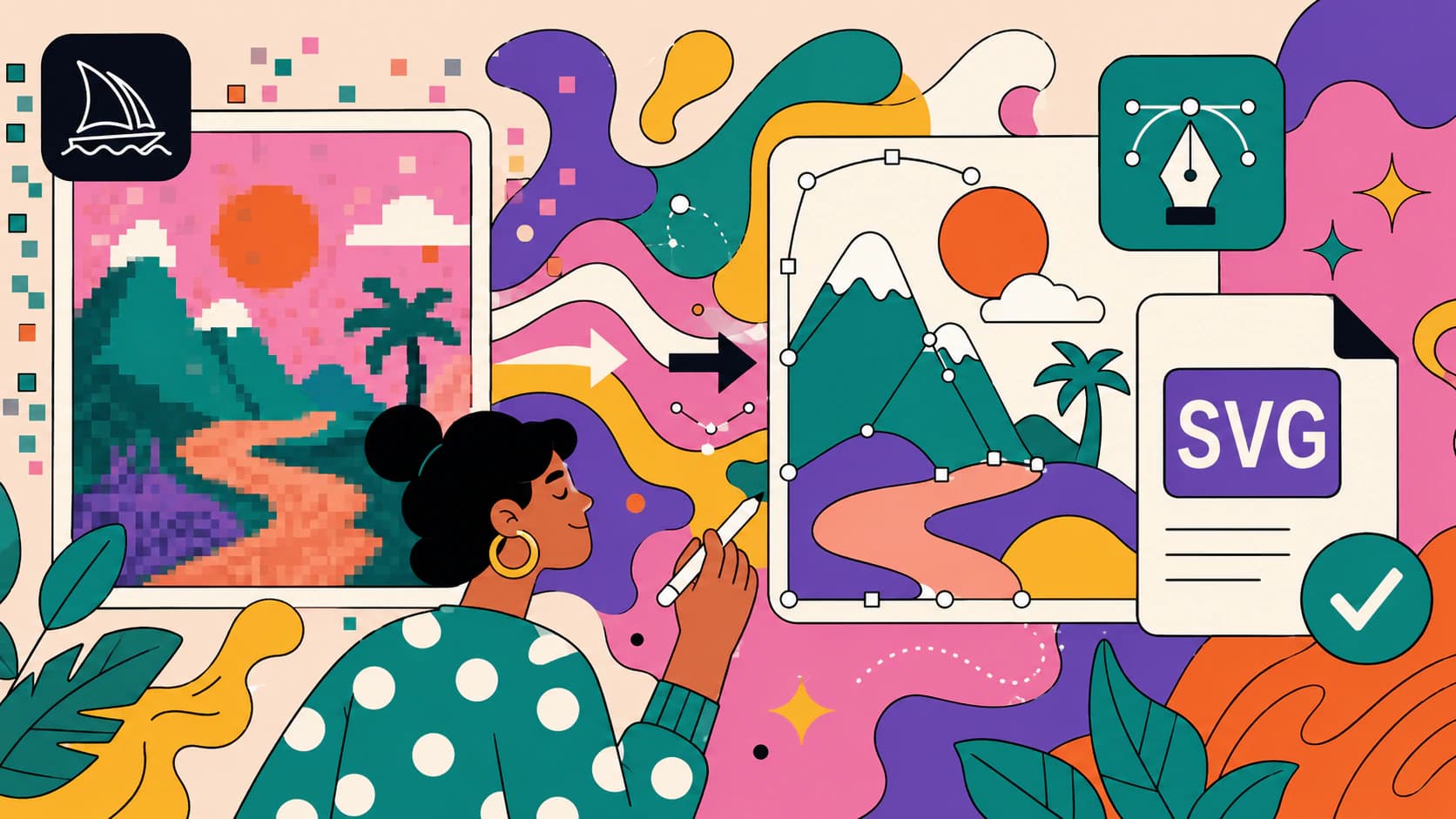
Can Midjourney Make SVGs? How to Convert Its Art
Midjourney only outputs raster PNGs, so it can't export an SVG. But its art is a great starting point. Here's how to turn a Midjourney image into a real, clean vector.