
Can Canva Vectorize an Image? What the App Does
Canva can trace your image into a vector, but only with Vectorify, a paid add-on app. The free editor and AI generator don't trace your image. Here's the honest answer.
On this page
- Three different things people mean by "vectorize in Canva"
- What actually traces your image: the Vectorify app
- What AI Vector Creator really does: generate, not trace
- The SVG-download trap: exporting isn't vectorizing
- What you want vs what Canva gives you
- The "is it a real, clean vector?" check
- When a dedicated vectorizer is the better tool
- When you don't need to vectorize at all
- FAQ
- Sources
Short answer: yes, through Vectorify, a third-party app inside Canva. Canva's AI Vectorizer page says the app converts JPG or PNG files up to 10MB into editable SVG graphics. Canva's public page does not say that Vectorify itself requires a paid Canva plan, though downloading a Canva design as SVG is listed as a Pro feature. The separate AI Vector Creator generates new art from a prompt rather than tracing your file. Here's what each feature really does, and when a dedicated vectorizer is the better call.
The quick version
- Canva can trace your image into editable vectors through Vectorify, an app built by a third-party developer.
- The free editor doesn't trace an uploaded image into vector paths on its own.
- AI Vector Creator generates new vector art from a text prompt. It doesn't trace your image.
- Downloading a design as SVG is documented as a Canva Pro feature. An SVG can still contain an embedded raster image, so inspect the exported file rather than assuming every element was traced.
- For a clean, low-node vector of your own image, especially a logo, print, or a cut file, a dedicated image-to-vector converter gives you more control.
- Same split as ChatGPT and Gemini: generating a vector and tracing your image are two different jobs.
Three different things people mean by "vectorize in Canva"
When someone asks whether Canva can vectorize an image, they usually mean one of three things, and Canva handles each one very differently:
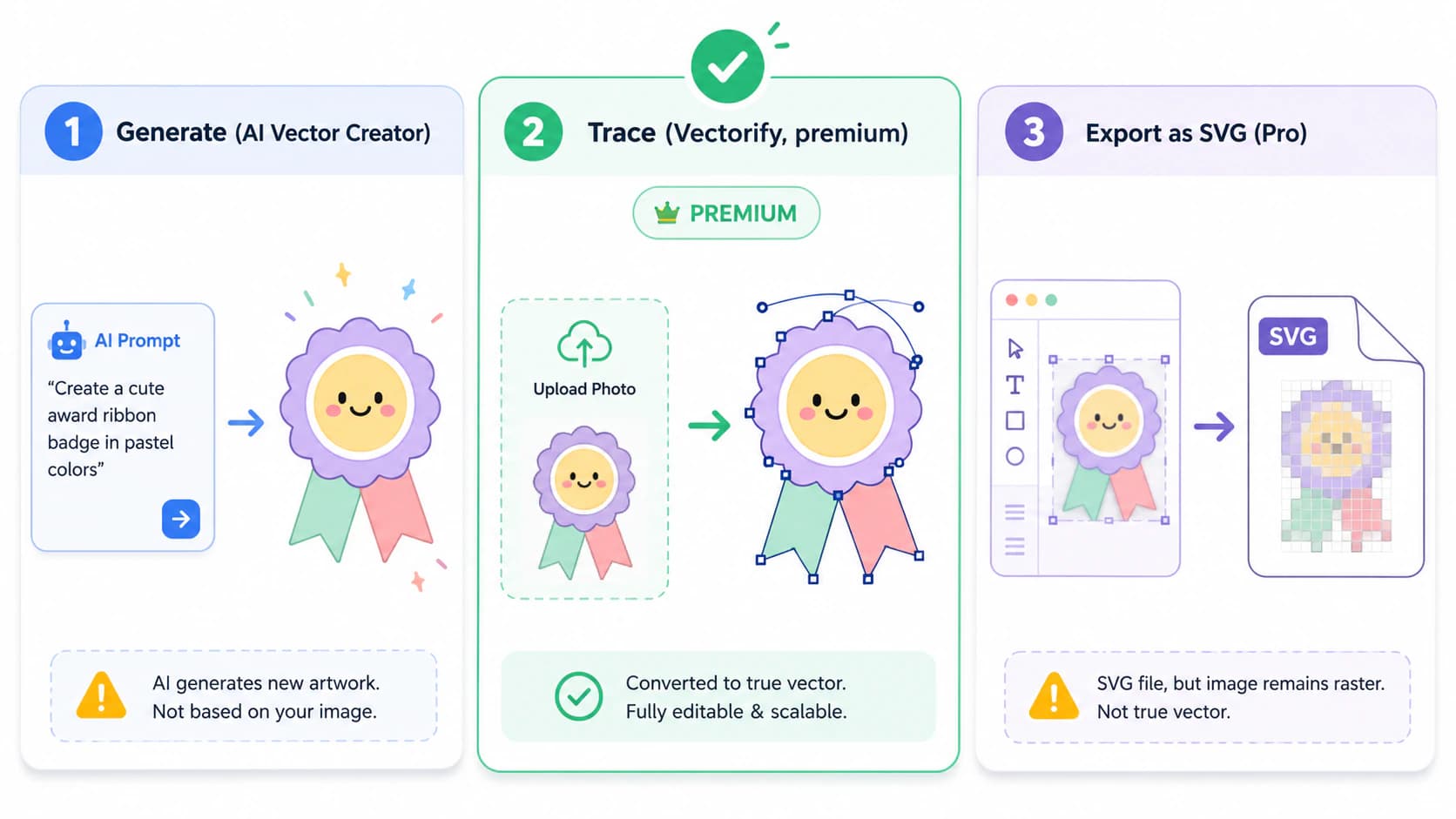
- Trace my uploaded image into editable vector shapes. Canva documents this workflow through the Vectorify app.
- Make me a vector from a description. That's the AI Vector Creator, which generates brand-new art. It doesn't trace your file.
- Give me an SVG of my design. Canva documents SVG download as a Pro feature. Because the SVG standard permits embedded raster images, the file extension alone does not prove that every element is a path.
Mixing these up is where the confusion starts, so here's each one on its own.
What actually traces your image: the Vectorify app
Can Canva trace an uploaded image into a vector? Yes, through Vectorify. It is built by an independent developer, and Canva describes it as turning uploaded images into editable vector graphics. You open a design, go to Apps, search for Vectorify, upload your image, choose full-color or black-and-white, and convert.
Canva has since put a shinier front door on the same feature: its AI Vectorizer instructions open Vectorify in the editor and accept JPG or PNG uploads up to 10MB.
Two things to know before you count on it:
- Check the app screen before relying on a price. Canva's public Vectorify page does not state that the app itself requires a paid plan, and the developer's app terms say individual apps may identify charges separately.
- It's a third-party app, so the trace quality, how clean the paths are and how many anchor points they carry, is whatever that app produces, and Canva's help page makes no promise about node count or cut-ready output. For a quick in-Canva graphic, that's fine. For a logo you'll resize forever, a file you'll cut on a Cricut, or artwork you'll sell, path quality is the whole game (here's why node count matters).
What AI Vector Creator really does: generate, not trace
Canva's AI Vector Creator, also called Vector AI, is useful, but it is generation rather than tracing. Canva's Vector AI page describes creating new vector graphics from a text prompt in more than 30 styles and charging one purchased credit per generation. An optional uploaded image is a style reference, not a promise of a faithful trace. It's the same boundary as Gemini generating SVG from a prompt: generating a vector and tracing your image are two different tool categories.
The SVG-download trap: exporting isn't vectorizing
Here's the one that catches people. Canva documents SVG download as a Pro feature, but exporting to an SVG is not the same operation as tracing a raster upload. SVG supports both vector geometry and embedded raster image content. Open the export and inspect whether the uploaded image became editable paths or remains one image object before treating it as a scalable vector. (Diagnosing a pixelated SVG has the full thirty-second check.)
What you want vs what Canva gives you
| What you want | The Canva feature | The catch |
|---|---|---|
| Trace my image into editable vectors | Vectorify app | Third-party app; trace quality and any app charge can vary |
| A vector from a text description | AI Vector Creator | Generates new art, doesn't trace your image |
| An SVG of my Canva design | SVG download (Pro) | Inspect uploaded raster elements; SVG can contain embedded pixels |
| A clean, low-node vector of a logo to cut or print | none, natively | Better handled by a dedicated vectorizer |
The "is it a real, clean vector?" check
Whichever route you take, give the result a ten-second check before you rely on it. A real, usable vector:
- Opens as editable paths. Click a shape and you can select and move it, not just one flat image.
- Stays crisp when you zoom in. If it pixelates, it's a raster wearing an
.svgextension. - Has a sane node count. Clean curves use a handful of anchor points, not hundreds, which is what keeps a file editable and quick to cut. It's the same thing that trips up a traced logo full of nodes.
When a dedicated vectorizer is the better tool
If your vector is going somewhere demanding, a logo you'll use everywhere, a Cricut or laser cut, a design you'll sell, you usually want more control than an in-Canva app gives. A dedicated vectorizer traces your actual image into smooth, low-node paths, keeps each color as a separate editable shape, and exports a real SVG (plus PNG, PDF, EPS, and DXF) you can open in Illustrator, Figma, or Inkscape, with no Canva subscription or add-on app required. Canva isn't alone in the paid gate, by the way: Figma's built-in vectorize is a paid AI feature too. (Our comparison of the dedicated tools ranks them by exactly this yardstick.)
That's what PerfectVector is built for. You can convert your image and inspect the paths in the editor for free, no account needed, before you commit, then merge colors down to the few clean layers you actually want. For a logo specifically, vectorizing it properly is the difference between a file you can hand a printer and one that falls apart at size.
Being straight about it: this works on flat, graphic art like logos, icons, and simple illustrations. A photograph won't become a clean vector from any tool, Canva's app or a dedicated one, so for those, keep the raster.
When you don't need to vectorize at all
Sometimes the SVG hunt is unnecessary:
- A web graphic or a social post is fine as a PNG. An SVG buys you nothing there.
- Photographs don't vectorize cleanly. They posterize into flat blobs, so keep them raster.
- A one-off Canva design you'll only ever use inside Canva doesn't need exporting to vector at all.
Vectorizing pays off when you need to scale, edit, or cut a design, which means logos, icons, and flat graphics (new to the idea? start with what image vectorization is).
FAQ
Does Canva have a tool to trace an image into a vector? Yes, through an add-on. Canva documents Vectorify, a third-party app in its Apps panel, as the workflow that turns a JPG or PNG into editable vector graphics. The AI Vector Creator generates new art rather than tracing your file.
Is Vectorify free? Canva's public Vectorify page does not currently label the app itself as paid. App access and charges can change, so check the app's own screen before converting; downloading a Canva design as SVG is separately documented as a Pro feature.
Can the free version of Canva export SVG? SVG download is a Canva Pro feature, so free accounts generally can't export to SVG. And even on Pro, exporting a design that contains an uploaded photo embeds that photo as pixels rather than tracing it, so an SVG export is not the same as vectorizing your image.
Does Canva's AI Vector Creator trace my image? No. The AI Vector Creator generates new vector art from a text description. You can upload an image as a style reference, but it won't trace your image into matching editable paths. To turn an existing image into a faithful vector, use a tool built for tracing.
How do I turn a Canva logo into a real, editable vector? If you built the logo from Canva's own shapes and text, exporting it as an SVG on Pro gives you editable paths. If your logo includes an uploaded image, or you're on free Canva, run it through a dedicated vectorizer to trace it into clean paths, then confirm it opens as editable shapes and stays crisp when you zoom in.
Why does my Canva SVG still look like a pixel image when I zoom in? The SVG may contain an embedded raster image rather than paths for that element. Inspect the object in a vector editor; if it selects as one image and pixelates when enlarged, trace the source image rather than relying on the SVG export alone.
Sources
- Canva — AI Vectorizer — Vectorify workflow, supported inputs, 10MB limit, and editable SVG output.
- Canva — AI Vector Generator — prompt-based Vector AI workflow, style options, credits, and SVG download requirement.
- Canva — Plans and pricing — current plan names and feature comparison.
- PixelTinkers — Apps terms and conditions — third-party app ownership and app-specific charge terms.
- W3C — SVG embedded content — technical basis for raster images appearing inside an SVG.
Got an image or a Canva logo you need as a real, scalable vector? Trace it into a clean, editable SVG, check the paths, and download in seconds.
More from the blog
Can Photoshop Vectorize an Image? Know Its Limits
Photoshop has manual vector tools, but it cannot auto-trace an image into clean paths. See what its work-path trick does and which alternatives to use.
Can AI Image Generators Make Real Vector SVGs?
Diffusion models paint pixels, so most AI images can never be SVGs. Here's why that's baked into the technology, and the three real routes to vector output.