Vectorizer.AI Alternatives: Compare Cost and Control
Free Vectorizer.AI alternatives exist, and most of the reviews are written by the alternatives. Here is the real trade, and how to test any converter yourself.
On this page
A common reason to search for a Vectorizer.AI alternative appears after upload: the preview is available, but downloading a production result requires a subscription. For those users, the wall is the export rather than a demonstrated tracing problem.
That matters because it changes what you should be shopping for. If the preview already meets your needs, you are looking for another way to get a usable file. A no-cost route may trade money for setup, parameter tuning, or manual cleanup.
Short on time? The quick version
- Inkscape is a capable free option if you are willing to learn its Trace Bitmap dialog.
- VTracer is an open-source option with configurable color and speckle controls.
- Browser converters are the fastest and the most uneven. Check the licence before you use the output commercially.
- Whatever you pick, judge it by opening the SVG, not by reading a comparison table. The four checks are further down.
First, what you are actually paying for
Vectorizer.AI's pricing page is clear about the model: you can upload, vectorize, and preview without paying, then subscribe to download production results. Its no-cost downloads apply to sample images rather than your own uploads.
So the thing you are trying to replace is narrower than "an AI vectorizer." It is one step: getting your own file out.
Read current pricing, output formats, and API terms from the vendor rather than a competitor's comparison table. Those details can change independently. (Escaping to the other paid veteran? Vector Magic's alternatives picture has the same wall in a different color.)
The free alternatives, and what each one really costs
| Option | Free? | What it costs you instead |
|---|---|---|
| Inkscape (Trace Bitmap) | Yes, open source | Learning the trace dialog; deleting the original bitmap it leaves underneath |
| VTracer | Yes, open source | Tuning speckle and colour settings per image |
| Potrace | Yes, open source | Monochrome only, command line |
| Browser converters | Varies | Uneven quality; verify the current download and usage terms |
| Illustrator Image Trace | No, but you may already pay for it | Time in the sliders, and a subscription you are already committed to |
Inkscape is a capable free route because Trace Bitmap has configurable controls, outputs editable SVG, and sits inside a full editor. Set the mode to Multicolor, pick colour detection, apply, then remember to delete the original image sitting under your new paths. We walk through the settings in our guide to Inkscape's Trace Bitmap.
VTracer exposes configurable color, path, and speckle-filtering controls in its official repository. Those controls can help with noisy or compressed artwork, but the result still needs inspection.
Browser converters are where most people land first and where quality varies the most. Some are good on flat art. Others quietly limit resolution, drop transparency, or licence their free output for evaluation only. That last one bites the moment you sell what you make. For options such as PicSVG and AutoTracer, the PicSVG workflow comparison and AutoTracer workflow comparison focus on the exported paths and the cleanup you still need to do. Test your own image and check the current usage terms before choosing a route.
If Quiver AI is one of the browser options you are weighing, use the Quiver AI vectorizer alternative comparison and run the same source through the four checks below. The useful comparison is still the downloaded geometry, not the product label.
Illustrator belongs on this list because a lot of people asking this question already have a Creative Cloud subscription. If that is you, Image Trace is not free exactly, but it is already paid for. We compare that route with automated tools in Image Trace versus AI vectorizers.
The work a free route can move onto you
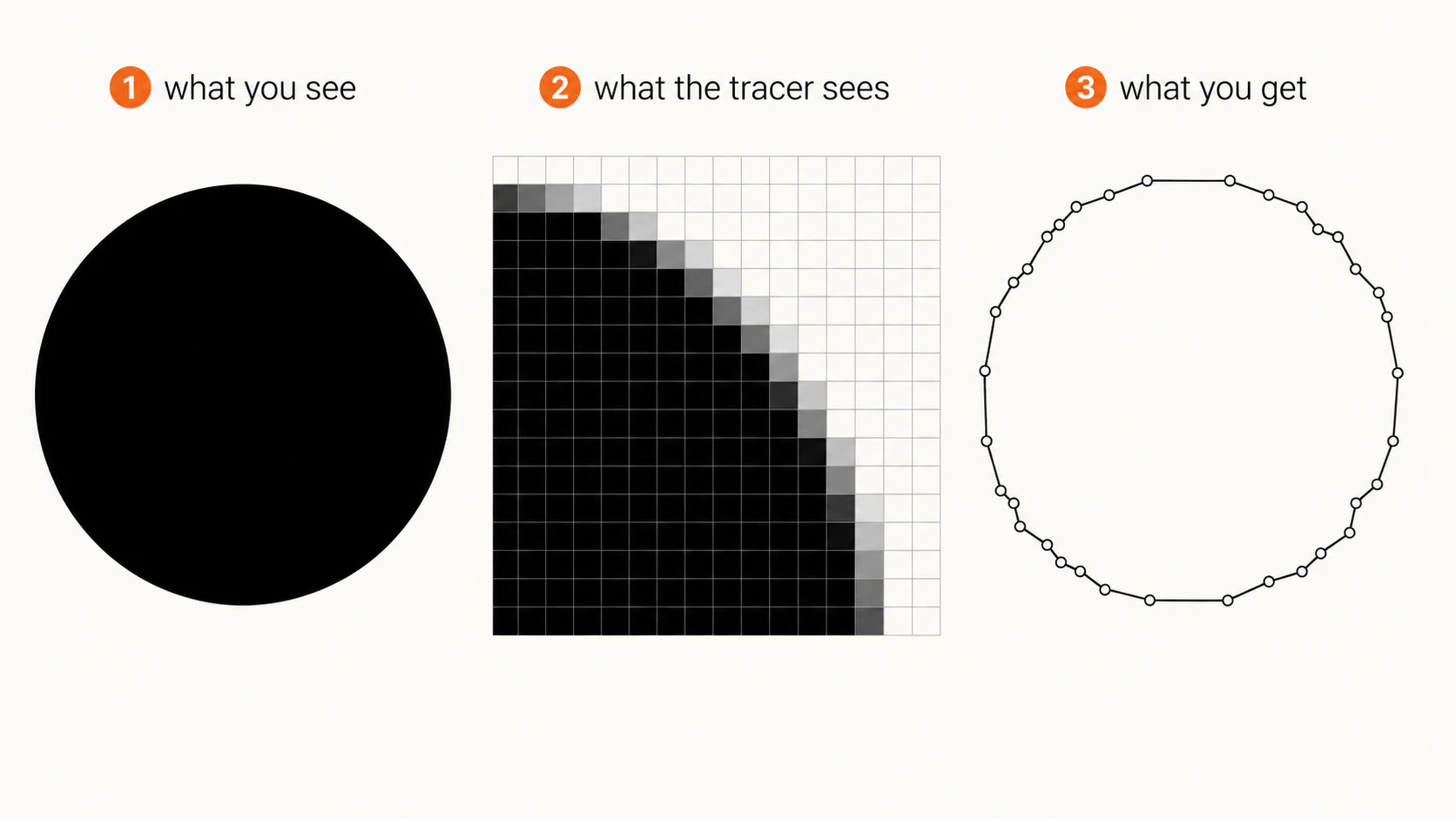
Anti-aliased edges contain gray transition pixels, and every tracer has to decide which regions to preserve and how much geometry to use. On clean, flat art the defaults may be enough. On scanned, compressed, or detailed inputs, a free manual workflow can move the cost into source cleanup, parameter tuning, and path editing.
That does not make a free tool worse by definition. It means the comparison should include your time and the output geometry, not only whether the download button costs money. For six clean logos, manual tuning may be a good trade. For sixty noisy scans, it can become the job.
Judge any alternative in four checks
Every page ranking for this search grades quality with an adjective. You can do better in about two minutes, on your own image, with any tool including ours.
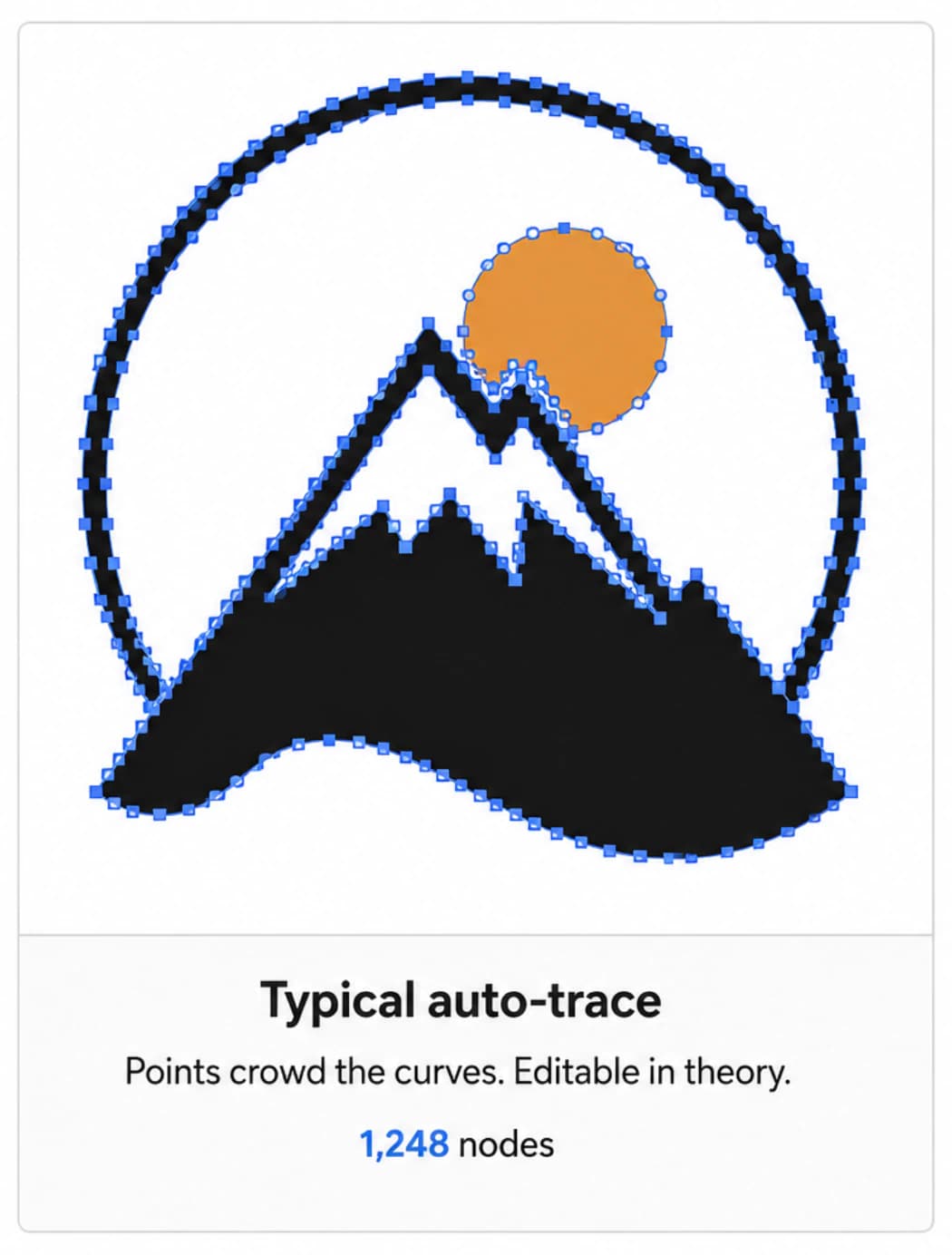
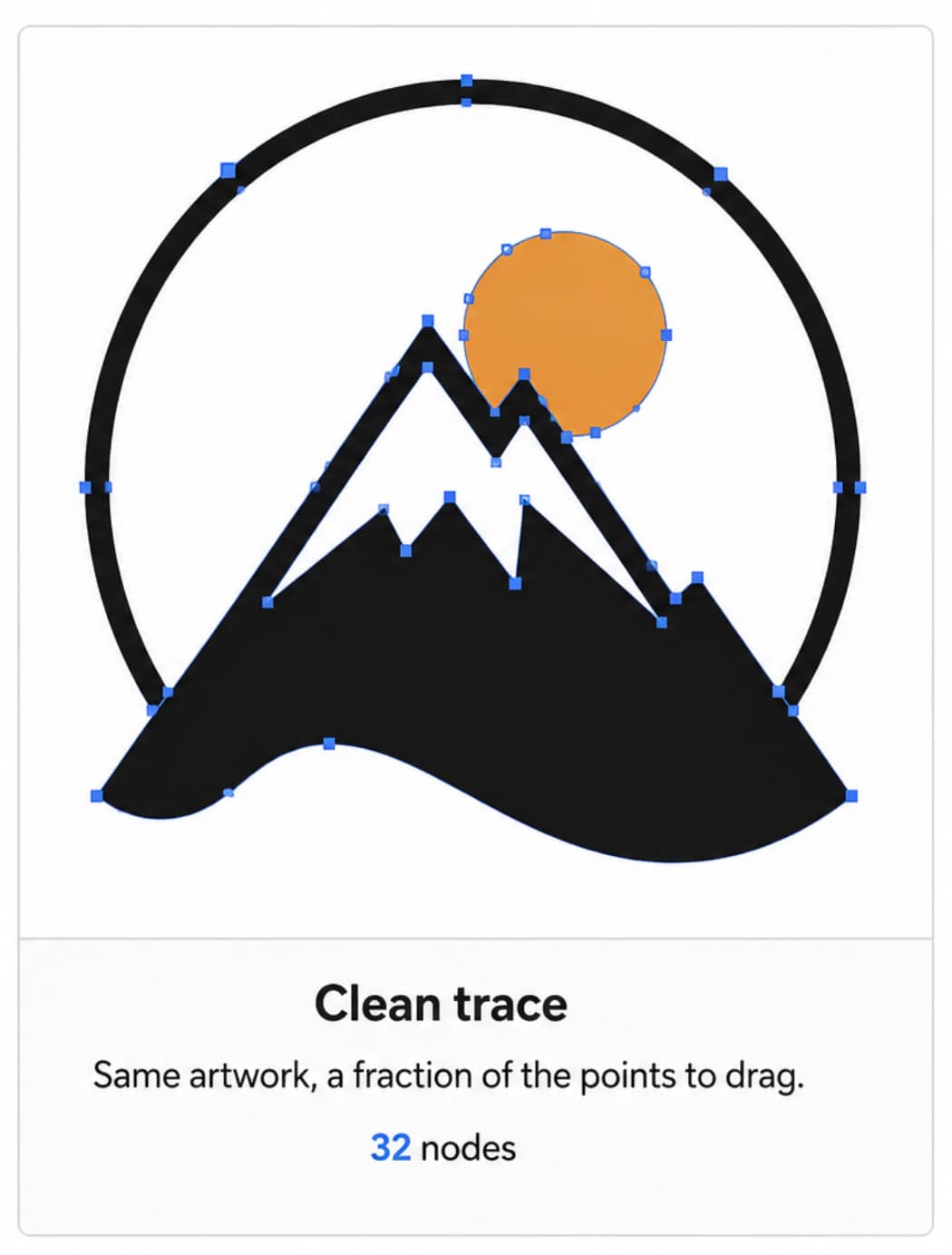
- Count the nodes. Open the SVG in Inkscape, Illustrator, or Figma and look at how many anchor points the shapes carry. A clean logo trace is tens of points. If a simple mark comes back with hundreds, you have a file that fights you every time you edit it. This is the single most predictive check, and it is why we wrote a whole post on auto-traced SVGs with too many nodes.
- Zoom the curves. Look at what happened where the original had soft edges. Smooth arc, or a row of small bumps that used to be grey pixels?
- Try one edit. Recolour a single shape. Move one point. If the file resists that, what you have is a picture of a vector. A working one lets you drag a point and watch the curve follow. Our guide to editing an SVG covers what a healthy file behaves like.
- Check what you are allowed to do with it. Free tiers differ. Some are unrestricted, some are evaluation-only, and the difference matters the moment you list a product.
What this looks like with PerfectVector
We built PerfectVector around the second half of that checklist. What we optimise for is an SVG carrying few enough points that a designer can open it and change something, which sometimes means declining to chase the last percent of pixel fidelity.
Two things are relevant if you are here because of a download paywall, and the first one comes with our own numbers attached. Converting and previewing are free and unlimited, the same as everywhere else on this page. Downloading is not free: a finished file costs one credit, signing up includes a starter allowance of them, and re-downloading a file you already saved never costs again. No subscription is required to get a real file out.
That is a different shape from a subscription wall, and it is still a wall. We would rather say so on a page about somebody else's.
The second thing is that the output is built to be edited, which is the property that survives after the novelty of a fast conversion wears off.
We are not neutral about our own tool, so let the four checks settle it instead of this paragraph. Run your own logo through our image to vector converter, open the result, and count. If you are working on brand marks specifically, the logo vectorizer is tuned for that job.
We are also honest about the limits: photographs, heavy gradients, and soft painterly artwork do not become good vectors anywhere, with any tool. If that is your source material, more converters are not the answer. What vectorization does to an image explains why.
When Vectorizer.AI is still the right call
It would be convenient to tell you the paid tool is a rip-off. It is not.
The vendor offers SVG, EPS, PDF, DXF, and PNG production formats and a documented API. Its API terms include credit rollover subject to the current account limits. If you need DXF or API automation, a subscription buys specific workflow capabilities. We placed it in our honest comparison of AI vectorizers for that reason, alongside ourselves.
Switch if the download wall is the only thing standing between you and a handful of finished logos. Stay if you are buying the engine, the formats, or the API.
FAQ
Is Vectorizer.AI free? Previewing is free and unlimited. Downloading your own converted file requires a paid plan, and that export step is what most people are trying to route around when they search for an alternative. Their site also lets you download results from their own sample images at no cost, which is useful for checking format compatibility but not for finishing your work.
What is the best free AI vectorizer? There is no single winner without a representative source and a defined output goal. Inkscape combines a tracer with a full editor, while VTracer exposes configurable color and speckle controls. For a quick browser conversion, test two or three on the same image and compare node counts before you trust a first impression.
Do free vectorizers match paid quality? On clean, flat artwork like a simple logo, often yes. On scanned, compressed, or detailed images the gap shows up as lumpy curves and inflated anchor counts, and closing it usually means preparing the image first. That preparation time is the real price of the free route.
Can ChatGPT vectorize an image? Not in the way people expect. General image models work in pixels, and asking one for an SVG usually returns either a raster image or hand-written SVG code that does not resemble your artwork. Converting an existing image to vector needs a dedicated tracer.
Will a free SVG still work for Cricut, print, or the web? SVG is an open standard, so the format itself is universally readable. What varies is the quality of the paths inside it. A messy trace opens fine and then causes trouble later, through slow cutting software and edits that fight you.
Sources
- Vectorizer.AI: Pricing — Current subscription, preview, sample-download, and production-format terms.
- Vectorizer.AI: API — Documents API access, output formats, credit treatment, and automation use cases.
- Inkscape: Tracing tutorial — Documents the free Trace Bitmap workflow and its controls.
- VTracer: Official repository — Documents licensing, supported formats, and color and speckle settings.
- Potrace: Official site — Documents the monochrome bitmap-to-vector tool and its license.
- Adobe Illustrator: Image Trace — Documents Illustrator's built-in alternative.
- PerfectVector: Image to vector — Current source for PerfectVector input support and download-credit behavior.
More from the blog
Can ChatGPT Vectorize an Image? What Works Instead
Can ChatGPT vectorize an image into a clean, editable SVG? Not really. Here's what it can and can't do, the fake-SVG trap, and how to get a real vector.
AI SVG Generator vs AI Vectorizer: Which Do You Need?
An AI SVG generator makes a new vector from a text prompt. An AI vectorizer converts the image you already have. Here's how to pick, and when you need both.