
Why Your SVG Cuts Double Lines and How to Fix It
Your machine cuts every line twice because the trace outlined both edges of it. Here are the three causes of double-cut SVGs and the fix for each.
On this page
- What's actually happening
- Figure out which cause you have
- The fixes, by cause
- Traced outlines: trace it a different way
- Duplicate paths: ungroup and delete
- Extra offset or contour: remove or reassign it
- Why a cut setting usually won't save you
- Where PerfectVector fits (and where it doesn't)
- When double lines are actually correct
- FAQ
- Sources
When your machine cuts two lines where you drew one, it's almost always because the SVG doesn't contain the line you think it does. It contains the outline of that line. A tracer took your single stroke, treated it as a thin shape, and drew a path around each edge. Your blade or laser then dutifully follows both. The fix depends on which of three things actually happened, and for the most common one it means tracing the image a different way, not just tracing it more cleanly.
This is a focused guide to one specific problem: lines that cut, score, or draw twice. If your converted file has other issues too, the broader PNG to SVG for Cricut troubleshooting guide covers the whole set.
Short on time? The three causes
- Traced outlines (most common): the trace drew around both sides of a line, so a single stroke became a skinny shape with two edges. Fix: centerline tracing, which runs one path down the middle, or a single-line font for text.
- Duplicate paths: two identical copies of the design sit stacked on top of each other. Fix: ungroup and delete one.
- An extra offset or contour: a second path was intentionally created around the first, then assigned to the same operation. Fix: remove it or assign it correctly.
- The catch: ordinary tracing, including an AI vectorizer, draws filled outlines. A single cut line comes from centerline tracing, not from a cleaner outline trace.
What's actually happening
To see why this occurs, it helps to know that a vector shape has three parts, and your cutting machine only cares about one of them.
- The path is the mathematical line itself. This is what the machine cuts.
- The stroke is the visible thickness drawn along that path, like ink on a pen line.
- The fill is the color poured inside a closed path.
Here's the trap. When you auto-trace a bitmap, like a PNG of a hand-drawn design, the tracer doesn't produce a thin centerline path with a stroke. It produces a filled shape. Your single pen line, which has a little width in the image, gets traced as a long skinny rectangle, and that rectangle's outline is two paths running down either side of where your line was. On screen it looks like one line because the fill hides the gap. The machine ignores the fill, sees the two outline paths, and cuts both.
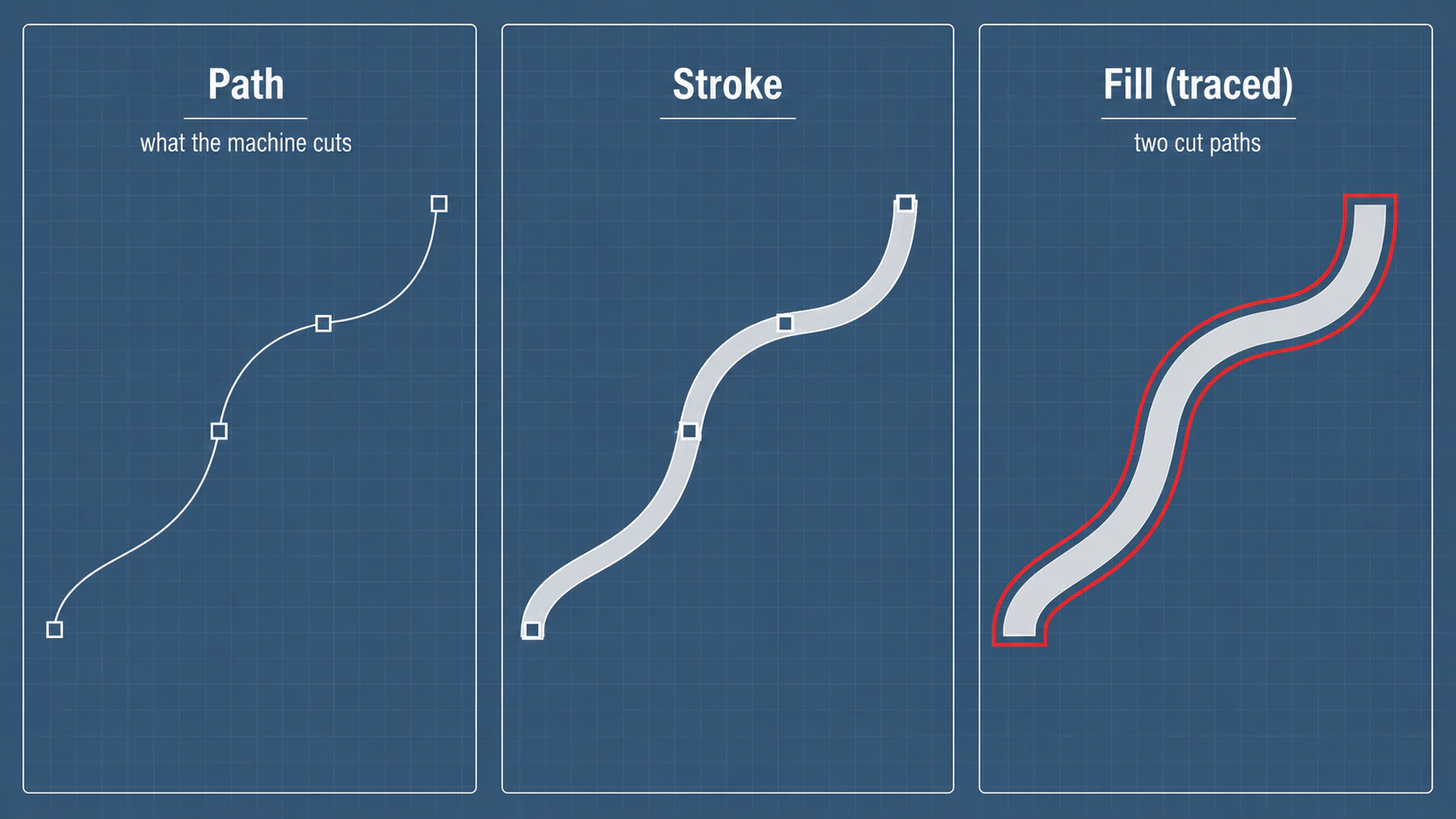
This is worth saying plainly, because it's where many wrong fixes come from: ordinary filled-region tracing describes the boundary of a dark region. Adobe's Image Trace options, for example, distinguish filled regions from stroked paths. Filled-region tracing is exactly right for cutting out a shape, and the wrong representation for a single line. A centerline method is a genuinely different trace.
Figure out which cause you have
Three different situations produce double cuts, and they look similar until you look closely. Spend ten seconds identifying yours before you start deleting things.
| What you see | Likely cause | The tell |
|---|---|---|
| Two thin lines hugging each side of every stroke, a small gap between them | Traced outlines (a fill posing as a line) | The doubles follow the shape of your lines; zoom in and the gap is the original line's width |
| The entire design cuts twice, perfectly overlapping | Duplicate paths | Drag the top layer and a second identical copy stays behind |
| A second contour sits outside the intended cut | An offset or extra contour was assigned to the same operation | Hide each path in turn and inspect the layer/operation assignment |
The first one is by far the most common when you've traced a line drawing, and it's the one people search for after three days of frustration. The other two are quicker to spot and quicker to fix.
The fixes, by cause
Traced outlines: trace it a different way
If your lines became filled shapes, deleting "one of the two lines" by hand is a trap. They're two edges of the same shape, so removing one leaves an open, broken path. And re-tracing with a different outline tool just hands you the same two edges. What actually produces a single cut line is a different method of tracing, plus a couple of honest alternatives.
Use centerline tracing. Centerline (or "single-line") tracing runs one path down the middle of each line instead of around it. Inkscape's official tracing tutorial describes centerline tracing as producing an open path suited to line drawings, unlike ordinary outline tracing. The result is one path per stroke, which is what a cutter needs for a single-line operation.
For text, use a single-line font. So-called single-line or engraving fonts are built as centerlines rather than filled letter shapes, so each letter is one stroke instead of an outline. A normal font converted to outlines will double for the same reason a traced drawing does.
Or engrave instead of cut. If a drawn or burned line is acceptable and you don't actually need a cut-through, you can sidestep the whole problem: set the lines to engrave (Fill mode on a laser), or use your machine's pen, draw, or score operation. The doubled outline stops mattering because you're filling the shape, not cutting around it.
Duplicate paths: ungroup and delete
If you dragged the top layer and a twin stayed behind, you simply have two copies. This happens with some marketplace files, or after copy-pasting during editing.
In your design software (Cricut Design Space, Silhouette Studio, LightBurn, or a vector editor), ungroup the design, select one of the two stacked copies, and delete it. In Design Space, ungrouping and checking the Layers panel usually reveals the duplicate as a separate entry. If the copies are welded or grouped tightly, editing the SVG in a vector editor first makes them easier to separate.
Extra offset or contour: remove or reassign it
An offset creates a separate path around the original artwork. That is useful for sticker borders and some machining workflows, but if both paths are assigned to Cut it looks like an accidental double. Hide each candidate path to identify it, then delete the extra contour or assign it to the intended score, engrave, or guide operation. A fill and stroke on one SVG path do not, by themselves, create two geometry paths.
Why a cut setting usually won't save you
It's tempting to look for a setting that makes the doubling go away, but operation modes do not rewrite the geometry. LightBurn's layer-mode documentation says Line follows vector paths and Fill engraves the area inside closed shapes. Switching modes may change the output, but it does not turn an outlined region into a centerline path.
So the levers that actually work are the file and the operation: fix the path at the source (centerline-trace it, or remove the duplicate), or switch from cutting to engraving. Changing cut modes alone won't turn a double outline into a single cut.
Where PerfectVector fits (and where it doesn't)
PerfectVector is a color and shape vectorizer. It rebuilds an image as clean, low-node filled paths, which is exactly what you want when you're cutting out shapes: a silhouette, a layered color design, a solid logo. Each shape comes back as one clean boundary, and that boundary is the single cut you're after, so there's no doubling, because a filled shape has one edge to cut. It's also the quick way to redo a design that's doubling because it carries duplicate or messy paths: re-convert from the original and you get one clean boundary per shape instead of stacked copies.
What it is not is a centerline tracer. If your design is pure line art that you want cut as single strokes, a fill vectorizer, ours included, will trace each stroke as a filled outline and hand you the same two edges. For that job the answer is centerline tracing or a single-line font, as above. Knowing when a vectorizer is the wrong tool saves more material than any setting does.
When you're cutting filled or color designs, convert to a clean SVG for Cricut and confirm each shape has a single boundary before you run the job. If you already have a supported opaque filled SVG and need its visible edges as strokes, the SVG Cut Line Generator removes hidden contours and duplicate shared edges. It is not a centerline tracer, so a thin filled line still has two visible sides. If RDWorks is the receiver, use the RDWorks trace-or-import workflow to compare the native outline with a compatible vector handoff. While you're checking, confirm the design isn't also carrying far too many nodes, the other failure mode that makes a trace cut badly.
When double lines are actually correct
Not every pair of lines is a mistake, so check before you delete:
- Outlined letters and shapes are supposed to have an inside and an outside edge. A cut-out letter "O" has two paths because it's a ring, and that's right.
- Score-then-cut designs sometimes include a score line beside a cut line on purpose, for folding. Check whether the second line is assigned to a different operation before removing it.
- Offset or sticker cut lines are intentionally a second path around your art, to leave a border. If you added an offset, the extra line is the offset doing its job.
The giveaway for a real problem is that the two lines hug a single intended stroke with a tiny gap, and both are set to the same operation. That's a doubled cut. A genuine inside-and-outside edge sits where the design actually has two edges.
FAQ
Why does my SVG cut two lines instead of one? Because the file contains the outline of your line rather than the line itself. When artwork is auto-traced, each stroke is converted into a thin filled shape, and the machine cuts both edges of that shape. The fix is centerline tracing, which runs a single path down the middle of each line, or a single-line font for text. An ordinary fill vectorizer will reproduce the two edges, because tracing a filled shape is what creates them.
How do I get rid of double cut lines in Cricut Design Space? First identify the cause. If it's two stacked copies, ungroup the design, select one copy in the Layers panel, and delete it. If every line is doubled because the file is a traced outline, re-tracing won't fix it; centerline-trace the original instead, use a single-line font for text, or set the design to a Pen or Draw operation so it draws the line once rather than cutting both edges.
What is centerline tracing? Centerline tracing runs a single path down the middle of each line in your image, instead of outlining both sides of it the way standard bitmap tracing does. It's the mode you want for line art destined for cutting, scoring, or pen drawing, because it produces one path per line rather than two. It's a different operation from the outline tracing that vectorizers and Image Trace tools do by default.
Why does my line drawing cut double on my laser? Because the trace outlined your strokes into filled shapes, so Line mode follows both boundary paths. Fix the geometry at the source with a centerline trace, or use Fill engraving when engraving the enclosed region is the result you actually want.
Should I just delete one of the double lines? Only if they're genuinely two separate paths, like duplicate copies. If the doubling comes from a traced outline, the two lines are edges of one shape, and deleting one leaves a broken open path. In that case, fix it upstream by centerline-tracing the original instead.
Sources
- Inkscape — Tracing tutorial — distinction between ordinary outline tracing and centerline tracing.
- Adobe Illustrator — Image Trace panel options — fills, strokes, path fitting, and noise settings.
- LightBurn — Layer modes — Line and Fill operation behavior.
- LightBurn — Text tool — single-line font support and use.
- W3C — SVG paths — technical definition of SVG path geometry.
Double-cut lines come down to one thing: the file holds the outline of your lines instead of the lines themselves. For line art you want cut once, centerline-trace it or use a single-line font. For supported filled artwork, generate visible boundary strokes and check the result before you run the job.
More from the blog
How to Check an SVG File Before You Cut It (or Buy It)
The five-minute preflight for cut files: spot fake vectors, doubled paths, node bloat, and stray boxes before you waste vinyl, plus what to check before buying.

SignLab Vectorize Image: Trace or Import Clean SVG?
Compare SignLab's native vectorization with an imported SVG. Learn how to prepare the bitmap, inspect paths, preserve holes, and test a production-ready file.