
How to Make a Sticker SVG (From Your Own Art, Ready to Cut)
A sticker SVG is the clean cut path behind a die-cut sticker. Here's how to turn your own image into one, when you need a vector vs a PNG, and what won't work.
On this page
- What a sticker SVG actually is
- What makes a good sticker SVG
- What you need first
- Step by step: from your image to a cut-ready sticker SVG
- 1. Start with a clean, transparent image
- 2. Convert your image into a clean SVG
- 3. Add the cut line (the offset)
- 4. Choose kiss-cut or die-cut
- 5. For a printed sticker, print then cut
- 6. For a vinyl decal, cut straight from the SVG
- What this looks like with PerfectVector
- A quick pre-cut checklist
- FAQ
- Sources
A sticker SVG is a vector file whose paths tell a cutting machine where to cut the sticker's outline. It's the clean shape behind a die-cut or kiss-cut sticker. If you already have artwork, a drawing, a logo, or a PNG, the way to make a sticker SVG is to convert that image into clean vector paths, then add a cut line around it. Two honest things to know first: a printed sticker only needs a good image plus a cut line, while a vinyl sticker cut from colored material needs real vector paths to follow. Busy photos and soft gradients can print, but they do not become clean vinyl cut paths. This guide covers making the SVG from your own image, both kinds of sticker, and which images are worth the effort.
The quick version
- A sticker SVG is the vector cut path that tells your machine where to cut the sticker outline.
- Two kinds of sticker: a printed one (print then cut, where a good PNG prints fine) and a vinyl die-cut (cut from colored vinyl, which needs real vector paths).
- To make one from your own art: convert the image to a clean SVG, then add an offset cut line around it.
- Kiss-cut leaves the stickers on the backing sheet; die-cut cuts each one all the way out.
- Simple, bold art works. Photos, gradients, and hairline details won't cut or weed cleanly.
What a sticker SVG actually is
What is a sticker SVG? A sticker SVG is a vector image whose paths a cutting machine reads as cut lines. Unlike a PNG, which is a grid of pixels, an SVG stores shapes as math, so the outline stays sharp at any size and the machine knows exactly where to run the blade. For a sticker, the path that matters most is the outline that becomes the cut edge. (New to the format? Here's what an SVG file is in plain terms.)
The word "sticker" covers two different things, though, and they don't need the same file. Sorting out which one you're making saves a lot of confusion later.
| Sticker type | How it's made | Do you really need an SVG? |
|---|---|---|
| Printed sticker (print then cut) | The full-color design prints onto sticker paper, then the machine scans printed sensor marks and cuts the outline, as in Cricut's Print Then Cut workflow | A high-resolution PNG can supply the printed artwork. The vector is only needed for the cut line around it. (The full PNG-or-SVG decision for Print Then Cut has its own guide.) |
| Vinyl die-cut decal | Cut from a sheet of solid-color vinyl, no printing involved | Yes. The machine cuts along the vector paths, so the shapes have to be real paths, not pixels. |
So if you searched for a sticker SVG expecting one answer, that's why the tutorials feel split: a printed sticker leans on a clean image plus an outline, and a vinyl decal leans on the paths themselves. Both still benefit from a clean SVG, which is what the rest of this guide builds.
What makes a good sticker SVG
Before the steps, here's what you're aiming for. A sticker SVG that cuts and weeds without a fight has:
- One clean, closed outline for the cut line, so the blade follows a single smooth edge instead of doubling back on itself.
- A low node count, so the cut is smooth and the weeding is quick. The same too many nodes problem that clogs any cut file shows up on stickers as bumpy edges.
- A transparent background, so there's no stray rectangle that turns into an unwanted cut. Here's how to keep transparency through a conversion.
- Bold, simple shapes. Thin lines and tiny text are the parts that tear when you weed them.
- A sensible number of colors, if it's a layered vinyl sticker. Each color is another piece to cut and line up.
What you need first
Two things, before you open your cutting software:
- Your artwork. A drawing, a logo, a wordmark, or a clipart-style PNG. Flat, graphic art with clear edges works best.
- A way to turn it into a clean SVG. This is the step that decides how much cleanup you do later, and it's the step the video tutorials tend to skip.
One honest note on the image. If yours is a photograph, a screenshot, or anything with gradients and soft edges, stop here. Those don't reduce to a clean cut outline. You'd fight the trace and still end up weeding a mess. Simple, bold art is what makes a sticker that cuts well.
Step by step: from your image to a cut-ready sticker SVG
1. Start with a clean, transparent image
If your image has a background, a white box or a photo backdrop, remove it first so it doesn't become its own cut shape. You want only the artwork sitting on a transparent canvas. This is also the moment to drop any tiny details that will never survive weeding at sticker size.
2. Convert your image into a clean SVG
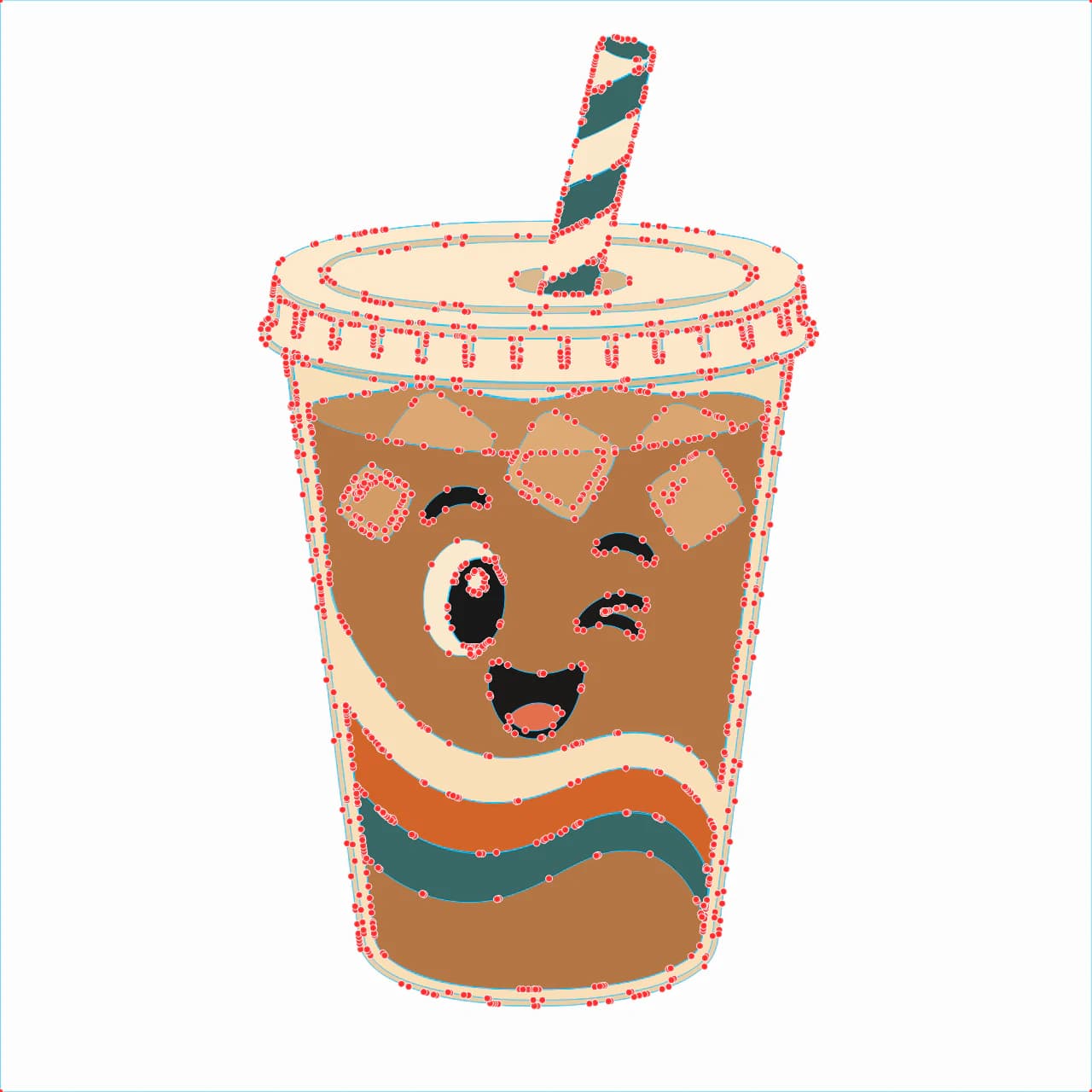
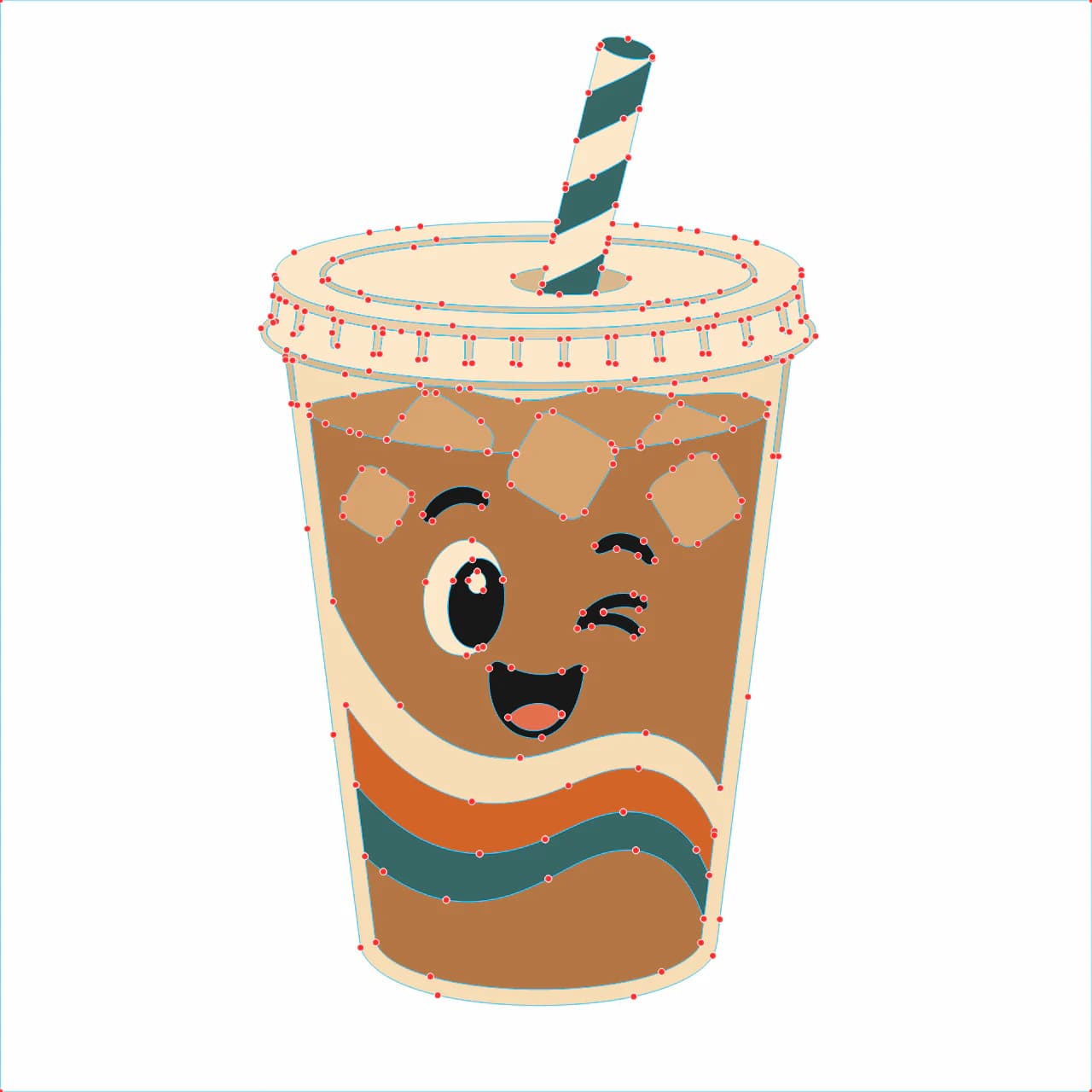
This is the step that makes or breaks the file. Convert your image so each shape becomes a tidy vector path, then check that the outline reads as one clean edge. Turn your image into a cut-ready SVG and look at the result before you go further.
Here's where an overly sensitive auto-trace can fall down. A rough trace may hand you an outline lined with stray specks and doubled edges, and you pay for it at the machine, where the blade follows the unwanted geometry. It's the same issue behind a lot of Cricut files that won't cut cleanly. Starting from a clean conversion avoids that cleanup.
3. Add the cut line (the offset)
The cut line is an outline that sits a little outside your design, the white border you see on many stickers. In Cricut Design Space or Silhouette Studio, select your shape and apply Offset to create it. Cricut's Offset instructions let you choose the distance, corner style, and whether multiple offsets are welded; for Print Then Cut, Cricut says to flatten the artwork to the offset before printing. In Silhouette Studio, configure the offset as the cut contour rather than printed artwork. This offset is the path your machine will follow.
4. Choose kiss-cut or die-cut
The same contour can be used with different material and cut settings. A kiss-cut slices the sticker layer while leaving the backing intact; a die-cut goes through the backing so each sticker comes out separately. The exact pressure and passes depend on the machine and material, so test on a scrap instead of copying a universal setting.
5. For a printed sticker, print then cut
If you're printing the design, arrange your stickers and follow your software's complete Print Then Cut workflow. Cricut prints cut-sensor markings around the design and recommends completing the print and cut from one device in one session; Silhouette's Print & Cut documentation similarly uses registration marks and a defined cut contour. Don't move the design between printing and cutting. The general Cricut file prep steps apply here too.
6. For a vinyl decal, cut straight from the SVG
A vinyl sticker skips printing entirely. Assign the vinyl color, send it to cut, and weed away the excess. If the design has more than one color, you'll want each color on its own layer; here's how to make a layered SVG for vinyl so the colors come in already separated.
What this looks like with PerfectVector
The whole thing gets easier when the SVG starts clean. PerfectVector reconstructs a PNG or JPG as editable paths and color shapes, which gives you a foundation for the sticker cut line. For a multi-color vinyl sticker, use the color editor to merge similar shades down to the few you will actually cut, then inspect the outline, specks, and node count in the preview. Convert your artwork and unlock the SVG with one credit only when it passes those checks. If you need the general tracing route, start with image-to-SVG conversion. If you're making stickers to sell, follow the separate guide to preparing SVG cut files for Etsy.
Being straight about it: this works on flat, graphic art. A photo or a gradient-heavy image won't become a clean cut sticker from any tool, PerfectVector included. For those, simplify the artwork into bold shapes first, or pick a different design.
A quick pre-cut checklist
Before you send it to the machine, run through this:
- Background removed, so there's no stray box to cut.
- The outline is one clean, closed path.
- An offset cut line added, set not to print on a printed sticker.
- Node count low enough that the edges look smooth, not bumpy.
- Kiss-cut or die-cut chosen for what you're making.
- Registration marks on, for a print-then-cut sticker.
- A test cut on a scrap first, before you run the whole sheet.
FAQ
What is an SVG sticker? It's a sticker whose cut shape is stored as an SVG, a vector file made of paths instead of pixels. The cutting machine reads those paths as cut lines, so the outline stays crisp at any size and the blade follows it exactly. The artwork itself can be printed in full color or cut from solid vinyl, but the SVG is what defines the cut.
Do I need an SVG to make a sticker, or is a PNG enough? It depends on the sticker. For a printed print-then-cut sticker, a high-resolution PNG prints beautifully and you only need a vector for the cut line around it. For a vinyl decal cut from colored material, you need a real SVG, because the machine cuts along the vector paths and there's nothing to print.
How do I make a sticker SVG from my own image? Convert your image into clean vector paths, then add an offset outline as the cut line. Start with flat, bold artwork on a transparent background, convert it to an SVG with a tool that keeps the paths tidy, and check that the outline reads as one smooth edge before you add the offset and cut.
Can I make a sticker SVG for free? You can vectorize the image and inspect PerfectVector's preview for free; one credit unlocks the finished SVG. Whichever tracer you use, check the result for specks, doubled edges, and an unnecessarily high node count before cutting.
What's the difference between a kiss-cut and a die-cut sticker? A kiss-cut cuts only the top layer of the sticker material and leaves the backing intact, so the stickers stay on a sheet you peel from. A die-cut cuts all the way through, so each sticker is its own separate shape. They use the same file; only the cut setting changes.
Can I turn a photo into a sticker SVG? Not into a clean one. A photo is continuous tone with soft edges, so tracing it produces a messy, over-noded shape rather than a crisp cut outline. If you want a sticker from a photo, treat it as a printed print-then-cut sticker (keep the photo as a PNG and add a simple cut border), rather than trying to cut the photo itself from vinyl.
Can ChatGPT make a sticker SVG file? Not from your image. ChatGPT can write SVG code for simple generic shapes from a text prompt, but it can't trace your uploaded artwork into a clean, cuttable path. For that you need an image-to-vector converter, as covered in whether ChatGPT can vectorize an image.
Sources
- Cricut — How to upload images into Design Space — raster and vector upload behavior.
- Cricut — How to use the Offset feature — offset creation and Print Then Cut flattening.
- Cricut — How to Print Then Cut — sensor markings, Flatten, and the print/cut workflow.
- Cricut — Calibrating for Print Then Cut — alignment calibration procedure.
- Silhouette — Basic Edition features — Print & Cut, registration marks, and offset support.
Got a drawing or logo you want as a sticker? Trace it into SVG paths, inspect the outline, add the offset cut line, and test one copy before using the full sheet.
More from the blog
Make SVG Files to Sell on Etsy: A Production Guide
On Etsy, the file is what buyers review, and messy files are what get refunded. Here's how to make a clean, layered SVG cut file that's good enough to sell.
Why Your Cricut SVG Is Hard to Weed: Fix the File
Hard weeding is usually a mix of your blade, your vinyl, and your design. Here's how to tell which, and how to make the SVG file itself far easier to weed.