Cricut SVG File Too Large? Diagnose and Fix It
Design Space calls a file too large for four unrelated reasons, and the fix for one does nothing for the others. Here is how to tell them apart in ten seconds.
On this page
- The ten-second diagnosis
- Problem 1: more than 5,000 paths
- If you did not make the file
- Problem 2: the design is bigger than the mat
- Problem 3: it says too large, and it obviously is not
- Problem 4: the imported size does not match
- Two fixes that make things worse
- What this looks like with PerfectVector
- When the file is not going to work at all
- FAQ
- Sources
Four different problems in Cricut Design Space produce some version of "too large," and they need four different fixes. That is why so much advice on this feels useless: people shrink a design that was never too big, or rebuild a file that only needed resizing.
The good news is that Design Space tells you which one you have, if you know where to look. It takes about ten seconds.
Short on time? The ten-second diagnosis
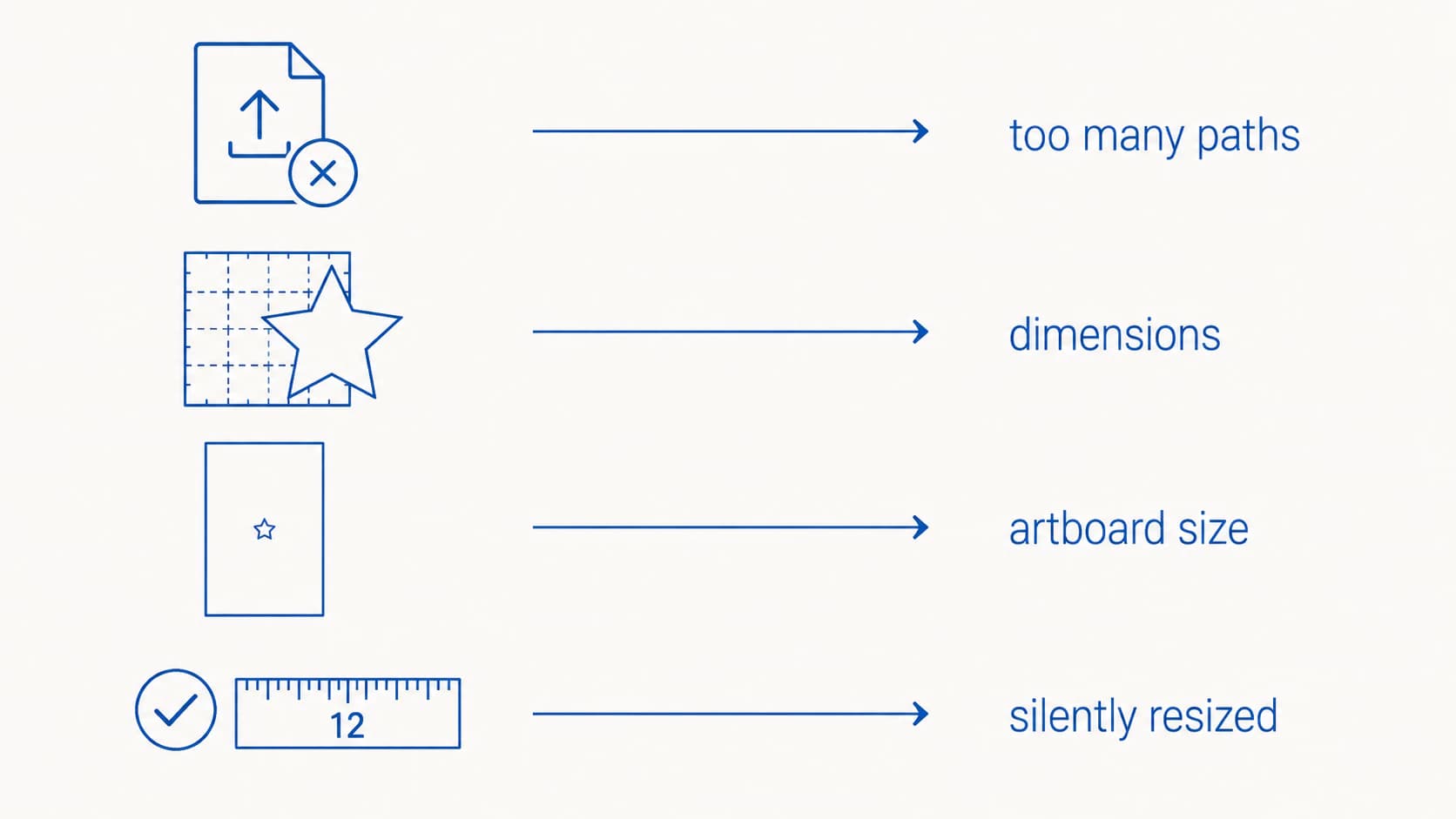
- The upload is refused with "File Too Large. To upload, reduce size, then try again." → your file has more than 5,000 paths. Resizing will not help.
- The design really is bigger than your mat → it is a dimensions problem. Resize on the canvas.
- The design is small and Design Space still calls it too large → the file's page or artboard is huge, not your artwork.
- No error, but the canvas dimensions do not match your source → verify the intended size before cutting and re-enter it on the canvas if needed.
The ten-second diagnosis
| What you see | The actual problem | Where to go |
|---|---|---|
| Upload rejected, message names "File Too Large" | Over 5,000 paths | Problem 1 |
| Warning on canvas, design measures bigger than 11.5 to 12 inches | Physical dimensions | Problem 2 |
| A 3 inch decal reported as too large | Page or artboard size in the file | Problem 3 |
| No error, canvas dimensions differ from the source | Import-size mismatch | Problem 4 |
Problem 1: more than 5,000 paths
This is the only one that is truly a "file too large" error, and Cricut documents the threshold. Its image-upload guide states that SVGs are restricted to 5,000 paths; more than 5,000 causes the upload error.
Note what the limit is counted in. Not megabytes. Paths. A 400 KB file with 8,000 tiny shapes gets rejected while a 3 MB file with 200 clean shapes uploads without complaint. This is where a lot of wasted effort comes from, because file size is what people can see in their file browser and path count is not.
Where do thousands of paths come from? Almost always an auto-trace. A tracer looking at a slightly noisy image treats every speck and every jagged edge pixel as a shape worth keeping, and a design that should be 40 shapes arrives as 4,000. Our piece on why auto-traced SVGs collect too many nodes covers the mechanics.
If you made the file, the fix is upstream: cut the colour count, delete stray specks, weld pieces that were never meant to be separate, and simplify paths in Inkscape or Illustrator before exporting again. Often it is faster to convert the original image again with cleaner settings than to repair the trace you have.
If you did not make the file
Cricut's own advice here is that "the creator of the SVG will need to reduce the number of paths in the file." That is a dead end if you bought the cut file on Etsy, grabbed a freebie, or the creator is a website that no longer exists.
You still have options, in order of how much they cost you:
- Open it in Inkscape (free) and check the object count under Edit then Select All. Note what the limit counts: Cricut rejects on the number of paths, so the fix is fewer path objects, not fewer points inside them. Path then Simplify smooths nodes within each path and leaves the object count where it was, which is why it so often changes nothing here.
- Delete what you are not cutting. Many purchased files ship with alternate colourways, watermarked previews, or hidden layers stacked behind the design. Those count toward the total, and deleting them is the one fix that reliably moves the number.
- Merge shapes that cut as one. Select overlapping pieces of the same colour and use Path then Union, which turns several path objects into a single one. Check the result at cutting size, because merging changes where the blade travels.
- Ungroup and split the design across two uploads, then reassemble on the canvas. Clumsy, and it works.
- Re-convert from the preview image if the seller included a PNG. A clean conversion of the flat artwork will land far under the limit.
Problem 2: the design is bigger than the mat
A 12 by 12 inch machine mat uses an 11.5 by 11.5 inch material setting in Design Space, according to Cricut's material-size instructions, so anything larger has to be resized or split.
Print Then Cut is stricter, and its limit is not one number. Cricut documents that the cuttable area varies by machine, material page size, and design proportions because the page also carries sensor markings. Check Cricut's current Print Then Cut sizing article against your machine and page size rather than working from a figure quoted in a blog post.
The fix is ordinary: select the image on the canvas, drag a corner handle inward with the proportion lock on, or type a width under 11.5 in the toolbar. Nothing about the file needs to change.
If the design is genuinely meant to be larger than a mat, slice it into sections and cut it in pieces. That is a design decision, not an error.
Problem 3: it says too large, and it obviously is not
This is the one that makes people doubt themselves. A decal measuring three inches gets called too large, or an SVG opens on the canvas enormous when the artwork inside it is small.
Design Space is not measuring your artwork. It is measuring the file's page or artboard, and those can be wildly bigger than the shapes sitting on them. It usually happens when a document's units or scale got changed at some point, so the file declares itself to be metres wide while the drawing on it is a few centimetres.
In Inkscape: open File then Document Properties, set the display units to inches, confirm the document size is something sane, then use Resize Page to Drawing or Selection and save. If you cannot find that option your Inkscape is old enough to need updating.
In Illustrator: select everything, then Object, Artboard, Fit to Artwork Bounds. Save and re-open the file in Design Space.
To stop it recurring, keep one known-good document as a template and start new cut files from it instead of from whatever settings were left over.
Problem 4: the imported size does not match
Cricut does not document a universal "silent resize to 12 inches" rule, so do not diagnose one from a round number alone. Instead, compare the canvas dimensions with the intended dimensions in the source file before cutting.
If they differ, enter the correct width and height on the canvas with the proportion lock enabled, then make a small test cut or measure the mat preview. This is a verification step, not evidence that every large SVG is rescaled in the same way.
Two fixes that make things worse
Rasterising the SVG to shrink it. This comes up constantly, and it goes the wrong direction. Converting shapes to an embedded image makes the file heavier, and Design Space then treats it as a single flattened object instead of cut layers. An SVG is text describing shapes, which is why a clean one is small.
Shrinking the dimensions when the problem is path count. The upload keeps failing, the maker keeps scaling down, and the error never moves, because a 2 inch version of a 6,000 path design still has 6,000 paths.
What this looks like with PerfectVector
Everything above is a repair. The reason most makers never see the 5,000 path ceiling is that their files never approach it, and that comes from how the SVG was made in the first place.
PerfectVector converts images into paths that follow the shape instead of transcribing every pixel along its edge, so a typical design lands in the tens or low hundreds of shapes. Files like that upload immediately and cut the way the preview looked.
If a file is fighting you right now, converting the original artwork again is usually quicker than repairing a bad trace. Run it through the Cricut SVG converter, reduce the colours to the ones you will actually cut, and download something Design Space accepts on the first try. Our guide to preparing SVG files for Cricut covers the rest of the pre-upload checks, and layered SVGs for Cricut explains how to keep colours on separate cut layers while you do it.
When the file is not going to work at all
Some uploads fail for reasons that have nothing to do with size, and they show a different message: "Your file includes unsupported items."
Cricut names two causes. Pattern fills, meaning any fill that is not a flat colour, including gradients, textures, and embedded photos, because Design Space cannot split those into colour layers. And clipping paths, where one shape masks another, because the visible shape is not a real shape yet. Flatten those in your design app first, using Pathfinder in Illustrator, or export the artwork as a PNG and use Print Then Cut instead.
Photographs belong in that last category too. They do not become clean cut files at any path count, and Print Then Cut exists for exactly that.
FAQ
What is Cricut's actual SVG file size limit? Cricut documents a limit of 5,000 paths for vector uploads, and going over it produces the message "File Too Large. To upload, reduce size, then try again." The limit is counted in paths rather than megabytes, so a small file packed with thousands of tiny shapes fails while a larger file with a few clean shapes uploads without trouble.
Why does Cricut say my image is too large when it is small? Design Space measures the file's page or artboard, not the artwork sitting on it. If the document's units or scale were changed at some point, a three inch decal can live on a page that declares itself several feet wide. Fix it in Inkscape with Resize Page to Drawing or Selection, or in Illustrator with Object, Artboard, Fit to Artwork Bounds.
Does reducing the file's MB size help? Only if the megabytes came from something that also adds paths, such as an embedded image. Cricut's upload limit counts paths, so compressing a file or saving it at a lower quality does not move the number that matters. Rasterising it makes the situation worse.
How do I reduce the number of paths in an SVG I bought? Open it in Inkscape, select everything, and check the object count. Delete anything you are not cutting, including alternate colourways and hidden layers that ship with many purchased files, then run Path and Simplify once and inspect the corners before trusting it. If the seller included a PNG preview, converting that cleanly is usually faster than repairing the SVG.
Why did my SVG upload at exactly 12 inches? Cricut does not document a universal rule that every large SVG is scaled to 12 inches, so compare the canvas dimensions with the intended source dimensions rather than assuming the cause. If they differ, restore the intended size with the proportion lock enabled and verify the mat preview before cutting.
Sources
- Cricut: Upload images into Design Space — Documents supported uploads and the 5,000-path SVG restriction.
- Cricut: Change the mat or material size — Gives current mat and material dimensions.
- Cricut: How large can I Print Then Cut? — Explains machine-, paper-, and design-dependent printable area.
- Cricut: Unsupported image-upload items — Documents pattern fills, clipping paths, and raster fallbacks.
More from the blog
How to Check an SVG File Before You Cut It (or Buy It)
The five-minute preflight for cut files: spot fake vectors, doubled paths, node bloat, and stray boxes before you waste vinyl, plus what to check before buying.
How to Make a Sticker SVG (From Your Own Art, Ready to Cut)
A sticker SVG is the clean cut path behind a die-cut sticker. Here's how to turn your own image into one, when you need a vector vs a PNG, and what won't work.