
Graphviz SVG Images: Keep Node Artwork Portable
Add SVG artwork to a Graphviz node, inspect its image reference, and test a complete asset bundle against a moved diagram and a self-contained delivery copy.
On this page
A Graphviz diagram can contain vector nodes and arrows while its custom node artwork still points to a separate image file. If that artwork disappears after you move the SVG, inspect the generated image reference before changing the drawing. The missing part may be the delivery package.
In the tested SVG output below, Graphviz keeps motif.svg as a linked image. The complete bundle renders it; the diagram moved alone loses it. An explicitly packaged copy includes the artwork bytes and renders in the same browser test. That packaging step still leaves an SVG image element, rather than turning the motif into native graph paths.
Keep the DOT source for node names and relationships. Keep the artwork master separately, and test the exact output through the viewer or publishing workflow that will receive it.
Distinguish the node, its artwork, and its file reference
Graphviz's image attribute names artwork displayed inside a node. It does not replace the node's graph identity or relationships. The documentation requires source dimensions; for SVG images, supply explicit width and height with appropriate units.
The original motif here is a two-path drawing with a 96 by 64 coordinate space. Its outer dimensions are 96pt by 64pt. The surrounding node and the arrow belong to Graphviz.
| Part | Maintained in | What can go wrong |
|---|---|---|
| Node names, labels, and edges | DOT source | Incorrect graph relationships or wording |
| Custom motif | Artwork SVG master | Missing dimensions, unsuitable detail, or wrong proportions |
| Link from diagram to motif | Exported SVG image reference | Artwork missing at the resolved path |
| Final placement and size | Renderer output and receiving viewer | Cropping, stretching, or unsupported dependencies |
An image element can point to SVG artwork or to pixels. To investigate a raster source, use the separate SVG embedded-image diagnosis. A filename ending in .svg is not enough to establish the contents of either file.
Run a small example with an explicit renderer
We used @viz-js/viz 3.31.0, a WebAssembly build reporting Graphviz 16.1.0, with the dot layout engine and built-in SVG output. This is a test of that build and renderer, not a claim that every Graphviz installation has identical image-loading behavior.
In a new Node.js project folder, install the pinned package:
npm install @viz-js/viz@3.31.0Save the original artwork as motif.svg:
<svg xmlns="http://www.w3.org/2000/svg"
     width="96pt" height="64pt" viewBox="0 0 96 64">
  <path fill="#173b40" fill-rule="evenodd"
    d="M48 4C70 4 88 17 88 32S70 60 48 60S8 47 8 32S26 4 48 4Z
       M48 14C31 14 19 22 19 32S31 50 48 50S77 42 77 32S65 14 48 14Z"/>
  <path fill="#28bfa3"
    d="M43 20H53V27H60V37H53V44H43V37H36V27H43Z"/>
</svg>
Save the graph as diagram.dot:
digraph G {
  graph [rankdir=LR, bgcolor="white", margin=0.1];
  node [shape=box, fontname="Arial", fontsize=16,
        color="#173b40", penwidth=1.5,
        fixedsize=true, width=1.8, height=1.1];
  artwork [label="", image="motif.svg", imagescale=true];
  review [label="Review"];
  artwork -> review [color="#173b40", penwidth=1.5];
}
Then save this as render.mjs and run node render.mjs from that folder:
import { instance } from '@viz-js/viz';
import fs from 'node:fs';

const viz = await instance();
const dot = fs.readFileSync('diagram.dot', 'utf8');
const svg = viz.renderString(dot, {
  engine: 'dot',
  format: 'svg',
  images: [{ name: 'motif.svg', width: '96pt', height: '64pt' }]
});

fs.mkdirSync('bundle', { recursive: true });
fs.copyFileSync('motif.svg', 'bundle/motif.svg');
fs.writeFileSync('bundle/diagram.svg', svg);
process.stdout.write(`Graphviz ${viz.graphvizVersion}\n`);
Viz.js's API documentation describes the images option as image size information. Supplying it tells the layout about this named artwork; it does not put the file's bytes into the result. The explicit units avoid treating an unlabelled number as CSS pixels. The API uses points for dimensions without units.
For a native Graphviz installation, the official image documentation describes local image resources and dimensions read from the source file. Do not copy the WebAssembly metadata setup into a native command and assume it has the same loading mechanism.
Inspect what the renderer wrote
Our generated SVG contains this element:
<image xlink:href="motif.svg"
       width="118.8px" height="79.2px"
       preserveAspectRatio="xMinYMin meet"
       x="5.4" y="-79.2"/>
The dimensions and position are observed values from this fixture. The part that controls delivery is xlink:href="motif.svg": the result still needs a resource at that relative path.
Copy only diagram.svg to another folder and leave the artwork behind. Compare it with the complete bundle. We served both folders over local HTTP and displayed each SVG as a document through an HTML object element.
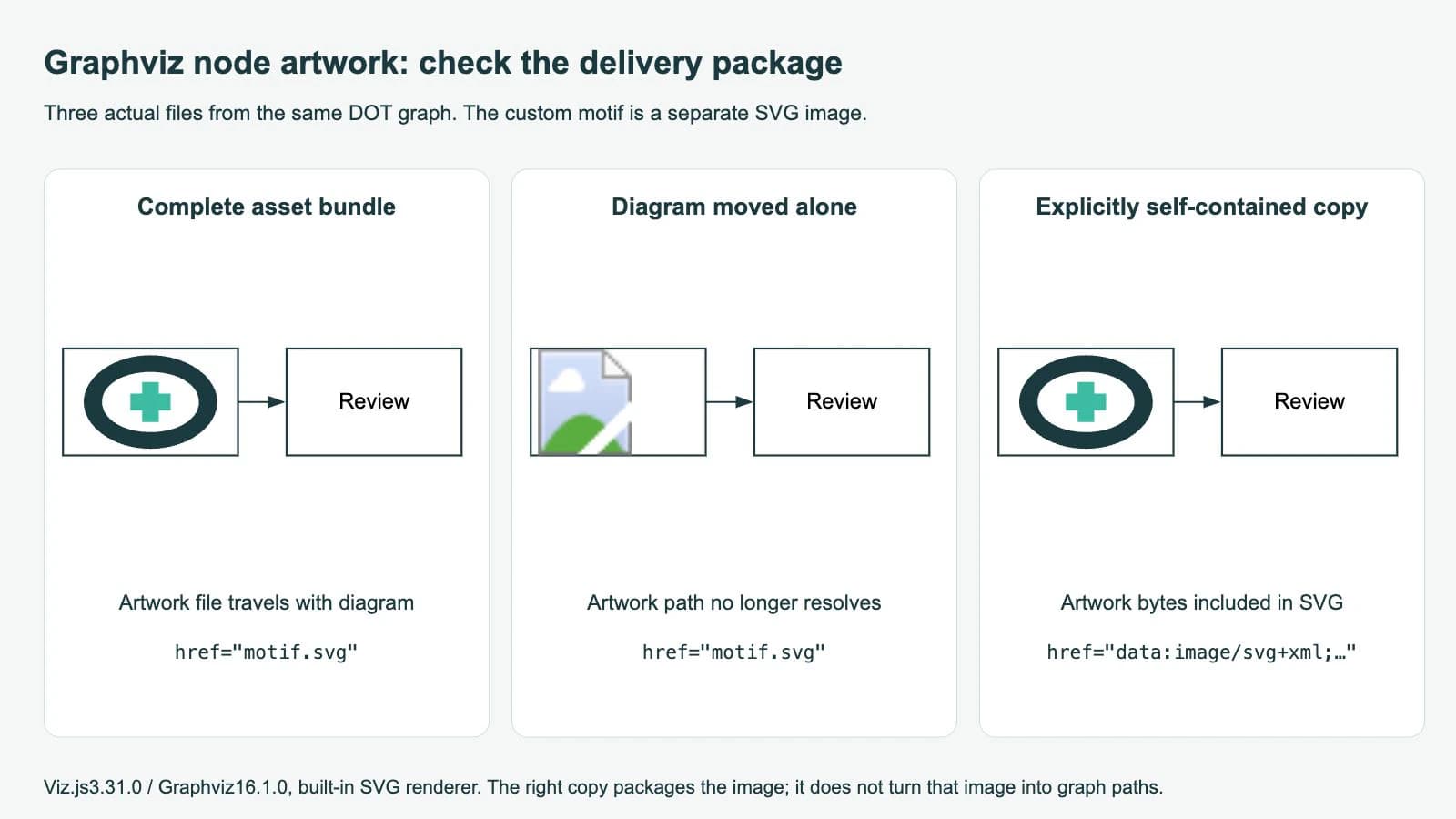
The generated node boxes and arrow remain present when the linked motif is missing. Rebuilding the graph layout does not supply the absent file. Restore the expected asset location, deliver the whole bundle, or choose a packaging step appropriate to the destination.
Opening an SVG as a document and displaying it through an HTML img are different tests. MDN's SVG-as-image guidance explains that image contexts can restrict external resources, while data URLs can inline them. Its described image-context restrictions do not apply to direct SVG documents or document embedding through object and iframe. Check the delivery context you actually use.
Package this simple motif explicitly
For this original self-contained motif, the following script replaces exactly one known reference with the file's SVG bytes. Save it as package.mjs and run it after rendering:
import fs from 'node:fs';

const svg = fs.readFileSync('bundle/diagram.svg', 'utf8');
const needle = 'xlink:href="motif.svg"';
if (svg.split(needle).length !== 2) {
  throw new Error('Expected exactly one motif reference');
}

const data = 'data:image/svg+xml;base64,' +
  fs.readFileSync('bundle/motif.svg').toString('base64');
const packaged = svg.replace(needle, `xlink:href="${data}"`);
fs.writeFileSync('self-contained.svg', packaged);
This is a targeted packaging example, not a general SVG inliner. It handles the known reference in this output and a motif that has no external fonts, images, stylesheets, or other dependencies. More complex artwork needs its own dependency check.
The packaged copy rendered with the motif present in our browser test. Comparing the two output strings after masking the image-reference value showed identical graph geometry. The file still contains one image element; its reference now starts with data:image/svg+xml;base64,.
Embedding SVG image bytes can remove this file-path dependency while keeping the artwork's vector source. It does not make that artwork a native Graphviz node shape, add connection points inside it, or guarantee that another editor will expose its paths directly. Test the recipient's import behavior.
Also avoid confusing svg_inline with image embedding. Graphviz's SVG output documentation describes it as header-less output for HTML inclusion. In our same graph, selecting svg_inline still produced the motif.svg reference. The output mode did not package the artwork.
Keep dimensions and scaling separate from portability
Graphviz's imagescale reference distinguishes fitting the image inside the node from the source's natural size. In this example, imagescale=true scales it uniformly to fit. The both option scales width and height separately, which can change proportions.
If the motif appears but is stretched, inspect the scaling option. If only part appears, inspect its own bounds and the node's available space. If it disappears after moving the file, inspect the resource path first. The SVG size guide explains how declared size and drawing coordinates differ.
| Symptom | First check | Correction to try |
|---|---|---|
| Artwork disappears after moving the diagram | Generated image reference and relative asset location | Restore the bundle or package the tested source explicitly |
| Graph layout runs, but artwork is absent | Source dimensions and build-specific image setup | Confirm the file and image metadata expected by that build |
| Motif looks stretched | imagescale setting and intended proportions | Use uniform fitting when distortion is unwanted |
| SVG works directly but fails on a webpage | Whether the page uses an image or a document context | Test the supported embedding route and its resource policy |
| Output differs after switching renderer | Chosen renderer and its SVG structure | Reinspect the exported XML and final appearance |
The official SVG output page notes that Cairo output can differ in XML readability and transformability from built-in SVG output. We did not test Cairo here. Keep the renderer explicit in a reproducible project, and repeat the packaging check when changing it.
Recover artwork upstream when its source is lost
PerfectVector can help when a suitable illustrative motif survives only as a PNG or scan. Its scientific artwork recovery workflow provides a vector candidate to inspect before use. Crop to the motif, check its silhouette and empty spaces, then verify the downloaded SVG's bounds and dimensions before adding it to the graph.
That recovery does not reconstruct node relationships, arrow meanings, or DOT labels. Keep those in graph source. Use the original SVG when available, redraw a simple symbol when that is easier to maintain, and preserve photographs as raster images. The image-vectorization overview explains the recovery boundary.
Other diagram tools package custom artwork differently. The Mermaid icon guide covers registered icon data, while draw.io custom SVG artwork distinguishes an imported image from a native stencil. Carry the destination's requirements into your artwork preparation.
FAQ
Does Graphviz SVG output automatically include my node image? In the tested built-in SVG output, the diagram contains an image reference to the separate motif.svg file. Inspect your own output and deliver its dependencies or use a tested packaging step.
Does svg_inline merge an SVG image's paths into the graph? No. It is a header-less output mode for HTML inclusion. In our test it retained the external motif.svg reference.
Is a self-contained SVG the same as native editable node geometry? No. The packaged example retains an image element containing SVG bytes. Graph structure stays in DOT, and the receiving editor determines how it exposes that artwork.
Sources
- Graphviz — image — Local node-image resources and required SVG dimensions.
- Graphviz — imagescale — Uniform fitting and independent width/height scaling.
- Graphviz — SVG output — Built-in and Cairo output, plus the meaning of svg_inline.
- Viz.js — API — Image-size metadata, explicit units, and SVG rendering calls.
- MDN — SVG as an image — External-resource restrictions in image contexts and the distinction from document embedding.
Test one node through the delivery workflow before preparing a whole artwork library. If only a raster motif remains, prepare an SVG artwork candidate, inspect its gaps and proportions, then add it to your DOT graph and verify the moved or packaged output in the receiving viewer.
More from the blog

WeasyPrint SVG Images: Fix Missing Logos in PDFs
Fix missing SVG logos in WeasyPrint PDFs with a correct base URL and explicit CSS sizing, then check the saved PDF for vector paths, proportions, and artwork.

Matplotlib SVG: Keep Plot and Logo Artwork as Paths
Export your Matplotlib plot as SVG, compose separate logo paths with svgutils, and check the delivered file for embedded pixels, placement, and font changes.