Cytoscape.js SVG Node Images: Fix Fit and Padding
Fit custom SVG artwork inside Cytoscape.js nodes with a working example. Compare source whitespace, contain and cover, then check loading and label placement.
On this page
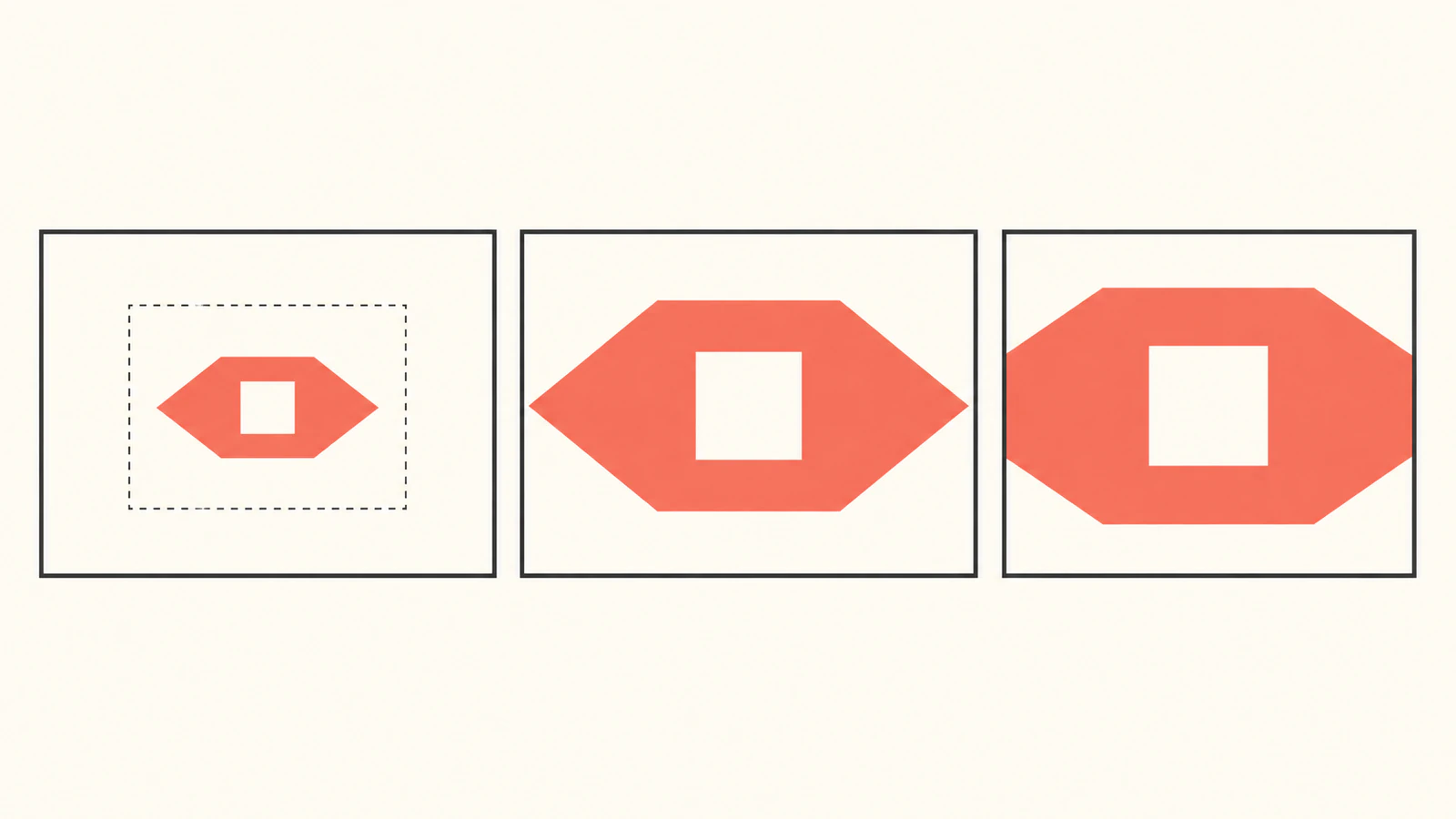
Use an SVG image URL in the node's background-image style, then choose the fit for the artwork you want to show. If the emblem loads but looks tiny, inspect the empty space in its SVG viewport before enlarging the graph node. If its ends disappear, compare the image's proportions with the node and check clipping.
Cytoscape.js documents SVG node backgrounds, including contain, cover and none fitting. This guide uses an original one-path emblem to separate source bounds from graph styling. Keep the editable artwork master beside the graph configuration.
Separate the source image from the graph node
There are three boxes to inspect: the artwork's drawn bounds, the SVG image viewport, and the node body. The SVG viewBox defines the source coordinate rectangle mapped into its viewport. It can include much more space than the visible drawing.
Our tight source is 120 × 60, with the coral emblem spanning x=6 to x=114 and y=6 to y=54. Its center opening is part of the same path:
<?xml version="1.0" encoding="UTF-8"?><!DOCTYPE svg>
<svg xmlns="http://www.w3.org/2000/svg"
     width="120" height="60" viewBox="0 0 120 60">
  <path fill="#f36f59" fill-rule="evenodd"
    d="M6 30L30 6H90L114 30L90 54H30Z M50 20H70V40H50Z"/>
</svg>
The padded variant changes only the outer SVG dimensions and viewBox:
<svg xmlns="http://www.w3.org/2000/svg"
     width="200" height="140" viewBox="-40 -40 200 140">
Keep the same header, path and closing tag. Both files draw identical path coordinates. The second surrounds them with more empty source space. That space scales with the image, so changing the background fit cannot reliably substitute for choosing suitable source bounds. The SVG bounding-box guide helps when the file's viewport and visible artwork do not agree.
Run the four-case example
We tested Cytoscape.js 3.34.3 with an official pinned browser bundle served locally. Save the bundle from that release tag as cytoscape-3.34.3.min.js beside example.html below. Serve the folder over local HTTP, for example with python3 -m http.server 8000, and open http://localhost:8000/example.html.
The example encodes the original SVG into a data URI. encodeURIComponent() escapes URI characters, including the # in our fill color. The library's SVG guidance recommends this encoding rather than Base64 and the XML header shown here. This is one self-contained emblem with no external fonts or images.
<!doctype html>
<html lang="en">
<meta charset="utf-8">
<title>SVG node fit comparison</title>
<style>
  body { font: 16px system-ui; margin: 20px; }
  #cy { width: 1100px; height: 250px; border: 1px solid #ddd; }
  #status { white-space: pre-wrap; }
</style>
<div id="cy"></div>
<pre id="status">Loading images</pre>
<script src="cytoscape-3.34.3.min.js"></script>
<script>
const header = '<?xml version="1.0" encoding="UTF-8"?><!DOCTYPE svg>';
const path = 'M6 30L30 6H90L114 30L90 54H30Z M50 20H70V40H50Z';
function artwork(padded) {
  const width = padded ? 200 : 120;
  const height = padded ? 140 : 60;
  const viewBox = padded ? '-40 -40 200 140' : '0 0 120 60';
  return header + `<svg xmlns="http://www.w3.org/2000/svg"
    width="${width}" height="${height}" viewBox="${viewBox}">
    <path fill="#f36f59" fill-rule="evenodd" d="${path}"/></svg>`;
}
const cases = [
  ['tight contain', false, 'contain'],
  ['tight cover', false, 'cover'],
  ['padded contain', true, 'contain'],
  ['padded cover', true, 'cover']
].map(([label, padded, fit]) => ({
  label, fit,
  image: 'data:image/svg+xml;utf8,' + encodeURIComponent(artwork(padded))
}));
Promise.all(cases.map(item => new Promise((resolve, reject) => {
  const image = new Image();
  image.onload = () => resolve({
    label: item.label,
    width: image.naturalWidth,
    height: image.naturalHeight
  });
  image.onerror = () => reject(new Error(item.label + ' failed to load'));
  image.src = item.image;
}))).then(loaded => {
  cytoscape({
    container: document.getElementById('cy'),
    elements: cases.map((item, index) => ({
      data: { id: 'n' + index, ...item },
      position: { x: 110 + index * 260, y: 95 }
    })),
    style: [{ selector: 'node', style: {
      width: 120, height: 80, padding: 0, shape: 'rectangle',
      'background-color': '#f1f3f5',
      'background-image': 'data(image)',
      'background-fit': node => node.data('fit'),
      'background-width': 'auto', 'background-height': 'auto',
      'background-width-relative-to': 'inner',
      'background-height-relative-to': 'inner',
      'background-position-x': '50%', 'background-position-y': '50%',
      'background-repeat': 'no-repeat', 'background-clip': 'node',
      'border-width': 1, 'border-color': '#222',
      label: 'data(label)', 'text-valign': 'bottom',
      'text-halign': 'center', 'text-margin-y': 10, 'font-size': 12
    }}],
    layout: { name: 'preset', fit: false },
    zoom: 1, pan: { x: 0, y: 0 },
    userZoomingEnabled: false, userPanningEnabled: false,
    boxSelectionEnabled: false
  });
  document.getElementById('status').textContent =
    'Cytoscape ' + cytoscape.version + '\n' +
    JSON.stringify(loaded, null, 2);
}).catch(error => {
  document.getElementById('status').textContent = error.message;
});
</script>
</html>
The status block reports dimensions of images preloaded before graph initialization. naturalWidth reads the image's intrinsic, density-corrected width in CSS pixels, as described by MDN. In this fixture, the tight images reported 120 × 60 and the padded images 200 × 140. Those are image dimensions, not measurements of the coral path.
Compare what changes at the same node size
All four model nodes are 120 × 80 with zero node padding. We inspected the original fixture in Chrome at graph zoom 1 and 1.5. The node style remained 120 × 80; its reported rendered dimensions became 180 × 120 at 1.5. This was a static comparison in that browser, not a compatibility or zoom-performance benchmark.
| Source and fit | Observed appearance in this fixture |
|---|---|
| Tight, contain | Complete emblem, with its pointed ends visible |
| Tight, cover | Larger emblem with left and right tips clipped at the node |
| Padded, contain | Smaller emblem surrounded by substantial empty space |
| Padded, cover | Slightly larger than padded contain, still much smaller than the tight cases |
The tight source has a 2:1 image ratio, while the node is 1.5:1. Fitting the complete 120 × 60 image inside 120 × 80 leaves vertical space. Covering that node scales the image to 160 × 80 before clipping, so its horizontal ends extend beyond the body.
For the padded source, the available image rectangle includes 40 units of additional space on each side. With contain fitting, its scale is limited by 80/140 rather than 120/200. The unchanged 108-unit-wide emblem therefore occupies about 62 model units. That figure is arithmetic from the declared dimensions, not a pixel measurement of the screenshot.
Choose the fit after reviewing the artwork bounds
Start with the tight source and contain when the complete emblem matters. Keep enough source margin for any stroke or effect that must remain visible. Tightening a viewport too far can clip legitimate artwork; it is not an instruction to remove every margin.
Use cover when edge cropping is acceptable for the design. In our example it hides the pointed tips, so it is a poor choice if those tips identify the emblem. A wider node can change the fitting ratio and reveal the tips, but it also changes the graph layout. Enlarging both dimensions proportionally preserves the same cropping. Decide which constraint you want to change.
Keep background-width and background-height at auto for this comparison. Explicit values can override the image dimensions used for fitting. Node padding is another separate input; the library documents whether background sizing includes it or uses the inner body. See the background-image reference before adding those controls. Our zero-padding fixture isolates source whitespace first.
For SVG-level meet, slice and alignment decisions, continue with the preserveAspectRatio guide. Changing an SVG's internal fitting and changing Cytoscape's background fitting are separate operations.
Diagnose loading before diagnosing clipping
If the status reports a failed load, changing contain to cover is not the next step. Open the image resource by itself, check its URL and declared dimensions, then reduce it to the self-contained path-only emblem above. For a data URI, encode the entire SVG string rather than concatenating raw markup or an unescaped color value.
SVG used as an image has different restrictions from an SVG opened as a document. MDN's SVG-as-image guide describes restrictions on scripts and external resources in image contexts. An artwork file that depends on an external stylesheet or font needs a separate delivery test. This example avoids those dependencies and places its graph labels outside the SVG.
If the image loads, inspect fit and node clipping with an obvious wide shape. Then test your real artwork at the node size and browser environments your application supports. The Cytoscape documentation notes browser-specific SVG considerations; this Chrome observation does not resolve them for Firefox or every other engine.
Keep labels and editable artwork separate
The example uses label: 'data(label)' for graph labels and contains no SVG text. You can change that wording without rebuilding the emblem. The SVG path remains in its source master, while the graph manages node identity, placement and relationships.
The inspected fixture drew into Canvas surfaces. Seeing an SVG background there does not turn its internal paths into separately editable graph elements. Keep the master when you need to change the opening, silhouette or colors. Graph export is a separate workflow requiring its own chosen exporter and delivery test; this guide does not promise that an exported graph preserves editable emblem paths. The Graphviz artwork guide explores a different diagram renderer's image-reference handoff.
If your custom emblem exists only as a PNG or JPG, convert that source into vector artwork, then inspect the silhouette, opening and small details before setting its SVG bounds. PerfectVector can help recover editable source geometry. Background styling, node labels and graph export remain separate steps. An existing suitable SVG can go straight to the fitting checks.
FAQ
Why is my SVG node image tiny even with cover fitting? The source image can contain substantial empty viewport space around its path. Compare a tightly bounded copy at the same node dimensions before changing the graph layout.
Should I use contain or cover for a custom emblem? Choose contain when the complete emblem matters. Choose cover only when the observed edge cropping is acceptable for your design, and verify it with your own source and node shape.
Does an SVG node background create editable graph paths? The tested Canvas fixture uses the SVG as image paint. Keep the artwork master for path editing; its internal contours are not separate graph nodes or edges in this example.
Can I put labels in the SVG? This example keeps labels in graph data and uses path-only artwork. SVG text, fonts and image-context dependencies need their own browser and delivery checks.
Sources
- Cytoscape.js — Background image — image URL styling, fitting, sizing overrides, padding references and SVG considerations.
- Cytoscape.js — Release v3.34.3 — pinned release used for the original fixture.
- Cytoscape.js — v3.34.3 browser bundle — official tagged implementation served locally for the browser test.
- MDN — viewBox — source coordinate rectangle and viewport mapping.
- MDN — encodeURIComponent — escaping the SVG data-URI component.
- MDN — naturalWidth — loaded image dimensions, distinct from path bounds.
- MDN — SVG as an image — image-context restrictions and dependency checks.
If your emblem starts as raster, make an editable SVG master, inspect its contours and source bounds, then compare contain and cover in your own node layout.
More from the blog

Leaflet SVG Markers: Align the Tip with iconAnchor
Position custom SVG markers in Leaflet by mapping the visible tip to iconAnchor. Account for viewBox padding, aspect-ratio fitting, and changes in icon size.

Mermaid Custom SVG Icons: Register Your Own Artwork
Package your SVG artwork as an Iconify icon set, register it in Mermaid, and test missing icons, cropped shapes, and labels with a working diagram example.