
Mermaid Custom SVG Icons: Register Your Own Artwork
Package your SVG artwork as an Iconify icon set, register it in Mermaid, and test missing icons, cropped shapes, and labels with a working diagram example.
On this page
To use your own SVG icon in Mermaid, put its drawing content and coordinate dimensions into an Iconify icon set, call mermaid.registerIconPacks(), and reference the registered name in the diagram. An SVG filename alone does not register an icon.
This workflow fits a page or application where you control the Mermaid JavaScript. A hosted Markdown editor may expose only the diagram text, so check its integration options before preparing a whole icon collection. Start with one simple pictogram and one connector. Keep the diagram's labels in Mermaid so they remain separate from the artwork.
Check where you can register the pack
Mermaid's registration API accepts an icon set directly or a loader that returns one. The registered name becomes the prefix used in your diagram. In this example, the pack is garden and its icon is leaf, giving the reference garden:leaf.
The registration belongs in the JavaScript that prepares the renderer. Pasting that JavaScript into a Mermaid code block is not the same operation. If your publishing platform does not let you configure its renderer, use its supported icon sets or render the diagram in a workflow you control and insert the exported result. Keep the Mermaid source alongside that result for later edits.
For this walkthrough, use an ordinary HTML page served over local HTTP. It loads a pinned Mermaid 12.0.0 module from a CDN and therefore needs network access. A production application can bundle its chosen Mermaid version instead. Test that version and your host's content security policy before adopting the example.
Preserve the SVG's drawing coordinates
Here is the original leaf used in our test. Save it as leaf.svg if you want to inspect the artwork separately:
<svg xmlns="http://www.w3.org/2000/svg" viewBox="0 0 32 24">
  <path fill="#167c72"
    d="M3 19C1 5 14 2 29 3C29 17 17 25 3 19Z"/>
  <path fill="none" stroke="#d7f1ca" stroke-width="1.8"
    d="M5 18L23 7"/>
</svg>
Iconify's body field holds the content inside the SVG root, without that outer <svg> element. The coordinate rectangle travels separately as left, top, width, and height. For this file, the origin is zero and the dimensions are 32 by 24.
Do not copy the rendered CSS size instead. A file displayed at 64 pixels can still have a viewBox of 0 0 32 24. Its paths were drawn in the latter coordinate system. For a nonzero origin, preserve the corresponding left and top values too, or deliberately translate the artwork to a zero-origin canvas before packaging it.
An Iconify set contains a prefix and an icons object. Each icon key names its drawing. Explicit dimensions are useful here: if neither the icon nor the set supplies them, Iconify's width and height defaults are 16. That can crop artwork drawn for a larger canvas.
If you are preparing a family of pictograms, finish their outline, padding, and visual weight first. Our SVG UI-kit preparation guide covers those source-artwork decisions. Packaging an icon does not improve its silhouette.
Run a complete two-node example
Save the following as index.html in a new folder. If Python is available, run python3 -m http.server 8000 in that folder, then open http://localhost:8000 in your browser.
<!doctype html>
<meta charset="utf-8">
<title>Custom Mermaid leaf icon</title>
<div id="diagram"></div>

<script type="module">
import mermaid from
  'https://cdn.jsdelivr.net/npm/mermaid@12.0.0/dist/mermaid.esm.min.mjs';

const icons = {
  prefix: 'garden',
  icons: {
    leaf: {
      width: 32,
      height: 24,
      body: '<path fill="#167c72" d="M3 19C1 5 14 2 29 3C29 17 17 25 3 19Z"/>' +
        '<path fill="none" stroke="#d7f1ca" stroke-width="1.8" d="M5 18L23 7"/>'
    }
  }
};

mermaid.registerIconPacks([{ name: 'garden', icons }]);
mermaid.initialize({ startOnLoad: false, theme: 'neutral' });

const definition = `architecture-beta
  service source(garden:leaf)[Source]
  service library(database)[Library]
  source:R --> L:library`;

const { svg } = await mermaid.render('garden-diagram', definition);
document.querySelector('#diagram').innerHTML = svg;
</script>
You should see the leaf beside a database symbol, connected from Source to Library. The leaf comes from the registered pack; database is one of Mermaid's built-in architecture icons. The architecture syntax reference describes icon names in parentheses, labels in square brackets, and the service sides used for edges.
The example disables automatic rendering and makes one explicit render() call after registration. That keeps the order visible while testing. When integrating it into an existing site, make sure the registration and render call use the same Mermaid instance.
This is a small, trusted drawing authored for the example. For a large icon collection, use Iconify's import and cleanup tooling rather than assuming every exported SVG can be reduced to a path string without further work. Fonts, external images, styles, and referenced definitions deserve a separate inspection.
Compare missing registration with missing dimensions
We rendered three copies of this diagram in separate browser documents using Mermaid 12.0.0. The first omitted registration. The second registered the two leaf paths but omitted their dimensions. The third registered the same paths with width: 32 and height: 24.
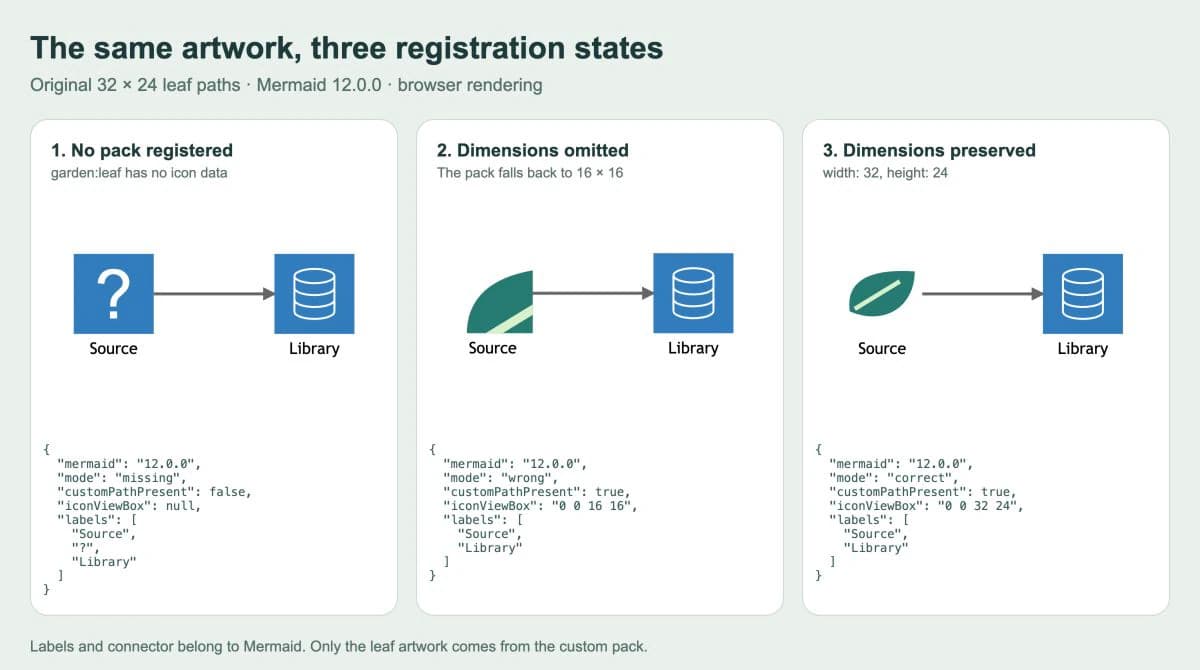
In the first rendering, Mermaid displayed a question mark where the custom leaf should have appeared. The leaf path was absent from the output. In the second, the output contained that path inside an SVG with viewBox="0 0 16 16", and the leaf was visibly cropped. In the third, the icon used viewBox="0 0 32 24" and the complete leaf appeared.
These observations describe this fixture and version. They do not establish that every host reports an unavailable icon the same way. The example also uses hand-authored SVG paths; it is not a PerfectVector conversion result.
| What you see | First check | Useful next step |
|---|---|---|
| Question mark or missing custom artwork | Registration, pack name, and icon key | Match garden, leaf, and garden:leaf; confirm registration runs before rendering |
| Only part of the drawing | Icon coordinates and dimensions | Compare the source viewBox with the icon's left, top, width, and height |
| The whole diagram fails | Mermaid version, syntax, and module loading | Start with the complete minimal example and inspect the reported error |
| Local example works but hosted Markdown fails | Host control over its renderer | Check the host's supported registration mechanism and pinned Mermaid version |
| Artwork appears, but tiny details disappear at diagram size | Source complexity and visible size | Simplify the artwork or use a clearer pictogram |
Keep a working copy of the minimal example before adding more icons. Change one pack property at a time; otherwise a naming fix can hide a separate sizing problem.
Bring raster artwork into the workflow when needed
If your custom pictogram survives only as a PNG or JPG, PerfectVector's clipart-to-SVG workflow can help recover editable contours. Crop a copy to the pictogram, preview the vector result, and inspect the silhouette, interior gaps, and unwanted background shapes. Then open the SVG in an editor and prepare the small version you intend to use in the diagram.
Keep that editable SVG master. Package its drawing content and coordinates only after it reads clearly at the intended icon size. A simple geometric symbol may be quicker to redraw; a photograph may be clearer as a separate image. If you already have suitable SVG artwork, start with the packaging step.
Vectorization does not recover the diagram's service names, relationships, or connector directions. Keep those in Mermaid source. For a canvas-based editor with different shape behavior, see custom SVG shapes in draw.io. For reusable icons in an ordinary webpage, an SVG symbol sprite is another packaging route.
Before handing off your diagram, reopen it through the actual publishing workflow. Confirm that the icon loads, the full silhouette fits, both labels are readable, and the connector points the right way. A successful local rendering is your starting check, followed by a destination check.
FAQ
Can I put an SVG filename inside a Mermaid icon reference? For the registered icon-pack workflow, use a pack name and icon key such as garden:leaf. Prepare the SVG drawing as icon data and register that pack in the renderer's JavaScript.
Why is my custom Mermaid icon cropped? Compare the source viewBox with the icon data's coordinate properties. If dimensions are missing from both the icon and its set, the width and height defaults are 16, which may be too small for the drawing.
Does this work in every hosted Markdown editor? No. The host must support the diagram syntax and provide a way to register the required pack, or already include it. Test the actual publishing destination rather than assuming it shares your local setup.
Sources
- Mermaid — Registering icon packs — Documents direct icon data, loaders, and registration names.
- Mermaid — Architecture diagrams — Defines service icons, native labels, built-in icons, and edge syntax.
- Iconify — IconifyIcon — Defines drawing content without the SVG wrapper and coordinate properties.
- Iconify — IconifyJSON — Defines pack structure and the dimension defaults inherited by icons.
Have a raster-only pictogram for your diagram? Prepare an SVG candidate with PerfectVector, inspect its silhouette and gaps, then register one icon and verify its bounds and label in your final Mermaid renderer.
More from the blog

Excalidraw SVG Import: What Becomes Editable?
Find out when an SVG in Excalidraw is a single image and when its parts become editable shapes. See a tested conversion, its lost hole, and what to check next.

SVG Markers: Build Custom Arrowheads That Stay Aligned
Build a custom SVG arrowhead, align its tip, reverse the start marker, and compare sizing at two stroke widths with an original browser-rendered example.