
Excalidraw SVG Import: What Becomes Editable?
Find out when an SVG in Excalidraw is a single image and when its parts become editable shapes. See a tested conversion, its lost hole, and what to check next.
On this page
Dropping an SVG into Excalidraw can give you a sharp, resizable image without giving you its individual paths to edit. If you need to recolor or move a part, you need an Excalidraw scene made of native elements. An SVG-to-Excalidraw converter can build those elements, but the result still needs a visual check. The Excalidraw discussion about SVG import describes exactly this single-object versus editable-parts problem.
We tested a small two-color icon with a transparent hole. A pinned converter produced three selectable Excalidraw elements, yet it filled the hole that was clear in the SVG. That is a useful reminder: editable and faithful are separate checks.
Three things an “SVG in Excalidraw” can mean
| What you have | What you can edit | Check before relying on it |
|---|---|---|
| An SVG placed as an image | Position, size, and image-level properties | Can you select the teal ring separately from the gold dot? |
| A converted Excalidraw scene | Native elements produced from supported SVG geometry | Are the parts, colors, and empty spaces still correct? |
| An SVG exported from an Excalidraw drawing | Possibly an embedded Excalidraw scene, depending on how it was saved | Reopen it in the same workflow and inspect its elements |
The third case runs in the opposite direction. A tool can put Excalidraw source data inside an SVG export so that its own drawing can be reopened for editing. The Excalidraw VS Code extension, for example, documents .excalidraw.svg files with embedded scene data. That does not mean an arbitrary SVG illustration already contains Excalidraw shapes.
If an imported graphic will not ungroup, first identify the selected object's structure. Our SVG ungrouping guide separates image objects, compound paths, and real groups; Excalidraw adds its own scene format on top of that source-file question.
A small conversion test: the shapes survived, the hole did not
Our source was a hand-authored SVG: one teal ring made from an even-odd compound path, plus a gold circle. The middle of the ring was genuinely transparent in the original, not painted white. We ran it through the official svg-to-excalidraw repository using npm package version 0.0.2, saved the returned scene as an .excalidraw file, opened that file in Excalidraw, and exported a transparent PNG for comparison.
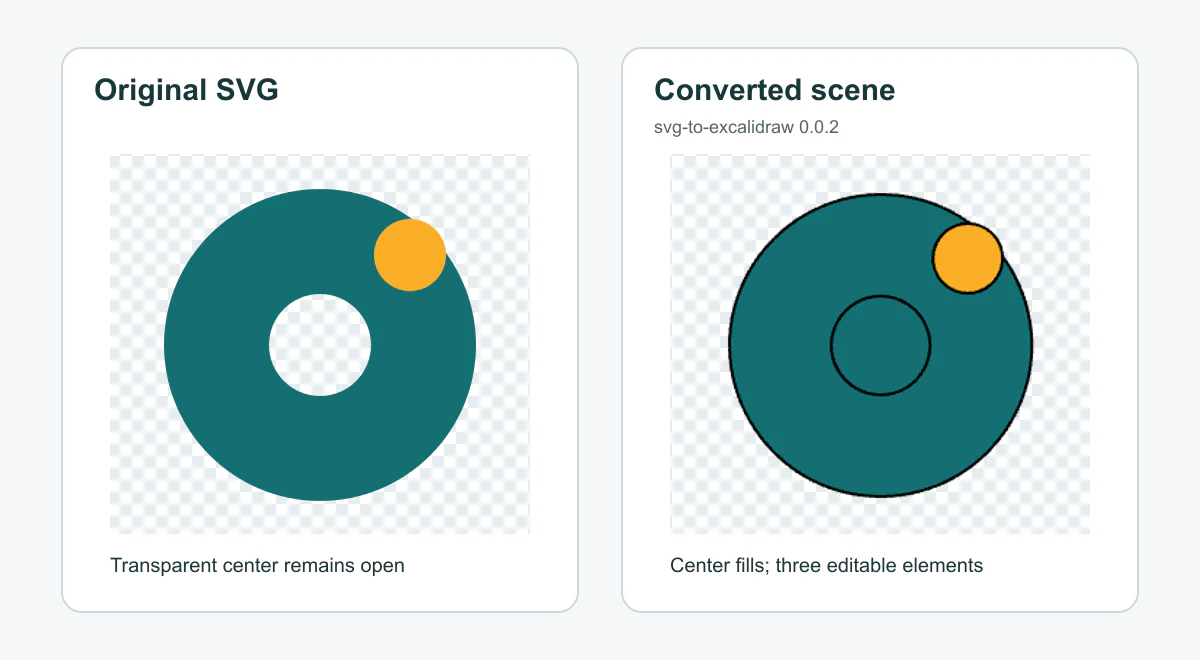
The conversion reported no errors and created three native elements: two teal draw elements and one gold ellipse. The gold accent was separately selectable. The transparent center failed the appearance check, however. In the original render, its center pixel was transparent; in Excalidraw's transparent PNG export, the corresponding pixel was opaque teal. An error-free conversion response did not guarantee a matching picture.
This is one deliberately narrow test, not a claim about every SVG or every conversion route. The separate SVG Chop experiment also treats complex SVG structures as a conversion challenge. A quick glance at the object count is insufficient. Holes, masks, clipping, gradients, text, and nested groups deserve their own tests when your design uses them.
How to check your own SVG
- Keep the original SVG. Save a copy before importing or converting. Inspect whether the region you want to change is already a separate path or shape. A single compound path may have a hole without having separate selectable pieces.
- Decide what “editable” means for this drawing. If you only need to scale and position the illustration, an image may be enough. If you need to move or recolor a piece, you need that piece to exist as a native scene element.
- Try the conversion route on a copy. The open-source SVG-to-Excalidraw project converts SVG geometry into Excalidraw scene content. Check its current setup and keep track of the package version you use. Import or open the resulting scene rather than assuming an ordinary image placement will expose paths.
- Count and select the pieces. Can you select the accent without the body? Can you recolor it while the other color stays put? Open the saved scene again and repeat the edit.
- Compare the picture, not only the objects. Put the original and the Excalidraw export over contrasting backgrounds. Inspect holes, overlaps, edges, text, and any effects you depend on. Our test would have passed a “three elements” check but failed here.
If the conversion splits one intended part into many draw elements, grouping can make it easier to move, but it does not restore the original path structure. If a hole disappears, revise the source or use a different editor for that artwork. Keep the editable master in the vector editor when Excalidraw cannot preserve a feature you need.
Where PerfectVector fits
PerfectVector helps earlier in the workflow only when the source is raster artwork, such as a flat PNG icon that has no SVG paths yet. Convert the clipart to SVG, inspect whether the colored regions and negative space survived, and clean the geometry before attempting an Excalidraw conversion. The small-icon preparation guide covers source clarity and consistency. Vectorization cannot turn an Excalidraw image placement into native scene elements by itself, and a newly traced SVG still needs the destination-app check above.
For an SVG that already contains suitable vector shapes, skip retracing it. Compare the original with the converted scene instead. The related draw.io custom SVG shape guide makes a similar image-versus-native-shape distinction for a different diagram editor.
FAQ
Can I ungroup a placed SVG image into Excalidraw shapes? An image-level selection does not expose the original SVG parts as native Excalidraw elements. Use a conversion workflow when you need separate scene shapes, then inspect the result.
Does SVG-to-Excalidraw conversion preserve every hole? Do not assume it does. In our version 0.0.2 test, an even-odd ring became editable draw elements but its transparent center was filled. Compare your own source and saved scene, especially where empty space matters.
Should I vectorize an SVG before importing it? No. If the SVG already has the shapes you need, check its structure and the Excalidraw conversion. Vectorization is relevant when your starting image is raster artwork, such as PNG or JPG.
Sources
- Excalidraw discussion #6082 — User question about an imported SVG behaving as one block rather than editable parts.
- Excalidraw — svg-to-excalidraw — Official open-source conversion route used for the pinned original-icon test.
- Excalidraw Editor extension for VS Code — Documents Excalidraw scene files and SVG/PNG exports with embedded scene data.
- Minixcali — SVG Chop — Independent experiment converting SVG parts into Excalidraw elements, with geometry caveats.
If your starting point is a PNG icon, make an SVG candidate with PerfectVector, check its separate regions and holes, then test the saved Excalidraw scene before using it in a drawing.
More from the blog

Mermaid Custom SVG Icons: Register Your Own Artwork
Package your SVG artwork as an Iconify icon set, register it in Mermaid, and test missing icons, cropped shapes, and labels with a working diagram example.

Fabric.js SVG Import: Keep Artwork Editable on Canvas
Import SVG into Fabric.js as editable objects, recolor one part, and export a checked SVG copy. Follow a tested example and separate source issues from API bugs.