Boxy SVG Vectorize Image: Trace or Import Paths?
Boxy SVG has a Vectorize generator. Choose tracing, geometric styling, or an imported SVG, then check editable regions and holes before using your artwork.
On this page
Boxy SVG can trace an image with its Vectorize generator. Its developer confirmed that image tracing arrived in version 3.35.0, alongside Pixelate, Triangulate, and Primitivize. Older advice describing manual tracing as the only route misses that addition.
For a logo or illustration you want to recolor, start with the tracing route. For a deliberately geometric interpretation, explore the other generators. If you already have a useful SVG from another tracer, bring that artwork into Boxy SVG for editing instead of tracing it again.
The choice depends on the shapes you need afterward. A mug drawn as many colored tiles can be vector artwork, yet still be awkward to edit as one cup with a separate handle. Decide what you need to select, recolor, or reshape before judging the result.
Choose the geometry you want to work with
Vectorize and the other generators share a broad purpose: converting raster information into vector artwork. They serve different visual goals. The developer's discussion of Triangulate and Primitivize describes geometric approximation, including a choice of triangles or rectangles in Primitivize.
Use that distinction to choose a starting point:
| Your goal | Starting route | Acceptance check |
|---|---|---|
| Preserve a recognizable emblem as editable contours | Vectorize | The important silhouettes and open spaces survive |
| Create a geometric reinterpretation | Explore Pixelate, Triangulate, or Primitivize | The stylization is intentional and the geometry suits later edits |
| Finish a trace already made elsewhere | Open the SVG in Boxy SVG | The visible artwork contains usable vector objects |
| Rebuild a simple mark with controlled curves | Draw it manually | The construction follows the design you want |
None of these routes automatically produces the original designer's object structure. A tracer sees the finished image. It does not know that you consider the cup, handle, and highlight to be three named design elements.
Imagine a tea-shop illustration that will appear both as a large poster graphic and a small menu icon. Facets may suit the poster. The icon may need a simpler silhouette with an open handle that remains visible at a glance. Those are different design requirements, even if both deliverables use SVG.
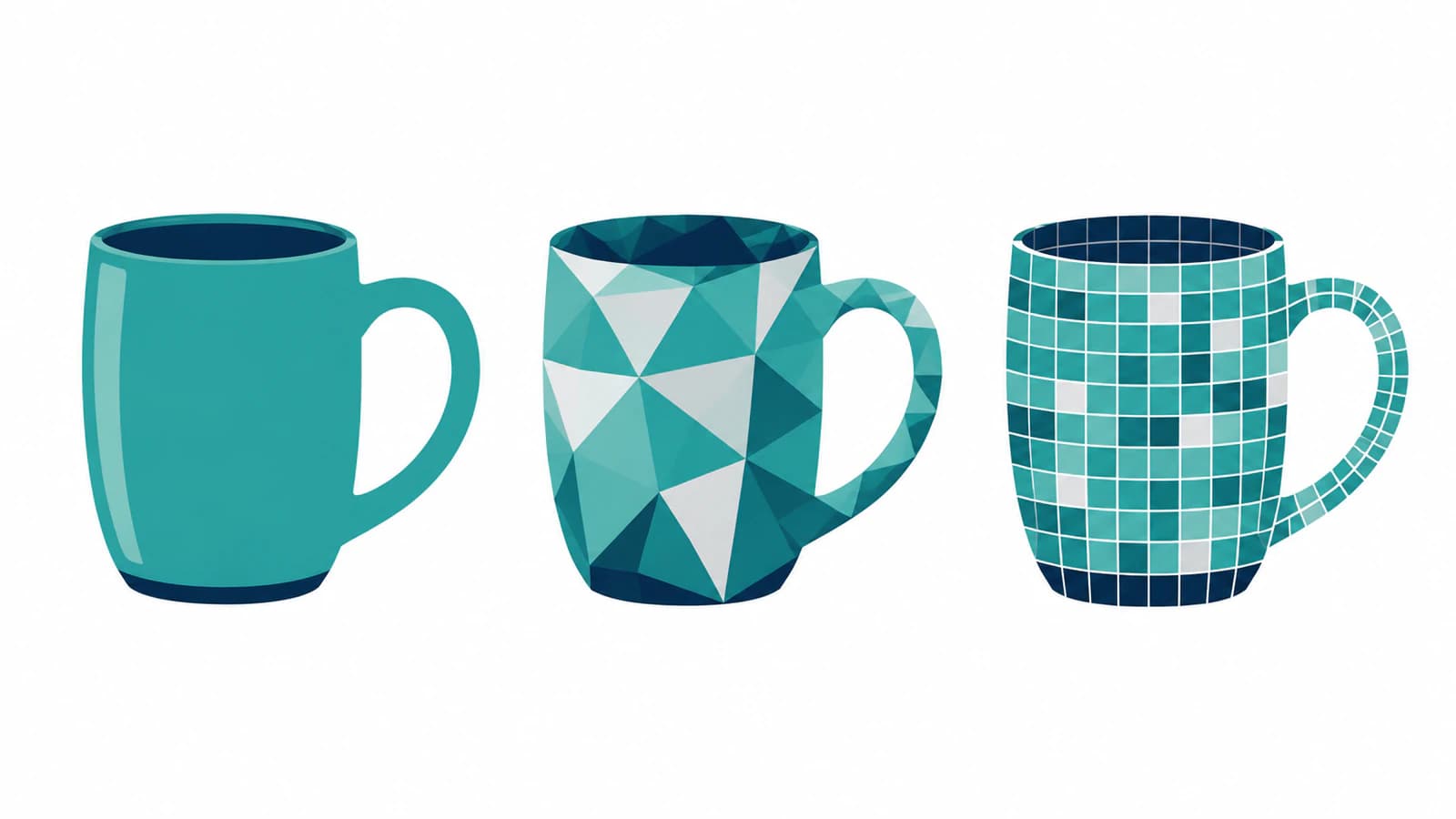
Try a native trace without losing your source
Keep the original image and make a separate working document for the trace. Begin with one representative image, such as the mug icon, before processing a whole set.
Find Vectorize among the generators in your Boxy SVG edition. Use it for a first tracing attempt, then inspect the generated artwork separately from the source image. If both occupy the same position, move the result to one side or hide the source while checking it. Otherwise, a retained bitmap can conceal a missing part of the vector result.
Change one available tracing control at a time and compare the same small detail after each attempt. For the mug, watch the handle opening and the join between the handle and cup. Keep a version that preserves those features before experimenting with a simpler result. There is no useful universal setting that can be promised for every source image.
If Vectorize is absent from your installation, check your edition and version against Boxy SVG's support information. A missing control does not establish that Boxy SVG has never supported image tracing. You can also use an external tracer and continue editing the SVG in Boxy SVG.
Check the handle opening before simplifying paths
The mug's handle provides a useful test because its empty space is part of its identity. Put a contrasting background behind the result. If that color shows through the opening, inspect whether the intended empty area survives. If the opening stays white, it may be a white object covering the background.
This is more than a color choice. SVG's fill rule determines which areas of a path count as inside, including the relationship between subpaths. Changing path construction can therefore change a hole. Work on a copy before combining or simplifying shapes, and recheck the opening afterward.
For the mug example, use these checks in order:
- View the result without the raster source behind it. Confirm that the cup and handle still appear complete.
- Check the handle against a contrasting background. Also inspect any narrow gap between decorative marks.
- Select the cup's colored region and try a temporary fill change. Notice whether the edit affects one useful region or many small pieces.
- Inspect the outer contour with the path-editing tools. Adjust a small section, then undo, to confirm that you are working with the intended geometry.
- Reduce the graphic to the menu-icon size. Decide whether the handle remains legible and whether small facets add anything useful.
An intricate result may be appropriate for the poster while needing a separate simplified version for the menu. For detailed cleanup choices, see how to edit an SVG and what to do with too many SVG nodes.
Import a dedicated trace when it fits the job
PerfectVector is an option when you want to create the trace separately and use Boxy SVG for the finishing edits. Convert your source image to SVG, then open the downloaded artwork in Boxy SVG and check the cup's outline, handle opening, and recolorable regions. This keeps the tracing choice separate from the editor you prefer for arranging and refining the design.
Boxy SVG's developer-provided Google Play description lists geometry editing, path operations, SVG/SVGZ saving, and an SVG/CSS code inspector. Those are useful finishing tools, whether the paths came from a native trace, an external conversion, or a manual drawing.
Check imported artwork rather than trusting its extension. The SVG image element can reference a PNG or JPEG, so an SVG can still contain raster content. If the mug remains an image object, opening it in a vector editor has not converted it into contours. Our guide to SVG files that contain raster images explains how to identify mixed artwork.
Use the same source image and the same acceptance checks if you compare tracing routes. Judge whether the result supports your intended edit, rather than choosing the file with the smallest size or fewest objects automatically.
When a manual drawing or raster image is preferable
A simple mug icon may be easier to rebuild from a few controlled shapes than to repair after tracing. Manual construction lets you decide how the handle joins the cup and how the highlight behaves when you recolor it. It also avoids preserving accidental bumps in a small, compressed source image.
A photograph of a glazed ceramic mug presents another choice. Reflections, glaze texture, and subtle shading may be the point of the picture. Keep the raster if you want to preserve those details. Geometric stylization can be a deliberate artwork decision, but it changes what you are asking the file to represent.
FAQ
Does Boxy SVG have automatic image tracing? Yes. Its developer documents the Vectorize generator as an image-tracing feature introduced in version 3.35.0. Check your edition and version if you cannot find it, rather than relying on older manual-only instructions.
Are Vectorize and Triangulate the same thing? They serve different goals. Start with Vectorize when you need traced contours. Explore geometric generators when a faceted or otherwise stylized interpretation is the desired artwork, and check whether the resulting pieces support your intended edits.
Can I edit an SVG made by another vectorizer in Boxy SVG? You can use Boxy SVG to work with imported vector artwork. Inspect the file first: an SVG that contains only an embedded bitmap does not provide editable contours for that picture.
Why did the hole in my traced shape disappear? Inspect whether tracing closed the opening, a background-colored object covers it, or a path operation changed how the interior is filled. Compare with a saved copy and test against a contrasting background before changing more paths.
Sources
- Boxy SVG developer response on the Mac App Store — the developer's confirmation of Vectorize and the other generators in version 3.35.0.
- Boxy SVG developer discussion of geometric generators — the creator's explanation of Triangulate and Primitivize, distinct from other users' opinions.
- Boxy SVG on Google Play — the developer's description of editing, path operations, saving, and code inspection.
- W3C — SVG 2 fill rules — how path interiors are determined.
- W3C — SVG 2 embedded content — raster images can be referenced inside an SVG.
Choose the geometry that supports the next edit. If a separate trace would help, try your own image in PerfectVector, open the SVG in Boxy SVG, and check the smallest important opening and the region you need to recolor.
More from the blog
Vectorizer.AI Alternatives: Compare Cost and Control
Free Vectorizer.AI alternatives exist, and most of the reviews are written by the alternatives. Here is the real trade, and how to test any converter yourself.

Can Figma Vectorize an Image? What Its AI Tool Does
Figma added a built-in Vectorize tool that traces your image into editable vectors, but it needs a paid plan. Here's what it does, its limits, and the honest answer.