
Can Figma Vectorize an Image? What Its AI Tool Does
Figma added a built-in Vectorize tool that traces your image into editable vectors, but it needs a paid plan. Here's what it does, its limits, and the honest answer.
On this page
- Yes, but first: "supports vectors" and "vectorizes your image" are different
- What Figma's built-in Vectorize actually does
- On the free plan? You're using a plugin
- What it's good at, and where it strains
- What you want vs what Figma gives you
- The "is it a real, clean vector?" check
- When a dedicated vectorizer is the better tool
- When you don't need to vectorize at all
- FAQ
- Sources
Short answer: yes. Figma’s built-in Vectorize tool traces a selected static image into editable vector layers with Figma AI. It is available on paid plans and uses Figma AI credits. Credits are allocated to individual seats rather than shared or transferred between users, according to Figma’s current credit policy. Figma also notes that complex or low-resolution images may not vectorize well.
The quick version
- Yes, Figma can vectorize an image with its built-in Vectorize tool powered by Figma AI.
- It is available on paid plans and consumes the seat holder’s Figma AI credits.
- On a plan without the built-in feature, use a third-party plugin or a separate vectorizer only after reviewing its permissions, terms, and output.
- It's best for hand-drawn symbols, lettering, and illustrations. Figma notes complex or low-res images may not vectorize well.
- For a logo, cut file, or another demanding output, use the Figma Vectorize alternative comparison to judge node structure and layer separation before choosing the result.
- Same honest split as Canva and ChatGPT: a tool can technically vectorize and still not be the right one for your job.
Yes, but first: "supports vectors" and "vectorizes your image" are different
Figma can create and edit vector geometry, but that is different from automatically tracing an existing raster image. Its native Vectorize command now handles the narrower job: selecting a static image and converting it into editable vector layers. The source quality and intended destination still decide whether the result is suitable.
What Figma's built-in Vectorize actually does
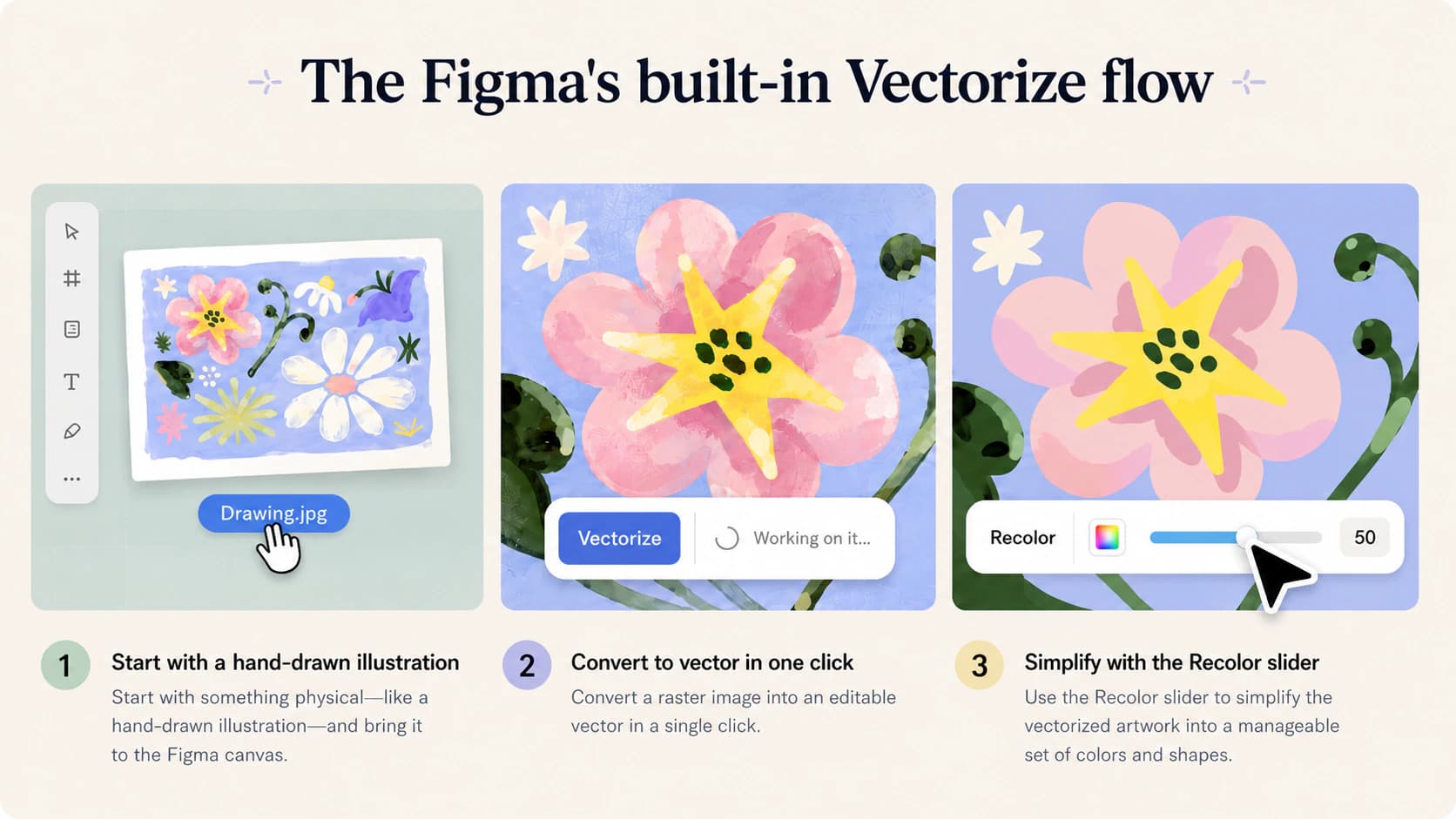
How do you vectorize an image in Figma? Select the image on your canvas, open More in the secondary toolbar, and choose Vectorize. Figma's AI traces it, which takes a few seconds depending on complexity, and then you refine the result with the Recolor settings: Full color (you set the number of colors), Grayscale, or Black and white (you set the threshold). Click the checkmark to keep it. The traced artwork lands as editable layers you can adjust like any other Figma vector.
A few things matter before you lean on it:
- It's a paid-plan feature. Vectorize is available on all paid plans and consumes Figma AI credits. Figma’s credit documentation describes individual monthly allocations by seat and plan; credits are not shared or transferred between people.
- It's scoped to simple art. Figma describes the feature as turning hand-drawn symbols, lettering, and illustrations into vector layers. That's the sweet spot, not detailed photos.
- It tells you when it'll struggle. Figma's own guidance says complex or low-resolution images may not vectorize well, and suggests running Remove background or Boost resolution first.
On the free plan? You're using a plugin
If your plan does not include the built-in tool, a Figma Community plugin or a separate vectorizer is another route. Community plugins are third-party software, so review the specific plugin’s creator, permissions, data handling, pricing, and output before using it. Whatever the route, inspect the resulting paths and anchor count rather than treating “runs inside Figma” as a quality guarantee.
What it's good at, and where it strains
Figma's real advantage is that the conversion happens where you already work, so you skip exporting to another tool and rebuilding paths by hand. If you're deep in a design file and want a hand-drawn mark turned into editable shapes you'll tweak right there, that convenience is the reason to use it.
Where it strains is the same place every AI auto-trace does. Recolor presets give you color count, grayscale, or black and white, but not fine control over the paths themselves: the node count, how the curves are smoothed, whether each color separates into its own clean layer for cutting. And the feature is built for designers inside Figma, not for someone who just needs a clean SVG of a logo and isn't paying for a Figma seat.
What you want vs what Figma gives you
| What you want | Figma's answer | The catch |
|---|---|---|
| Trace my image into editable vectors, inside Figma | Built-in Vectorize (Figma AI) | Paid plans only; uses AI credits |
| Vectorize without the paid-plan command | A community plugin or separate tool | Review permissions, terms, and output |
| Draw or edit vectors from scratch | Pen and vector tools | Always there, but not auto-tracing your image |
| More control over path structure or additional export formats | Compare the native result with a dedicated tool | Inspect both outputs in the destination workflow |
The "is it a real, clean vector?" check
However you trace it, give the result a ten-second check before you build on it. A vector you can actually rely on:
- Opens as editable paths. Click a shape and you can move and reshape it, not just one flat image.
- Stays crisp as you zoom. If it blurs, you have a raster wearing an
.svglabel. - Has a sane node count. Clean curves use a handful of anchor points, not hundreds. Node bloat is what makes a file slow to edit and rough to cut, the same trap a traced logo full of nodes falls into.
When a dedicated vectorizer is the better tool
If your vector is headed somewhere demanding—a reusable logo, a Cricut or laser cut, or a design you plan to distribute—compare more than the preview. A dedicated vectorizer may expose different path, color, and export controls. Inspect both results for node count, clean boundaries, layers, and compatibility in the final application.
PerfectVector provides that separate raster-to-vector route. You can compare it with Figma's Vectorize workflow, inspect the vector preview and color regions, then bring the downloaded SVG into Figma for further design work. For a logo specifically, use the logo vectorization workflow and verify the output with the printer or other destination. Once imported, follow the same SVG editing checks you would for any external asset.
Being straight about it: this works on flat, graphic art like logos, icons, and simple illustrations. A photograph won't become a clean vector from any tool, Figma's feature or a dedicated one, so for those, keep the raster.


For a whole UI kit, standardize the converted SVG icon set before importing the files into Figma.
When you don't need to vectorize at all
Sometimes the whole question is moot:
- A web graphic or social post is fine as a PNG. A vector buys you nothing there.
- Photographs don't vectorize cleanly. They posterize into flat blobs, so keep them raster.
- A mockup you'll only ever use inside one Figma file doesn't need tracing to a real vector at all.
Vectorizing pays off when you need to scale, edit, or cut a design, which means logos, icons, and flat graphics (new to the idea? start with what image vectorization is).
FAQ
Can you turn a PNG into a vector in Figma? Yes. On a paid plan, select the PNG on your canvas, open More in the secondary toolbar, and choose Vectorize. Figma's AI traces it into editable vector layers, which you then refine with the Recolor settings. On a free plan, you'd use a community plugin instead, since the built-in tool isn't included.
Is Figma Vectorize free? The built-in Vectorize tool is available on Figma’s paid plans and uses Figma AI credits. Figma allocates credits by seat and plan; they are individual rather than shared or transferable between users. If the command is unavailable on your plan, compare a reviewed community plugin or a separate converter.
Does Figma support vector graphics? Yes. Figma provides vector drawing and editing tools, and the built-in Vectorize feature separately handles automatic tracing of selected static images into vector layers.
What kind of images does Figma's Vectorize work best on? Flat, graphic art: hand-drawn symbols, lettering, and illustrations, which is how Figma describes the feature. Detailed photos and gradient-heavy images don't trace cleanly, and Figma notes that complex or low-resolution images may not vectorize well, suggesting you remove the background or boost resolution first.
How do I get a cleaner, more editable vector than Figma's trace? Compare the native trace with a dedicated vectorizer, then inspect both files rather than assuming one is cleaner. Confirm editable paths, manageable nodes, correct color regions, and compatibility in the destination before importing the chosen SVG into Figma.
Sources
- Figma Learn — Convert static images to vector layers — Documents Vectorize availability, workflow, recolor options, and source-image limitations.
- Figma Learn — How AI credits work — Documents per-seat credit allocations and current Vectorize credit use.
- Figma Learn — Use AI tools in Figma Design — Describes Figma AI access and plan requirements.
- PerfectVector — Image to Vector Converter — States the current alternative raster-to-vector workflow.
Got an image or logo you need as a clean, scalable vector to bring into Figma? Test the source on the Figma Vectorize alternative page, check the paths, and import the result only when it suits the job.
More from the blog

Can Photoshop Vectorize an Image? Know Its Limits
Photoshop has manual vector tools, but it cannot auto-trace an image into clean paths. See what its work-path trick does and which alternatives to use.

Can Gemini Vectorize an Image? What It Can Do
Gemini can write SVG code from a text prompt, unlike most AI. But it can't trace your uploaded image into a clean, editable SVG. Here's what it can and can't do.