
SVG feColorMatrix: Recolor Without Changing Fills
Use SVG feColorMatrix to recolor a preview, preserve transparency, and choose sRGB. Compare the filter with direct fill edits before handing off editable artwork.
On this page
An SVG feColorMatrix filter changes the colors that a renderer displays. It does not rewrite the fill values on your paths. That makes it useful for reversible visual effects, but a filtered preview and an SVG with a newly edited palette are different deliverables.
If you need a web preview, keep the filter and test the page where it runs. If someone needs to select a blue shape and edit its blue fill, change the source paints. If the source is a PNG, neither a filter nor an SVG wrapper creates editable vector shapes; that requires a separate vectorization step.
The example below uses the same two-leaf motif for both recoloring routes. You can save the code, inspect the source, and remove the filter to see exactly what changed.
Choose the recoloring result you need
| Your goal | Suitable approach | What to inspect |
|---|---|---|
| Reversible color effect on a web graphic | feColorMatrix | Rendered appearance, transparency, and filter reference |
| New fill colors stored in an existing vector | Edit fill, stroke, or the relevant style rule | The selected shape's actual paint value |
| One fixed color across the visible silhouette | A constant-color matrix preserving alpha | Transparent edges and intentional loss of color detail |
| Independently editable regions from a PNG | Vectorize the image, then inspect and recolor paths | Shape boundaries, small details, and palette |
The SVG color-editing guide covers finding fills, strokes, and style rules. Here the narrower question is what a filter leaves behind in the file. MDN describes feColorMatrix as a transformation of pixel color channels, while its fill-and-stroke guide describes the paints applied to shapes.
A two-color example you can inspect
Save this as filtered-leaves.svg and open it in a browser. The first leaf starts with an orange fill, #cc6633; the second has a green fill, #339966, at half opacity. The matrix swaps red and blue channels while retaining green and alpha.
<svg xmlns="http://www.w3.org/2000/svg"
     viewBox="0 0 260 220" width="260" height="220">
  <defs>
    <filter id="swap-red-blue" color-interpolation-filters="sRGB">
      <feColorMatrix type="matrix" values="
        0 0 1 0 0
        0 1 0 0 0
        1 0 0 0 0
        0 0 0 1 0" />
    </filter>
  </defs>
  <g filter="url(#swap-red-blue)">
    <path fill="#cc6633"
      d="M40 125 C25 35 105 15 150 35 C165 105 120 150 40 125Z" />
    <path fill="#339966" fill-opacity="0.5"
      d="M100 175 C90 90 180 65 225 90 C230 155 175 200 100 175Z" />
  </g>
</svg>
We rendered four versions of this original motif in the browser: the original paints, the filtered version, a direct edit, and a copy with the filter removed. The direct edit changed the first fill to #3366cc and the second to #669933, without a filter. Both recoloring routes produced a blue-and-olive motif. Inspecting the filtered version's DOM still returned the original orange and green fill attributes. Removing its filter returned the original palette.
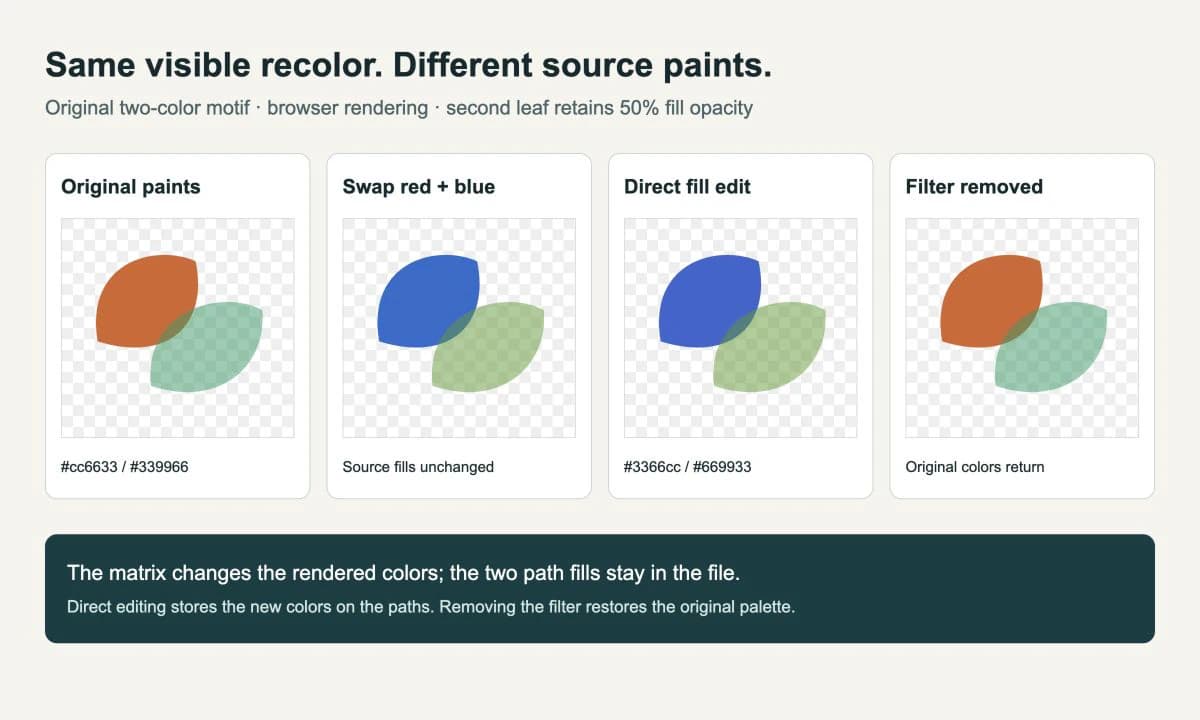
This is a small browser demonstration, not a compatibility test of every editor or export format. Its useful delivery check is simple: the filtered file still depends on that effect being preserved and rendered. The direct-fill version carries the new palette on the shapes themselves.
To repeat the source check, open the SVG in a text editor and search for fill=. Then remove only filter="url(#swap-red-blue)" from the group and refresh the browser. Keep the unmodified file beside it so you can compare the result.
Read the four rows without memorizing a matrix
For type="matrix", the values attribute contains twenty numbers: four rows of five. Each row calculates one output channel. The columns use input red, green, blue, alpha, and a constant offset. MDN's matrix reference shows the equations and the identity matrix.
In our example, row one takes blue as the new red. Row two keeps green. Row three takes red as the new blue. Row four keeps alpha:
0 0 0 1 0That last row means “use the existing alpha, with no added offset.” Replacing it with all zeros makes the result transparent. Adding a constant in the last column changes transparency even where the source was transparent, which can create an unwanted rectangle within the filter region.
The matrix processes the rendered input to the filter. It does not know which pixels came from a leaf, a letter, a stroke, or an embedded photograph. Apply it to the group or object you intend to affect. If you need to change only one semantic part of a design, select that part and edit its paint instead.
Set sRGB when your numbers come from an RGB swatch
SVG filter primitives use linearRGB by default. A swatch such as rgb(128, 128, 128) is ordinarily specified in sRGB, so a matrix constant of 0.5 in the default filter space does not mean the same displayed gray as half-scale sRGB. Use color-interpolation-filters="sRGB" when your matrix is intended to operate on those sRGB channel values. This is distinct from color-interpolation; changing that other attribute does not select the filter's color space. MDN documents the defaults and the distinction.
For a solid #3366cc silhouette, the normalized RGB values are 51/255, 102/255, and 204/255, or 0.2, 0.4, and 0.8. The following filter discards the input RGB values and sets those constants while retaining input alpha:
<filter id="solid-blue" color-interpolation-filters="sRGB">
  <feColorMatrix type="matrix" values="
    0 0 0 0 0.2
    0 0 0 0 0.4
    0 0 0 0 0.8
    0 0 0 1 0" />
</filter>
Reference this filter from the object with filter="url(#solid-blue)". It intentionally removes distinctions between opaque source colors. It is suitable for a silhouette, not for preserving the tonal detail of a photograph. The Filter Effects specification defines the channel transformation and its handling of non-premultiplied color values.
Setting sRGB is a choice of calculation space, not a guarantee of identical color on every display or in print. For a broader delivery mismatch, use the SVG export color checklist.
Check the delivered file, not only the preview
A filter-based recolor remains reversible while the original artwork and filter definition remain intact. A screenshot or raster export records the visible result as pixels. Neither operation by itself makes the new palette available as editable path fills.
Before handing off a vector, check the actual destination:
- Open the saved SVG through the same import or export route the recipient will use.
- Compare the colors and translucent edges against the browser preview.
- Select a shape and inspect its fill. Does it contain the intended new value, or the original paint beneath an effect?
- Save and reopen once. Confirm the filter definition and its reference survived if the effect is required.
- If the recipient needs ordinary editable flat colors, use the direct-fill version and remove the now-unneeded filter from that delivery copy.
For gradients, strokes, opacity, or blended overlaps, a global matrix is not a general find-and-replace tool. Rebuilding the intended appearance as source paints may require editing more than a pair of hex values. If a raster deliverable is acceptable, exporting the checked appearance to PNG is another option. Keep the vector master separately.
When PerfectVector belongs in this workflow
If you already have these two paths, edit them directly. There is no reason to rasterize and retrace them to remove a color filter.
PerfectVector becomes relevant when your starting artwork is a PNG or JPG and you need editable regions. Use image-to-vector conversion to prepare a vector candidate, then inspect its shape boundaries and small details before recoloring. A filter applied to a bitmap can change its appearance, but the bitmap remains pixel content. The embedded-raster check helps distinguish that case from paths you can select and edit.
For photographs where the goal is simply a tint, keep a raster workflow. For a logo with an available vector master, use the master. The vectorization overview explains when recovering geometry from pixels is the useful step.
FAQ
Does feColorMatrix change the fill values in my SVG? No. It transforms rendered color channels. The source fill attributes remain unchanged unless you edit them separately.
Why is my chosen gray lighter than expected? Check the filter's calculation space. SVG filter primitives default to linearRGB. Set color-interpolation-filters to sRGB when the matrix constants represent normalized sRGB swatch values.
How do I keep transparency while recoloring? Keep the alpha row as 0 0 0 1 0. This retains the input alpha. Check translucent edges and avoid adding an alpha offset unless you intend to change transparency.
Can a filtered PNG become an editable vector? A color filter changes appearance, not geometry. To edit individual vector shapes, obtain the vector original or vectorize the raster and inspect the resulting paths.
Sources
- MDN: feColorMatrix — Defines matrix rows, channels, and available transformation types.
- MDN: color-interpolation-filters — Explains the linearRGB default and explicit sRGB selection.
- W3C: Filter Effects, feColorMatrix — Specifies color and alpha transformation behavior.
- MDN: Fills and strokes — Describes the source paints used by SVG shapes.
If your artwork exists only as pixels and needs separate editable colors, convert your image to a vector candidate. Inspect the paths, recolor the source paints, and reopen the delivered file to check both its appearance and editability.
More from the blog

Graphviz SVG Images: Keep Node Artwork Portable
Add SVG artwork to a Graphviz node, inspect its image reference, and test a complete asset bundle against a moved diagram and a self-contained delivery copy.

Matplotlib SVG: Keep Plot and Logo Artwork as Paths
Export your Matplotlib plot as SVG, compose separate logo paths with svgutils, and check the delivered file for embedded pixels, placement, and font changes.