SVG Gradient Units: Share One Blend Across Logo Paths
Make a gradient flow across separate SVG logo paths. Compare gradientUnits, set shared endpoints, and fix a translated group's unexpected color shift.
On this page
To spread one gradient across separate SVG paths, use gradientUnits="userSpaceOnUse", set endpoints in the artwork's coordinates, and keep the paths in the same coordinate system. Each path then reveals the portion of the blend at its position. You can keep the logo's pieces separately editable.
The default, objectBoundingBox, fits the gradient to each painted element. Referencing the same gradient ID from three paths can therefore produce three complete purple-to-orange blends. Changing the units fixes that repetition, but a transformed child can still shift its own paint. MDN's gradientUnits reference defines the reference space as the current user space of the element using the gradient.
This walkthrough uses an original three-part emblem drawn directly as SVG paths. If you already have a vector logo, work from that master. A raster-only source needs geometry recovery before this paint-editing step; the broader gradient vectorization guide explains that choice.
Decide whether the blend belongs to each shape or the whole mark
Use object-relative paint when every part should have its own complete blend. Use shared user-space endpoints when the left and right parts should sample different colors from one transition.
| Setting | What the endpoints refer to | Result for separate paths |
|---|---|---|
objectBoundingBox | Each painted element's bounds | The blend repeats across each part |
userSpaceOnUse | The referencing element's current user coordinates | The blend continues across parts that share those coordinates |
userSpaceOnUse inside a separately transformed child | That child's transformed coordinate system | The paint can move with the child |
Putting fill="url(#brandBlend)" on a group passes the fill to its children. It does not make an object-bounding-box gradient measure the group's combined silhouette. The children still receive their own paint. The SVG paint-server specification describes gradients as resources referenced by an element's fill or stroke.
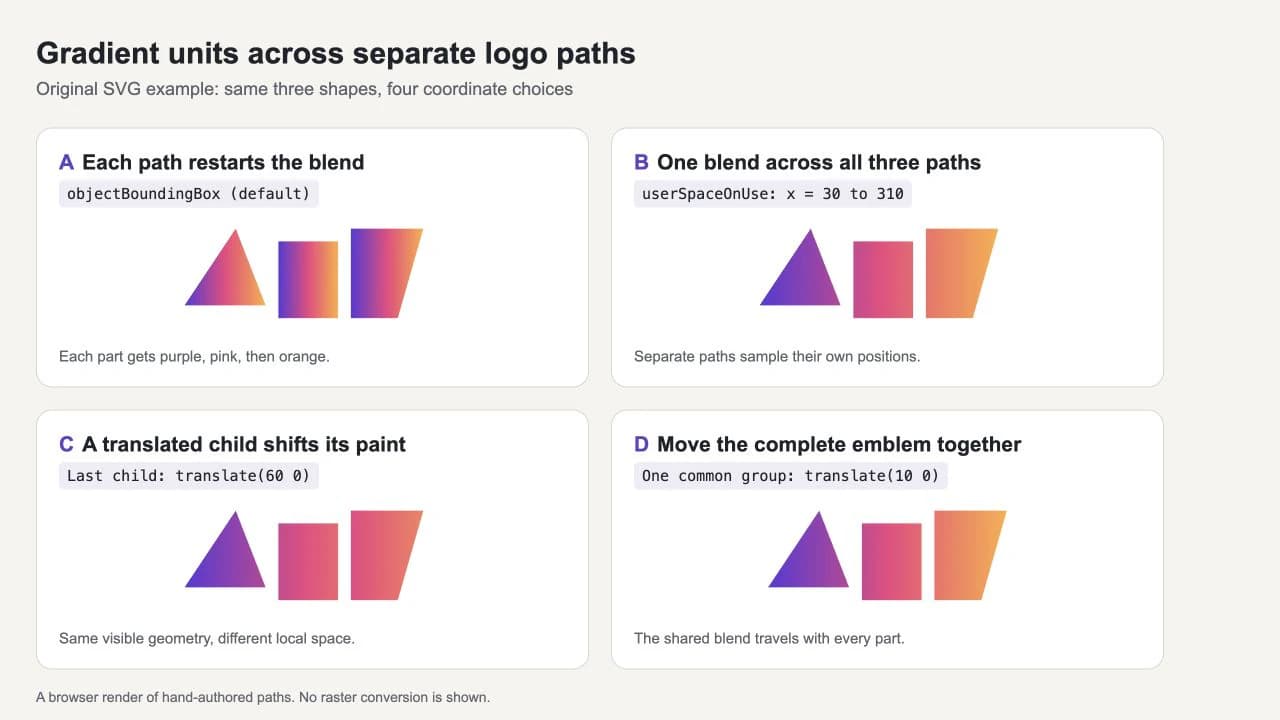
Set endpoints that span the artwork
The example's paths occupy horizontal positions from x=30 to x=310. Those are the blend's endpoints. The triangle stops at x=125, the middle block occupies 140 through 210, and the right shape runs from 225 to 310.
Save this as shared-logo.svg and open it in a browser:
<svg xmlns="http://www.w3.org/2000/svg" viewBox="0 0 360 170" width="720" height="340">
  <defs>
    <linearGradient id="brandBlend" gradientUnits="userSpaceOnUse" x1="30" y1="0" x2="310" y2="0">
      <stop offset="0" stop-color="#5939d8" />
      <stop offset="0.5" stop-color="#ee4380" />
      <stop offset="1" stop-color="#ffae42" />
    </linearGradient>
  </defs>
  <g fill="url(#brandBlend)">
    <path d="M30 120 L90 30 L125 120 Z" />
    <path d="M140 45 H210 V135 H140 Z" />
    <path d="M225 30 H310 L280 135 H225 Z" />
  </g>
</svg>
You should see a purple triangle, a mostly pink center block, and an orange-shaded right shape, as in B. The empty gaps hide sections of the same blend; the color does not restart when the next path begins. Change one stop and all three pieces update because they reference the same definition.
For a direct comparison with A, replace the gradient's gradientUnits, x1, y1, x2, and y2 attributes with x1="0%" y1="0%" x2="100%" y2="0%". Omitting gradientUnits restores the default. Each shape now receives the full color transition.
Why x2=1 can make the logo look like one color
In user space, a unitless x2="1" means coordinate 1, not 100% of the logo. If the blend ends before the paths begin, the default pad behavior extends its final color across them. Choose endpoints from the artwork's actual bounds.
Percentages have a different reference too: with userSpaceOnUse, they refer to the current SVG viewport rather than the painted object's bounding box. Explicit numbers make this example easier to inspect. A logo occupying only part of a large viewBox need not use that viewBox's full width for its blend.
Check transforms when one piece has the wrong color
In C, the right shape looks as though it has stayed in place. Its path coordinates moved 60 units left, and a child group moved it 60 units right:
<g transform="translate(60 0)">
  <path d="M165 30 H250 L220 135 H165 Z" />
</g>
Replace the third path in the complete example with this group to reproduce the mismatch. Its visible left edge remains at x=225, but its local left edge is x=165. The gradient uses that local space, so the piece samples an earlier, pinker part of the blend. userSpaceOnUse is not a promise of one global coordinate system regardless of nested transforms.
For this emblem, restore the third path's original coordinates and remove its private translation. If the whole logo needs moving, apply transform="translate(10 0)" to the existing outer group instead. That produces D: all three shapes and their shared paint move together.
This correction works because the paths are already expressed in a common coordinate system. Putting unrelated transformed children inside one more group does not remove their individual transforms. For an imported logo, inspect those transforms before flattening or rewriting geometry, and preserve a copy of the original master.
When gradientTransform is useful
For a radial blend, you can move the highlight by changing the radial-gradient focus while keeping the path and end circle fixed. Check the coordinate units first: a wide object bounding box can make the paint elliptical even when the source gradient uses a normalized circle.
gradientTransform changes the paint's coordinate mapping without changing the path geometry. It is useful when you deliberately need to rotate, skew, or reposition a blend. MDN documents it as an additional transform applied after the coordinate system selected by gradientUnits is established.
Avoid adjusting one shared definition to compensate for a single child without checking the others. Every shape referencing that definition can be affected. Keeping the artwork in a common space is easier to maintain for the simple logo here; more complex imported artwork may need separately mapped gradient definitions.
Where PerfectVector fits
If the only source is a PNG or JPG logo, PerfectVector can help recover editable vector geometry before you rebuild the coordinated gradient. Vectorize the logo, then inspect the silhouette, holes, and distinct parts in your editor. Use those shapes as the starting point for the shared paint.
The demonstration above was hand-authored to isolate coordinate behavior; it is not a PerfectVector conversion result. Tracing shaded pixels should not be assumed to recover the original gradient stops or its coordinate settings. A simple logo may also be quicker to redraw manually. Keep an existing SVG, AI, or vector PDF when one is available.
For a shape that refuses a new fill, use the SVG recoloring checks before changing gradient coordinates. If the same export differs between applications, follow the SVG color-shift diagnosis.
Reopen the file before handing it off
Save a new SVG and test the exact file, not just the editor canvas. Check the following:
- The gradient ID exists and every intended path references it.
- The blend covers the logo's bounds at the intended direction.
- Moving the entire mark keeps the colors coordinated.
- Separate parts remain selectable where you need to edit them.
- The receiving application preserves the expected appearance.
A smooth browser render demonstrates the paint behavior in that browser. It does not establish support in every editor or turn the gradient into cutting geometry. Keep a flat-color version for workflows that need solid shapes, and retain the editable SVG master. The SVG file guide explains the difference between the file's geometric content and its displayed appearance.
FAQ
Do I have to merge paths to share a gradient? No. Separate paths can reference one gradient. Use userSpaceOnUse with appropriate endpoints and make sure the paths share the intended coordinate system.
Why does grouping the paths still repeat the gradient? A group can pass its fill to child paths, but an objectBoundingBox gradient still uses each painted child's bounds. Set user-space endpoints when the blend should span the entire mark.
Why did one path's color change after I moved it into a group? A transform on that group can change the path's local coordinate system. Compare its transforms with the other paths and test the exported SVG before adjusting the shared gradient.
Sources
- MDN — gradientUnits — Defines the default, referencing coordinate systems, and percentage behavior.
- SVG Working Group — Paint servers — Specifies reusable gradient paint, stops, and spread behavior.
- MDN — gradientTransform — Explains additional transformations of gradient coordinates.
Starting from a raster logo? Turn your logo into editable SVG paths, inspect the separate shapes, then rebuild the shared gradient and reopen the final export to check its alignment.
More from the blog
SVG feColorMatrix: Recolor Without Changing Fills
Use SVG feColorMatrix to recolor a preview, preserve transparency, and choose sRGB. Compare the filter with direct fill edits before handing off editable artwork.

QGIS SVG Markers: Prepare Symbols With Editable Colors
Prepare a custom QGIS SVG marker with fill and outline parameters, a real cutout, and a fixed accent. Keep a plain SVG master and inspect the destination copy.