SVG Radial Gradients: Move a Highlight with fx and fy
Move an SVG radial-gradient highlight with fx and fy, compare circular and elliptical paint, and keep an emblem's outline and transparent opening unchanged.
On this page
To move an SVG radial-gradient highlight without moving the artwork, set fx and fy on its <radialGradient>. Keep cx, cy, r, and the path unchanged. With fr="0", the focal point starts the color progression; the end circle still controls its outer extent. If the highlight looks stretched, check gradientUnits and the shape's bounding box before editing the contour.
This walkthrough uses an original wide hexagonal emblem with an opening. We compare centered and offset highlights, then compare two chosen paint definitions: an object-relative ellipse and a user-space circle. The SVG is authored directly as code. No tracing service or editor produced the specimen.
Separate the focus from the end circle
The radial gradient has a start circle and an end circle. In this starter, fr="0" reduces the start circle to a point. fx and fy position that point; cx, cy, and r define the end circle. Leaving the focal coordinates unset makes them default to the corresponding center coordinates. MDN's radialGradient reference documents these attributes and defaults.
Think of the two edits as different jobs:
| Desired change | Edit | Keep fixed for the comparison |
|---|---|---|
| Move the lightest area toward the upper left | fx and fy | End-circle coordinates, stops, and path |
| Move the whole paint region | cx and cy, with explicit focal coordinates reviewed | Path |
| Change the paint's reach | r | Center, focus, and path |
| Keep a circular paint region on a wide shape | Choose user-space coordinates | Review all coordinate values and the radius |
The horizontal focal coordinate is fx; the vertical one is fy. Changing both moves the start point diagonally. It does not change the path's points or move its opening.
Copy a complete offset-highlight SVG
Save this as emblem.svg and open it in a browser. It has no external image or stylesheet dependency.
<svg xmlns="http://www.w3.org/2000/svg" width="200" height="120" viewBox="-20 0 200 120">
  <defs>
    <radialGradient id="highlight" gradientUnits="objectBoundingBox"
                    cx=".5" cy=".5" r=".6" fx=".22" fy=".18" fr="0" spreadMethod="pad">
      <stop offset="0" stop-color="#fff1d8"/>
      <stop offset=".45" stop-color="#ed805f"/>
      <stop offset="1" stop-color="#6f284c"/>
    </radialGradient>
  </defs>
  <path d="M20 20 H140 L160 60 L140 100 H20 L0 60 Z M50 38 H110 L130 60 L110 82 H50 L30 60 Z" fill="url(#highlight)" fill-rule="evenodd"/>
</svg>
To make the centered control, change only fx=".22" fy=".18" to fx=".5" fy=".5". Leave the other attributes and both contours in d alone.
The outer contour spans x=0 to 160 and y=20 to 100. The second contour defines the opening. fill-rule="evenodd" keeps that opening unpainted; moving the gradient does not fill it. MDN's fill-rule reference explains the crossing rule used by this compound path.
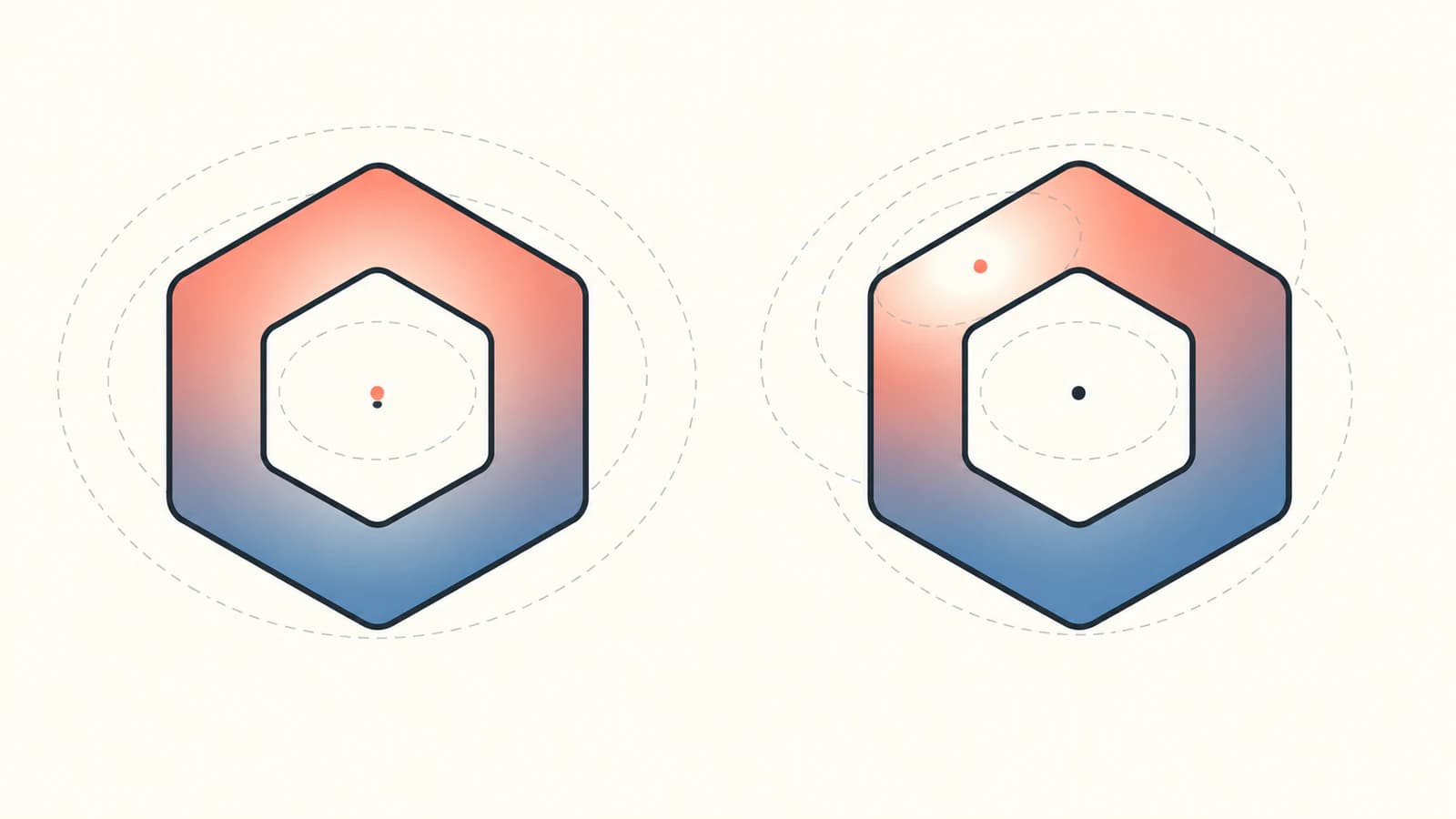
The centered focus lies in the opening, so the brightest point itself is invisible. You still see the surrounding color progression on the ring. The offset focus lands on the upper-left solid band, where the lightest stop becomes visible. That distinction helps when a coordinate edit appears to do little: the focus may be behind a transparent part of the mark.
Why the wide emblem gets an elliptical blend
With gradientUnits="objectBoundingBox", coordinates describe the painted object's bounds. Our emblem's bounds are 160 × 80, even though its SVG canvas is 200 × 120. A normalized circle maps through that non-square box to an ellipse. MDN's gradientUnits reference describes this mapping.
Here, cx=".5" cy=".5" maps to (80, 60). The radius .6 maps to horizontal and vertical radii of 96 and 48. The offset focus maps to:
x = 0 + .22 × 160 = 35.2
y = 20 + .18 × 80 = 34.4
For a circular end region in this untransformed SVG, replace the gradient's coordinate attributes with:
gradientUnits="userSpaceOnUse"
cx="80" cy="60" r="64"
fx="35.2" fy="34.4" fr="0" spreadMethod="pad"
Its centered control uses fx="80" fy="60". The radius is now 64 user units in both directions. This is a different chosen end region from the 96 × 48 ellipse. We changed the coordinate definition and the physical radius; this comparison does not isolate a units toggle. Within each centered/offset pair, only the focal coordinates change.
Use object-relative paint when the blend should follow each shape's proportions. Use explicit user-space numbers when its location and circular extent belong to the artwork's coordinates. For a blend shared across separate logo paths, see SVG gradient units.
What the original browser comparison showed
We opened all four authored SVGs in Chrome and displayed each at 100 × 60 and 300 × 180 CSS pixels. The larger version made the upper-left highlight easier to inspect. The same offset remained visible at the smaller size, while the opening stayed transparent in every specimen.
The browser's source report found one path, no image elements, identical d values, and the same 160 × 80 path bounds in all four files. Separate pixel readbacks at the source canvas size confirmed the changed paint:
| Paint definition | Focus | Upper-left RGBA sample | Opening alpha |
|---|---|---|---|
Object bounds, radius .6 | Centered | 164, 77, 84, 255 | 0 |
Object bounds, radius .6 | Offset | 246, 184, 155, 255 | 0 |
User space, radius 64 | Centered | 149, 67, 82, 255 | 0 |
User space, radius 64 | Offset | 248, 196, 168, 255 | 0 |
The upper-left sample is at artwork coordinate (35, 30); the opening sample is at (80, 60). These observations describe this source and browser session. They establish neither another renderer's output nor an editor's import behavior.
Keep the focus inside while you tune the mark
Start with an interior focus and fr="0". In normalized coordinates, the offset's distance from the center is about .425, below our .6 radius. In the user-space version, its distance is about 51.6, below 64. Both choices keep the start point inside their end circle in the coordinate system where that circle is defined.
Older explanations may say an outside focus always gets clamped onto the end circle. SVG 2 allows the start circle to lie outside and defines different behavior, including unpainted regions outside its gradient cone. The SVG 2 radial-gradient specification explains that change. This starter uses interior points; we did not test outside-focus rendering across browsers.
Keep spreadMethod="pad" while checking the placement. Beyond the gradient's extent, pad uses the last stop's color; repeat and reflect introduce repeating behavior that can obscure a focus comparison. MDN's spreadMethod reference defines those choices.
Before delivery, check these three things in the environment that will display the SVG:
- The highlight sits on the intended solid band at the actual display size.
- The opening remains transparent, and the path data still matches the master.
- The chosen circle or ellipse suits the mark's proportions.
If colors shift after export, inspect the paint and delivery context using why SVG colors change after export. Moving the focal point is a placement edit, so changing stop colors at the same time makes the comparison harder to read.
Keep geometry recovery separate from paint design
Keep a flat master of this emblem by using the same path with a solid fill and retaining its opening. Save the gradient version separately for the web artwork that needs it. A gradient is paint assigned to a contour; these focal coordinates do not define additional cut paths.
If your starting logo exists only as a PNG or JPG, PerfectVector's logo vectorizer can recover vector geometry to inspect before you rebuild this paint. Check the outer contour and opening, then set the gradient coordinates in your SVG workflow. A raster highlight does not preserve its original fx, fy, or radius as recoverable design parameters. If you already have clean vector contours, edit their gradient directly. The gradient vectorization guide covers the raster-to-vector decision.
FAQ
How do I move an SVG radial-gradient highlight? Set explicit fx and fy coordinates on radialGradient. Keep cx, cy, r, the stops, and the path fixed while comparing the change. With fr set to zero, those focal coordinates position the start point of the color progression.
Why does a radial gradient look elliptical in my SVG? With objectBoundingBox units, a normalized circle maps through the painted object's bounds. Non-square bounds produce an ellipse. In an untransformed SVG, explicit userSpaceOnUse coordinates can define a circular region in artwork units.
Will moving the focal point fill a logo's opening? No. The compound path and its fill rule determine the opening. This example uses evenodd and keeps the same path in every specimen; its opening stays transparent when the focus moves.
Can vectorization recover the original gradient's focal coordinates? A raster image does not retain the original SVG gradient parameters. Recover and inspect the contours if needed, then rebuild the paint and check the highlight in the intended display environment.
Sources
- MDN radialGradient — Start/end-circle attributes and their defaults.
- MDN fx — Horizontal focal-coordinate meaning.
- MDN fy — Vertical focal-coordinate meaning.
- MDN fill-rule — Even-odd fill behavior for the opening.
- MDN gradientUnits — Object bounds, user space, and elliptical mapping.
- SVG 2 radial gradients — Start-circle geometry and the outside-focus specification change.
- MDN spreadMethod — Pad, repeat, and reflect behavior.
More from the blog

SVG Gradient Along a Path: Check Color Around a Bend
Compare an SVG coordinate gradient with deliberate color bands around a curved ribbon. Inspect the source, test two sizes, and choose the geometry tradeoff.

SVG feColorMatrix: Recolor Without Changing Fills
Use SVG feColorMatrix to recolor a preview, preserve transparency, and choose sRGB. Compare the filter with direct fill edits before handing off editable artwork.