
Shopify Custom SVG Icons: Prepare a Clean Brand Mark
Prepare a custom SVG icon for a Shopify theme, then choose an image asset or inline Liquid snippet. Check paths, color control, sizing, and accessibility.
On this page
A custom SVG icon can reach a Shopify theme in two practical ways: upload the file as a theme asset and display it with an image tag, or put its markup in a Liquid snippet and render that snippet where the icon belongs. The first route is simpler for a fixed-color mark. The second gives you direct control over its paths and color. Which controls appear in the theme editor depends on your theme, so inspect its existing icon blocks before changing code.
If your only source is a PNG, make a path-based SVG first. Merely renaming the file will not turn pixels into shapes. A clean original SVG is preferable when you have one; a detailed photo is usually better left as an image. The steps below take a small brand pictogram from file preparation through a theme preview without assuming a particular merchant account or theme version.
Choose where the icon belongs
Shopify themes have an assets directory for files and a snippets directory for reusable Liquid markup. Shopify documents both in its theme architecture and recommends checking theme editor options before editing code in its theme-code guide. A theme with a custom SVG field may need neither of the code routes below. A field in one theme does not imply that every theme has it.
| Need | Start with | What to verify |
|---|---|---|
| A fixed-color badge or mark | SVG file in assets, displayed with <img> | The theme block accepts the image and the mark has the right size and alt text |
| An icon that follows a theme color | Inline SVG in a Liquid snippet | The intended paths use currentColor and the theme's CSS sets color |
| A built-in icon in an existing theme library | The theme's own icon setting or snippet | Its documented parameters and the behavior after a theme update |
| A photographic or heavily textured image | Keep the raster image | Whether simplifying it into paths would lose the design |
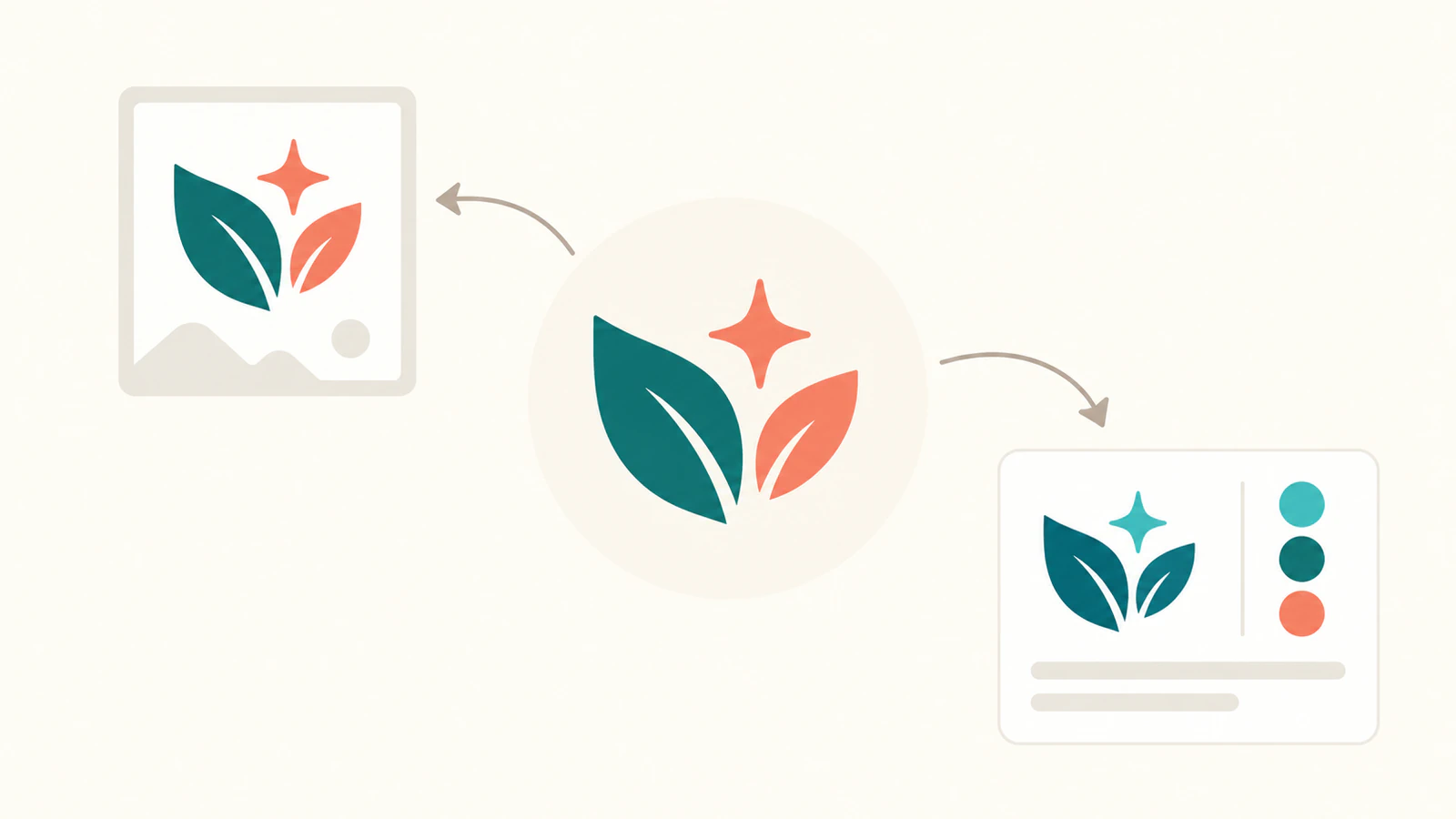
The distinction matters because CSS on the page cannot reach inside an SVG loaded through an ordinary <img>. Inline paths can use currentColor, which takes its value from the CSS color property. See MDN's SVG image-context guide and its currentColor explanation. For more general browser examples, read inline SVG versus an image tag.
Prepare the SVG before touching the theme
Start with the smallest useful version of the brand mark. For an icon, preserve its silhouette and any intentional opening at the size customers will actually see. Fine lettering or texture that looks good on an artboard can collapse at 20 to 32 pixels. Keep the brand source file as a master; make a separate icon export.
- Recover the clean source. Export SVG from the original vector design if it exists. If the only source is a flat PNG, PerfectVector can help with that one step: make an SVG candidate with its clipart-to-SVG workflow, then open the downloaded file in a vector editor. Compare the silhouette and separate shapes with the PNG. A trace is a starting point, not a promise of identical geometry.
- Inspect the structure. Confirm the visible mark is made of paths or basic vector shapes, not one embedded raster
<image>rectangle. Remove accidental background boxes, stray fragments, duplicate contours, and tiny color regions. The PNG icon preparation guide covers consistent grids and optical size across a set. - Set the canvas and colors. Give the export a
viewBoxwith sensible padding. Keep fixed brand colors if the mark must remain two-tone. If a single-color icon should inherit the theme color, make the intended paths usecurrentColor. Changing SVG color explains why a hard-coded fill may resist a later color change. - Review the file as code. Keep only elements and attributes needed for the icon. Remove unexpected scripts, external references, editor baggage, and untrusted markup before placing it inline in a theme. Open the cleaned SVG at icon size and at a larger inspection size; both checks catch different mistakes.
For a small monochrome star, the source could be as plain as this. The path below is an original example, not a Shopify-supplied icon or a PerfectVector conversion result. It has an explicit coordinate system and no embedded image:
<svg xmlns="http://www.w3.org/2000/svg" viewBox="0 0 24 24">
  <path d="M12 2 14.7 9.3 22 12l-7.3 2.7L12 22l-2.7-7.3L2 12l7.3-2.7Z" fill="currentColor"/>
</svg>
A two-color brand mark needs separate paths or shapes with deliberate fills. Replacing every color with currentColor would erase that distinction. If the mark is part of a larger icon family, apply the same size and color rules to a few representative icons before exporting the rest.
Route A: display a theme asset
Shopify's asset_url filter returns the CDN URL for a file in the theme's assets directory. Add your reviewed SVG there, then reference its exact filename in the appropriate Liquid template, section, or snippet. The simple example below assumes brand-mark.svg is a fixed-color decorative mark beside visible text:
<img
  src="{{ 'brand-mark.svg' | asset_url }}"
  alt=""
  width="24"
  height="24"
>
Use descriptive alt text if the image conveys information that adjacent text does not. For a purely decorative image, alt="" is appropriate. Shopify's theme accessibility guidance asks for an alt attribute on every image and an empty value on decorative icons. The explicit width and height also reserve space while the asset loads, as Shopify's asset delivery guidance explains.
This route keeps the SVG as one image from the page's point of view. If the theme color changes, update the SVG's fills or choose an inline route rather than assuming a parent CSS rule will recolor the file. Do not paste a file URL from one store into another theme; let asset_url resolve the theme asset.
Route B: render an inline icon snippet
For a repeated one-color icon, put reviewed SVG markup in a snippet such as snippets/brand-mark-icon.liquid. Shopify's snippet documentation uses {% render %} to insert reusable markup. A minimal snippet can take a color from its surrounding text style:
<svg xmlns="http://www.w3.org/2000/svg" viewBox="0 0 24 24"
  width="24" height="24" aria-hidden="true" focusable="false">
  <path d="M12 2 14.7 9.3 22 12l-7.3 2.7L12 22l-2.7-7.3L2 12l7.3-2.7Z"
    fill="currentColor"/>
</svg>
Then render it in the relevant theme file:
<span class="brand-mark-icon">{% render 'brand-mark-icon' %}</span>Here aria-hidden="true" is for an icon that only decorates nearby visible text. If the icon alone labels a button or link, give the control an accessible name instead of relying on a decorative SVG. Test it with a keyboard and a screen reader. Keep its CSS color and dimensions in the theme's normal styling system rather than scattering one-off inline values.
A snippet is reusable, but it is still theme code. Shopify advises duplicating a theme before code changes. Make the change in the copy, preview the exact page or section, and save the original snippet so you can compare it after a theme update. Theme-specific icon libraries may have their own arguments and structure; inspect those files before replacing any built-in icon. The current Shopify Community discussion about an icon library illustrates why rendering a whole library is not necessarily the same as selecting one icon from it.
Check the handoff at the final size
A file can be technically valid yet look wrong in the storefront. Review the page on both light and dark backgrounds if the theme uses them. Check the mark at its actual CSS size, at a narrow viewport, and beside the neighboring icons. Confirm that a hole remains open, colors have enough contrast, and the icon is not clipped by its viewBox or container.
If the asset appears as a blurry rectangle when enlarged, inspect it for an embedded raster. If an inline icon ignores theme color, look for hard-coded fills, inline styles, or a more specific selector. If nothing appears, first check the asset filename or snippet name, then the theme's own section markup. Do not change several things at once. The CSS mask icon guide covers another route when you need to recolor a silhouette without inlining its paths.
For your own raster-only flat pictogram, create an SVG candidate with PerfectVector, then inspect its paths, openings, and colors at the intended icon size before choosing the theme route. If you already have a good SVG, skip tracing and spend that time on the storefront preview.
FAQ
Can I upload an SVG icon through every Shopify theme's Customize screen? No. Some themes provide an icon or custom SVG field; others require an asset or code edit. Check the specific theme's sections and documentation before assuming a field exists.
Why does my uploaded SVG not follow the theme color?
An SVG used through an image tag is an image resource, so page CSS does not style its internal paths. Edit the SVG's fills for a fixed-color asset, or use reviewed inline markup with currentColor where theme-driven color is required.
Should I convert a PNG brand icon to SVG before adding it? Convert a flat pictogram if it needs scalable, editable paths. Inspect the trace at the intended icon size and remove stray shapes. Keep a photograph or textured image as raster if tracing would discard the detail that defines it.
Sources
- Shopify Developers — Theme architecture — Theme assets, snippets, and where markup belongs.
- Shopify Developers —
asset_url— Theme-asset URL behavior used in the Liquid example. - Shopify Developers — Snippets — Reusable Liquid markup and the
rendertag. - Shopify Help Center — Editing theme code — Editor-first approach, theme duplication, and code-change cautions.
- Shopify Developers — Accessibility best practices — Alt text and decorative icon handling.
- Shopify Developers — Serve assets from Shopify CDN — Asset filters and explicit image dimensions.
- MDN — SVG as an image — Browser image-context restrictions.
- MDN — SVG color attribute — How
currentColorfeeds SVG fills and strokes.
More from the blog

QGIS SVG Markers: Prepare Symbols With Editable Colors
Prepare a custom QGIS SVG marker with fill and outline parameters, a real cutout, and a fixed accent. Keep a plain SVG master and inspect the destination copy.

Sharp SVG to PNG: Size, Density, and Crisp Exports
Render SVGs to transparent PNGs at the final pixel size with Sharp. See a reproducible 1x and 2x test, when input density matters, and why upscaling a PNG fails.