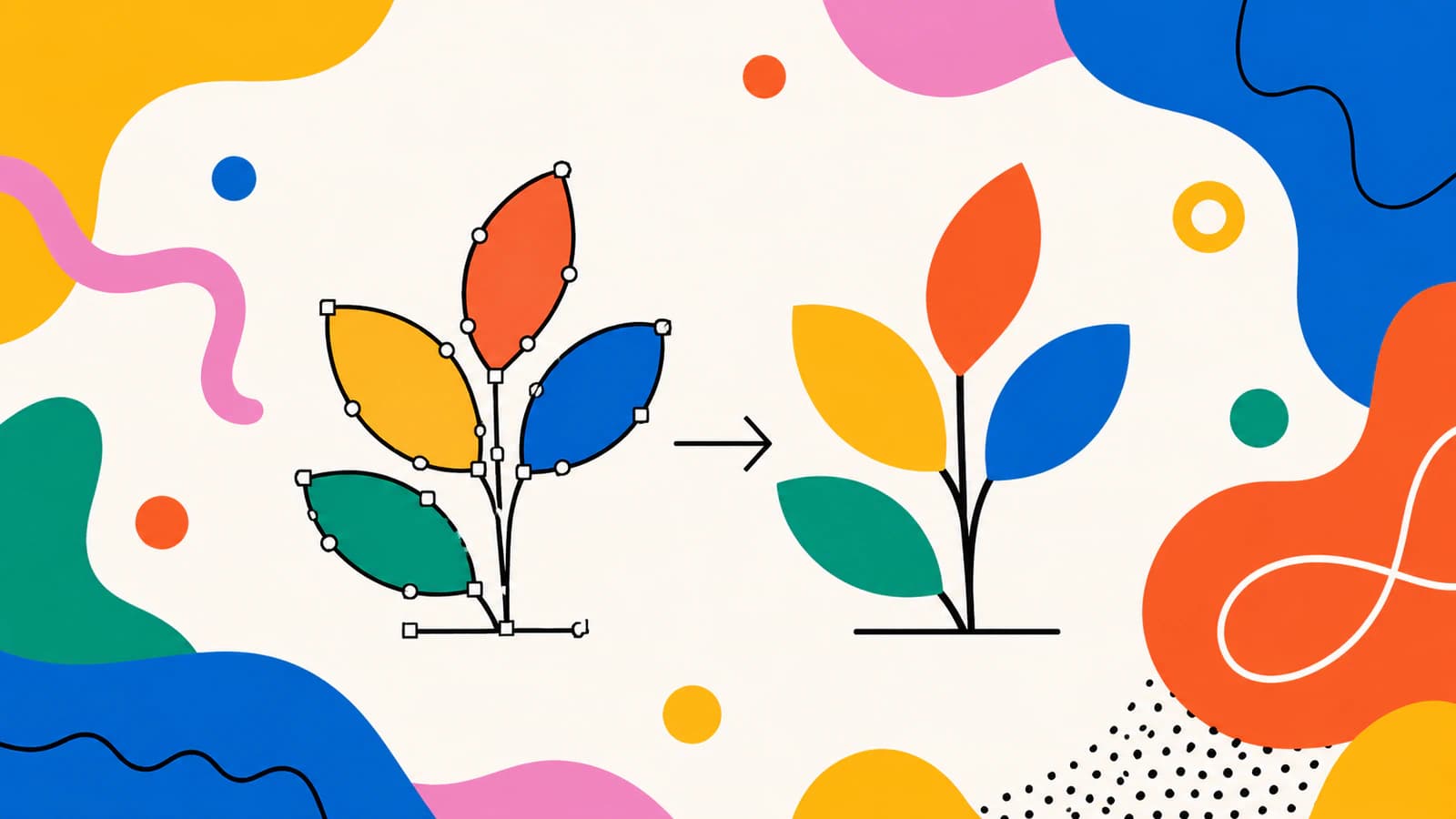
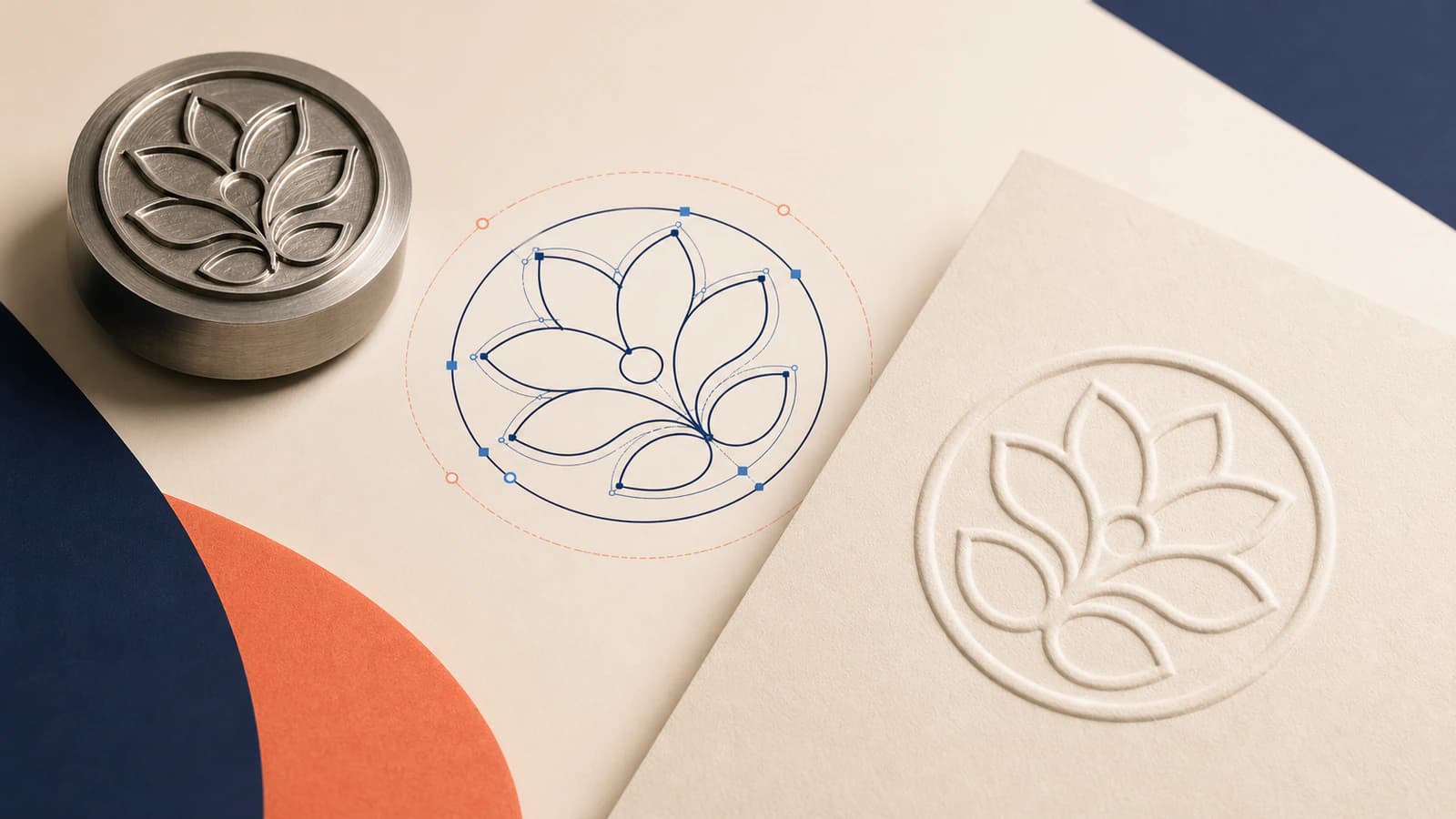
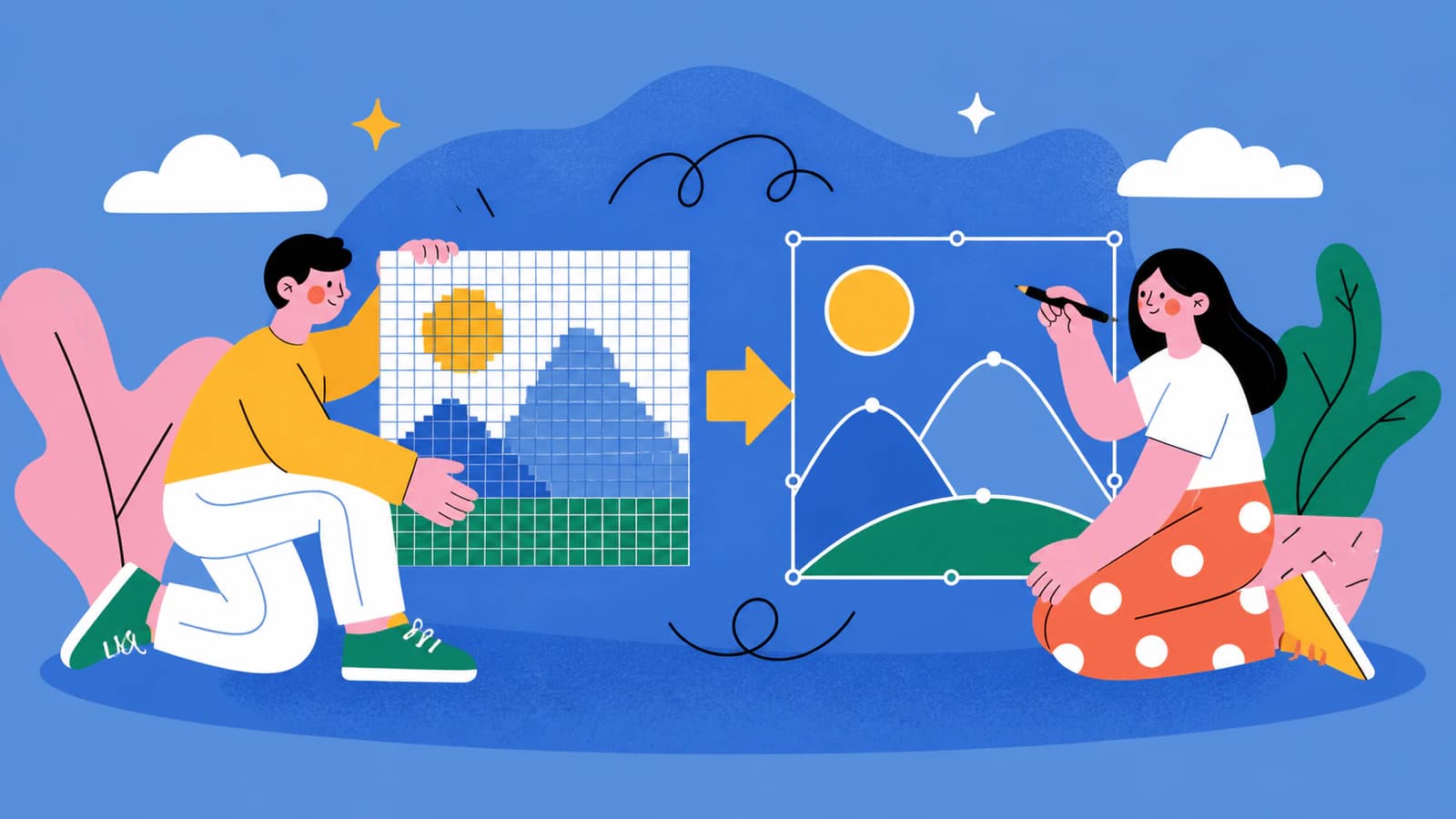
Turn logos, drawings, lettering, signatures, line art, pixel art, watercolor, and AI artwork into clean, editable vectors for branding, print, and production.
Featured
Three ways to vectorize a logo: AI auto-trace, redraw in Illustrator, or hire it out. How to pick the right one, and how to tell a real vector from a fake.
Your logo looks pixelated because it's a raster image being stretched. The permanent fix is a vector. Here's how to diagnose it and get a crisp logo at any size.
A 'vector style' AI prompt gives you a raster that only looks like a vector. Here's how to prompt for art that actually traces into a clean, editable SVG.
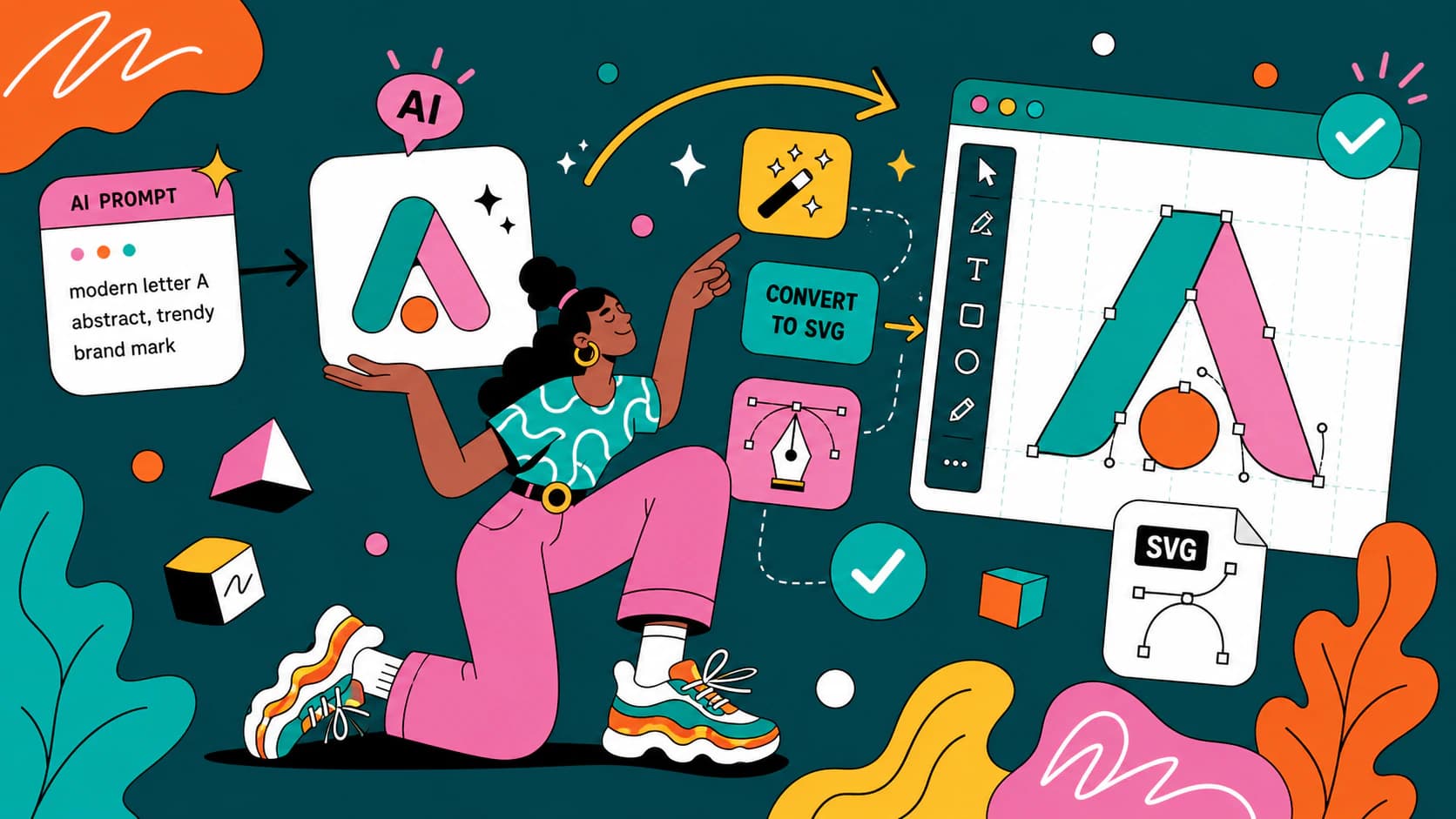
AI logo makers hand you a raster PNG, not an editable vector. Here's how to turn an AI-generated logo into a real SVG, fix the garbled text, and know when to redraw.
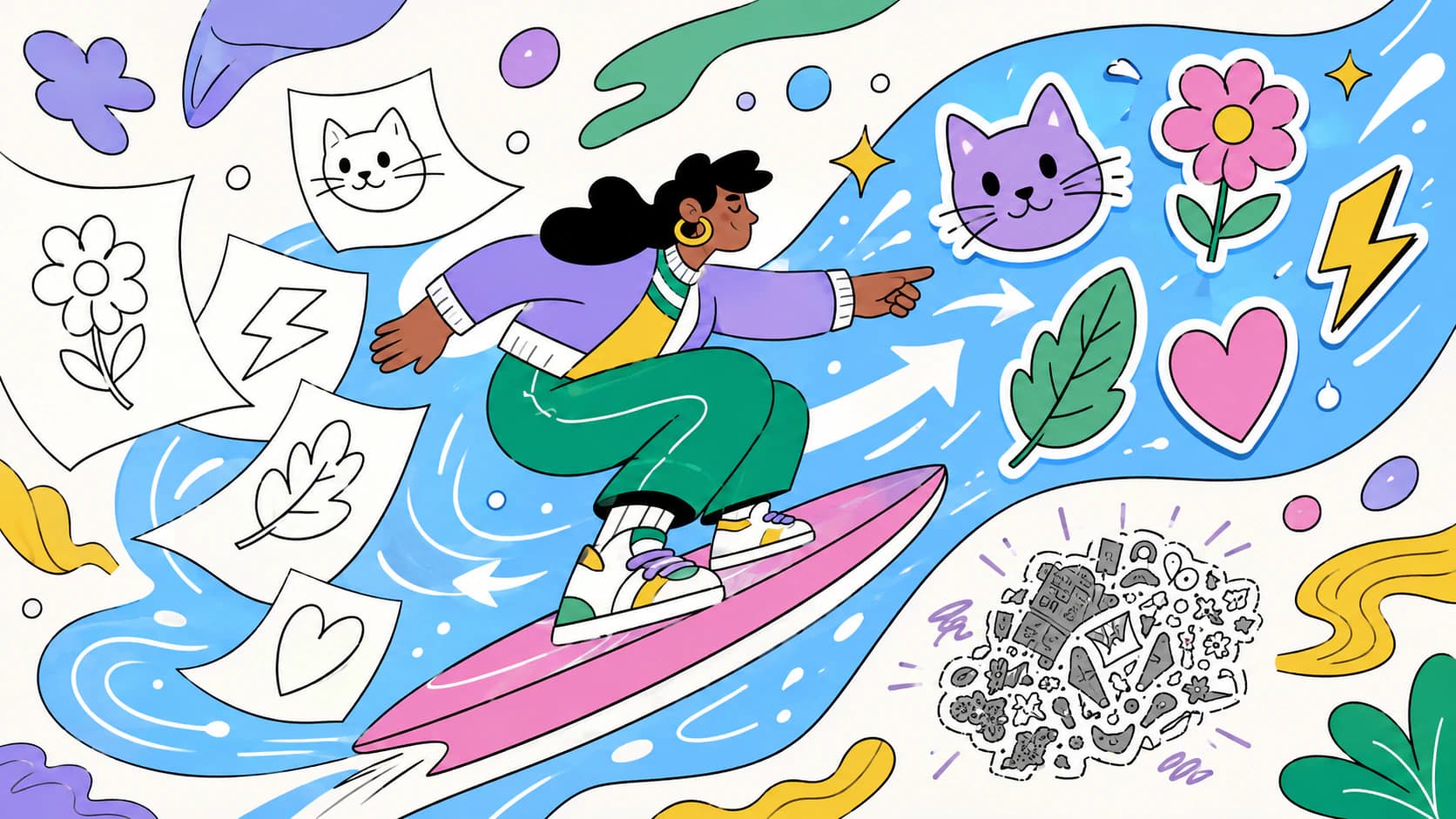
Clean line art is the best image you can hand a vectorizer. Here's how to turn drawings and coloring pages into crisp SVGs, and dodge the double-line trap.
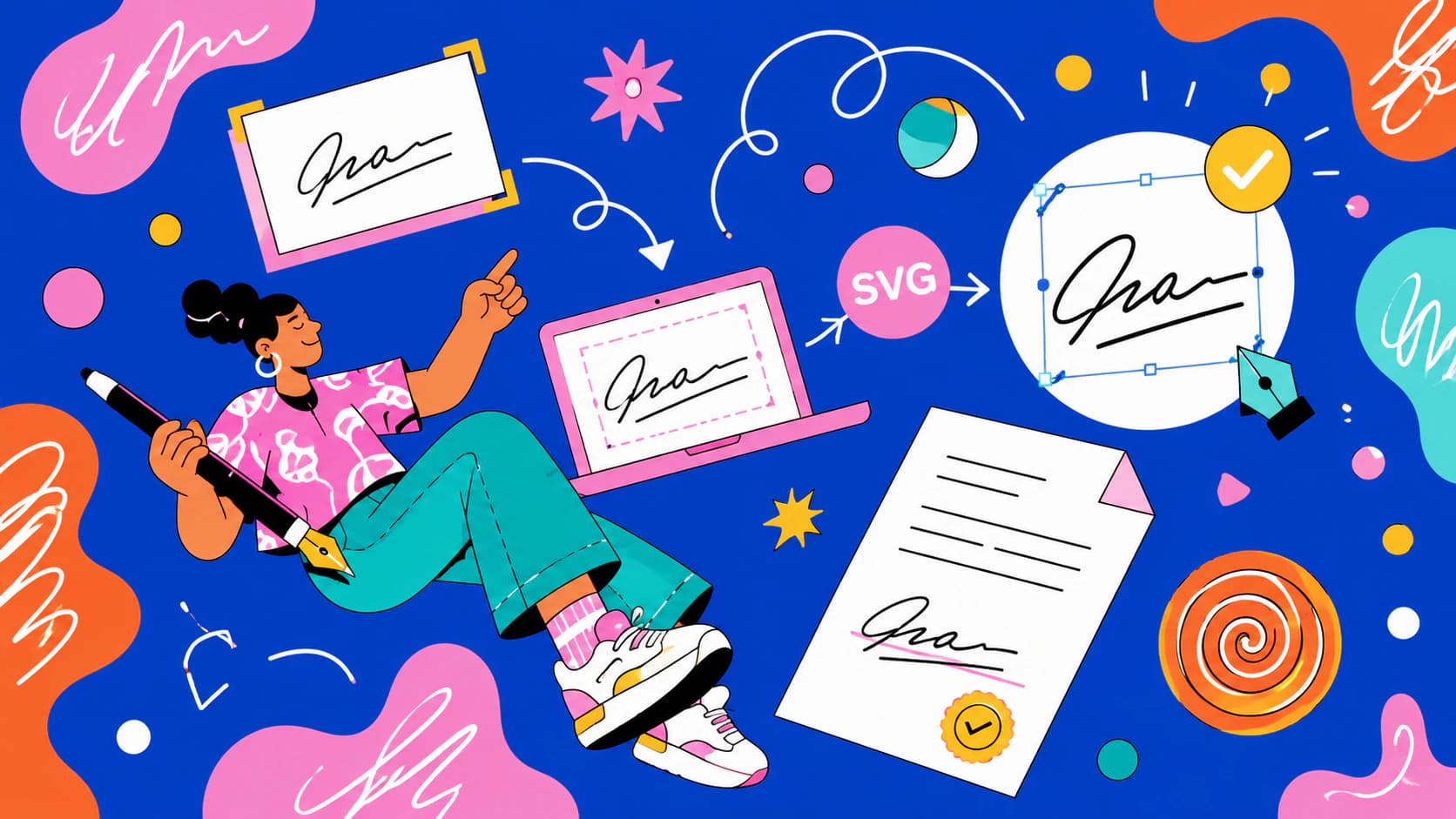
Three different things get called a signature SVG, and only one of them is your handwriting. Here is how to tell them apart and vectorize the real thing.
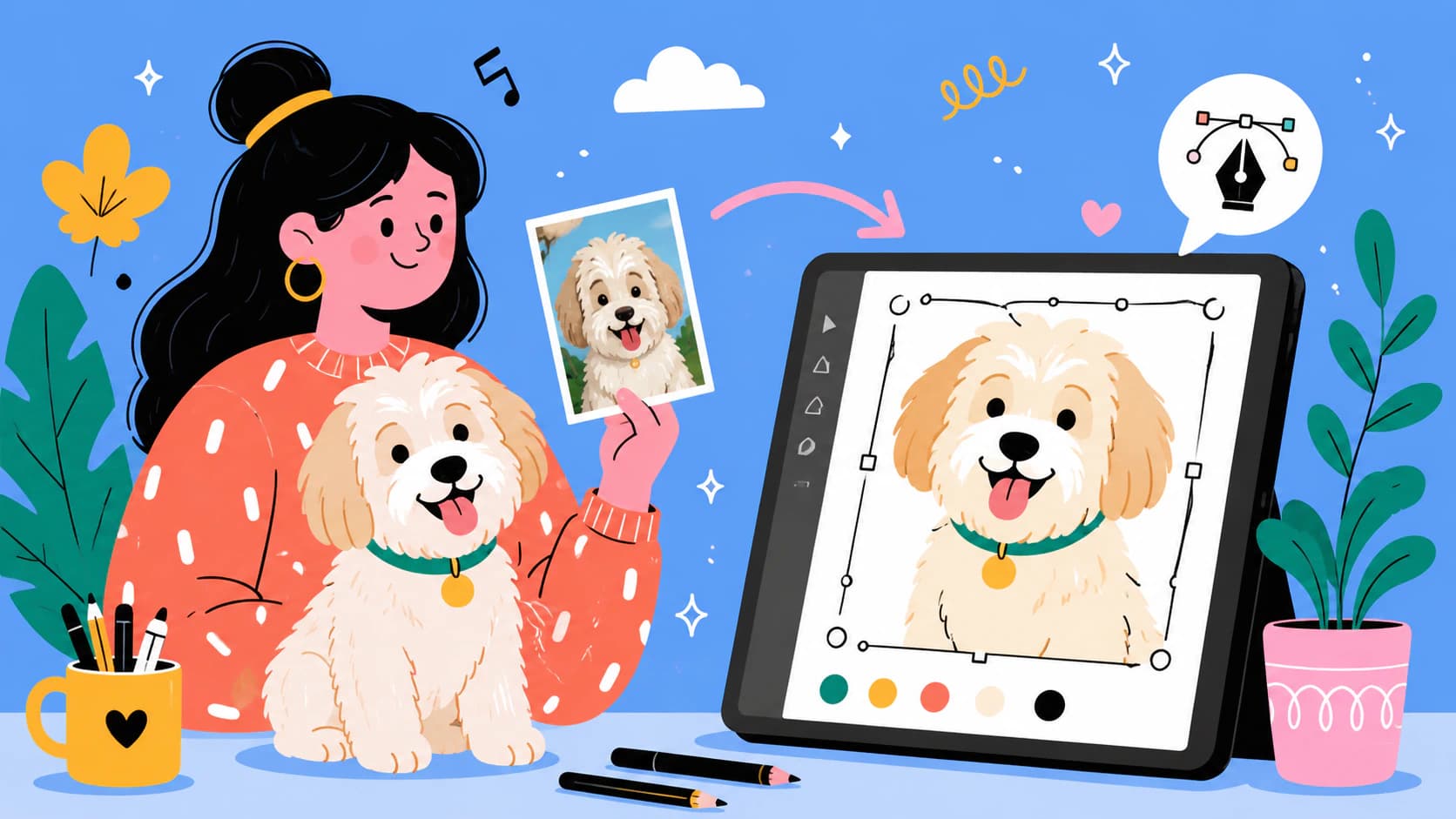
Turn a photo of your pet into a cut-ready SVG portrait: pick the right photo, remove the background free, and trace clean layers, no Photoshop needed.
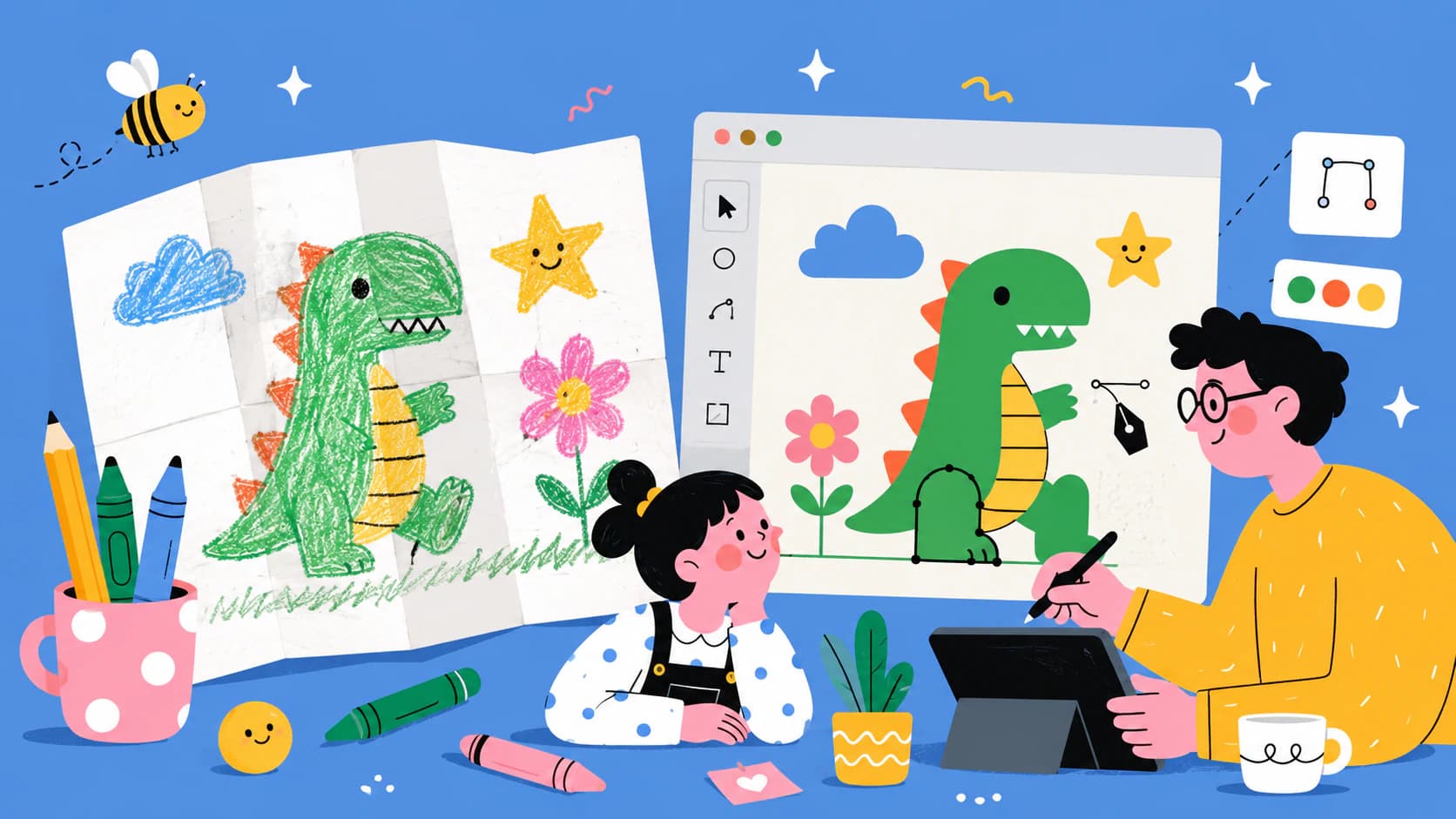
Turn your kid's drawing into an SVG for shirts, ornaments, and cards: photograph it right, handle crayon and marker, and keep the wobble that makes it theirs.
Learn when watercolor art should stay raster, when vectorizing helps, and how a real SVG trace changes soft washes into editable color shapes you can reuse.
Turn hand lettering into a clean SVG while keeping open counters, expressive terminals, intentional texture, and curves that remain easy to edit.
Convert pixel art to SVG with the square grid intact, or choose a smooth contour trace on purpose. Learn the right workflow, trade-offs, and checks.
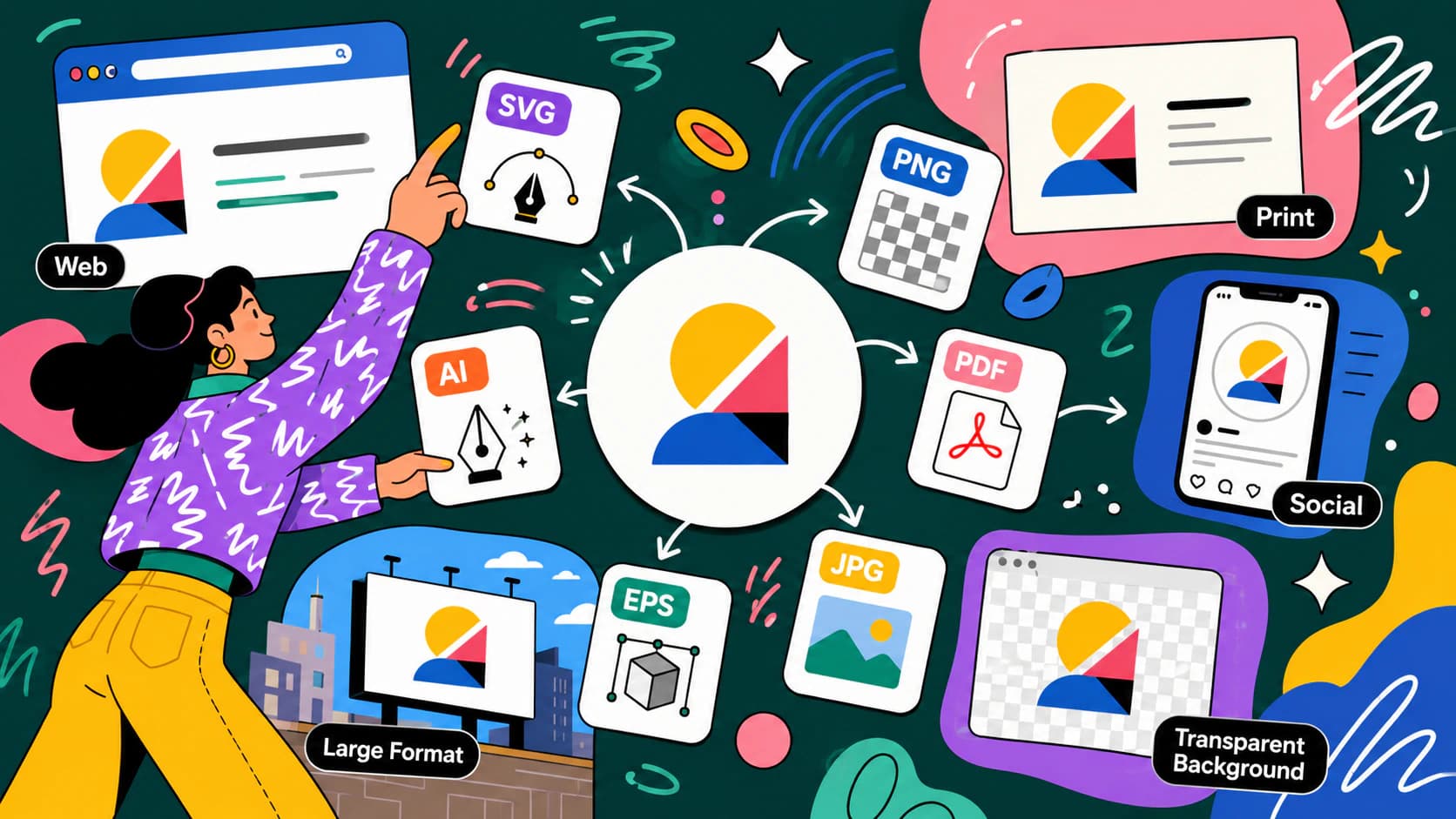
Which logo file format for web, print, embroidery, or a vendor request, in one decision table, plus how to recover a vector master when all you have is a PNG.