SVG Text on a Path: Rebuild Editable Badge Lettering
Build a badge with editable SVG text on a path. Center the words, check direction and fonts, and keep the emblem separate before making an outlined copy.
On this page
To put SVG text on a path, define a path with an ID, reference it from a <textPath> inside <text>, and write the words between the tags. For centered lettering, combine startOffset="50%" with text-anchor="middle". Keep the emblem in a separate group so you can change the words without rebuilding the artwork.
That separation is useful when restoring a club badge, shop mark, or event logo. You may need vector paths for the central emblem while still needing to correct a date or change a name. Tracing the whole badge produces letter shapes, not an editable text string. Rebuild the typography as live text when the wording must remain editable.
For horizontal lettering beside an emblem, fit a straight SVG label with textLength and compare spacing changes before adjusting the glyph proportions.
Start with three separate parts
A badge needs an emblem, a guide path, and the text that follows that path. The guide controls the lettering's position; it does not have to be visible in the finished design. MDN's textPath reference documents the href connection between the text and its path.
| Part | What it contains | What you can change independently |
|---|---|---|
| Emblem group | The central drawing's shapes | Color, position, and scale |
| Guide path | The curve used as the text baseline | Radius, direction, and endpoints |
| Live text | Characters and font settings | Wording, typeface, size, and spacing |
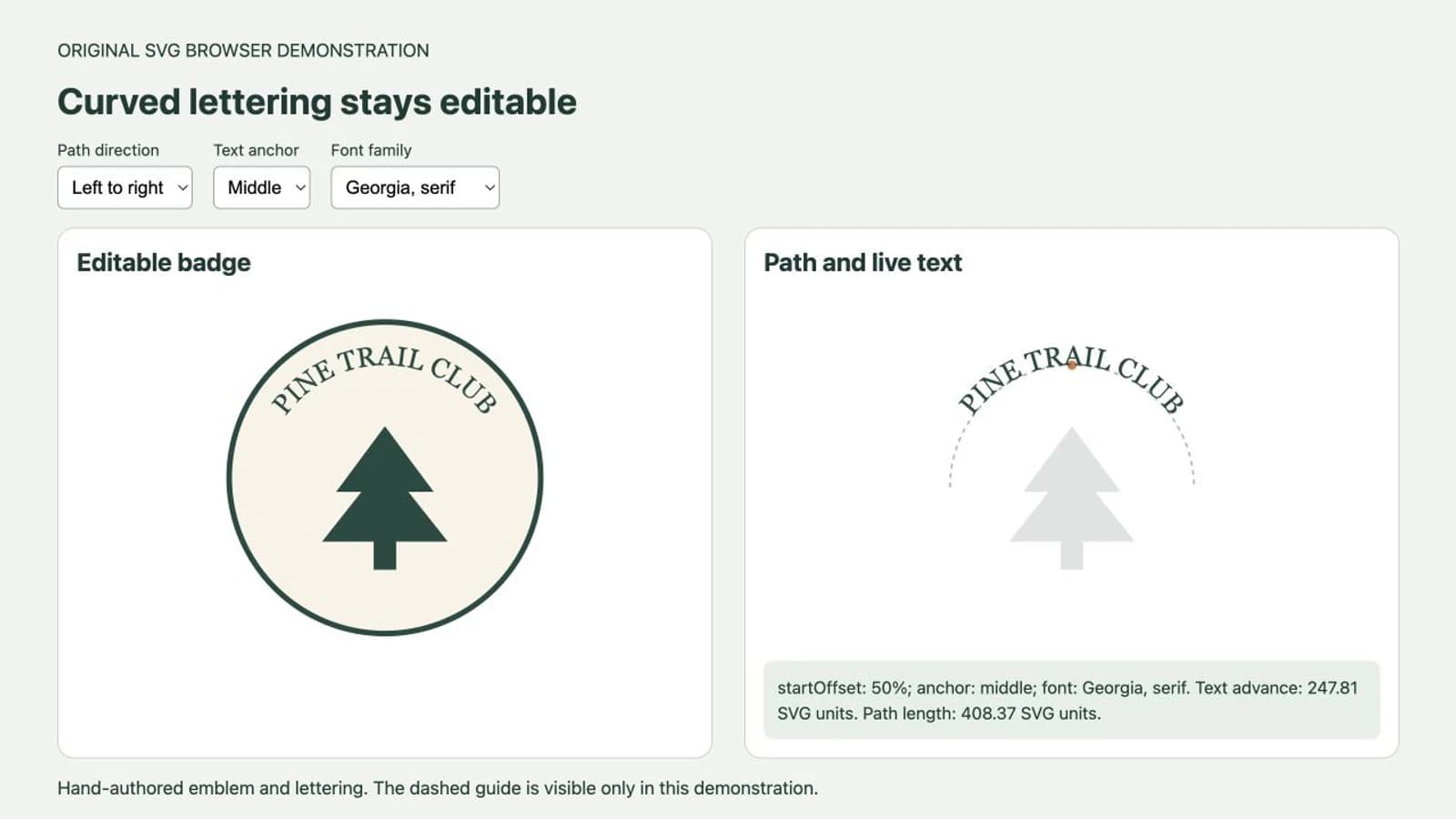
For the example below, we drew a simple pine tree and a semicircular guide in SVG code. Both are original demonstration artwork, not PerfectVector conversion output. The badge says PINE TRAIL CLUB; the lettering remains a text string throughout the construction steps.
Build the editable badge
Save this code as badge.svg and open it in a browser. Keep the file as the editable master. If you are new to the format, our SVG file guide explains the difference between text, paths, and embedded images.
<svg xmlns="http://www.w3.org/2000/svg"
     width="400" height="400" viewBox="0 0 400 400"
     role="img" aria-labelledby="badge-title">
  <title id="badge-title">Pine Trail Club badge</title>
  <defs>
    <path id="badge-arc"
          d="M70 215 A130 130 0 0 1 330 215" />
  </defs>

  <circle cx="200" cy="205" r="166"
          fill="#f8f3e7" stroke="#214b41" stroke-width="6" />
  <g id="emblem" fill="#214b41">
    <path d="M200 150 148 220 175 220 133 273
             267 273 225 220 252 220Z" />
    <path d="M188 269H212V303H188Z" />
  </g>

  <text fill="#214b41" font-family="Georgia, serif"
        font-size="29" text-anchor="middle">
    <textPath href="#badge-arc" startOffset="50%">PINE TRAIL CLUB</textPath>
  </text>
</svg>
The path starts at (70, 215) and follows an upper semicircle to (330, 215). Its radius is 130 units. Putting the path in <defs> makes it available for reference without drawing a visible stroke. The pale outer circle is a separate painted shape.
Change PINE TRAIL CLUB to your own short name, save, and reload. The tree should stay fixed while the new words follow the same guide. A longer name needs another fit check; centering does not make arbitrary text fit the arc.
Center with both offset and anchor
startOffset="50%" puts the text's reference position halfway along the path. text-anchor="middle" aligns the middle of the text at that position. One selects a position on the curve; the other chooses which part of the text sits there. The startOffset reference and text-anchor reference describe those controls.
Try changing only text-anchor to start. With this left-to-right text, the words now begin at the halfway point and continue toward the right endpoint. In our browser test, this moved the lettering onto the right side and left part of the phrase beyond the usable arc. Restore middle before adjusting the font size.
For a symmetric badge, inspect the result visually after mathematical centering. Letters have different shapes and side spaces; a centered text advance can still need a small optical adjustment. Keep any such adjustment deliberate rather than changing several unrelated coordinates until the result looks close.
Check the path's direction before moving the text
Reverse this exact upper arc by replacing its d value with:
d="M330 215 A130 130 0 0 0 70 215"The start and end swap, and the arc's sweep flag changes. For a visual guide to both arc flags, see the four SVG arc flag combinations. The geometric curve stays in the same place, but the text follows it in the opposite direction. In our browser test, that reversal changed the lettering's orientation. Restore the original path for upright lettering across this badge's top.
Path reversal is different from reversing the spelling or setting a language's writing direction. Keep the words intact. The SVG text layout specification explains how glyphs are placed along a path. For a lower line, create and test a separate lower guide rather than moving the top text around until it crosses the emblem.
Choose the font before final spacing
The example requests Georgia, then a generic serif fallback. That request does not embed a font in the SVG. The renderer chooses an available face from the family list, as described in MDN's font-family reference.
In our Chromium demonstration, switching the same wording from Georgia, serif to Arial, sans-serif changed its measured text advance. The arc and emblem were unchanged. The important check is the occupied span and the appearance of the letters, not a particular width that another computer may render differently.
For a real badge, settle the intended font and weight before adjusting size or letter spacing. Then reopen the SVG in the environment where it will be used. If the font changes there, use the SVG font troubleshooting guide to isolate substitution or import behavior.
If the wording runs off the arc, try a shorter phrase, a smaller font size, or a wider guide. Check the whole badge after each change. Increasing the guide radius can push lettering closer to the outer border; reducing type size can make a small printed badge harder to read. Avoid stretching the letters merely to fill a fixed span unless that distortion is part of the design.
Recover only the artwork that needs tracing
If the emblem exists only inside a PNG or JPG, separate the recovery task from the typography task. Use a copy of the source that isolates the emblem as cleanly as possible. Keep the full original as the visual reference for rebuilding the badge.
Vectorize the raster emblem with PerfectVector, then compare its silhouette, interior gaps, and small details with the source. Use the accepted SVG artwork in the emblem group and rebuild the wording separately with the intended font. PerfectVector creates vector paths from the image; this workflow does not depend on OCR, font identification, or automatic reconstruction of curved editable text.
When the original vector emblem is available, reuse it. When the lettering is custom drawn and its irregular shapes matter, follow the hand lettering to vector workflow instead of replacing it with a font. Our logo vectorization guide covers the broader decision between tracing, retyping, and manual repair.
The example's simple tree avoids an import complication: an existing emblem may use a different coordinate system or include transforms. Scale and position that group within the badge's viewBox, then check it again with the text visible. Do not alter the lettering guide to compensate for an emblem that is positioned incorrectly.
Keep an editable master and make a delivery copy
Live text is the useful master when names, dates, or wording can change. For a fixed badge sent to another editor or production tool, an outlined copy removes the recipient's need to reproduce the font's glyph shapes. The words become vector paths and lose ordinary text editing.
In Illustrator's SVG save options, Convert To Outlines converts type to paths. Adobe also warns that exported text on a path may render differently in SVG viewers. Those are reasons to inspect the exported copy in its destination, not a guarantee that every downstream tool will reproduce the entire badge. See Adobe's SVG save documentation.
Use this handoff sequence:
- Save the live-text master before outlining anything.
- Confirm the wording, font, path direction, centering, and spacing.
- Create a separate delivery copy and convert its text to outlines in your editor.
- Reopen that copy and compare all letters, counters, gaps, and the emblem.
- Check the badge at its intended output size in the receiving application.
Outlining freezes the font appearance you currently have. If the wrong fallback font is active when you outline, you freeze the wrong letters. For a web image, also keep a useful accessible name; outlined letter shapes do not carry the original text string by themselves.
FAQ
Why is my SVG text not centered on the path? Use startOffset="50%" together with text-anchor="middle" for the centered example. An offset of 50% with a start anchor begins the phrase halfway along the guide. Also check the path shape and whether the full wording fits.
Why is the text upside down? Check the guide's direction. Text follows the path as it is drawn, so reversing the path can change the orientation of the lettering. Test the guide direction before moving the text or changing its spelling.
Does vectorizing a badge create editable curved text? Vectorization reconstructs visible letter shapes as artwork. For editable wording, rebuild the text separately with the intended font and a textPath guide. Keep a live-text master before making an outlined delivery copy.
Sources
- MDN — textPath — Connecting live text to a referenced path.
- MDN — startOffset — Positioning text along the guide.
- MDN — text-anchor — Aligning the text relative to its reference position.
- W3C — SVG 2 text — Glyph placement and text-on-path layout rules.
- MDN — font-family — Available fonts and fallback family selection.
- Adobe — Save artwork in Illustrator — SVG text outlining and text-on-path export limitations.
Build the lettering around the approved emblem and keep the words editable until the badge is final. If your emblem is trapped in a raster image, recover its vector paths, inspect the small details, and use the accepted artwork in your badge master.
More from the blog
SVG Text Vertical Alignment: Center a Rebuilt Label
Align SVG labels with dominant-baseline, compare middle and central in two fonts, and distinguish text-box centering from the visible shape of the letters.
Signature to SVG: How to Vectorize Your Actual Handwriting
Three different things get called a signature SVG, and only one of them is your handwriting. Here is how to tell them apart and vectorize the real thing.