CMYK JPEG to SVG: Fix Source Colors Before Tracing
If a print-origin JPEG changes color between apps, check its CMYK profile before tracing. Convert a verified source to sRGB and review the logo's palette.
On this page
If a CMYK JPEG looks wrong before you turn it into an SVG, establish its source color profile and make a color-managed sRGB copy first. Keep the original untouched. Check the converted raster before tracing, so you have an approved color reference for the vector result.
This matters when a client sends a logo from an old print job. A file can contain CMYK pixels without enough information to tell you how those numbers were intended to look. If the profile is missing, request the original artwork or a tagged RGB export from the sender. Trying profiles until one looks pleasant is a choice that needs approval.
Choose the right color diagnosis
- If the JPEG already changes appearance between apps, investigate its source profile before tracing.
- If the raster looks right and only the exported SVG changes, follow the SVG export-color diagnosis.
- If the deliverable needs a specific ink recipe, keep a separate print master. See CMYK and SVG for printing.
Check what the JPEG actually contains
CMYK means cyan, magenta, yellow, and black; RGB means red, green, and blue. An ICC profile describes the relationship between encoded color values and a defined color interpretation. The International Color Consortium's FAQ explains how profiles connect device encodings through color management.
Before changing the file, record its color mode and embedded ICC profile name. Use the file's information, rather than inferring its color space from the .jpg extension or how saturated it looks.
| What you find | Next action | What still needs checking |
|---|---|---|
| CMYK with an embedded profile | Preserve that interpretation and convert a copy to sRGB | Whether the sender approves the resulting screen colors |
| CMYK without a profile, but the sender confirms the exact source profile | Assign that known CMYK profile, then convert to sRGB | That the confirmed profile belongs to this file |
| CMYK without a known source profile | Request the original or a tagged RGB replacement | Any proposed reconstruction needs color approval |
| RGB already | Inspect its RGB profile and compare with the approved reference | A wrong palette may have another cause |
A useful reference is an approved RGB logo or documented brand RGB values. A screenshot of an unknown viewer gives you another rendered interpretation, so avoid treating it as the sole color authority.
Assigning a profile and converting colors are different
Assigning a profile changes how existing channel values are interpreted. It leaves those values alone. Converting uses the source and destination profiles to calculate new values for the destination color space. Adobe documents this distinction in its color-profile guidance.
For an untagged CMYK file with a verified origin, assignment establishes the source interpretation. The later conversion creates RGB pixels. An sRGB label on its own does not perform that CMYK-to-RGB transformation.
A gamut is the range of colors a color space or device can represent. Conversion may have to map colors into a different range; rendering intent controls that mapping. The ICC explanation of rendering intents is useful when the converted copy still needs an appearance decision.
What our known-profile logo test showed
We drew an original 1200×720 RGB mark for this article and tested it on November 8, 2026. Using Pillow 11.3.0 with LittleCMS 2.17, we converted it from sRGB to Apple's Generic CMYK profile and saved a high-quality JPEG with that profile embedded. Pillow's ImageCms documentation describes its LittleCMS-based profile transforms.
We then removed only the JPEG's ICC metadata, without recompressing its image data, and reattached the same known source profile. Every decoded CMYK sample remained identical across those three files. That is the assignment distinction in a controlled example: the interpretation changed while the CMYK samples stayed fixed.
For the comparison below, we created two RGB versions from those CMYK samples: an explicit Pillow fallback that ignored the profile, and an ICC conversion to sRGB using relative colorimetric intent with black point compensation.
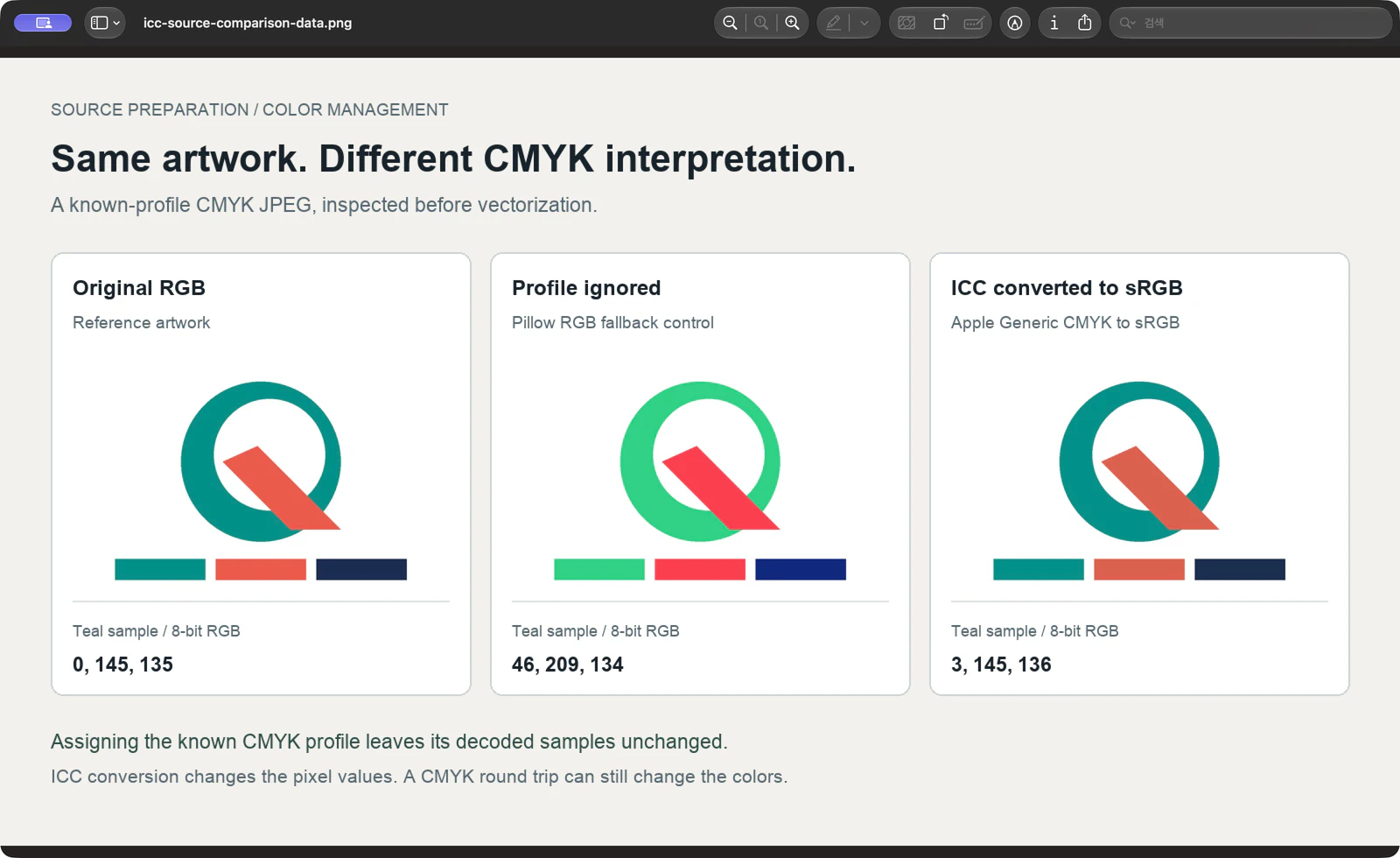
At the center of the teal swatch, the original RGB value was 0, 145, 135. The profile-ignored control produced 46, 209, 134; the ICC-converted copy produced 3, 145, 136. These are file samples, not measurements of a monitor or print.
The round trip also changed the coral sample from 235, 90, 75 to 221, 96, 79. Correct profile handling therefore did not recreate every original RGB value. Use the original approved RGB artwork when it is available.
This experiment covers raster preparation. It does not establish how PerfectVector or a browser decodes a CMYK JPEG, and it includes no physical print test.
Make a verified sRGB copy before tracing
You need the untouched JPEG, its embedded or otherwise verified source profile, an ICC-capable conversion tool, and an approved color reference if one exists. Keep any print-authoritative master separately.
- Inspect the source. Record whether it is CMYK and whether it has an ICC profile. Preserve a valid embedded profile. If it is untagged, establish its origin before assigning a profile.
- Convert into sRGB. Use an actual profile conversion. Choose the destination profile deliberately and review the conversion settings. For the test above, we used relative colorimetric intent with black point compensation.
- Save a separate raster copy. Keep the original dimensions while diagnosing color, so resizing does not become another variable. A PNG copy is convenient for reviewing the prepared pixels; a high-quality sRGB JPEG is another option.
- Reopen and inspect the saved file. Confirm that it is RGB and identified as sRGB, then compare its flat colors with the approved reference on the same background. Get approval if a brand color needs reconstruction.
- Trace the accepted copy. Keep that exact raster beside the vector preview. Judge the traced palette against this source, then inspect the vector in its intended destination.
A command route we tested
If you use ImageMagick, this is a reproducible route for a CMYK JPEG that already has the correct embedded ICC profile. Replace the input name and destination-profile path with your own files:
magick identify -verbose "print-logo-cmyk-tagged.jpg"

magick "print-logo-cmyk-tagged.jpg" \
  -intent Relative -black-point-compensation \
  -profile "/path/to/sRGB.icc" \
  -define png:color-type=2 "logo-srgb.png"

magick identify -verbose "logo-srgb.png"
Inspect Colorspace and the profile information in the first report. In the output report, confirm sRGB rather than CMYK. Our ImageMagick 7.1.2-32 test produced an RGB PNG carrying an sRGB declaration. That file check complements the visual comparison; it does not approve the client's colors for you.
The ImageMagick profile reference explains why the existing profile matters: -profile acts in sequence, and adding a CMYK profile to an already tagged image can introduce another conversion. Keep the source profile intact and avoid extra profile operations. The command above is not a recovery recipe for an untagged file of unknown origin.
Where PerfectVector fits after source preparation
PerfectVector fits when the surviving logo is a raster image and you need SVG shapes for further design work. Prepare and approve its RGB colors first, then start with your corrected JPEG. Compare the vector preview's flat colors and boundaries with that exact copy.
Color interpretation and tracing are separate checks. If the raster already has the wrong palette, resolve that before judging the vector. If the palette survives but the edges show JPEG noise, continue with the JPG edge-quality workflow.
Keep a usable original vector when you have one. For a missing profile or an uncertain brand palette, ask the owner for better artwork or approved color values before spending time refining a trace. For an ink-specific deliverable, finish in the printer's requested workflow and obtain the required proof.
FAQ
Should I assign sRGB to a CMYK JPEG? Use a color-managed conversion from the verified CMYK source profile to sRGB. Assignment changes interpretation without calculating destination RGB values; it is not a substitute for conversion.
Can I recover a missing CMYK profile automatically? Our example restored a profile we already knew because we had made the file. For an unknown JPEG, request the source profile or an original export from the sender. Treat a guessed assignment as an interpretation that needs approval.
Will the converted RGB copy match the original logo exactly? Do not assume it will. Our controlled CMYK round trip changed some RGB values, including the coral swatch. Compare with the approved original or brand colors and keep the print master separately.
Sources
- Adobe — Change color profile for documents — Distinguishes assigning a profile from converting document colors.
- International Color Consortium — Frequently asked questions — Explains ICC profiles, device encodings, gamut mapping, and rendering intent.
- Pillow — ImageCms module — Documents the LittleCMS-based transforms used in the controlled source-preparation test.
- ImageMagick — Command-line profile options — Documents profile inspection, ordered profile operations, and the risk of unnecessary conversions.
Once the raster colors are approved, start free with your own JPEG in PerfectVector. Compare the vector preview's palette and edges with the corrected source before taking it into your design workflow.
More from the blog

Image Rotates on Upload? Check EXIF Before Tracing
If a drawing turns sideways on upload, check EXIF orientation before tracing. Make an upright pixel copy, reopen it, and compare the vector's direction.

Spot vs Process Color: Inspect a Logo's Print Plates
Choose spot or process color for a logo, inspect a saved PDF's named and CMYK channels, and separate a matching preview from the actual print instructions.