Does SVG Support CMYK for Print? Choose a Format
Learn why editable SVG paths do not guarantee reliable CMYK output, when to keep SVG, and when a printer-ready PDF or requested EPS is the safer handoff.
On this page
- Vector paths and CMYK solve different problems
- Why the web gives both yes and no answers
- The portable SVG baseline is CSS-oriented
- CMYK syntax exists, but support is the deciding factor
- Choose SVG, EPS, or PDF from the recipient's requirement
- A printer-first handoff workflow
- 1. Ask for the complete specification
- 2. Keep the SVG or native file as the editable master
- 3. Move the artwork into a print-capable document
- 4. Apply the requested production color setup
- 5. Export the requested delivery file
- 6. Preflight the exported file
- Where PerfectVector fits
- Print handoff checklist
- FAQ
- Sources
For a normal cross-application print workflow, do not treat an SVG as a reliable CMYK delivery file. An SVG can preserve editable vector paths, but that does not guarantee that a browser, design app, RIP, or printer will preserve calibrated CMYK values, spot colors, separations, or the intended black build.
Keep the SVG when you need scalable geometry or web delivery. For commercial printing, ask the printer for its accepted format, color profile, and preset. The final handoff is often a printer-specified PDF or PDF/X file. Use EPS only when the recipient asks for it.
The two questions to ask
- Are the shapes truly vector? SVG, EPS, and PDF can all contain vector paths, but a container can also hold raster content.
- Is the file prepared for this press? Check the requested color space, ICC profile, spot colors, overprint, bleed, transparency, and PDF preset separately.
Vector paths and CMYK solve different problems
Vector describes geometry. A vector path stays sharp when scaled and can remain editable as points, curves, fills, and strokes. CMYK describes a process-color workflow for cyan, magenta, yellow, and black inks. A file may satisfy one requirement and fail the other.
That distinction explains several common cases:
- An SVG logo can contain clean paths but still use ordinary CSS hex or
rgb()colors. - An EPS can contain vector paths with RGB fills, or even an embedded raster image.
- A PDF can preserve vectors and carry print color management, but only if it was exported with the right settings.
- A native design file can be in CMYK mode yet still need the printer's requested profile and output preset.
If the issue is that the colors visibly shift between apps, first diagnose where the SVG color changes. This guide addresses the next decision: which file should become the print handoff.
Why the web gives both yes and no answers
The short answer changes depending on whether someone is discussing a specification, a browser, a design application, or a commercial printer.
The portable SVG baseline is CSS-oriented
The current SVG 2 styling specification requires SVG user agents to support CSS color and opacity behavior. Common SVG exchange therefore uses CSS color values that browsers and design tools can render consistently. That is why most SVG markup contains hex, rgb(), named colors, gradients, and opacity rather than a press-specific CMYK profile.
This does not mean that every SVG color must always be sRGB. Modern CSS supports wider RGB spaces, and print-oriented color work has appeared in several SVG and CSS specifications. It does mean that familiar SVG rendering and a controlled CMYK press handoff are different compatibility targets.
CMYK syntax exists, but support is the deciding factor
The current CSS Color Module Level 5 Working Draft defines custom ICC color spaces and device-cmyk(). The same document marks those features as at risk while implementation work continues. MDN's current device-cmyk() compatibility record reports no browser support.
That is the specification-versus-application gap. A draft can describe how CMYK syntax should work without making it safe to send that syntax through an arbitrary browser, editor, page-layout app, print portal, or RIP. Older SVG print specifications also described ICC and device-color workflows, but they should not be treated as proof that a current destination preserves those features.
If a closed production system explicitly documents support for a CMYK-capable SVG profile, follow that system's specification. Otherwise, use SVG as the editable geometry source and finish color in the printer-approved application and format.
Choose SVG, EPS, or PDF from the recipient's requirement
| Situation | Handoff to use | Why | What to verify |
|---|---|---|---|
| Website, app, browser, or ongoing SVG editing | SVG | Keeps web-oriented vector structure and transparency | Browser/app support, fills, gradients, fonts, and viewBox |
| Print vendor explicitly requests EPS | EPS in the requested version | Fits a legacy or application-specific vector workflow | Whether transparency is flattened, whether colors are RGB/CMYK/spot, and whether paths remain vector |
| Commercial printer supplies a PDF preset or PDF/X requirement | That PDF or PDF/X preset | Carries a defined print exchange and can include output intent information | Destination profile, color conversion, bleed, fonts, transparency, and overprint |
| Printer accepts a native design file | Native master plus the requested proof | Preserves the most editable production data | Application version, linked assets, fonts, profiles, and packaged files |
| Office or home printer with no color specification | SVG may print through a browser or app | Convenient for ordinary output | The application and printer driver perform the color conversion; do not treat it as a controlled press proof |
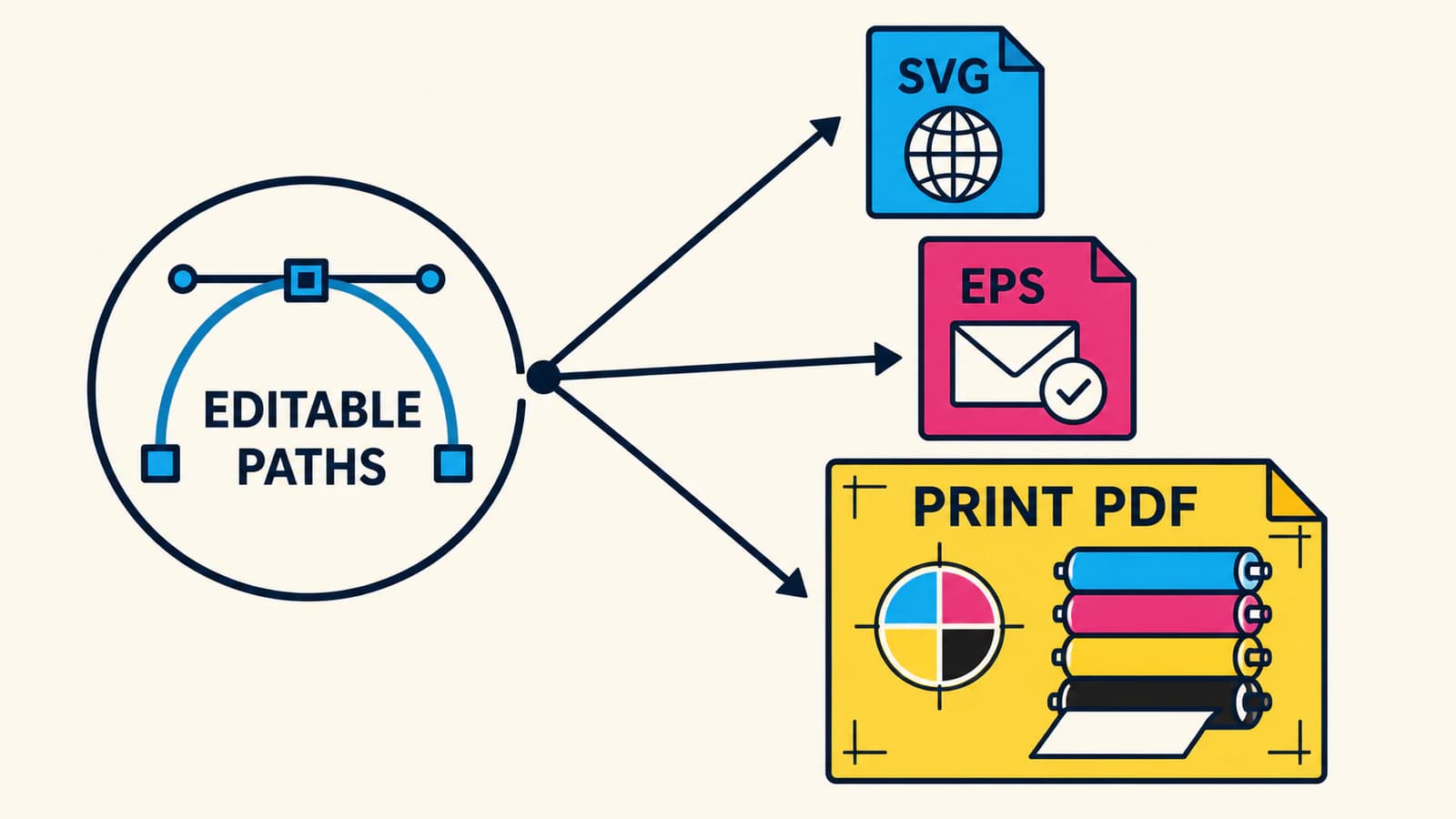
The matrix starts with the recipient because no file format is universally best for every print shop. Adobe's current PDF guidance says to obtain the provider's output requirements or .joboptions file before creating the delivery PDF. Its PDF output options also separate color conversion, destination profiles, profile inclusion, and PDF/X output intent.
A printer-first handoff workflow
1. Ask for the complete specification
"Send vector" is incomplete. Ask the printer or production vendor for:
- accepted file formats and versions;
- the preferred PDF preset or supplied
.joboptionsfile; - the destination ICC profile or printing condition;
- process CMYK versus named spot colors;
- bleed, trim, and safe-area requirements;
- whether transparency should remain live or be flattened;
- font, overprint, and proofing requirements.
Keep the answer with the job. Reusing a preset from another printer or substrate can create a technically valid file for the wrong press condition.
2. Keep the SVG or native file as the editable master
Do not overwrite the only editable version while preparing delivery. Preserve live paths, text, gradients, and effects in the master. Make a separate production copy for color conversion, outlined text, flattening, or spot-color setup.
The broader logo file-format guide follows the same master-and-delivery-copy rule. If an EPS is already in the workflow, verify that it contains real vector paths rather than a raster in an EPS container.
3. Move the artwork into a print-capable document
Open or place the SVG in the application the printer expects. Inspect the paths, text, masks, gradients, and transparency after import. An importer can translate SVG features into its own object model, so compare the placed result with the master before changing color.
In Illustrator, Adobe's current printable-color guidance uses File > Document Color Mode > CMYK Color for print documents and provides an out-of-gamut warning for RGB colors that lack a direct CMYK equivalent. Changing the document mode is a conversion step, not proof that every color now matches a specific printer.
4. Apply the requested production color setup
Use the destination profile, spot-color definitions, and black values supplied by the printer. Check solid fills, gradients, transparent overlaps, and small dark text. If a brand color matters, request an approved CMYK or spot-color specification rather than guessing from the screen.
Color conversion can change numeric values and appearance because RGB and CMYK do not share the same gamut. Judge the production copy with the application's proofing tools and the printer's proof process, not by comparing two uncalibrated screens.
5. Export the requested delivery file
For a PDF workflow, select the exact preset and output settings the printer supplied. Adobe documents PDF/X-1a for CMYK-oriented exchange and PDF/X-3 or PDF/X-4 for color-managed workflows, with PDF/X-4 retaining live transparency. That does not make one preset universally correct. The shop's documented intake wins.
For EPS, use it because the receiver requires EPS, not because the extension sounds more "print-ready." Adobe's current Illustrator save guide calls EPS unsuitable for modern workflows and directs users to preview transparency flattening. A placed EPS may expose flattened data even when Illustrator can reopen its own native editing data.
6. Preflight the exported file
Reopen the actual delivery file, preferably in the recipient's application or a PDF preflight tool. Confirm:
- page size, trim, and bleed;
- vector paths where vectors are required;
- fonts embedded or outlined as agreed;
- process and spot plates;
- destination profile and output intent;
- black objects and overprints;
- transparent or flattened regions;
- no missing links or unexpected rasterization.
Send the production file and a small reference proof if the printer accepts one. The proof communicates intended appearance; it does not replace the production data. For overlapping logo artwork, the overprint and knockout explanation shows which underlying ink regions to verify in that delivery file.
Where PerfectVector fits
PerfectVector fits when the editable vector source is missing and the best surviving artwork is a PNG, JPG, or another raster image. The Image to EPS tool rebuilds suitable flat artwork as real filled vector paths and exports an EPS 3/PostScript Level 2 handoff with RGB fills and an opaque white or black background.
That EPS is a geometry-recovery file, not a completed CMYK production package. It does not reconstruct live text, source layers, CMYK values, spot colors, separations, bleed, trapping, or a vendor-certified print preset. Open the EPS in the printer-approved application, apply the production settings there, and inspect the result before delivery.
If you already have a clean SVG or native vector master, use it. Retracing good paths would discard useful structure without solving color management.
Print handoff checklist
- Ask the printer for its accepted format, profile, preset, and proof requirements.
- Keep one untouched editable master.
- Inspect the SVG after import before converting color.
- Treat CMYK conversion, spot colors, black, bleed, and overprint as separate checks.
- Use EPS only when the recipient requires it.
- Use the printer's requested PDF or PDF/X preset rather than a generic "press quality" guess.
- Reopen and preflight the exported delivery file.
- Keep the SVG for web delivery even when print receives another format.
FAQ
Can SVG files be in CMYK?
CMYK-related syntax exists in current CSS draft work and in older print-oriented SVG specifications, but that does not make CMYK SVG interoperable. Current browsers do not support device-cmyk(). Use a CMYK-capable SVG only inside a documented closed workflow; otherwise finish color in the printer's approved application and delivery format.
Is SVG good for printing? SVG is useful when a workflow needs scalable vector paths, and an office printer can print an SVG through a browser or design app. For commercial color work, SVG alone does not supply the printer's profile, preset, bleed, separations, or proof requirements. Ask which production format the shop accepts.
What is the best file format for CMYK printing? There is no universal best file. Many commercial printers request a specific PDF or PDF/X preset because it can carry print exchange settings and output intent information. Others may request EPS, AI, or another native file. Follow the receiver's documented specification.
Does changing an Illustrator document to CMYK finish the job? No. It converts the document into CMYK mode, but the printer may still require a particular destination profile, spot colors, black values, bleed, transparency handling, and PDF preset. Check the converted artwork and export settings against the job specification.
Can PerfectVector create a CMYK-ready EPS? PerfectVector creates real vector paths in an EPS 3 handoff with RGB fills and an opaque background. It does not add CMYK, spot colors, separations, bleed, trapping, or a vendor preset. Use it to recover vector geometry from raster artwork, then finish print production in the destination application.
Sources
- W3C — SVG 2 Styling — Defines the CSS styling and required color behavior used by current SVG user agents.
- W3C — CSS Color Module Level 5 — Defines draft custom ICC color spaces and
device-cmyk(), including their at-risk status and conversion limits. - MDN —
device-cmyk()CSS function — Records current syntax and browser implementation status. - Adobe — Make colors printable or web safe in Illustrator — Documents CMYK document mode and out-of-gamut checks.
- Adobe — Adobe PDF options in Illustrator — Documents color conversion, destination profiles, profile inclusion, and PDF/X output intent.
- Adobe — Save artwork in Illustrator — Documents EPS's legacy role and its transparency-flattening considerations.
If a printer needs EPS and your only source is a raster image, rebuild the artwork as real EPS paths, then apply the printer's CMYK and output settings in the production application before you send it.
More from the blog

Shutterstock Vector Requirements: EPS File Checks
Check Shutterstock's EPS format, artwork bounds and file size rules, then inspect paths, color and source eligibility before preparing a vector submission.

Adobe Stock Vector Requirements: Check a Traced File
Check Adobe Stock vector formats, artboard size, editable paths, and AI disclosure against a real traced SVG before preparing your own submission copy.