Adobe Stock Vector Requirements: Check a Traced File
Check Adobe Stock vector formats, artboard size, editable paths, and AI disclosure against a real traced SVG before preparing your own submission copy.
On this page
Adobe Stock accepts AI, EPS, and SVG vector files. A traced SVG can contain genuine paths and still need work before submission: its artboard may be too small, its objects difficult to edit, or its source material unsuitable for licensing. Start with the file, then review its origin and intended use. Adobe's vector submission overview lists the accepted formats and excludes ZIP-packaged vectors and JPEGs uploaded as vectors.
This guide applies the requirements to one real PerfectVector trace. It is an original, team-directed synthetic fixture, not an accepted Adobe Stock asset. The point is to find the next editing task before uploading.
Check the current technical requirements
Adobe's technical requirements for vector submissions list these limits:
| Check | Published requirement | What to inspect |
|---|---|---|
| File size | Maximum 45 MB | The final saved file |
| Artboard area | Minimum 15 MP; maximum 65 MP | Width × height in pixels |
| Color mode | RGB | The export document's color settings |
| Artboard origin | Upper-left offset at 0,0 | Artboard position and export bounds |
For EPS previews, Adobe separately describes exporting at 15 MP or more, or using its High Resolution transparency preset. That EPS-specific note is not an instruction to rasterize an SVG.
Some older search snippets call 15 MP a recommendation. Adobe's current technical table calls it the minimum, while its design guidelines also show smaller category dimensions. Those tables are not consistent enough to justify promising that a smaller file will pass. For a new general vector submission, prepare against the technical table and consult the relevant category guidance too.
Megapixels describe area, not file weight. A 4000 × 4000 px artboard is 16 MP even when its vector file occupies only a few kilobytes. That calculation does not measure detail, artistic quality, or editability.
Audit a genuine trace before resizing it
Our example is a trade symbol: a gold cube between teal and coral arrows. Its raster source and SVG were created for a PerfectVector demonstration on September 4, 2026. The SVG came from a real PerfectVector conversion; the production copy removed only the full-canvas near-white background path. No artwork paths were repaired or regrouped.
Inspecting that exact SVG gives:
| File observation | Result | What it establishes |
|---|---|---|
| Drawing elements | 8 paths | The artwork contains vector geometry |
| Image elements | 0 | This file does not wrap an embedded bitmap |
| Fill colors | 4 | A small palette, not a quality score |
| Groups and text objects | 0 of each | No existing object groups or live fonts |
| Width and height | 1254 × 1254 px | An artboard area of 1.572516 MP |
| Saved size | 4,401 bytes | File weight is well below 45 MB |
The useful finding is mixed: the conversion produced paths, but its existing artboard is below the technical page's stated minimum. It is a working source for further preparation, not a finished submission package.
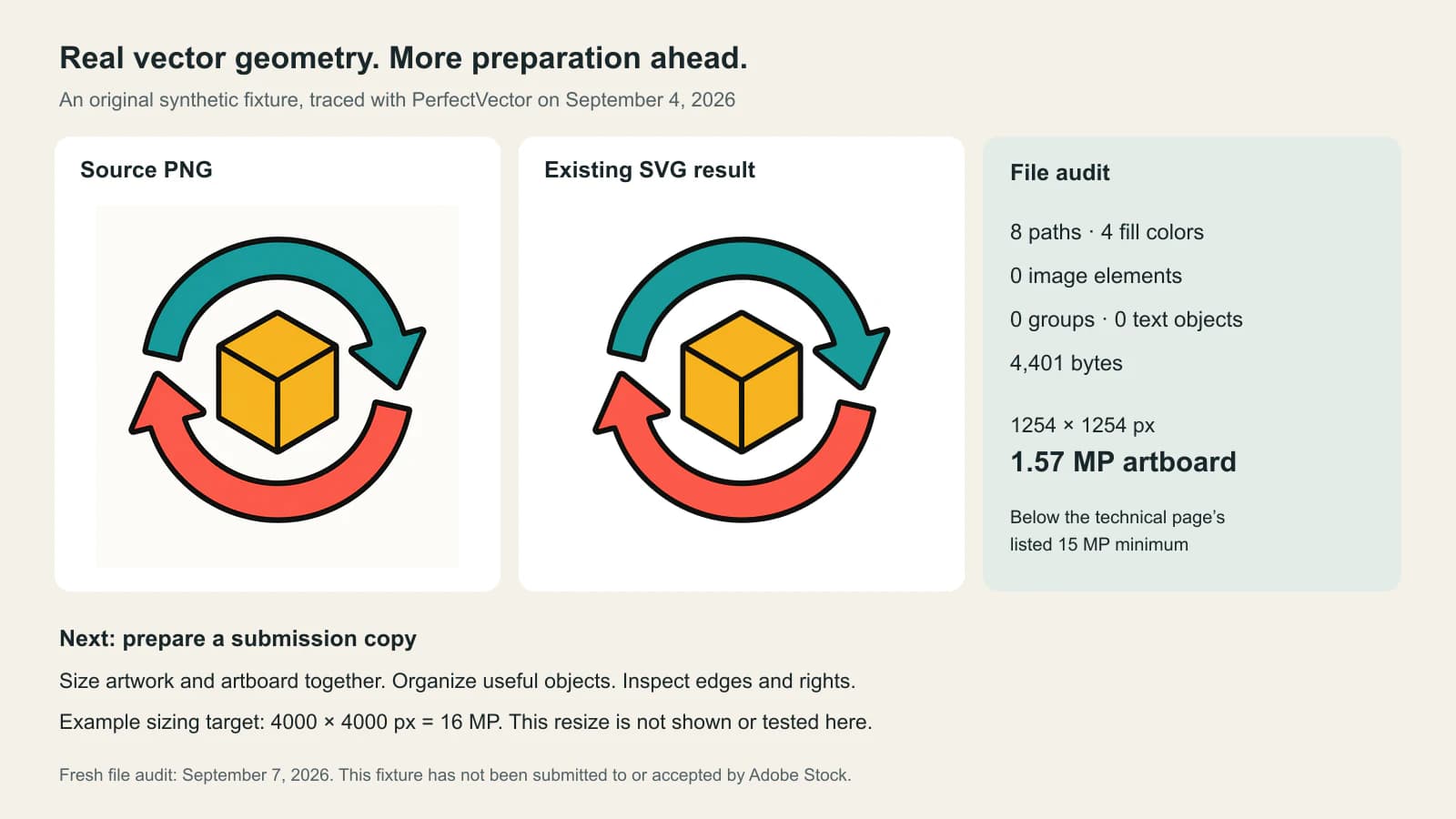
For an unfamiliar file, use the SVG raster-content inspection guide before treating the extension as proof. If the delivery is EPS, the equivalent check is whether the EPS actually contains vector artwork.
Prepare the artwork and artboard together
Make a submission copy so the original trace remains available for comparison. For this square symbol, 4000 × 4000 px is a practical example target: 16 MP sits within the technical table's range. This is a sizing calculation, not an upload test.
Scale the artwork proportionally with the artboard, then inspect the margins. Increasing only the empty canvas can leave a tiny symbol in a large preview. Enlarging a bitmap inside a vector container does not create more geometry either.
Reopen the saved copy and inspect its actual dimensions. In this fixture, width, height, and viewBox all describe the same 1254-unit square. In other SVGs those values can differ; do not infer the exported artboard from the viewBox alone. If the editor shows physical units, switch the document measurement to pixels for the area calculation rather than guessing from a DPI field.
Keep a short record with the delivery copy: format, dimensions, area, file size, and the editor used to reopen it. That makes a future export change easy to check.
Make the paths useful to another designer
Adobe's design guidance asks for labeled layers and groups, outlined fonts, and avoidance of unnecessary swatches or effects that render poorly elsewhere. Its vector quality guidance also calls for closed shapes, no embedded raster images, and simple paths; it cautions against auto-tracing complex graphics.
For the trade symbol, try an ordinary buyer edit: recolor the upper arrow without changing the cube or lower arrow. Next, select the whole symbol and move it without leaving an outline behind. These checks are more useful than celebrating eight paths. A low count can still hide awkward combinations.
Inspect the arrow tips, the narrow gaps around the cube, and the points where black boundaries meet. Compare them with the source. Decide which irregularities belong to the design and which need repair. Use the vector trace quality checklist when the outline needs closer review.
Group and name parts according to edits a customer would reasonably make. Our file has no groups; conversion has not recovered semantic objects such as “upper arrow.” Build that organization deliberately, checking that fills and their boundaries stay together. If the drawing depends on photographic texture or soft painted detail, keeping it as a raster illustration may be more useful than tracing it into a crowded vector file.
If your original flat artwork exists only as a PNG or JPEG, PerfectVector's image-to-vector tool can produce paths for this inspection workflow. Use the result as an editable starting point, then prepare the artboard, organization, and source documentation for the destination.
Keep source rights and AI disclosure in the review
Changing a file's format does not change where its content came from. Adobe has separate legal requirements for vector submissions, covering source artwork, releases, and restricted names or marks. Review those requirements for your material; successful tracing is not evidence that you have the necessary rights.
The example here began as AI-generated artwork. Adobe's generative AI vector guidelines apply to vectors created partly or entirely with generative AI and require editable work that meets the ordinary vector rules. Tracing that generated bitmap does not make its origin disappear.
Adobe's AI submission instructions require checking the tool's licensing terms and marking AI-generated content with the Created using generative AI tools option. Keep the source, relevant creation records, and the edited delivery file together. A technically valid export still enters Adobe's review process; neither conversion nor this checklist guarantees acceptance or sales.
FAQ
Does Adobe Stock accept SVG files? Yes. Its vector submission overview lists SVG alongside AI and EPS. The contents and preparation still need to meet the relevant technical, design, and source requirements.
What artboard size should I use for an Adobe Stock vector? The current technical table lists a 15 MP minimum and 65 MP maximum. Calculate width times height in pixels. A 4000 by 4000 pixel artboard is 16 MP; check category guidance and the saved export too.
Is changing a PNG to an SVG enough? No. Inspect whether the SVG contains editable geometry rather than a wrapped bitmap. Then check artboard size, organization, edges, source rights, and any required AI disclosure.
Does tracing AI artwork remove the AI disclosure requirement? No. Adobe's AI vector guidance covers work made partly or entirely with generative AI. Converting the generated bitmap to paths does not change that origin.
Sources
- Adobe — Vector submission overview — Accepted AI, EPS, and SVG formats and packaging restrictions.
- Adobe — Technical requirements for vector submissions — Artboard area, file weight, color mode, origin, and EPS preview guidance.
- Adobe — Design requirements for vector submissions — Editable organization, font preparation, effects, and category size guidance.
- Adobe — Quality and technical issues behind content refusal — Vector geometry and raster-content quality checks.
- Adobe — Legal requirements for vector submissions — Source artwork, rights, and release considerations.
- Adobe — Generative AI vector submission guidelines — Editability and requirements for vectors with AI-generated content.
- Adobe — Submit generative AI content — Tool licensing, disclosure, and the moderation process.
Have original flat artwork that needs editable paths? Convert it with PerfectVector, then reopen the SVG and work through the artboard, object, and source checks before preparing a submission.
More from the blog

Shutterstock Vector Requirements: EPS File Checks
Check Shutterstock's EPS format, artwork bounds and file size rules, then inspect paths, color and source eligibility before preparing a vector submission.
EPS Bounding Box: Fix Cropped Artwork and Extra Space
Diagnose cropped EPS artwork and excess margins by checking declared bounds against painted marks, then re-export and verify the actual receiving result.