How to Tell Whether an EPS File Is Really Vector
Check whether an EPS contains editable vector paths, embedded pixels, or both using zoom, Outline view, object selection, Links, and outlined-text checks.
On this page
- Start with zoom, then prove it
- Run these five checks
- 1. Open the EPS, do not just place it
- 2. Use Outline view
- 3. Select objects and look for anchors
- 4. Check the Links panel
- 5. Test text separately
- We tested three valid EPS structures
- Match the result to the recovery path
- What this looks like with PerfectVector
- FAQ
- Sources
An .eps extension does not prove that every object inside the file is vector. EPS can hold vector paths, bitmap images, or both, which Adobe confirms in its EPS format overview. The reliable test is to open the file in a vector editor and inspect what you can select, what appears in Outline view, and whether the file contains linked or embedded images.
Zooming in is a useful warning sign, but it is not the final answer. A raster image may look smooth at moderate zoom, and a vector can still have a low-resolution preview. You need to inspect the objects, not just the filename or preview.
The quickest reliable EPS check
- Open the EPS rather than placing it into another document.
- Switch to Outline view and look for real paths.
- Select the artwork with a direct-selection tool and check for anchors.
- Inspect the Links panel for placed or embedded images.
- Test text separately: outlined letters are vector paths, but they are not live text.
Start with zoom, then prove it
Open the EPS in Illustrator, Inkscape, Affinity Designer, or another editor that exposes vector objects. Zoom to 200%, then 800% if needed.
Blocky edges are a strong clue that you are looking at pixels. Smooth edges only tell you that the preview still looks smooth at that zoom. They do not tell you whether the artwork is made of paths, a sufficiently large bitmap, or a mix.
Treat zoom as triage. If the file looks pixelated, investigate the image immediately. If it looks clean, continue anyway.
Run these five checks
1. Open the EPS, do not just place it
Opening and placing are different operations. A layout or design app can place an EPS as one external asset without exposing its internal objects. In Illustrator, open the file itself in a new document before judging editability.
Photoshop is not a useful vector-editability test for EPS. Adobe notes that Photoshop rasterizes an EPS when it opens the file, so a single pixel layer there describes Photoshop's import behavior, not necessarily the original EPS structure.
2. Use Outline view
In Illustrator, choose View > Outline or press Command/Ctrl+Y. Adobe's artwork-view documentation says Outline view shows paths and outlines without fills and effects.
If you see curves, shape boundaries, and letter contours, the file contains vector geometry. If the artwork collapses to one rectangle, keep investigating. Adobe also notes that linked files appear as an outlined box with an X by default. A box is therefore a prompt to inspect the link, not proof that the whole EPS is raster.
3. Select objects and look for anchors
Switch back to Preview, then use the direct-selection tool on a visible edge.
- Individual paths and anchor points: vector geometry is present.
- One rectangular frame: the selection may be a placed image, a clipping object, or a grouped item.
- Some paths plus one rectangular image object: the EPS is probably mixed.
Do not stop at “I can select it.” A placed bitmap is selectable too. The useful question is whether you can select the geometry that draws the artwork.
4. Check the Links panel
Open Window > Links in Illustrator. Adobe describes the Links panel as the place to track linked and embedded files and their status.
If the artwork appears as an image there, inspect whether it is linked or embedded and whether vector paths exist around it. A linked image may go missing when the EPS moves to another machine. An embedded image travels with the file, but it is still pixels.
5. Test text separately
Click a letter with the Type tool. If you get a text cursor and can edit characters, it is live text. If you get anchor points around each letter, the text has been converted to outlines.
Outlined text is still vector, so it can scale cleanly. It is not editable as text. Adobe's outlined-text guide explains that converting text to paths removes its text properties and text controls can no longer edit it.
We tested three valid EPS structures
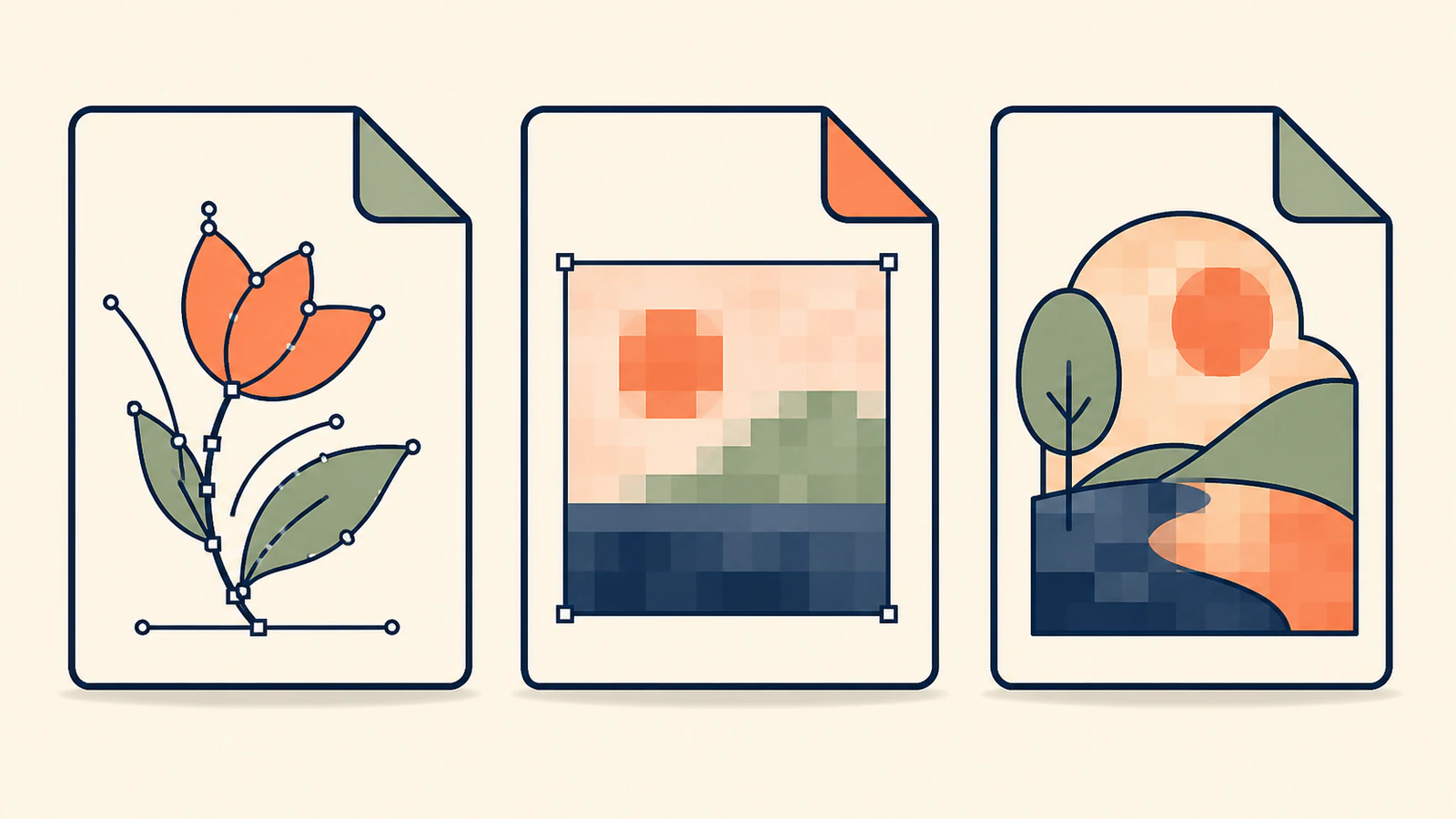
To check the container claim without relying on a vendor's sample file, we authored three minimal EPS 3 files: one with PostScript path operations only, one with a colorimage bitmap only, and one with both a vector border and a bitmap.
Ghostscript recognized and rendered all three as EPS files. The controlled source inspection found path operations in the vector file, an image operation in the raster file, and both types in the mixed file.
| Synthetic file | What the source contained | What a vector editor should reveal |
|---|---|---|
| Vector-only EPS | Filled and stroked paths | Selectable paths and anchors |
| Raster-only EPS | One bitmap image operation | One image object or frame |
| Mixed EPS | Vector border plus bitmap | Paths and an image object |
The test has a narrow but useful conclusion: a valid EPS can be vector-only, raster-only, or mixed. It does not mean searching arbitrary EPS source text for a word is a dependable audit. Real files may be compressed, generated in different PostScript styles, or flattened by an application. Use the editor checks above for production artwork.
Match the result to the recovery path
| What you find | What it means | Best next step |
|---|---|---|
| Paths and anchors throughout | The artwork is vector | Save a copy, then make the required production edits |
| A single linked or embedded image | The EPS is acting as a raster container | Find the original vector or vectorize/redraw the cleanest raster source |
| Paths plus an image object | The EPS is mixed | Keep useful paths; replace or rebuild the raster portion if it must scale |
| Letter outlines | The letters are vector but no longer live text | Use the original font/source file for wording changes, or redraw carefully |
| One placed frame in a larger document | The app may be showing placement behavior | Open the EPS directly and inspect it again |
If a printer only needs the appearance and accepts the file, a mixed EPS may be usable for that specific job. If the recipient asked for editable vector art, a raster-only or mixed file may fail the actual requirement even though the extension is correct. Ask whether they need paths, live text, spot colors, or a particular application preset. For a stock-platform handoff, the Shutterstock EPS submission checks separate artwork bounds, source eligibility and Illustrator compatibility.
The same container problem occurs with PDF. The PDF-to-SVG guide shows how to decide whether a PDF should be exported or traced. If the PDF contains only a scanned page, send that page through the PDF to SVG converter. The logo-format guide helps when a vendor has not explained which vector handoff it expects.
What this looks like with PerfectVector
If the EPS contains only a bitmap and no original vector survives, start with the cleanest raster image you can recover. PerfectVector's image-to-EPS converter rebuilds the visible artwork as flat, filled paths before writing EPS output, instead of wrapping the unchanged bitmap in an EPS container.
This route fits logos, wordmarks, icons, badges, lettering, and flat illustrations with clear color boundaries. It does not reconstruct live text, original fonts, source layers, transparency, CMYK, spot colors, or print separations. Photographs, soft gradients, texture, and shadows become stylized filled regions rather than pixel-identical copies.
After conversion, reopen the new EPS and repeat the same checks: Outline view, direct selection, Links, and the destination application's import. That final inspection matters more than the extension.
If the original mark is legally or geometrically sensitive, compare the recovered paths with the approved artwork and have the owner or designer sign off. The logo-vectorization guide explains when a clean trace is reasonable and when redraw is safer.
FAQ
Are all EPS files vector?
No. EPS can contain vector paths, bitmap images, or a mix. The .eps extension identifies the container, not the structure of every object inside it. Open the file in a vector editor and inspect paths, selection behavior, and image links.
How do I tell if an EPS contains a raster image? Open the EPS directly, switch to Outline view, select the artwork with a direct-selection tool, and inspect the Links panel. A single rectangular image frame or a linked or embedded image entry indicates raster content. Check whether separate vector paths are present too, because the EPS may be mixed.
Why is my EPS not editable even though it looks sharp? It may contain a high-resolution bitmap, be placed as one external asset, have all text converted to outlines, or be opened in an app that rasterizes EPS. Sharp zoom does not prove object-level editability. Open the file in a vector editor and look for paths and anchors.
Is outlined text in an EPS still vector? Yes. Outlined letters are vector paths and scale cleanly, but they are no longer live text. You can edit their nodes like shapes, not change their wording with text controls. Keep the original font or editable source file for copy changes.
Can I fix a raster-only EPS without the original vector file? Often, if the embedded image is clean and graphic. Extract or obtain the highest-quality raster, then vectorize or redraw it and verify the resulting paths. Flat logos and icons are stronger candidates than photographs, texture, or soft gradients.
Sources
- Adobe — EPS files — EPS bitmap/vector content, editability limits, and Photoshop rasterization behavior.
- Adobe — View artwork — Illustrator Outline view and the outlined-box treatment for linked files.
- Adobe — Links panel overview — tracking linked and embedded artwork in Illustrator.
- Adobe — Create outline text — why outlined letters remain paths but lose text editability.
If your EPS turns out to be one embedded image, do not rename or re-save it and hope the structure changes. Rebuild the artwork as real EPS paths, then verify those paths before the file goes back to a printer or client.
More from the blog

Does SVG Support CMYK for Print? Choose a Format
Learn why editable SVG paths do not guarantee reliable CMYK output, when to keep SVG, and when a printer-ready PDF or requested EPS is the safer handoff.

Woven Label Artwork: Keep a Logo Clear at Small Sizes
Prepare a logo for a woven clothing label: simplify detail at its intended size, separate folds and sewing space, and export the files your label maker requests.