Shutterstock Vector Requirements: EPS File Checks
Check Shutterstock's EPS format, artwork bounds and file size rules, then inspect paths, color and source eligibility before preparing a vector submission.
On this page
Shutterstock vector requirements start with an EPS compatible with Adobe Illustrator 8 or 10, a file no larger than 100 MB, and artwork measuring 4 to 25 megapixels. That area applies to the bounding box around the artwork, not the artboard. These are the limits in Shutterstock's vector submission instructions.
An EPS extension alone settles none of those checks. A large page can contain undersized artwork, and a valid EPS can still contain pixels or lack the required Illustrator compatibility. Check the source's eligibility first, measure the actual objects, then inspect the saved submission copy.
Check eligibility before changing the file
Shutterstock's AI-generated content policy says it does not accept AI-generated content from contributors. Converting a generated picture into paths does not change how that picture originated. Use the current contributor rules to assess the source; file conversion is not evidence of ownership or permission.
The geometric examples below are instructional files created for this article. They demonstrate measurement and rendering, not finished stock artwork or an accepted submission. The article's decorative cover is also unrelated to a contributor upload.
Keep the three technical checks separate
| Check | Requirement | What to inspect |
|---|---|---|
| Compatibility | EPS compatible with Illustrator 8 or 10 | The EPS saving application's version option and the reopened file |
| Artwork area | 4 to 25 MP | Width multiplied by height of the complete artwork selection |
| File weight | Up to 100 MB | The actual saved EPS file's size |
Shutterstock's technical requirements distinguish megapixels from megabytes. Their measurement guidance uses a 72 DPI/PPI convention when relating pixels to points. Check the editor's units before multiplying dimensions; a width displayed in inches is not a pixel count.
A small file can describe large vector shapes. Adding bytes does not enlarge them, and adding empty artboard space does not enlarge their bounding box.
Measure the artwork, then resize the page
In Illustrator, select all the intended artwork and inspect its width and height in the Transform panel. Scale that selection proportionally to bring its area within the required range, then adjust the artboard around it. This follows Shutterstock's artwork-sizing procedure.
For example, a selection measuring 1,200 × 1,200 pixels has an area of 1.44 MP. Doubling both dimensions produces 2,400 × 2,400 pixels, or 5.76 MP. Doubling just the artboard dimensions leaves the selection at 1.44 MP.
A controlled EPS bounds study
The example uses three minimal EPS files containing a filled diamond and two discs. Their geometry was authored directly in PostScript, with no bitmap image operations. Ghostscript rendered each file and measured its painted bounds. The nominal dimensions below come from the geometry; the renderer's bounds agreed within 0.03 point.
| File | Page dimensions | Artwork dimensions | Area at the stated 72 PPI convention |
|---|---|---|---|
| Original | 3,000 × 3,000 pt | 1,200 × 1,200 pt | 1.44 MP |
| Bigger page only | 4,500 × 4,500 pt | 1,200 × 1,200 pt | 1.44 MP |
| Scaled artwork | 3,000 × 3,000 pt | 2,400 × 2,400 pt | 5.76 MP |
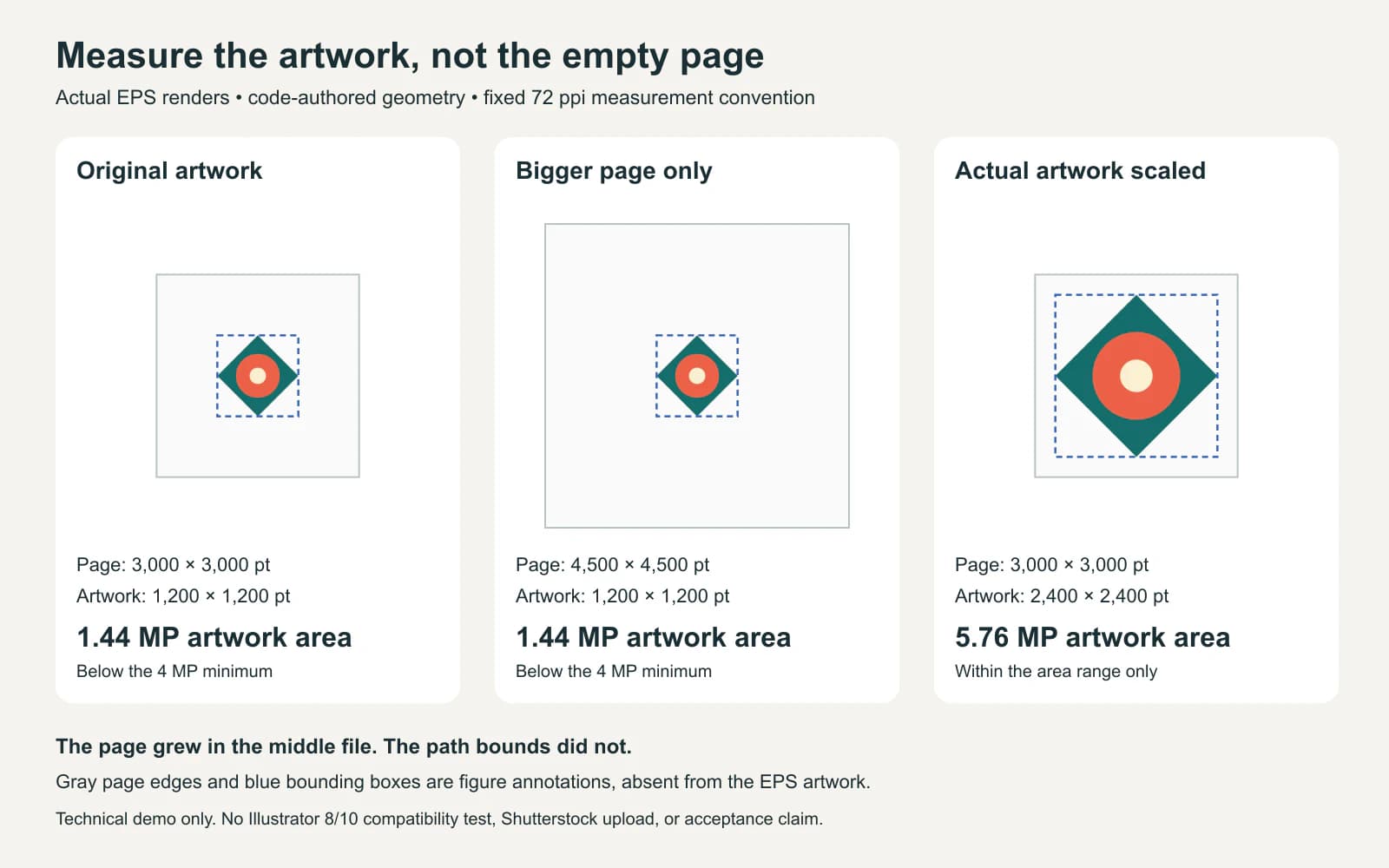
The third file clears the area threshold mathematically, but that says nothing about its suitability as stock art. All three are generic EPS files, and none was exported through an Illustrator 8 or 10 compatibility preset.
Keep the selection meaningful when applying this check to your own work. Inspect unexpected distant objects before measuring. A stray point or leftover background can enlarge a selection without improving the illustration. Remove unwanted material, reselect the intended artwork, and measure again.
Save an Illustrator-compatible EPS copy
Adobe's EPS saving instructions place the Illustrator compatibility choice in the EPS Options dialog:
- Keep the editable master, then choose File > Save As or File > Save a Copy.
- Select Illustrator EPS as the file format.
- Set Version to the required Illustrator 8 or 10 compatibility option.
- Read the warnings about features that will change, then save and reopen the copy for inspection.
The Version setting and the PostScript language level are separate options. A header such as EPSF-3.0, or a renderer successfully opening an EPS, does not establish that it meets Shutterstock's Illustrator compatibility requirement. Adobe also warns that saving to older versions can change or discard unsupported data.
If your exporter only offers a generic EPS option, treat its result as a preparation file until the required compatibility has been verified. Changing its extension or editing a header is not a substitute for the appropriate save operation.
Inspect the reopened copy and its preview
Shutterstock's vector quality requirements cover the objects a customer receives, not just the image's appearance. Work through the saved EPS:
- Look for bitmap elements introduced by pixel effects or transparency during legacy saving.
- Expand brushes and effects so their component shapes are accessible.
- Convert live fonts to outlines in the submission copy; preserve editable text in the master.
- Remove hidden, extraneous and out-of-artboard objects.
- Check clean path construction and that the preview matches the intended artwork.
For the inspection itself, our EPS vector-content checks explain Outline view, direct selection and linked images. If the starting file is SVG, check it for embedded raster content before assuming everything will become editable EPS paths.
The current EPS uploading FAQ says Shutterstock generates the JPEG preview and crops it to the artwork bounds. Empty artboard space therefore does not guarantee a margin in that preview. It also recommends RGB EPS without CMYK PostScript information for preview color consistency. Compare the generated thumbnail with your saved file, especially its crop and colors.
When preparing an actual submission, follow the current upload instructions for descriptions, keywords and categories. A successful upload still goes through review; this file checklist does not replace Shutterstock's content and submission requirements.
Where raster-to-EPS conversion fits
If an eligible original drawing exists only as pixels and you need editable paths, PerfectVector's image-to-EPS workflow can help prepare the vector geometry. Its export contains flat filled paths with RGB colors and an opaque white or black background in EPS 3 / PostScript Level 2 format. That is not a claim of Illustrator 8 or 10 certification. Inspect the background, clean the artwork, and complete the required compatibility save and reopened-file checks before considering submission.
If you already have usable vector artwork, edit that original. If your EPS contains only a photograph, our JPG-to-EPS guide explains why putting the photo inside an EPS container does not create paths. More file-preparation guides are in the PerfectVector blog.
FAQ
Can I submit an SVG directly as a Shutterstock vector? The current vector instructions specify EPS compatible with Illustrator 8 or 10. Keep SVG as an editable working file if useful, then prepare and inspect the required EPS copy.
Why is my vector too small when the artboard is large? Shutterstock measures the bounding box around the artwork. Select the intended objects and check their width and height; enlarging empty page space leaves those dimensions unchanged.
Does EPS 3 mean Illustrator EPS 10? No. EPS file-format and PostScript language labels do not identify the Illustrator compatibility setting. Verify that separately when saving the EPS.
Can I trace AI-generated art to make it eligible? Tracing changes the file's geometry, not the picture's origin. Shutterstock's policy says it does not accept AI-generated content from contributors; a conversion does not resolve that restriction.
Sources
- Shutterstock: How do I submit vector illustrations for review? — EPS limits and submission workflow.
- Shutterstock: Technical requirements for images — artwork bounds, units and resizing instructions.
- Shutterstock: AI-generated content policy — contributor eligibility restriction.
- Adobe: Save artwork in Illustrator — EPS version options and legacy saving changes.
- Shutterstock: Vector and illustration quality requirements — editable objects, fonts and cleanup checks.
- Shutterstock: EPS uploading FAQ — generated previews, cropping and color settings.
Need paths from an eligible original raster drawing? Prepare an EPS with PerfectVector, inspect the actual artwork bounds and objects, then verify the required Illustrator compatibility in the final saved copy.
More from the blog
EPS Transparent Background: What Stays Unpainted?
Diagnose an EPS white box by separating unpainted space, opaque background paint, and live opacity. Inspect the actual renders and the exporter's limits.

Adobe Stock Vector Requirements: Check a Traced File
Check Adobe Stock vector formats, artboard size, editable paths, and AI disclosure against a real traced SVG before preparing your own submission copy.