Crop Marks vs Bleed: Check the Artwork Beyond Trim
Crop marks locate the cut; bleed needs real artwork beyond it. Compare two saved PDFs, inspect missing edge content, and verify the final print handoff.
On this page
Crop marks show where a piece should be trimmed. Bleed is artwork extending beyond that intended edge. Adding marks to a PDF does not create missing background color or picture content outside the cut.
Start with the printer's required finished size, bleed allowance, and mark instructions. Keep the editable layout and inspect the exported PDF separately: a file can contain crop marks and a declared bleed region while its background still stops too soon.
Check the artwork, not just the marks
The trim is the intended finished boundary. Crop marks, also called trim marks, indicate its position. Bleed supplies artwork beyond that boundary so a small change in the cut does not immediately expose an unprinted edge. Bristol Print Services explains the distinction and recommends 3 mm bleed for its submissions. Use the actual job's requirements rather than treating that value as universal.
| What the PDF contains | What it establishes | What it does not establish |
|---|---|---|
| Crop marks | A marked trim position | Background or image content beyond trim |
| A bleed boundary or setting | A specified region around trim | That artwork actually fills that region |
| Artwork extending past trim | Painted content outside the finished face | Acceptance by the printer or coverage of every possible cut |
A checkbox labelled Bleed Marks is also different from bleed artwork. Adobe's FrameMaker documentation describes crop marks as rules identifying trim, and bleed marks as rules identifying the additional imaging area. Neither description makes a mark into an extension of a photograph.
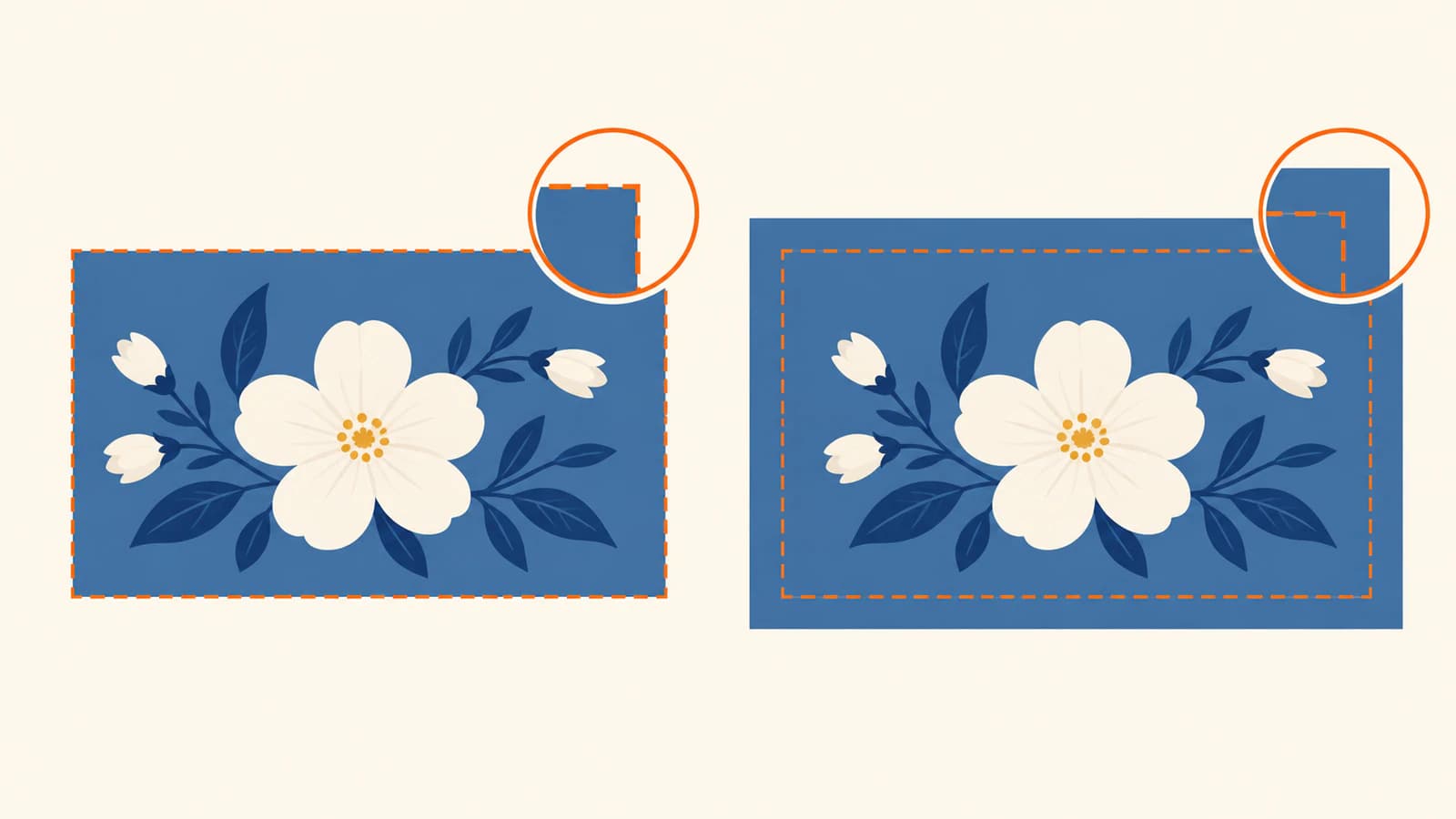
Two PDFs with identical marks, different coverage
We authored two original one-page PDFs with the same 120 × 80 mm page, a 100 × 60 mm intended trim, and the same central dark square. Both files declared a region extending 3 mm beyond trim and contained identical crop-mark drawing commands.
Only the teal background rectangle changed:
| Saved-file check | Stops-at-trim control | Extended-background control |
|---|---|---|
| Intended finished size | 100 × 60 mm | 100 × 60 mm |
| Declared bleed region | 106 × 66 mm | 106 × 66 mm |
| Actual teal background | 100 × 60 mm | 106 × 66 mm |
| Crop-mark commands | Identical | Identical |
We reopened the saved PDFs with PyMuPDF 1.26.5, parsed their drawing instructions, and confirmed the background bounds independently of the authoring parameters. The page-box values and mark commands matched between files. Both were vector drawings with no embedded images.
The marks' nearest endpoints were 5 mm from the example trim edges. That spacing, the 3 mm region, and the page size are educational choices, not a supplier template or recommended export preset. For the meanings of the stored rectangles, use the separate PDF page-box guide; this comparison concerns actual background coverage.
What an illustrative shifted trim reveals
We rendered both actual PDFs with Ghostscript 10.08.0 at 254 dpi, giving 10 pixels per millimetre. Each full-page image was 1200 × 800 pixels. We then took 1000 × 600 pixel crops representing the same 100 × 60 mm finished size at three positions.
These are digital crop simulations. Moving the crop by 1 mm is an illustrative scenario, not a measured cutting tolerance or a claim about how far a printer's machinery can move.
| Simulated crop position | Stops-at-trim control | Extended-background control |
|---|---|---|
| At intended trim | No exposed white pixels | No exposed white pixels |
| Shifted 1 mm right | 1 mm white strip at the right edge | No exposed white pixels |
| Shifted 1 mm right and 1 mm up | White strips at the right and top edges | No exposed white pixels |
In the right-shifted crop, the first control exposed 6,000 white pixels out of 600,000, or 1% of the crop. With both shifts it exposed 15,900 pixels, or 2.65%. We counted pixels in the saved crop images and checked the corresponding rectangle intersections. The extended control exposed zero white pixels in these particular scenarios.
Both files had the same marks. The difference came from the background geometry. A view cropped exactly to the intended finished face concealed that difference; inspecting beyond trim exposed it. We did not print or cut these files, test a supplier workflow, or validate color reproduction.
Repair missing edge content at the source
For a solid background, extend the background object through the required bleed region. Keep the intended finished dimensions fixed. Enlarging the entire layout can also move or resize a logo, alter margins, and change the intended composition.
For a photograph, check whether the source contains usable picture area outside the placed crop. You may be able to enlarge and reposition it proportionally while keeping the important subject inside the finished face. If not, return to a larger source or revise the composition. Adding empty canvas alone supplies no picture content.
Printed Easy's artwork guide explicitly requires artwork to reach its bleed boundary and warns that stretching bitmap images can distort them. Its guidance separates extending source artwork from enabling document bleed during export.
Do not move important text or a complete logo into bleed simply to fill it. Background coverage and content clearance are separate checks. Packaging also has folds and structural exclusions; use the dieline placement guide for those constraints. Internal ink overlap is another issue, covered in trapping versus bleed.
Export and inspect the actual delivery copy
- Confirm the finished dimensions and the required bleed on each relevant edge with the printer. Check whether crop marks are requested and how their offset is specified.
- Inspect the source artwork beyond trim. Look at every edge and corner, including placed-image frames or clipping that may hide available content.
- Export the required bleed and requested marks, then reopen that saved PDF. Check both the intended finished view and the surrounding artwork; verify that the background survived export at the correct scale.
- Check important content inside trim and use the receiver's proof process where required. A digital coverage check does not establish production approval.
Mark offset needs its own check. FrameMaker, for example, measures its offset from the page edge, and Adobe says to make it greater than the bleed value to keep marks out of that area. That is a documented FrameMaker rule, not a setting tested here or a definition shared by every exporter. Follow the chosen application's control and the receiver's instructions.
If the reopened PDF has marks but a white band between trim and the intended artwork edge, return to the source object and its export settings. If content is merely hidden by the viewer's page boundary, inspect the PDF boxes before resizing anything. The repair depends on whether the picture is missing, clipped, or just outside the current view.
Prepare a raster-only logo before layout
Use the existing vector master when available. If the layout needs a logo or motif and only a suitable PNG or JPEG remains, prepare an editable SVG for Illustrator with PerfectVector. Compare its silhouette, lettering, and enclosed spaces with the raster reference before placing the accepted SVG.
That step prepares an artwork asset. Extend the page background, set the job's bleed and marks, and verify the exported PDF in the layout workflow afterward. Vectorizing a logo does not invent missing photograph edges or certify a print handoff.
If recovering the raster artwork is the remaining obstacle, create and inspect the SVG candidate, preserve it as the asset reference, then check its placement and all four background edges in the final PDF.
FAQ
Do crop marks add bleed to a PDF?
No. They indicate a trim position. The background or image must actually extend beyond trim, and that content must survive the export.
Are bleed marks the same as bleed artwork?
No. Bleed marks are printer's marks identifying an additional area. Bleed artwork is the color or picture content in that area. Turning on a mark option does not reconstruct missing image content.
Should crop marks sit outside the bleed?
Check the receiver's instructions and the exporter's offset definition. Keep unwanted marks clear of required artwork. Adobe documents an offset greater than bleed for FrameMaker, but that is not a universal numeric preset.
Sources
- University of Bristol Print Services: Crops and bleed — Defines crop marks, bleed, and its own submission allowance.
- Adobe FrameMaker: Marks and Bleeds — Distinguishes crop and bleed marks and defines FrameMaker's offset control.
- Printed Easy: Setting up bleed and crop marks — Requires artwork extension and discusses bitmap-image distortion during bleed preparation.
More from the blog

PDF Layers: Check Whether Cut Lines Will Print
Check PDF layer visibility and print settings separately, diagnose baked-in guides, and verify the saved artwork handoff before sending cut lines to a printer.

Overprint vs Knockout: Check How Your Logo Prints
Compare overprint and knockout with separate ink-mask diagrams, understand disappearing process-white artwork, and check the actual print delivery file.