PDF Layers: Check Whether Cut Lines Will Print
Check PDF layer visibility and print settings separately, diagnose baked-in guides, and verify the saved artwork handoff before sending cut lines to a printer.
On this page
PDF cut lines can be visible on screen and absent from print, or hidden on screen and present in print. Check the layer's print setting and the actual output workflow before deciding that a guide is excluded. Turning off an eye icon alone does not establish what a layered PDF will print.
Start with the saved PDF, its editable source when available, and the receiving printer's instructions. Decide whether each line is reference artwork to omit, a required production instruction, or part of the printed design. Keep a master before changing the delivery copy.
Separate visibility from print behavior
A PDF optional content group, often called a layer, associates content with a state that can control whether it appears. This is more specific than a collection of objects named "Cut" in a design application: inspect what survived the PDF export. Artifex's optional-content explanation describes how groups control attached text, images, and vector graphics.
There are three separate questions:
| Question | What to inspect |
|---|---|
| What appears while I review the PDF? | Current onscreen layer visibility |
| What should appear when this layer is printed? | Its print behavior, including any print override |
| Does the guide still belong to optional content? | The saved PDF's layer structure and the content associated with it |
A line's color or layer name does not answer these questions. In our original file below, a magenta guide disappears under print intent, while an orange guide appears. Those colors were our choices for distinguishing the test objects.
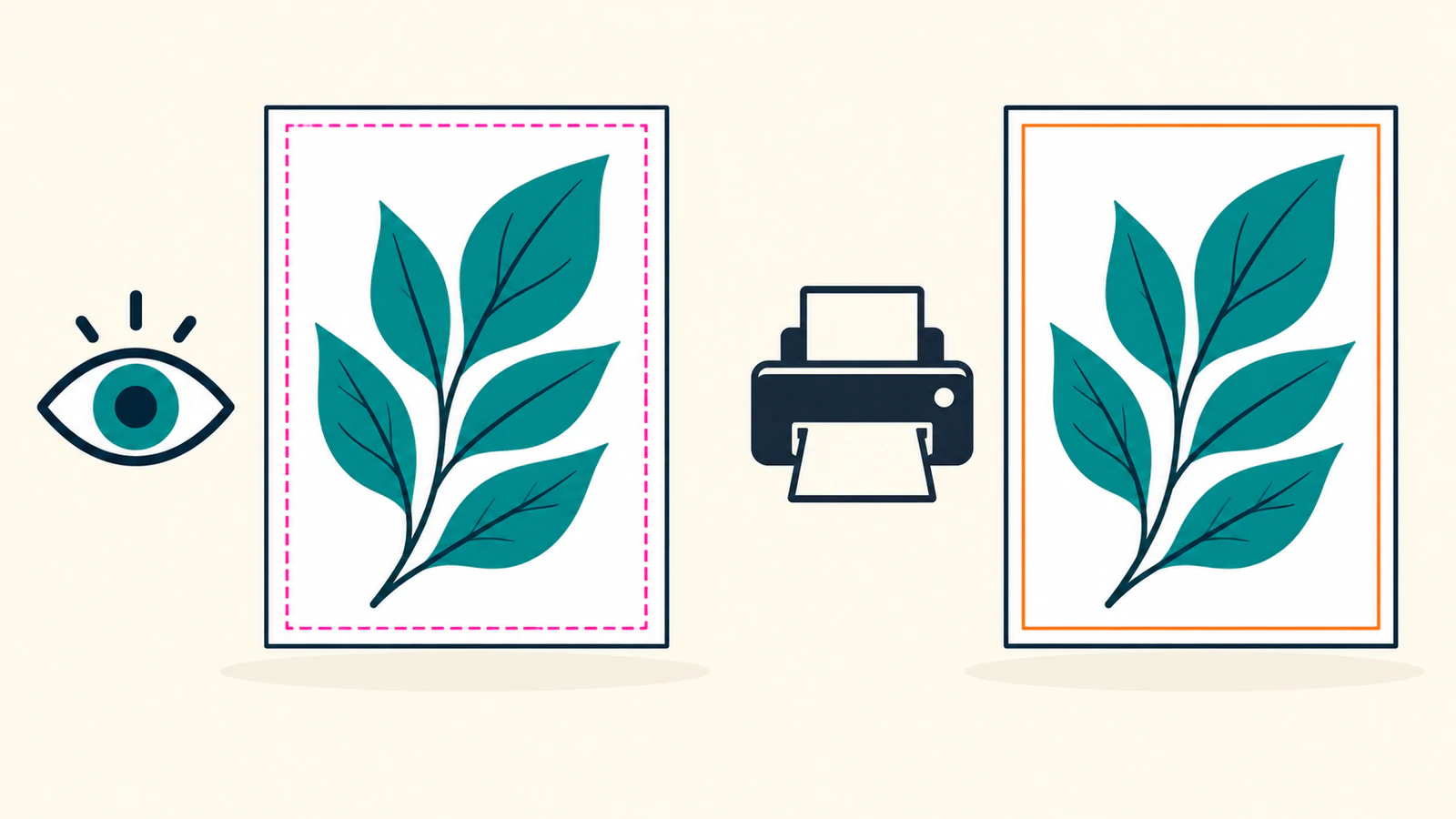
Inspect the documented Acrobat print controls
Adobe documents these checks for layered PDFs. The instructions here come from its documentation; our performed rendering test uses Ghostscript later in the article.
- Open the PDF's Layers panel and select the relevant layer. Use the eye icon to identify the content it controls.
- Open Options → Layer Properties and inspect Print. Adobe lists Prints When Visible, Never Prints, and Always Prints as distinct choices. Choose the behavior required for this delivery, rather than relying on the current eye icon.
- Use Options → Apply Print Overrides to inspect the document with print-based layer visibility. Confirm required artwork remains as well as checking excluded guides.
These options and the print-based preview are described in Adobe's Print layers guide. They are Acrobat controls, not instructions for every PDF viewer.
Adobe also states that layer-property changes require Allow layer state to be set by user information in document preferences. Its layer-properties guide separates Default State, onscreen Visibility, Print, and Export. Changing one is not evidence that the others match.
Save a new copy, close it, and reopen that exact file before repeating the check. Adobe's layer-management guide distinguishes temporary eye-icon changes from a saved Default state. Preserve the layered master even if the receiver requests a separate artwork-only file.
What our original PDF actually rendered
We authored a 240 × 160 point PDF with three optional content groups and one ordinary page mark. The file explicitly assigned View and Print usage states, with corresponding automatic-state entries in its default configuration. Reopening it confirmed the three groups and their content bindings.
We rendered the saved file twice with Ghostscript 10.08.0, at 144 dpi, producing 480 × 320 pixel images. Only the Printed setting changed:
gs -dSAFER -dBATCH -dNOPAUSE -sDEVICE=pngalpha -r144 \
  -dPrinted=false -sOutputFile=view.png layered-intents.pdf

gs -dSAFER -dBATCH -dNOPAUSE -sDEVICE=pngalpha -r144 \
  -dPrinted=true -sOutputFile=print.png layered-intents.pdf
Ghostscript documents Printed as selecting screen or print options. Here, the reopened PDF objects and rendered pixels establish the result for our particular optional-content fixture.
| Object in the original PDF | Authored View / Print state | View-intent render | Print-intent render |
|---|---|---|---|
| Teal artwork | On / On | Present | Present |
| Magenta outer guide | On / Off | Present | Absent |
| Orange inner guide | Off / On | Absent | Present |
| Black mark outside all three groups | Ordinary page content | Present | Present |
We inspected the actual renders and sampled the center of each guide stroke. At the magenta guide's location, RGB changed from (255, 0, 255) to white (255, 255, 255) under print intent. At the orange guide's location, white changed to (255, 127, 0). The artwork and ordinary black mark remained in both renders.
This demonstrates why screen appearance is insufficient for this file. It does not establish Acrobat output, a supplier's RIP behavior, or a physical print or cut. A RIP is the receiving system that interprets page content for production; test the actual delivery route when its behavior matters.
Diagnose guides that do not follow a layer toggle
If a guide remains after you hide its suspected layer, first check whether you selected the correct group and whether another copy of the line remains. A guide may also be ordinary page content or pixels within an image. Our ungrouped black mark remained under both rendering intents because it had no optional-content binding.
We made a second control file by placing the first PDF's View-intent image onto a fresh PDF page. Reopening this raster appearance copy confirmed zero optional content groups and one embedded image. Rendering it with both settings retained the magenta guide and omitted the orange guide: the chosen appearance was now image pixels.
That control is deliberately rasterized. It does not mean every layer-flattening or print-to-PDF operation rasterizes artwork. It shows why changing layer settings cannot remove a guide that is already baked into the image in this copy. Return to a source where artwork and guides can be separated, then inspect the new export.
| Symptom | Next check | Repair to verify |
|---|---|---|
| Hidden guide appears in print-oriented output | The layer's Print setting and receiving output options | Correct the required print behavior, then reopen and retest |
| Visible guide disappears from print-oriented output | Whether it is intentionally excluded | Keep that exclusion only if the receiver wants it |
| Toggling the expected layer leaves the line | Duplicate, ungrouped, or image-based content | Separate the correct source objects and export a new copy |
| Appearance changes after saving or reopening | Saved defaults versus temporary visibility | Set the intended saved configuration and test the reopened file |
Verify the handoff the receiver requested
Ask whether the receiver needs a layered production file, an artwork-only PDF, a separate reference proof, or separate cut data. Do not delete a required production line simply because it should not be ink on the finished piece. A layer named "Cut" and a nonprinting setting alone do not demonstrate that a cutter will receive an appropriate path.
For packaging, preserve the supplier's structural requirements and follow the dieline artwork handoff checks. If the problem is the page boundary rather than a guide's visibility, inspect PDF page boxes. For an SVG missing from browser printing before it becomes PDF content, use the browser print-layout diagnosis.
Check the reopened delivery file through the intended output route. Record which guides should remain, which should disappear, and whether the artwork, dimensions, and page boundaries still match the job. Obtain the receiver's proof where required; our digital test supplies no manufacturing approval.
Prepare missing vector artwork before page assembly
Keep an existing vector master when you have one. If the page needs a logo or motif and only a usable PNG or JPEG remains, prepare an editable SVG for Illustrator with PerfectVector. Compare the SVG's silhouette, lettering, and enclosed spaces with the raster reference before placing it in the page.
PerfectVector's role here is preparing an artwork asset. PDF optional-content settings, guide separation, page assembly, and output verification belong to the later document workflow.
If recovering that raster asset is your remaining step, create and inspect the SVG candidate, preserve the accepted file, then repeat the PDF layer and output checks after placement and export.
FAQ
Does hiding a PDF layer guarantee that it will not print?
No. Screen visibility and print behavior can differ. Inspect the layer's print setting and the saved file through the actual output route; an eye icon alone does not establish the printed result.
Why are cut lines still visible after I hide their layer?
Check that the selected layer controls those lines and that no duplicate remains. The lines may instead be ordinary page content or pixels in an embedded image, requiring a source edit and a new export.
Should I remove every cut line before sending a PDF?
Follow the receiver's instructions. A structural guide may be required production information even when it should not print as artwork. Confirm the requested layered file, artwork-only copy, reference proof, or separate cut data.
Sources
- Artifex: Optional Content, Discovering the PDF Layers — Explains optional content groups and content visibility.
- Adobe: Print layers — Documents print choices and Apply Print Overrides.
- Adobe: Edit layer properties — Distinguishes visibility, print, export, and the relevant preference.
- Adobe: Manage PDF layers — Explains temporary visibility and saved defaults.
- Ghostscript: Using Ghostscript — Defines explicit screen-versus-print rendering options.
More from the blog

Crop Marks vs Bleed: Check the Artwork Beyond Trim
Crop marks locate the cut; bleed needs real artwork beyond it. Compare two saved PDFs, inspect missing edge content, and verify the final print handoff.

Convert an Image to an AI File for a Print Shop
Turn a PNG or JPG into editable vector paths, export an Illustrator-compatible AI handoff, and verify color, bleed, fonts, and print-shop specs.