Convert an Image to an AI File for a Print Shop
Turn a PNG or JPG into editable vector paths, export an Illustrator-compatible AI handoff, and verify color, bleed, fonts, and print-shop specs.
On this page
- What the print shop probably means by “AI file”
- Placing a JPG in Illustrator is not vectorization
- Convert the image in six steps
- 1. Get the print specification first
- 2. Find the cleanest source
- 3. Trace or redraw the artwork
- 4. Inspect the actual paths
- 5. Export the AI handoff honestly
- 6. Finish prepress and send a proof
- When the PerfectVector route fits
- FAQ
- Sources
When a print shop asks for an AI file and all you have is a PNG or JPG, changing the extension is not enough. Ask what the file must do, find the original vector if one exists, and otherwise trace or redraw the raster into editable paths. Then check the shop's color, bleed, font, and separation requirements before delivery.
That last part matters. “Send an AI file” often means “send scalable, editable artwork,” but it can also mean a native Illustrator document prepared for a specific press. Those are different deliverables. Specialty print jobs should branch into the supplier's own workflow; for foil, use the foil-stamping separation and mask checklist. For tampography, use the pad-printing vendor handoff to confirm scale, colors, outlined type, and proof requirements before plate preparation. For pins, use the enamel-pin artwork and proof checklist. For printed acrylic charms, use the acrylic keychain artwork preparation guide to separate the print, perimeter, attachment opening, and side proofs.
The deadline version
- Ask the shop whether it needs editable paths, a native Illustrator document, or a print-ready PDF.
- Request its required dimensions, color mode, spot colors, bleed, outlined text, and separations.
- Use the original AI, EPS, SVG, or vector PDF master if you can find it.
- If only pixels remain, trace clean artwork or pay for a redraw when accuracy is critical.
- Inspect the paths before export; an
.aifilename does not prove that the contents are vector. - Send a reference PNG or PDF with the production file so the recipient can compare appearance.
What the print shop probably means by “AI file”
AI is Adobe Illustrator's filename format. A native AI document can preserve Illustrator-specific data, but many suppliers use “AI” as shorthand for vector artwork they can scale, recolor, separate, or attach to a cut path.
One current example is Nova Display's sign and vinyl artwork guide. It accepts vector PDF, AI, EPS, and CDR, asks for text and strokes to be outlined, and requires bitmap artwork to be traced before cutting. Your vendor may ask for something else.
Send this short question before converting anything:
Do you need editable vector paths, or a native Illustrator file with specific layers and prepress settings? Please send the required size, color mode, spot colors, bleed, font treatment, and separations.
The reply may save you from rebuilding the wrong file.
Placing a JPG in Illustrator is not vectorization
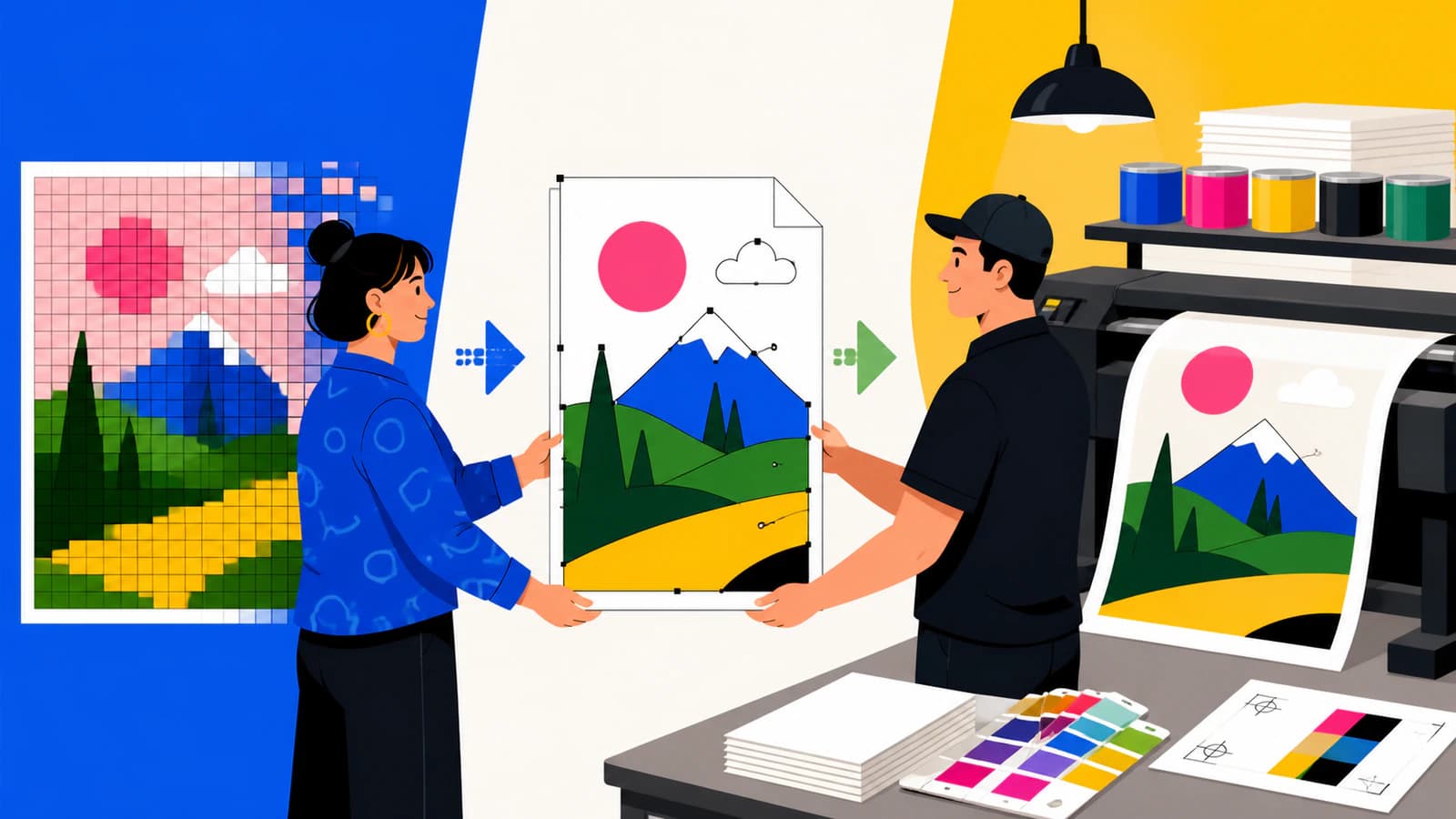
A JPG placed inside an Illustrator document is still a grid of pixels. Saving that document as .ai changes the container, not the artwork. The placed image will still have a fixed resolution, and a path-driven cutter will not gain usable contours from it.
Tracing is the reconstruction step. Software interprets visible edges and color regions as new shapes. Manual redrawing does the same job with a designer deciding every curve.
| Route | What the file contains | Best use |
|---|---|---|
| Place or embed the raster | Original pixels inside an AI document | A print layout when the raster already has enough resolution and vectors are not required |
| Automatically trace | New paths approximating visible pixels | Clean logos, icons, line art, badges, and flat illustrations |
| Manually redraw | Deliberately constructed paths | Tiny, blurry, damaged, trademark-critical, or precision artwork |
| Use the original master | Original paths, type, layers, and document setup that still exist | Always the first choice when available |
If the source is a photograph, ask whether the shop truly needs it vectorized. Most photographic print jobs should retain the image as a sufficiently large raster; a trace creates a stylized collection of shapes rather than preserving every tone. For a game with painted scenes and repeated symbols, use the board game vector-or-raster guide to choose a working format for each component before export.
Convert the image in six steps
1. Get the print specification first
Record the final physical size and the shop's accepted files. Ask whether the job uses CMYK process color, named spot colors, cut vinyl, screen-print separations, or another production method. Confirm bleed, safe area, trim, contour-cut, and font rules.
Adobe's printer's marks and bleed guide defines bleed as artwork extending beyond the crop area and says the appropriate amount depends on the job. Let the shop specify it; do not guess a universal value.
2. Find the cleanest source
Search old design folders, email attachments, brand portals, and previous vendor deliveries for an AI, EPS, SVG, or genuine vector PDF. Open the candidate and select objects. If you can edit individual paths, text, and shapes, use that master instead of tracing a PNG.
When no master exists, start from the largest, least-compressed raster you can find. A transparent PNG with clear edges is usually easier to trace than a small JPEG with halos around every edge.
3. Trace or redraw the artwork
In Illustrator, Image Trace converts raster images into editable vector artwork. Its current controls cover color count, path fitting, corners, noise, abutting or overlapping shapes, fills, strokes, gradients, and transparency.
Choose settings for the job, not for maximum detail. A three-color logo generally should not become 40 nearly identical color regions. Tight path fitting and low noise thresholds can follow more pixel irregularities, which may add cleanup without improving the printed mark.
Use manual redrawing when the source no longer contains enough information for a trustworthy trace. Automatic software cannot recover the original font, hidden layers, precise brand curves, or spot-color names from a flattened image.
4. Inspect the actual paths
Expand or open the result as editable geometry and check:
- letter counters and interior holes remain open;
- corners that should be sharp are not rounded;
- curves do not carry an excessive cloud of nodes;
- there are no background rectangles, specks, or thin slivers;
- color regions meet or overlap as the production method requires;
- strokes that must survive are expanded or handled according to the shop's rule.
Scale a copy to the final size and inspect the important details again. “Vector” means scalable geometry; it does not mean the trace is accurate.
5. Export the AI handoff honestly
If you are working in Illustrator, Adobe's save artwork guide shows that AI saving includes decisions about Illustrator-version compatibility, fonts, PDF compatibility, linked files, ICC profiles, and artboards. Follow the recipient's requested setup.
If you do not have Illustrator, PerfectVector's image-to-Illustrator converter rebuilds supported raster artwork as vector paths before creating the download. The current output is deliberately narrower than a native source document:
| PerfectVector AI compatibility profile | Current behavior |
|---|---|
| Container | Illustrator-compatible PDF 1.4 profile with an .ai filename |
| Editable content | Filled RGB paths and supported gradients |
| Canvas | One artboard |
| Assembly | Local in the browser |
| Not recreated | Native layers, live type, original effects, CMYK, spot colors, separations, bleed, or multiple artboards |
This handoff can satisfy a request for editable geometry. It cannot recreate Illustrator-native structure that was already lost when the artwork became a flat image.
6. Finish prepress and send a proof
Open the final file in the application the shop expects, or ask the shop to confirm it can open your compatibility handoff. Complete any required CMYK conversion, spot-color assignment, bleed, trapping, separations, contour paths, or outlined text there.
Send these items together:
- the requested vector production file;
- a PDF or PNG appearance proof;
- final dimensions and color references;
- a note identifying outlined text and any intentional raster elements;
- your contact details and the shop's job or order number.
Keep an editable master for yourself. Outlined text and flattened production effects may be harder to revise later.
When the PerfectVector route fits
Use the browser route when the shop mainly needs editable, scalable geometry and your source is clean enough to trace. Logos, icons, line art, and limited-color illustrations are the strongest candidates. You can vectorize and inspect the protected preview without a credit card; the finished download uses one credit.
Do not use it as a substitute for prepress expertise when the supplier requires a native Illustrator document with named spot swatches, live type, multiple artboards, or press-specific separations. In that case, use the recovered paths as a starting point and have the shop or a designer finish the production file.
For a sign-specific delivery, the vector-file checklist for sign shops adds outlined text, cut paths, and single-color versions. If the vendor accepts EPS instead, first confirm whether the EPS contains real paths.
FAQ
Can I rename a JPG to AI for a print shop? No. Renaming changes the filename, not the pixel content. The shop will still receive a raster image without editable vector paths.
Do I need Adobe Illustrator to create an AI file? Not always. A browser tool can create an Illustrator-compatible vector handoff, but the recipient may still require Illustrator or another design application for native layers, CMYK, spot colors, bleed, separations, or final prepress work.
Should a photo be converted to vector for printing? Usually not. Photographs normally print from high-resolution raster data. Trace a photo only when a stylized, posterized vector result is intentional or when the production method specifically needs paths.
What should I ask the print shop before converting the file? Ask for accepted formats, final dimensions, color mode, spot colors, bleed, safe area, outlined-text rules, separations, contour paths, and whether it needs editable paths or a native Illustrator document.
What does PerfectVector's AI download contain? It is an Illustrator-compatible PDF 1.4 vector profile with editable filled RGB paths, supported gradients, and one artboard. It does not recreate native Illustrator layers, live type, effects, CMYK, spot colors, separations, bleed, or multiple artboards.
Sources
- Adobe — Image Trace panel options — Current raster-to-vector tracing controls and editable-artwork behavior.
- Adobe — Save artwork — AI save options, compatibility, fonts, linked files, color profiles, and artboards.
- Adobe — Printer's marks and bleeds — Print-mark purposes, bleed definition, and the need for job-specific guidance.
- Nova Display — Sign-making and vinyl-cutting submission guidelines — One current vendor's accepted vector formats and outline requirements.
- PerfectVector — Image to Adobe Illustrator — Current Illustrator-compatible export profile, workflow, and limitations.
If the shop needs editable paths rather than a native source document, convert your cleanest image to an Illustrator-compatible handoff, inspect every important curve, and send it only after the recipient's prepress requirements are confirmed.
More from the blog
What File Format Should a Logo Be? A Practical Guide
Which logo file format for web, print, embroidery, or a vendor request, in one decision table, plus how to recover a vector master when all you have is a PNG.
Shutterstock Vector Requirements: EPS File Checks
Check Shutterstock's EPS format, artwork bounds and file size rules, then inspect paths, color and source eligibility before preparing a vector submission.