How to Turn an AI-Generated Logo Into a Real, Editable SVG
Turn an AI-generated logo into an editable SVG, rebuild garbled lettering as real type, check the paths, and know when a manual redraw is the better choice.
On this page
- Why your AI logo isn't already a vector
- Is your AI logo even worth vectorizing?
- How to convert an AI-generated logo to SVG
- 1. Start with the highest-resolution version
- 2. Vectorize it into paths
- 3. Fix the text
- 4. Check the paths are clean
- How to spot a fake SVG
- What this looks like with PerfectVector
- When to redraw instead
- FAQ
- Sources
An AI logo maker just gave you a logo, and now a printer or a website wants an SVG. The catch is that most AI logo tools and image generators hand you a raster image, a PNG or a JPG, which is made of pixels, not the paths an SVG needs. To get a real, scalable, editable logo, you convert that image into vectors by tracing it. AI-generated logos bring a few problems of their own to that process: the text is often garbled, the gradients and glows don't trace cleanly, and there's usually no editable source file to fall back on. This guide covers how to tell whether your AI logo is even worth vectorizing, how to convert it, how to fix the text, how to spot a fake SVG, and when you're better off redrawing it.
The quick version
- Many AI logo makers output raster (PNG/JPG), not SVG. You get a real vector by tracing or redrawing the image as paths.
- Flat, few-color logos vectorize cleanly. Gradients, 3D glows, and photoreal effects don't.
- AI text is baked-in pixels, not editable type, and often misspelled. Plan to delete it and set it in a real font.
- Watch for a fake SVG: a file that just wraps the PNG inside an .svg, with no real paths.
- When it's the flat kind, vectorize your AI logo into a clean, editable file.
Why your AI logo isn't already a vector
Most AI logo tools give you a raster image. Whether you used a dedicated logo maker or generated the mark in an image tool like Midjourney, what you downloaded is usually a PNG or a JPG. That's a grid of pixels. As Adobe's raster-versus-vector guide explains, raster images lose quality when enlarged, while vector artwork can be resized without the same resolution loss. A handful of tools generate real SVG directly, but if yours doesn't, you need to trace or redraw it.
Quick way to check what you have: look at the file. If it ends in .png or .jpg, it's raster and needs vectorizing. If it's an .svg, open it and make sure it's actually made of paths and not a pixel image in disguise, which happens more than you'd think (more on that below).
Is your AI logo even worth vectorizing?
Not every AI logo traces into a clean vector, so it's worth checking before you spend time on it. Tracing turns areas of solid color into shapes, which works well on flat, graphic logos and badly on anything soft or busy.
| Your AI logo… | Vectorizes cleanly? | What to do |
|---|---|---|
| Flat, 2 to 4 solid colors, crisp edges | Yes | Convert it, then fix the text |
| Simple line or silhouette mark | Yes | Convert it |
| Gradients, glows, or metallic 3D | No | Re-generate flatter, or redraw |
| Photoreal or heavily textured | No | Not really logo material; redraw |
| "Text" that's warped or nonsense | The mark yes, the text no | Convert the mark, retype the text |
If your logo is the flat, graphic kind, you're in good shape. If it's covered in gradients and glow, tracing gives you a muddy result, and you're better off re-generating a flatter version or redrawing it.
How to convert an AI-generated logo to SVG
1. Start with the highest-resolution version
Download the biggest file the tool will give you. If the logo sits on a background you don't want, remove it first, so the background doesn't become a shape in your vector.
2. Vectorize it into paths
Run the image through an image-to-vector converter that traces each color into its own clean path. You can also use Illustrator's Image Trace or Inkscape's Trace Bitmap, though either workflow may need cleanup afterward.
3. Fix the text
This is the step people forget. AI-generated lettering may come out warped or misspelled, and even correct lettering in a raster logo is baked into the image rather than stored as editable type. Delete the traced lettering and retype the brand name in a real font. Adobe likewise recommends identifying the font and typesetting text instead of relying on a text trace.
4. Check the paths are clean
Open the SVG and make sure each color is a tidy shape, not a mess of hundreds of stray points, which is the usual reason a converted logo is slow and painful to edit. Too many nodes covers why that happens and how to avoid it.
How to spot a fake SVG
Before you hand the file to a printer, make sure it's actually a vector. An SVG file can legitimately contain an embedded raster image through the SVG <image> element, so the .svg extension alone doesn't prove that your artwork was converted to paths. An embedded PNG still has its original resolution limits and can't be edited as vector shapes.
Two quick checks:
- Open it in a text editor. A real SVG is full of vector shapes like
<path>,<rect>,<circle>, and<polygon>. A fake one is a single<image>tag with a longbase64blob, which is the PNG hiding inside. - Zoom to 800 percent. A real vector stays sharp. A fake one pixelates.
It's the same trap you hit converting any AI art, which is covered in can Midjourney make an SVG.
What this looks like with PerfectVector
When your AI logo uses flat, clearly separated shapes, PerfectVector can reconstruct it as editable SVG paths. Compare the preview with the source, inspect the node layout and color separation, and rebuild any lettering as real type. Vectorizing and previewing are free; one credit unlocks the finished SVG.
Being honest about the limits: this works on flat logos. A gradient-heavy or glossy 3D AI logo won't become a clean vector from PerfectVector or any other tool, and a logo you'll build a brand on is worth getting right. In that case, re-generate a flatter version or have it redrawn.

When to redraw instead
Sometimes converting isn't the answer, and it helps to know when. Redraw or commission the logo if:
- It's full of gradients, glows, or 3D effects that won't trace cleanly.
- The text is garbled beyond what retyping can fix, or the layout falls apart without it.
- You need it pixel-perfect and consistent for a real brand, where a traced approximation won't hold up.
You can use the AI version as a reference and rebuild it properly in Illustrator or Inkscape, or hand it to a designer. For the full rundown of your options, how to vectorize a logo walks through auto-trace, redrawing, and hiring it out.
One thing worth knowing before you commit: AI generation and vectorization don't answer whether a logo conflicts with an existing mark or contains protectable human authorship. Before building a brand around it, review the tool's terms, search for similar trademarks, and get jurisdiction-specific legal advice when the stakes justify it. Converting the file to SVG doesn't change those rights.
And a quick reality check on why the raster looked off in the first place. If your only problem is that the logo goes blurry when you enlarge it, that's just a raster being scaled, and vectorizing fixes it. If the problem is the design itself, a vector won't.
FAQ
Can AI logo makers give you an SVG? Most give you a raster image, a PNG or JPG, rather than an SVG. A few newer tools generate a real SVG directly, but usually you download a raster and convert it into a vector yourself. Always check whether the file you got is actually made of paths or just pixels.
How do I turn an AI-generated logo into a vector? Download the highest-resolution image, remove the background if needed, and run it through an image-to-vector tool that traces each color into clean paths. Then delete any AI-generated text and retype it in a real font, since AI "text" is usually warped shapes rather than editable letters.
Why is my AI logo blurry when I scale it up? Because it's a raster image made of pixels, and enlarging pixels makes them soft. Converting the logo to a vector fixes this, since a vector redraws from paths and stays sharp at any size. If you don't vectorize it, use it only at its original size.
Why is the text in my AI logo garbled? AI image tools render text as shapes rather than real letters, so it often comes out warped or misspelled. The fix is to remove the AI text entirely and retype your brand name in a proper font, which also makes it editable and correctly spelled.
Is an AI-generated logo actually a vector? Only if the tool exported real vector paths. Because the SVG format can also contain an embedded raster image, the .svg extension alone isn't enough. Open the file and look for path elements, or zoom in and confirm that the artwork remains sharp and editable as shapes.
Can I trademark or sell a logo made with AI? It depends on the tool's terms, the human contribution, possible conflicts with existing marks, and the law where you operate. The U.S. Copyright Office's AI initiative distinguishes human-authored contributions from AI-generated material, while trademark clearance is a separate question. Converting the logo to SVG only changes the file format; it doesn't settle ownership or registrability.
Sources
This article is general information, not legal advice.
- Adobe — Raster vs. vector — resolution, scaling, and common file-format differences.
- Adobe Illustrator — Vectorize images using Image Trace — the official raster-to-vector tracing workflow.
- Adobe Illustrator — Optimize Image Trace results — guidance for rebuilding text rather than tracing it as artwork.
- W3C — SVG 2 embedded content — how an SVG can contain an embedded raster image through
<image>. - USPTO — Why search for similar trademarks — trademark clearance and likelihood-of-confusion basics.
- U.S. Copyright Office — Copyright and Artificial Intelligence — current U.S. guidance and reports on AI-generated material and human authorship.
Got an AI logo you want to use? Trace the graphic shapes into an SVG, rebuild the AI lettering as real type, and confirm the paths in your design and print tools.
More from the blog
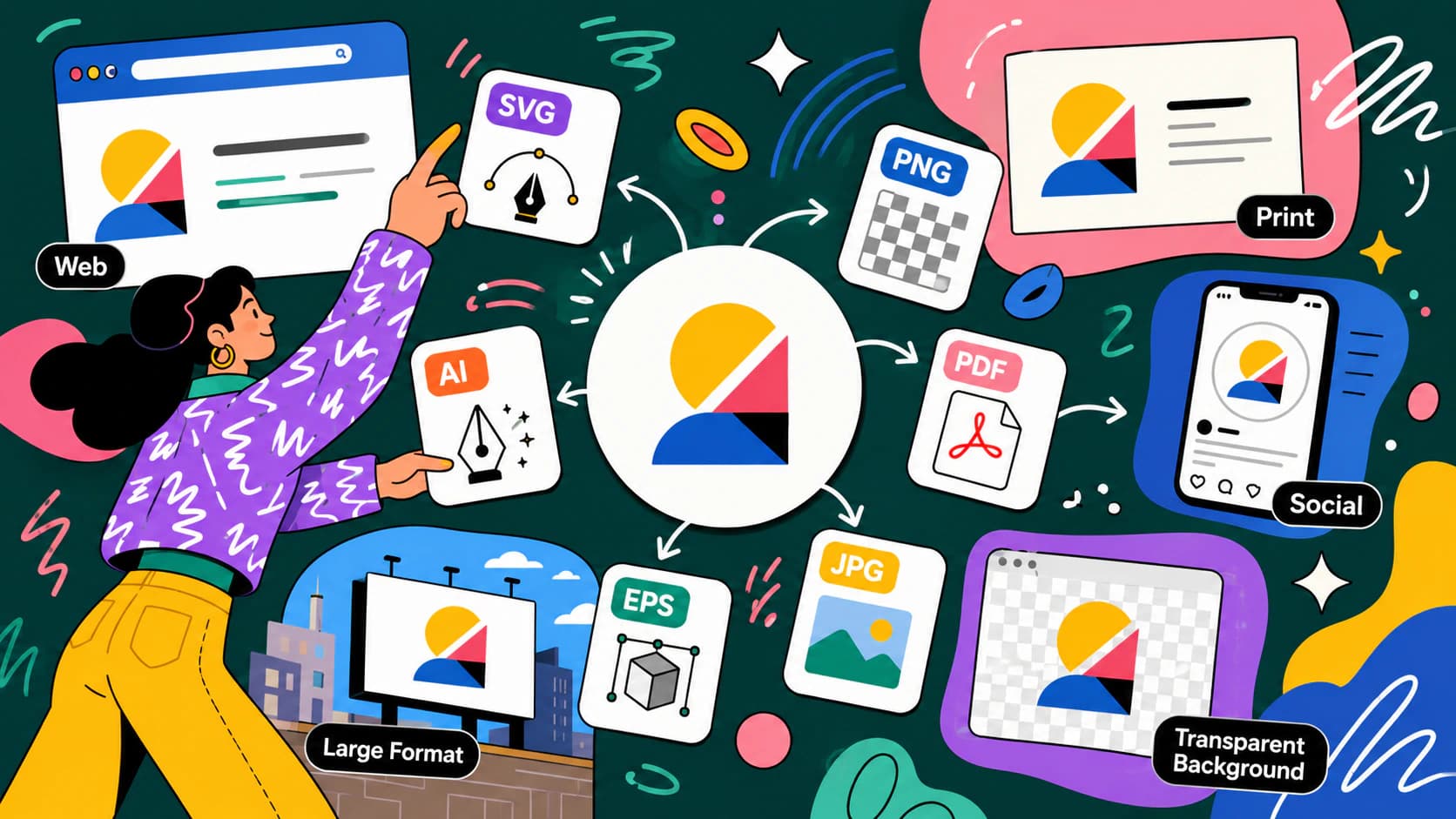
What File Format Should a Logo Be? A Practical Guide
Which logo file format for web, print, embroidery, or a vendor request, in one decision table, plus how to recover a vector master when all you have is a PNG.
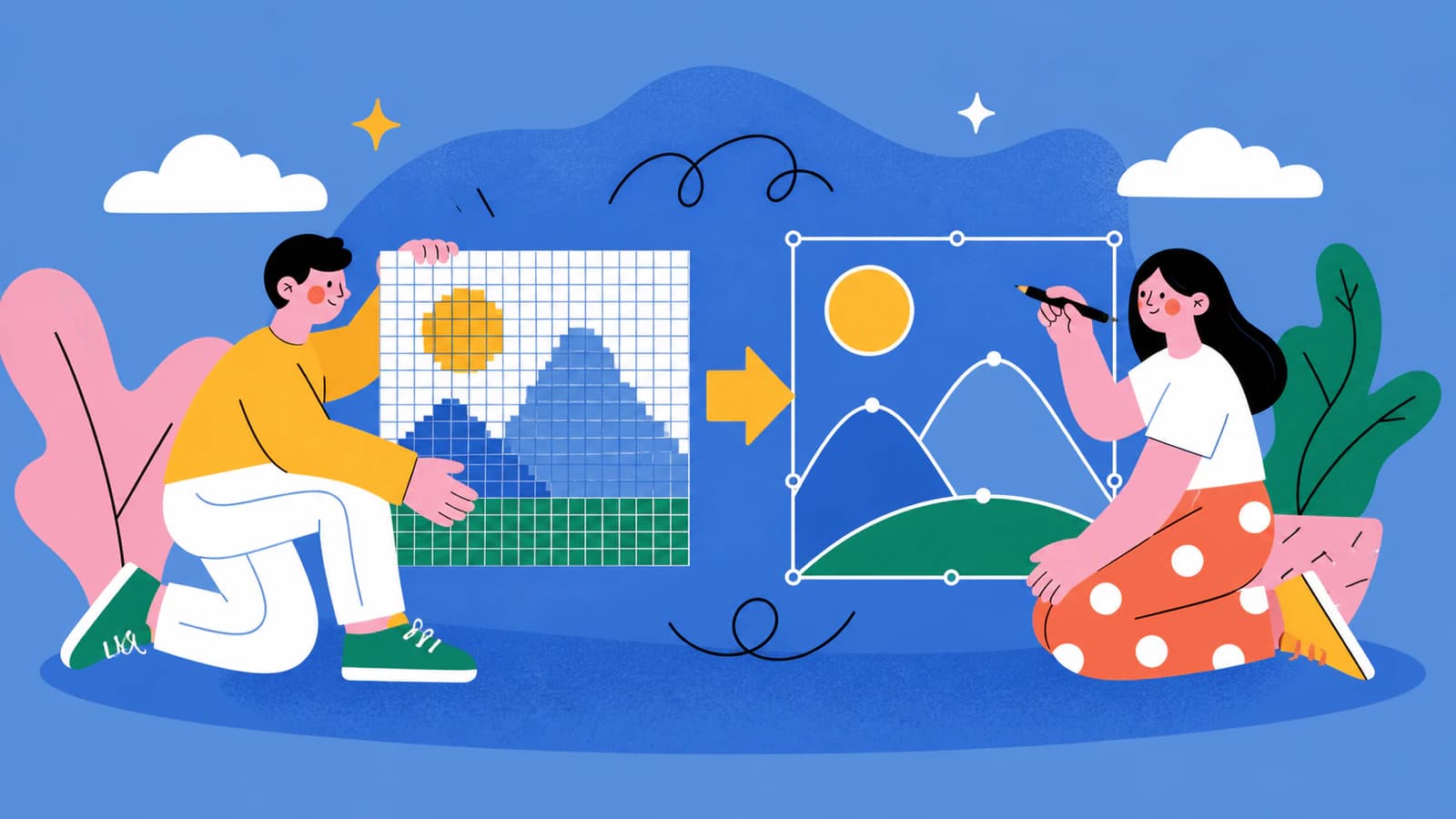
Add a Logo in KiCad: Image Converter or SVG Import?
Choose the right KiCad logo workflow: import a clean SVG, convert a bitmap into a footprint, or use a reference image without fabricating it on the PCB.