Illustrator Image Trace Greyed Out: Check the Object
Check whether Illustrator selected a raster image, a live trace, or expanded paths. Recover the right source before fixing an inactive Image Trace panel.
On this page
If Illustrator's Image Trace options are greyed out, check the selected object before changing tracing settings. Adobe says the Image Trace panel options are active only when an image is selected. Clicking vector paths, a surrounding group, or empty canvas does not establish that raster-image selection.
There is another common decision point: a trace that has already been expanded. Adobe documents that expansion turns the result into editable grouped paths and ends the ability to adjust its tracing options. If you need a different trace, return to the raster source or a saved unexpanded version. If you need to change the outline, edit the paths you already have.
Check the input before trying another preset
- Select the actual raster image with the Selection tool.
- If the file contains editable vector paths, edit those paths directly.
- If the result is still an unexpanded trace, adjust its tracing options before expanding.
- If it is expanded, recover the raster or unexpanded version to trace again.
- If a freshly placed raster also fails, record that separate reproduction for support.
Identify what is selected
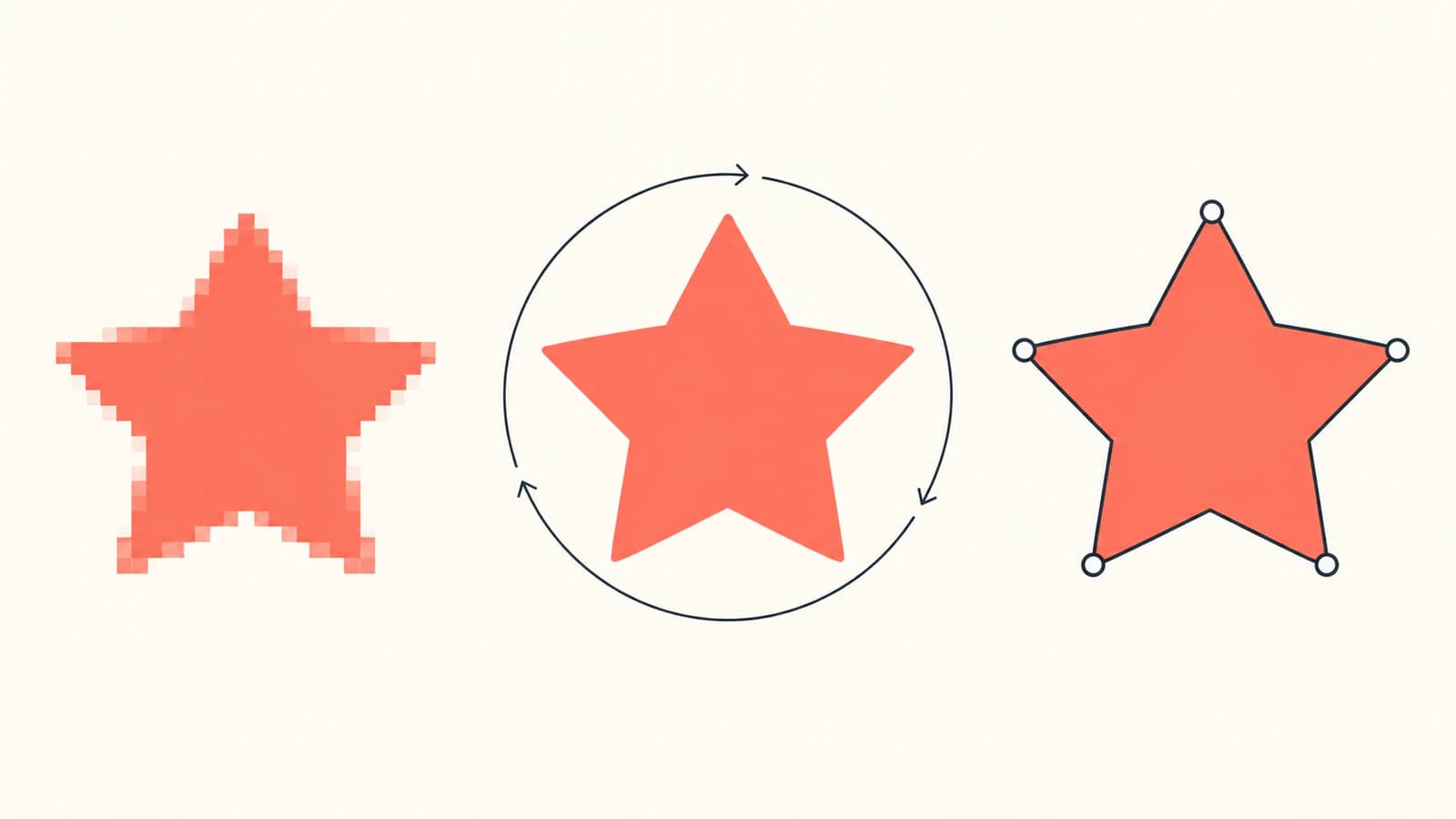
A star on the canvas can be a PNG image, an imported SVG path, or the visible result of a trace. Its appearance does not tell you which editing operation is available. Inspect the selection and its entry in the Layers panel rather than judging it from the preview alone.
| Selected content | What you need next | Appropriate action |
|---|---|---|
| Raster image | A first vector trace | Select the image and use Image Trace |
| Group containing an image | The image inside the group | Select the image member rather than the whole container |
| Existing vector paths | A color or outline edit | Use vector editing tools |
| Unexpanded tracing result | Different tracing settings | Adjust the selected trace before expansion |
| Expanded tracing result | Different source-to-vector interpretation | Return to the source or saved unexpanded version |
| Expanded tracing result | Individual path edits | Edit the resulting grouped paths |
Adobe's trace-editing workflow separates those last two jobs. Expand creates editable paths; after expansion you cannot adjust the tracing options. Ungrouping the paths does not turn them back into the original tracing object.
Retry with one clearly selected raster image
Use this short check to separate the current selection from a broader application problem:
- Save a copy of the document so the original artwork remains available.
- Deselect the current artwork.
- Use File > Place to place the original PNG or JPG. Use the source image, not a screenshot of an existing vector.
- With the Selection tool, select that image on the canvas. Confirm that you have targeted the image rather than a path or its surrounding group.
- Choose Window > Image Trace.
- Try a tracing preset and inspect the result before expanding it.
These follow Adobe's documented Image Trace workflow. The panel and quick-tracing controls offer different routes into the same task. Opening a panel alone does not supply an image to trace.
If the image is difficult to target inside other artwork, test the same PNG or JPG in a new blank document using the placement and selection steps above. This is a diagnostic comparison: success there narrows the problem to the original document or selection. Failure there is useful information for a support report; it is not proof that a particular preference reset or version change will fix it.
Once a trace is available, use the panel's View options to compare its outlines and source image. Avoid expanding merely to make an inactive panel look different. Expansion is the transition to path editing, not a general repair command.
An SVG extension does not identify the object
We made two versions of an original star badge to demonstrate the distinction. One SVG contains three authored paths. The other SVG contains an 80 × 80 PNG rasterized from those paths inside one image element. Both describe the same badge, but their contents support different edits.
We opened both specimens in a browser and inspected their SVG elements:
| Specimen | Image elements | Path elements | What the file supplies |
|---|---|---|---|
| Authored vector badge | 0 | 3 | Three explicit vector shapes |
| SVG containing the badge PNG | 1 | 0 | A pixel image in an SVG container |
Method: the PNG was rendered from our authored SVG for this structural example. These files are not Illustrator trace results or PerfectVector conversions, and no native Illustrator panel state was tested.
The vector specimen has explicit geometry for the background, star, and small bar. Save this code as SVG to inspect the three paths:
<svg xmlns="http://www.w3.org/2000/svg"
     width="120" height="120" viewBox="0 0 120 120">
  <path fill="#d1e9dc" d="M8 8H112V112H8Z"/>
  <path fill="#eb6354"
        d="M60 20L70 45L98 47L77 65L84 92L60 77L36 92L43 65L22 47L50 45Z"/>
  <path fill="#263d46" d="M28 101H92V105H28Z"/>
</svg>
This is the image-container structure, shown with a file reference instead of the specimen's embedded PNG data:
<svg xmlns="http://www.w3.org/2000/svg"
     width="120" height="120" viewBox="0 0 120 120">
  <image href="badge.png" width="120" height="120"/>
</svg>
The SVG embedded-content specification permits PNG or JPEG content inside an image element. Saving that wrapper as SVG does not reconstruct the image as paths. Conversely, an SVG composed of paths is already vector artwork and does not need a second image trace.
For a file you received from someone else, use the embedded-raster SVG diagnosis to check what it contains. Inspect the actual object after importing it into Illustrator: the SVG filename alone does not establish that the image inside the wrapper is currently selected or traceable.
If the trace has already been expanded
Choose between editing its paths and repeating the trace.
For a local repair, such as moving a corner or changing a fill, select the expanded result and edit its members. Adobe documents entering isolation mode to work inside the trace group or ungrouping to edit individual paths. Preserve a copy before restructuring the artwork.
For a different tracing preset or threshold, go back to the original image or a saved version that still contains the unexpanded tracing result. Adobe also documents Object > Image Trace > Release for a selected trace result when you want to discard that trace and restore its source image. Release belongs to the tracing-object workflow; it does not recreate a source from arbitrary vector paths.
Avoid rasterizing an expanded result just to feed it back into Image Trace when the original image is available. That adds a rendering step and may discard editability you already have. For a logo that needs reconstructed lettering or precise geometry, the logo-vectorization guide explains when a redraw is more appropriate than repeated tracing.
When to try a separate vectorizer
PerfectVector is an option when the actual task is turning a PNG or JPG into editable SVG paths and you want to perform that conversion outside Illustrator. Use the Adobe Image Trace alternative workflow with the original raster, then open the SVG and inspect its silhouette, holes, and editable color regions in Illustrator.
This gives you a separate conversion route. It does not repair Illustrator's panel state or restore an expanded trace's old settings. Existing vector paths should be edited directly. Photographs may be better kept as raster images when continuous tones matter; vectorizing them changes the representation rather than recovering an original layered design.
After recovering the correct input, the Image Trace versus vectorizer comparison helps choose the tracing method. The image-vectorization explainer covers what converting pixels into paths can and cannot recover.
If a freshly placed image still fails
Keep a small reproduction before trying broad application changes. Record the Illustrator version, source format, whether the same file works in a new document, what object is selected, and which controls remain inactive. A screenshot of that actual selection and panel is useful for Adobe support.
Menu labels and availability can depend on the application version and object state. The checks here follow current Adobe documentation; they do not establish a universal fix for every disabled-panel report. Restore access to the intended raster first, then investigate any reproducible failure with that confirmed input.
FAQ
Why is Image Trace greyed out for an SVG? The SVG may already contain vector paths, or you may have selected a group rather than an image inside it. Inspect the selected object. An SVG extension alone does not identify raster content or establish an image selection.
Can I change Image Trace settings after Expand? No. Adobe documents that Expand converts the tracing result into editable grouped paths and ends the ability to adjust its tracing options. Return to the raster source or a saved unexpanded version to trace again.
Does Ungroup restore the original Image Trace object? No. Ungroup separates members of a group; it does not reconstruct the source image or the original adjustable tracing object from expanded paths.
Should I use another vectorizer if the panel stays inactive? A separate vectorizer is useful when a PNG or JPG still needs conversion into paths. It supplies another conversion route, but it does not fix Illustrator's application state. If the artwork is already vector, edit the paths directly.
Sources
- Adobe — Image Trace panel options — Specifies image selection, tracing controls, View comparison, and expansion.
- Adobe — Vectorize images using Image Trace — Documents placement, selection, panel access, and releasing a trace to its source.
- Adobe — Edit tracing results — Defines expansion, loss of adjustable tracing options, isolation mode, and ungrouping.
- W3C — SVG 2 Embedded Content — Defines raster images inside SVG containers used in the authored object specimens.
If your source is a PNG or JPG, convert your own image with PerfectVector's Image Trace alternative, then open the SVG in Illustrator and check the silhouette, holes, and independently editable shapes before continuing.
More from the blog

jsPDF SVG: Keep Logo Paths in a Browser-Made PDF
Use svg2pdf.js with jsPDF to place an SVG logo, preserve supported paths, set its PDF size, and check the saved file against a rasterized export of that artwork.

EasyEDA SVG Logo Import: PCB Images or Panel Paths?
Import a logo into EasyEDA Standard or Pro without mixing PCB image tools with panel SVG paths. Check the editor, layer, size, and artwork before export.