
React-pdf SVG Logos: Render Paths in Your PDF
Add an SVG logo to a React-pdf document with Svg and Path, preserve its openings, set explicit dimensions, and check the saved PDF before using your own artwork.
On this page
For a small SVG logo in @react-pdf/renderer, build the artwork with its Svg, Path, and other supported components. Give the outer Svg an explicit size and retain the source viewBox. The renderer's Image documentation lists PNG and JPG inputs; wrapping an SVG URL in Image is not the vector route described here.
This guide uses a complete Node example with a square emblem and an opening through its center. We rendered the PDF with pinned dependencies and inspected the result. The example isolates three things that are easy to mix up: the source artwork, the component tree, and the PDF's placement size.
Check which React PDF package you use
This article generates documents with @react-pdf/renderer. The separately named react-pdf package displays existing PDFs. Check the import in your file before copying a solution from a search result.
Inside a renderer Document, use components exported by that renderer. A browser's lowercase svg and path elements belong to a different rendering environment. The official SVG component reference defines Svg as the viewport container and shows imported React-pdf shapes inside it.
| Source or goal | Suitable starting point | Check before delivery |
|---|---|---|
| A small logo with simple paths | Svg with imported Path, Rect, or other supported primitives | Paint, holes, viewBox and dimensions |
| SVG markup arriving as a string | Evaluate the project's SVG parser and map its output into the rendering workflow | Unsupported elements and actual output |
| A PNG or JPG you intend to keep as pixels | Image | Resolution at its placed size |
| An existing PDF to show on a webpage | A PDF viewer | You are viewing a document, not generating its artwork |
The Image reference describes bitmap inputs. A PNG fallback can be useful when a complicated appearance matters more than retaining vector geometry. It changes the deliverable, so keep the vector master separately.
There is also an official @react-pdf/svg package. Its README documents parseSvg(), which returns a tree of primitive nodes and converts attribute names to camelCase. It says unsupported elements are skipped with a warning. That is a parser contract, not a promise that every browser SVG renders identically. The example below uses explicit components so that the geometry and paint remain easy to inspect.
Render a minimal logo before importing your own
We ran this example with @react-pdf/renderer 4.9.0, React 19.2.4, and Node 22.19.0. These versions identify the tested setup; they do not guarantee the behavior of a different dependency tree.
In a fresh directory, install the two runtime packages:
npm install --save-exact @react-pdf/renderer@4.9.0 react@19.2.4Save this as logo.mjs, then run node logo.mjs. It uses React.createElement so Node can execute it without a JSX build step.
import React from 'react';
import { fileURLToPath } from 'node:url';
import {
  Document, Page, Svg, Path, Rect, renderToFile,
} from '@react-pdf/renderer';

const h = React.createElement;
const ring = 'M10 10H90V90H10Z M30 30H70V70H30Z';

const logo = h(
  Svg,
  { width: 144, height: 144, viewBox: '0 0 100 100' },
  h(Rect, {
    x: 0, y: 0, width: 100, height: 100, fill: '#f3ede2',
  }),
  h(Path, { d: ring, fill: '#087f8c', fillRule: 'evenodd' }),
);

await renderToFile(
  h(Document, null,
    h(Page, { size: 'A4', style: { padding: 36 } }, logo),
  ),
  fileURLToPath(new URL('./logo.pdf', import.meta.url)),
);
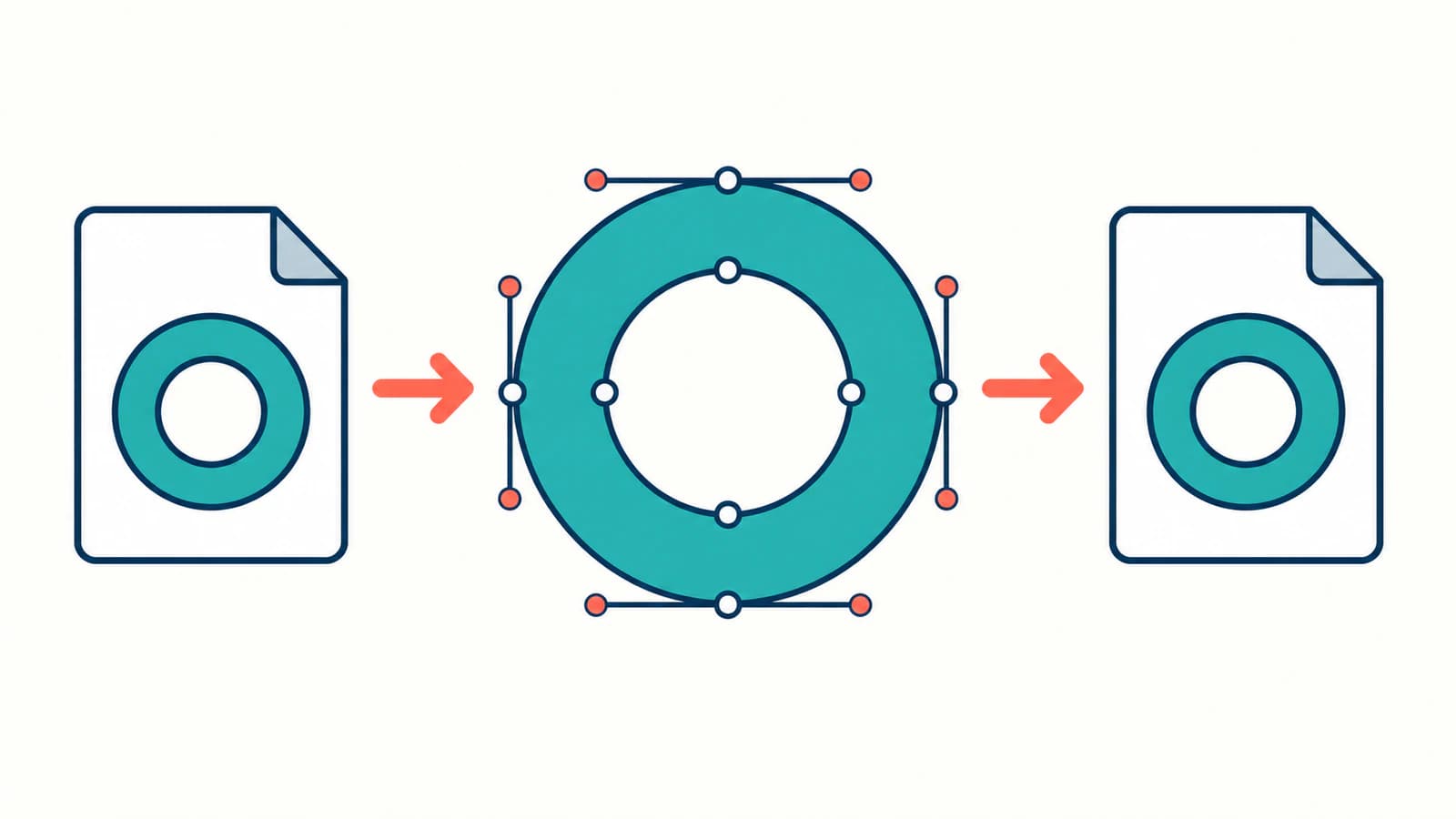
The outer and inner squares share one compound path. fillRule: 'evenodd' leaves the inner square open, showing the pale rectangle underneath. There is no white patch covering the center. That makes the opening a useful check when you replace the fixture with a logo containing counters or cutouts.
The SVG coordinates span 100 units in each direction, while its placed viewport is 144 by 144. viewBox describes the drawing's coordinate system; width and height describe its displayed viewport. Keep that distinction when adjusting a logo's size. The official Svg props table documents these controls and preserveAspectRatio.
Inspect the saved PDF as well as its preview
Our test produced one A4 page with the teal square ring near the upper-left corner. We rendered that file with Poppler and visually checked that the pale background showed through the opening. Poppler's pdfimages -list logo.pdf reported no embedded images in this isolated document.
That result is deliberately narrow. It describes this path-only fixture. It does not establish that a document with photos, embedded SVG images, or unsupported effects is entirely vector.
If Poppler is available on your machine, these commands provide two different checks:
pdfimages -list logo.pdf
pdftoppm -png -singlefile -scale-to 1000 logo.pdf logo-preview
The second command creates a raster preview for visual inspection; it does not turn the original PDF into a bitmap. Check the opening, corners, colors and placement in that preview, then open the saved PDF in the viewer used by your recipient. A sharp-looking preview alone cannot establish that the original document contains paths: a large bitmap can also look sharp.
For stronger inspection, examine the PDF's drawing instructions and referenced objects around the logo. Complex reports can contain nested objects, so start with an isolated logo document before diagnosing the whole report. The PDFKit SVG guide explains a separate SVG import workflow and its saved-PDF checks.
Move your artwork across one feature at a time
Replace the fixture's d value with your own path data, then preserve the associated fill, fill rule, stroke and transform. Copying only a path's shape while dropping its paint can change the result even when the path data itself is valid.
For a small static mark, put colors directly on the supported shapes. A logo that relies on a webpage's stylesheet needs those dependencies resolved before it becomes a self-contained document component. Keep the source SVG next to the rendering code so later revisions can be compared with the approved artwork.
| Symptom | First check | Useful next step |
|---|---|---|
| Nothing appears after passing an SVG URL | Whether the code uses Image | Start with the working Svg fixture above |
| Logo is clipped or unexpectedly tiny | viewBox, viewport size and empty source margins | Use explicit matching proportions, then inspect painted bounds |
| A hole becomes filled | Compound path and fillRule | Preserve the rule and test over a contrasting background |
| One part disappears | Supported primitive list and parser warnings | Isolate that feature in a small test document |
| The file still behaves like pixels | Embedded image content in the source | Inspect the SVG before changing PDF settings |
The official SVG overview lists the available primitives. Treat it as a support checklist, not as the browser's complete SVG feature set. Test lettering, clipping and gradients in your installed version before adding them to the production report.
If the SVG contains an embedded PNG, translating its container does not reconstruct the missing geometry. The embedded-raster guide shows how to distinguish paths from a bitmap stored inside an SVG file.
When the logo starts as a PNG or JPG
If there is an original SVG, AI or other editable vector master, ask for that first. If only pixels remain, PerfectVector's logo vectorizer can prepare an SVG candidate upstream of the React-pdf work. Compare its contours, small openings and separate color areas with the source before adapting its supported shapes to your PDF component.
Vectorization does not repair the renderer integration, create a React component, or guarantee support for every SVG feature. Keep lettering that requires exact brand geometry under manual review. The logo vectorization guide helps choose between tracing, retyping and redrawing.
For a raster-only source, the useful outcome is an inspected vector candidate followed by a checked PDF. For an existing vector source, proceed directly to the component and placement checks. More source-preparation guidance is available in the blog.
FAQ
Can I pass an SVG file to React-pdf Image? The documented Image inputs are PNG and JPG. Use the renderer's Svg primitives for the path-based workflow in this guide, and check your installed version before depending on other input behavior.
Do I have to translate every SVG by hand? No. The official @react-pdf/svg package parses SVG strings into primitive node trees. Review its supported elements and warnings, then connect and test that output in your rendering workflow. The explicit component example here avoids an extra parser step.
Why does the center of my logo fill in? Check the compound path and its fill rule. The test emblem uses evenodd so its inner square remains open. Preserve the original geometry and paint rules before changing the artwork.
Does a sharp PDF preview prove the logo is vector? No. Inspect the saved PDF's content and image objects as well as its appearance. The isolated fixture in this guide had no embedded images; that result does not apply automatically to another logo.
Sources
- React-pdf — Svg component — Defines the viewport, dimensions, viewBox and aspect-ratio controls.
- React-pdf — Image component — Documents PNG and JPG input forms for bitmap placement.
- React-pdf — SVG primitives — Lists supported SVG components for the renderer.
- React-pdf — SVG parser — Documents the primitive node tree, attribute conversion and unsupported-element warnings.
Only have a PNG or JPG logo? Prepare an SVG candidate with PerfectVector, compare its contours and openings with the source, then adapt the supported shapes and inspect the saved PDF.
More from the blog

jsPDF SVG: Keep Logo Paths in a Browser-Made PDF
Use svg2pdf.js with jsPDF to place an SVG logo, preserve supported paths, set its PDF size, and check the saved file against a rasterized export of that artwork.

fpdf2 SVG Images: Keep Paths in Your Python PDF
Place an SVG logo in a Python PDF with fpdf2, control its size, inspect the saved paths, and diagnose missing text or shapes before using a raster fallback.