Keynote SVG Break Apart: Edit Individual Shapes
Use Keynote's Break Apart command on Mac or iPad, separate editable SVG shapes, and work out whether a missing command means you need a different source file.
On this page
Select an SVG in Keynote on Mac and choose Format → Shapes and Lines → Break Apart. Then click outside the artwork and select the part you want to edit. On iPad, select the SVG and use Format → Arrange → Break Apart. Apple documents both the Mac and iPad routes.
This is useful when you need to recolor a leaf, remove part of an icon, or rearrange an illustration for a slide. It does not turn an ordinary PNG into vector shapes. The first decision is whether you have usable SVG artwork already or only a picture of it.
Choose the source for the edit you need
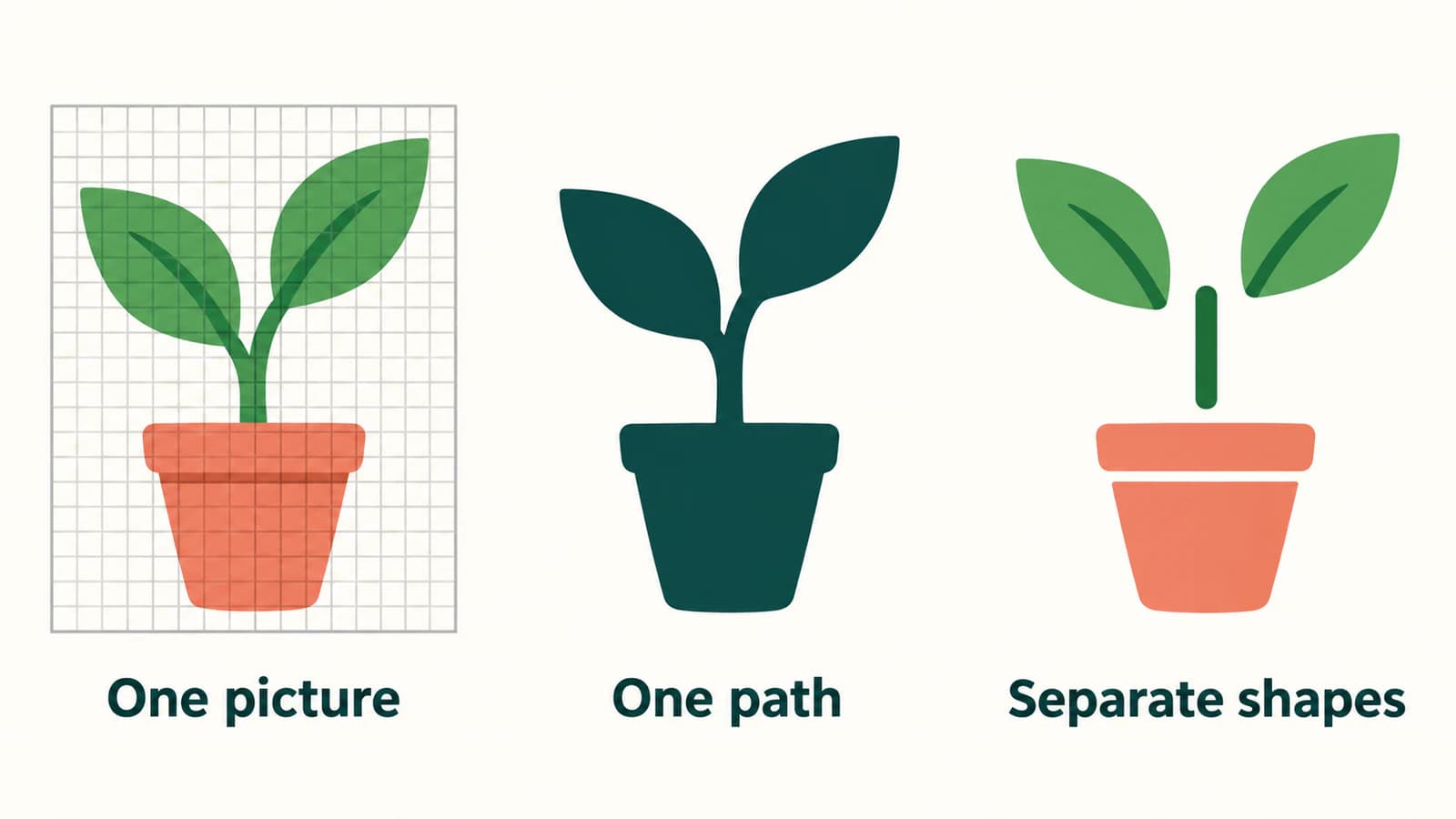
Imagine a potted-plant illustration for a workshop slide. You want to move one leaf outward and change its color to show a growth stage. The plant may look identical in three files, yet each can require a different approach.
| What the file contains | What that means for the leaf edit | First move |
|---|---|---|
| A PNG or JPG picture | The leaf is a patch of pixels inside the picture | Find the original vector, draw the simple parts, or trace suitable artwork |
| A single connected vector path | The leaf shares its geometry with the rest of the silhouette | Edit or redraw that region in the source artwork |
| Separate vector shapes | The leaf has its own object geometry | Try Keynote's Break Apart, then select the leaf |
The middle case is easy to miss. A vector file can scale cleanly without organizing the illustration into the parts you recognize. A connected leaf and stem do not become separate objects merely because you can name them separately.
An .svg extension also does not prove that the artwork is all paths. SVG permits an embedded raster image through its image element, as specified by W3C's SVG embedded-content rules. If you are unsure about the source, follow the embedded-image check before spending time on Keynote commands.
Insert the SVG, then break apart a working copy
Keep an untouched copy of the artwork on another slide. You will use it to check the result after changing the working version.
On Mac, drag the actual SVG file from Finder onto your slide. Apple's image insertion guide supports adding SVG images and dragging images from Finder. Use the file itself rather than a screenshot of a website preview.
The controls differ by platform:
| Step | Keynote on Mac | Keynote on iPad |
|---|---|---|
| Select | Click the inserted SVG | Tap the inserted SVG |
| Break apart | Format menu at the top of the screen → Shapes and Lines → Break Apart | Format button → Arrange → Break Apart |
| Inspect a part | Click outside the artwork, then click the desired shape | Tap outside the artwork, then tap the desired shape |
| Separate remaining groups | Select the artwork, then Arrange menu → Ungroup if needed | Select the artwork, then tap Ungroup if needed |
These are Apple's documented SVG steps. The Mac guide describes white handles around editable parts; the iPad guide describes blue handles. If the command ran but the whole plant still selects together, try the documented Ungroup step before assuming that the import failed.
Break Apart and Ungroup have different jobs in this sequence. The first exposes shapes from an eligible SVG image. The second separates objects that remain together as a group. Stop when you can select the region you need. Breaking every part out of every group can leave a simple slide edit harder to manage.
These instructions cover the Mac and iPad apps. Use the matching Apple guide for your device rather than transferring menu directions from Pages, Numbers, or PowerPoint. If the deck is being edited in Microsoft's app, use the separate PowerPoint SVG conversion workflow.
Make the leaf edit a small acceptance test
Before reworking a whole illustration, test one change on the duplicate slide. For the plant example:
- Select only the leaf you want to move. If the pot or another leaf also selects, inspect whether the parts are still grouped.
- Move that leaf a short distance. Look for a gap where it met the stem, and undo the move after checking the structure.
- Apply the intended color change to the leaf. Confirm that another region did not change with it.
- View the slide at presentation size. A technically editable detail may be too small to help your audience.
This test gives you a stopping point: the leaf changes independently, its join looks intentional, and the rest of the plant stays visually consistent. It is a suggested check for your file, not a claim that every imported SVG will expose the same pieces.
If moving the leaf reveals a missing section of stem, decide whether you want to repair that connection or keep the original arrangement. Decorative artwork is often drawn for one fixed composition. Separating its parts does not supply artwork that was hidden or never drawn.
Compare the duplicate with the untouched slide before you continue. Check the pot opening, overlapping leaves, narrow stem, and any shading. If your artwork includes lettering, inspect that too; shape editability is a different requirement from editable text. Keep slide labels in native text boxes when you need to change their wording later.
If Break Apart is dimmed or missing
Apple's Mac SVG instructions say a dimmed Break Apart command means the selected image cannot be broken apart. On iPad, the guide describes the command not appearing for such an image. That tells you the operation is unavailable for the current selection; it does not identify one universal file defect.
Work through the cases in this order:
| What you see | What to check | Next action |
|---|---|---|
| No useful command on the selected item | Is this the SVG file, a PNG preview, or another slide object? | Insert the original SVG on an empty slide and select it alone |
| Break Apart completed, but the entire illustration still selects | Are the resulting parts grouped? | Try the platform's Ungroup step, then select again |
| One region remains inseparable | Is it one connected path rather than a group? | Inspect it in the source vector editor; separate or redraw the required region there |
| Parts become selectable, but the artwork looks wrong | Which specific edge, overlap, fill, or effect changed? | Return to the untouched copy and prepare a simpler import version |
For a file-specific problem, export just the leaf and stem from the original vector editor and test that reduced copy. If it works, bring back the other components in stages. This can locate the troublesome part without repeatedly altering the complete illustration.
Do not use a gray command as a reason to retrace an existing vector. Retracing adds a reconstruction step and may discard useful geometry. The broader guide to SVGs that will not ungroup explains how groups, paths, and embedded pictures differ.
When the only source is a PNG or JPG
For a small geometric plant, native shapes may be the easiest route: draw a pot, stem, and leaves as separate objects from the start. That lets you decide where they join and how they should move. A photograph usually belongs on the slide as a photograph unless you deliberately want simplified vector artwork.
If you need to reuse a more detailed raster illustration, PerfectVector's clipart-to-SVG tool can reconstruct paths from the image before the Keynote step. Start with the clearest source you have. Inspect the vector preview for the leaf outline, narrow stem, palette, and unwanted background regions, then download the SVG when the reconstruction suits the illustration.
Open that SVG in Keynote and repeat the leaf acceptance test. The useful outcome is an illustration with regions you can select and modify for the slide. Vectorization does not recover the original designer's layers, rebuild hidden artwork, or promise a separate Keynote shape for every visible detail. If you need those exact parts, finish the structure in a vector editor before importing again.
Keep the raster source and SVG master outside the presentation so you can revise them later. For a broader explanation of this recovery step, read what image vectorization changes.
FAQ
How do I break apart an SVG in Keynote on Mac? Select the SVG and choose Format → Shapes and Lines → Break Apart from the menu at the top of the screen. Click outside the artwork, then select the part you want to edit. If the parts remain grouped, select the artwork and choose Arrange → Ungroup.
Can I break apart SVG images in Keynote on iPad? Yes. Select the SVG, tap the Format button, tap Arrange, then tap Break Apart. Tap outside the artwork and select an individual shape. If its parts remain grouped, select the artwork and tap Ungroup.
Why is Break Apart gray in Keynote? Apple says the selected image cannot be broken apart when this command is dimmed on Mac. Check that you selected the actual SVG rather than a raster preview or another object. If Break Apart already ran, inspect grouping and the file's path structure before changing the source.
Does Keynote Break Apart convert a PNG into SVG? The documented SVG workflow starts with an SVG image; it is not a raster-tracing step. For PNG or JPG artwork, obtain the original vector, draw simple components as native shapes, or vectorize suitable artwork first. Then test whether the resulting SVG exposes the parts your slide needs.
Sources
- Apple — Combine or break apart shapes in Keynote on Mac — Documents the Mac SVG command, editable-part selection, and optional Ungroup step.
- Apple — Combine or break apart shapes in Keynote on iPad — Documents the iPad controls and unavailable-command behavior.
- Apple — Add images in Keynote on Mac — Confirms SVG insertion and dragging image files from Finder.
- W3C — SVG 2 Embedded Content — Defines raster image content within an SVG file.
Only have raster clipart? Prepare an SVG from your illustration, inspect its important regions, and test one independent edit in Keynote before adapting the rest of the slide.
More from the blog

Fabric.js SVG Import: Keep Artwork Editable on Canvas
Import SVG into Fabric.js as editable objects, recolor one part, and export a checked SVG copy. Follow a tested example and separate source issues from API bugs.

Custom SVG Shapes in draw.io: Images or Stencils?
Choose an embedded SVG image or a native XML stencil in draw.io. Check editable colours and connection points, then save the right object in a reusable library.