Rive SVG Import: Prepare Editable Artwork for Animation
Prepare an SVG for Rive, keep moving parts editable, fix missing images and changed colors, and decide when raster artwork needs tracing before you import.
On this page
You can import an SVG into Rive by dragging the file into the editor or using the Assets panel. Rive converts the artwork into native vector objects you can edit. The imported result needs two checks: does it look right, and can you select the parts you intend to animate? Rive's SVG documentation explains the conversion and its limits.
Start with the original vector file when you have one. If your source is a PNG or JPG, choose between keeping it as an image, drawing the required shapes, or tracing it into SVG first. Tracing is useful for recovering editable contours; you will still need to organize those contours for animation.
What happens to an SVG inside Rive?
After import, you work with Rive objects. The source SVG is not included in the exported .riv file, and Rive's runtimes do not currently convert SVG assets at runtime. Complete the SVG preparation and import in the editor before exporting the Rive file. Rive's export behavior describes this boundary.
The distinction also matters when selecting artwork. A shape layer controls its fill and stroke, while the path or paths inside it define the geometry. Expand a shape in the Hierarchy to inspect those paths. Selecting a parent group can make the whole illustration move even when its children are editable. Rive's shapes and paths guide shows that structure.
If the source SVG itself will not separate, use the SVG object and ungrouping diagnosis to identify a group, compound path, or embedded image before changing it.
Prepare the parts before export
Write down the movements you want before combining or flattening the artwork. Consider a desk lamp: the shade should nod, the arm should lean, and the base should stay still. Those movements suggest separate pieces you can select and arrange.
| Lamp part | Intended change | Preparation decision |
|---|---|---|
| Shade | Rotate at its joint | Keep its outline and colored details together, separate from the arm |
| Arm | Lean from the base joint | Keep it selectable independently of the base |
| Base | Stay fixed | Keep it outside the moving arm group |
| Light beam | Change visibility | Make it a separately selectable shape if you need this effect |
The same method works for a character's eyelids, a waving hand, or a logo element: name the movement, then check whether the source contains the piece needed to make it.
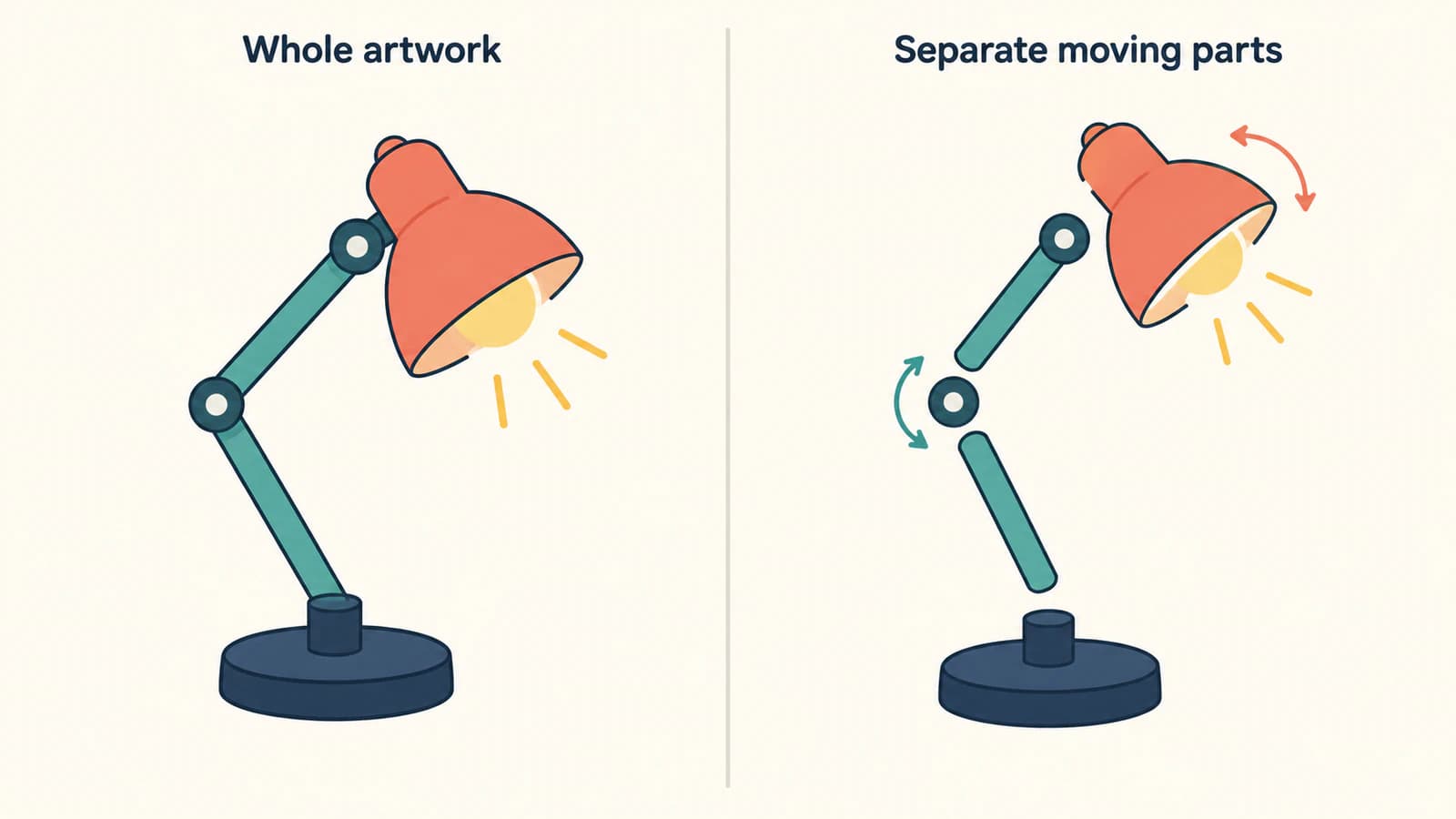
Name meaningful parts in the source document and preserve a master copy. Keep related details together when they should move together. Avoid merging an entire illustration into one path merely to make the object list shorter.
Once imported, use Rive groups to organize those pieces and give them separate transformation controls. Rive allows you to create a group and place objects inside it in the Hierarchy. You can also group a selection with Command+G on macOS or Ctrl+G on Windows. Rive's group documentation covers these controls.
Import from an SVG, Figma, or Illustrator
A saved SVG file
- Save a separate SVG export so the editable master stays available.
- Drag the file into Rive, or click + in the Assets panel and choose the file to import.
- Place the artwork where you need it and expand its structure in the Hierarchy.
- Select one small part, change its fill, then undo the change. Check whether only the intended region changed.
The two file-import routes are documented in Rive's Assets overview. A successful import is the start of the editing check.
Figma
Use Copy as SVG for the intended artwork in Figma, then paste into the Rive editor. Check the imported shapes and appearance before copying the rest of a large composition. This is Rive's documented Figma import route.
Illustrator
Set the SVG styling to Presentation Attributes. Rive documents slightly different labels for Illustrator's export routes:
- Save As: in SVG Options, set CSS Properties to Presentation Attributes.
- Export As: in SVG Options, set Styling to Presentation Attributes.
- Direct copy and paste: check the Export As SVG styling options, because Illustrator uses those settings for this route.
Also turn off Preserve Illustrator Editing Capabilities in the delivery SVG. Keep the Illustrator master separately. Rive warns that this option adds extra Illustrator data, increases file size, and may include data its importer does not recognize. Rive's Illustrator guidance is the source for these settings.
Match the import symptom to the first check
Rive supports linear and radial gradients, but it does not reproduce every SVG feature. The table below translates its unsupported-feature list into a repair order. The first-check column is a diagnostic suggestion, not a guarantee about your file.
| What changed | Documented import behavior | First check in a copy of the source |
|---|---|---|
| A photo, texture, or illustrated region disappeared | Embedded images are ignored | Look for image objects; import the original raster separately or trace only the region that needs paths |
| A gradient exists but its position looks wrong | Gradient transforms are ignored | Rebuild or adjust the gradient placement; do not remove all gradients automatically |
| A dashed outline became continuous | stroke-dasharray imports as a solid stroke | If the dash shapes must stay fixed, convert them into editable geometry and inspect the result |
| A soft mask behaves like a hard boundary | SVG mask imports as clipping | Rework the visibility effect for the destination instead of expecting the same soft fade |
| Blur, shadow, or another filter effect disappeared | SVG filter is unsupported | Replace the required appearance with supported artwork or build the effect in Rive |
| Slanted artwork changed | Skew transforms are unsupported | Bake the intended shape into path geometry in the export copy |
| Inherited paint became white | Fills and strokes using inherit default to white | Assign explicit colors to the affected shapes |
If an Illustrator SVG appears black, begin with the Presentation Attributes export setting, then inspect the affected shape's paint. Black artwork alone does not identify the cause. It should not be confused with Rive's documented white fallback for inherit.
For missing image content, the embedded-raster SVG guide explains how to check whether the file contains actual paths or a picture inside an SVG container. Rive can import JPEG, PNG, and WebP as their own image assets, according to its asset-type list. Keeping a textured background as a separate raster can be the right choice.
If import never finishes
Try a small, simple SVG in the same session. If that also fails, save your work and restart the editor before rebuilding the artwork. If only one file fails, isolate its groups in separate export copies until you find the affected section. This separates a session problem from a file-specific problem; it does not establish a universal complexity limit.
When PerfectVector belongs in this workflow
PerfectVector is useful when your source artwork is raster and you need editable vector contours for Rive. For a flat PNG or JPG illustration, convert the image into SVG paths, then inspect the result in a vector editor before import. Check the silhouette, small gaps, and the boundaries between parts that need separate movement. A trace reconstructs visible regions; it does not recover the original layer names or decide where your animation joints belong.
Return to the lamp example. If the arm and base became one connected shape, separate or redraw that boundary. If a moving piece reveals an area hidden in the source image, draw the missing area yourself. Do this before building the animation around the imported structure.
Use the original SVG when it already contains suitable paths. Use native drawing tools for a few simple geometric parts. Keep photographs and painted textures as raster assets when their appearance matters more than editable contours. Our image vectorization overview explains the source-image trade-offs; the Adobe Animate tracing guide covers a separate workflow if Animate is your destination.
Check one movement before building the animation
On a working copy, select the lamp shade and rotate it slightly. Confirm that the intended details follow it while the base stays still. Undo, select the arm, and repeat. If the wrong parts move, inspect the parent-child arrangement before editing more paths.
Check the pivot as well. In Rive, children inherit a parent's transformations, and the origin determines where rotation or scaling happens. Freeze lets you reposition a parent without moving its children; toggle it with Y and turn it off after adjusting the origin. Follow Rive's Freeze and Origin guide for the controls.
Before committing to the animation, confirm that:
- every required piece can be selected independently;
- fills, outlines, holes, and gradients still match the intended appearance;
- separately imported rasters are present where you chose to keep them;
- movement exposes no accidental gaps or missing hidden artwork;
- each moving piece rotates around the intended joint;
- the original source and a clean import copy remain available.
FAQ
Does importing an SVG make it editable in Rive? Yes, for the SVG features Rive supports. Expand the imported artwork in the Hierarchy to select the part you need. If several regions still act as one object, inspect their grouping and path structure.
Why did the image inside my SVG disappear? Rive ignores embedded images during SVG import. Find the original raster and import it as an image asset, or trace suitable artwork into paths when you need editable contours.
Does Rive support SVG gradients? Linear and radial gradients are supported. Gradient transforms are ignored, so a gradient's placement may need adjustment after import.
Will tracing a PNG create a Rive animation? Tracing can create SVG geometry from suitable raster artwork. You still need to inspect and separate moving parts, set their hierarchy and origins, and build the animation in Rive.
Sources
- Rive — SVG & Vector Assets — Native-object conversion, Illustrator and Figma import, runtime export behavior, and unsupported SVG features.
- Rive — Assets — File-import controls and separate raster image assets.
- Rive — Shapes and Paths Overview — Shape styling and the path geometry inside a shape layer.
- Rive — Groups — Organizing parts and grouping controls in the Hierarchy.
- Rive — Freeze and Origin — Parent-child transformations and repositioning an origin without moving child artwork.
If your artwork starts as a PNG or JPG and needs editable contours, prepare an SVG with PerfectVector. Inspect the traced parts, import the file into Rive, and test one independent movement before building the rest of the animation.
More from the blog

Fabric.js SVG Import: Keep Artwork Editable on Canvas
Import SVG into Fabric.js as editable objects, recolor one part, and export a checked SVG copy. Follow a tested example and separate source issues from API bugs.

Custom SVG Shapes in draw.io: Images or Stencils?
Choose an embedded SVG image or a native XML stencil in draw.io. Check editable colours and connection points, then save the right object in a reusable library.