SVG Text Wrapping: Build Measured Lines with tspan
Wrap SVG labels by measuring words with the actual font, then emit tspans. Test narrow labels, reject overflowing words or extra lines, and save the result.
On this page
To wrap a changing SVG label into explicit lines, measure candidate word groups with getComputedTextLength(), then write one <tspan> per accepted line. Wait for the document's fonts first, and choose what happens when one word is wider than the label or the result exceeds your line limit.
The starter below uses whitespace-separated words and rejects either overflow without emitting a partial label. It keeps an original hollow-diamond illustration separate from the wording, so changing the label width does not redraw the artwork.
Choose a wrapping policy before placing the lines
The tspan element lets you position portions of SVG text. Our routine sets the same x on each line and a dy offset on subsequent lines. The routine makes the line-breaking decision; the element holds the result.
This is one explicit layout approach. The SVG 2 text specification also defines automatic wrapping through a content area and CSS text layout. This article does not test those features or claim that every browser lacks them.
For this small English-label example, the policy is:
- Collapse whitespace and try words in their original order, separated by single spaces.
- Keep a candidate line only while its measured length fits the available width.
- Reject a word that cannot fit by itself; do not invent a hyphenation point.
- Reject the whole result when it needs more than
maxLines; do not silently drop the last words.
A line limit is a layout decision. Choose it together with the starting baseline, line spacing and available height. The wrapper does not calculate a vertical content box for you.
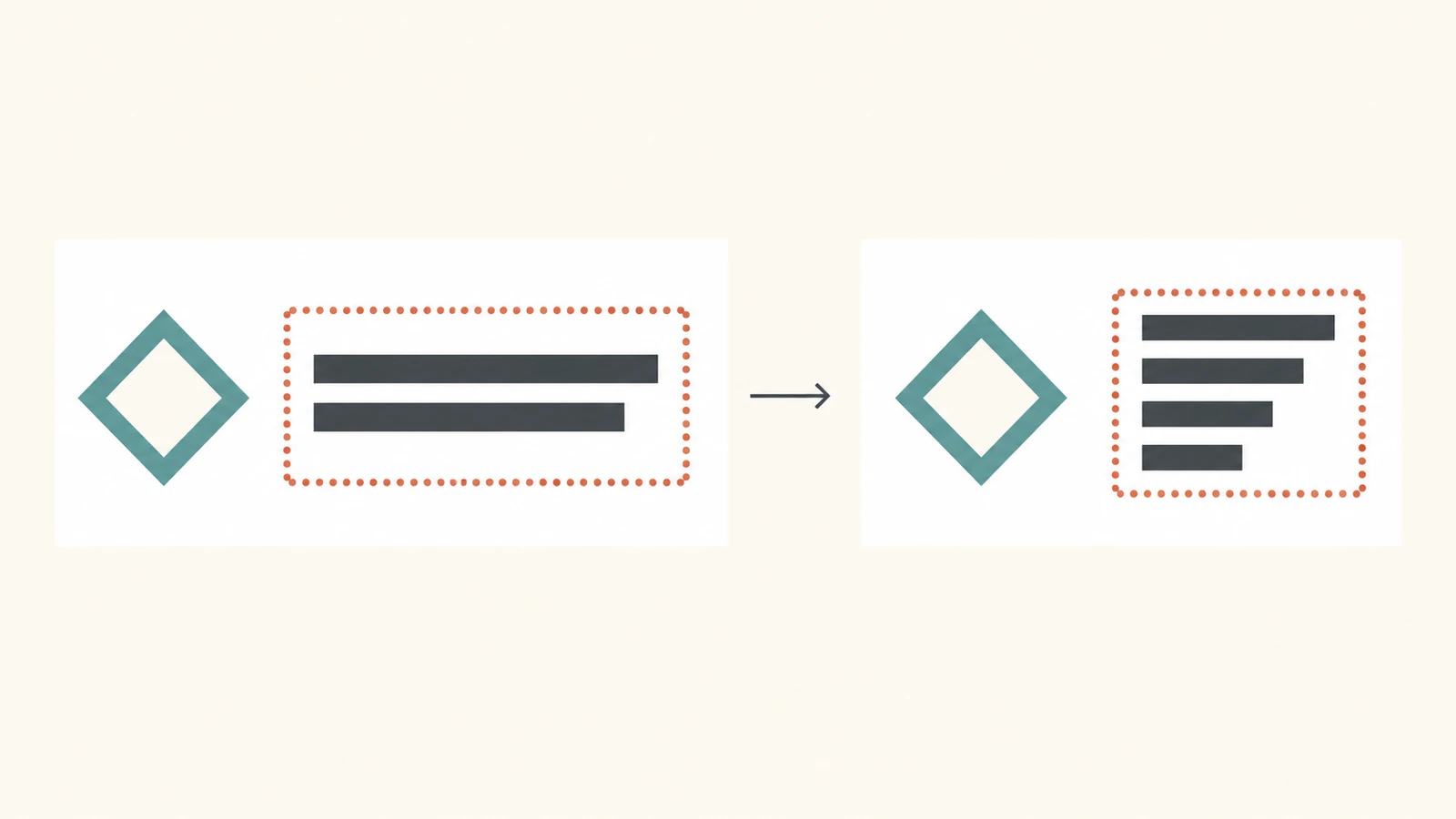
Measure with the font that will draw the label
getComputedTextLength() measures the computed length of SVG text. This starter clones the label's text element as a hidden probe inside the same attached SVG, then removes the probe after planning the lines. Both use explicit Arial, sans-serif at 22 units.
The code waits for document.fonts.ready before measuring. That waits for the document's font loading and associated layout; it does not embed a font into the exported SVG. A different available font can produce different line lengths. Re-run layout when the wording, font settings or available width changes.
Run the complete dependency-free starter
Save this as starter.html and open it in a browser. It creates six cases, prints their measurements and serializes each resulting SVG. The first two cases change only the label width; the third changes the wording. The remaining cases exercise rejection and literal text.
<!doctype html>
<html lang="en">
<meta charset="utf-8">
<meta name="viewport" content="width=device-width, initial-scale=1">
<title>Measured SVG label lines</title>
<style>
  body { margin: 24px; font: 16px system-ui; background: #f6f2e8; }
  #cases { display: grid; grid-template-columns: repeat(2, 360px); gap: 20px; }
  figure { margin: 0; }
  svg { display: block; background: white; }
  figcaption { margin: 6px 0; }
  pre { white-space: pre-wrap; font-size: 12px; }
</style>
<h1>Keep artwork and label layout separate</h1>
<div id="cases"></div>
<pre id="report"></pre>
<script>
  const ns = 'http://www.w3.org/2000/svg';
  const emblem = 'M60 32 L100 72 L60 112 L20 72 Z M60 54 L78 72 L60 90 L42 72 Z';
  function element(name, attributes) {
    const node = document.createElementNS(ns, name);
    for (const [key, value] of Object.entries(attributes)) node.setAttribute(key, value);
    return node;
  }
  function wrapWords(text, source, { width, maxLines, lineHeight }) {
    text.replaceChildren();
    if (!(width > 0 && lineHeight > 0 && Number.isInteger(maxLines) && maxLines > 0)) {
      return { status: 'invalid-options', lines: [] };
    }
    const words = source.trim().split(/\s+/u).filter(Boolean);
    const probe = text.cloneNode(false);
    probe.setAttribute('visibility', 'hidden');
    text.parentNode.append(probe);
    const measure = value => { probe.textContent = value; return probe.getComputedTextLength(); };
    const lines = [];
    let line = '';
    try {
      for (const word of words) {
        const wordWidth = measure(word);
        if (wordWidth > width) {
          return { status: 'overlong-word', word, measuredWidth: wordWidth, lines: [] };
        }
        const candidate = line ? line + ' ' + word : word;
        if (line && measure(candidate) > width) {
          lines.push(line);
          line = word;
        } else line = candidate;
      }
      if (line) lines.push(line);
      if (lines.length > maxLines) {
        return { status: 'too-many-lines', requiredLines: lines.length, lines: [] };
      }
      const x = text.getAttribute('x');
      lines.forEach((value, index) => {
        const span = element('tspan', { x, dy: index ? lineHeight : 0 });
        span.textContent = value;
        text.append(span);
      });
      return { status: 'ok', lines,
        lengths: [...text.children].map(span => span.getComputedTextLength()) };
    } finally { probe.remove(); }
  }
  const cases = [
    { id: 'normal', source: 'Keep artwork and labels separate', width: 200, maxLines: 4 },
    { id: 'narrow', source: 'Keep artwork and labels separate', width: 110, maxLines: 5 },
    { id: 'changed', source: 'Keep the original artwork beside every exported label', width: 200, maxLines: 4 },
    { id: 'long-word', source: 'Artwork supercalifragilisticexpialidocious', width: 110, maxLines: 5 },
    { id: 'line-limit', source: 'Keep artwork and labels separate', width: 110, maxLines: 2 },
    { id: 'literal', source: 'Cove <g> & field', width: 200, maxLines: 4 },
  ];
  const entries = cases.map(test => {
    const figure = document.createElement('figure');
    const svg = element('svg', { width: 360, height: 240, viewBox: '0 0 360 240' });
    svg.append(element('path', { d: emblem, fill: '#176b5b', 'fill-rule': 'evenodd' }));
    svg.append(element('rect', { x: 140, y: 34, width: test.width, height: 170,
      fill: 'none', stroke: '#ce7b55', 'stroke-dasharray': '4 4' }));
    const text = element('text', { x: 140, y: 60, 'font-family': 'Arial, sans-serif',
      'font-size': 22, fill: '#172b34' });
    svg.append(text);
    const caption = document.createElement('figcaption');
    figure.append(svg, caption);
    document.getElementById('cases').append(figure);
    return { test, svg, text, caption };
  });
  async function run() {
    await document.fonts.ready;
    const results = entries.map(({ test, svg, text, caption }) => {
      const result = wrapWords(text, test.source, { ...test, lineHeight: 30 });
      caption.textContent = test.id + ': ' + result.status;
      return { ...test, ...result, fontFamily: getComputedStyle(text).fontFamily,
        fontSize: getComputedStyle(text).fontSize, tspanCount: text.children.length,
        pathD: svg.querySelector('path').getAttribute('d'),
        pathCount: svg.querySelectorAll('path').length,
        imageCount: svg.querySelectorAll('image').length,
        foreignObjectCount: svg.querySelectorAll('foreignObject').length,
        serialized: new XMLSerializer().serializeToString(svg) };
    });
    document.getElementById('report').textContent = JSON.stringify({
      fontStatus: document.fonts.status, policy: 'Whitespace words; reject a long word or too many lines without partial output', results,
    }, null, 2);
  }
  run();
</script>
</html>
The routine creates each line with textContent, rather than inserting the wording as markup. In the literal-text case, Cove <g> & field remains ordinary text: the serialized SVG contains escaped angle brackets and an ampersand, not an extra group element.
The measurement clone is attached but hidden, with the same font attributes as the visible label. It is removed in finally, including on rejection. Lines are appended only after the word-width and maximum-line checks pass. The routine clears any previous label first, so a rejected update leaves no old or partial text; handle the returned status in your application's interface.
What the six original cases produced
We executed this exact starter in Chrome with the document's fonts reporting loaded. The measured lengths below are SVG text lengths for that environment, not painted glyph bounds or a font-portability guarantee.
| Case | Width / maximum lines | Result | Observed longest line |
|---|---|---|---|
| Original phrase | 200 / 4 | Two lines: Keep artwork and; labels separate | 172.44 |
| Same phrase, narrow box | 110 / 5 | Four lines: Keep; artwork; and labels; separate | 100.30 |
| Longer wording | 200 / 4 | Three lines | 198.13 |
| Overlong word | 110 / 5 | overlong-word; zero tspans | Word measured 311.82 |
| Narrow phrase, two-line limit | 110 / 2 | too-many-lines; required four; zero tspans | No label emitted |
| Literal angle brackets and ampersand | 200 / 4 | One literal line | 162.66 |
The original phrase is Keep artwork and labels separate. The longer version is Keep the original artwork beside every exported label. Every accepted line measured within its chosen width. The rejection cases left the illustration visible while omitting the label, making the failure state easy to inspect.
All six serialized files retained the identical original diamond path, one native text element and no image or foreignObject. Accepted cases contained two, four, three and one tspans respectively; both rejected cases contained zero. We also reopened the six serialized SVGs as images in the same browser, where all loaded at 360×240. That is a check of these files and this browser, not every editor or renderer.
Save the laid-out SVG, then test delivery
XMLSerializer.serializeToString() creates the serialized markup in the report. Save a successful case's serialized string as an .svg file. The file already contains explicit lines; it does not need this JavaScript routine to recreate them.
Its words are still live text. The saved file retains the font-family request, not a font file or outlined glyphs. A destination with another font can change the lettering even though the line strings and positions remain. Keep the original wording and layout inputs beside the exported copy, and inspect the actual destination before delivery. For a fixed letter shape, make an outlined delivery copy in a suitable source editor while preserving live text in the master.
The foreignObject text guide addresses HTML labels that disappear in another renderer. This starter instead builds native text from the beginning. The textLength guide covers fitting a single line by adjusting length; it supplies a different decision from adding measured lines. Use the vertical-alignment guide when you need to position the whole label relative to surrounding artwork.
Keep the wrapper's limits explicit
Whitespace splitting is a deliberately small policy. It collapses repeated spaces, tabs and explicit newlines, and it does not handle language-specific break rules, hyphenation, bidirectional paragraphs or rich spans with mixed styles. Choose another layout system or extend and test the policy when your text requires those features.
The width check also does not guarantee that decorative glyph overhangs stay inside a drawn frame, or that five baselines fit your chosen height. Inspect the visible lettering at delivery size. Our fixture uses horizontal labels, fixed font attributes and a 30-unit line step; do not transfer its measured numbers to another typeface without measuring again.
If your illustration exists only as a PNG or JPG and you need editable artwork, prepare a clipart SVG with PerfectVector, inspect its edges and internal openings, and keep that artwork separate from the label. Retype the wording as native text, run the wrapping policy and inspect the assembled export. Vectorization prepares illustration paths; it does not choose line breaks or recover editable words from traced lettering. Existing good paths can stay as they are. The vectorization guide explains that source-recovery step.
FAQ
Does tspan automatically decide where each line breaks? This starter makes that decision by measuring word groups, then creates one positioned tspan for each accepted line. It does not test SVG 2's CSS-based automatic wrapping.
What happens to a word wider than the label? The routine returns overlong-word and emits no label. Widen the area, shorten the wording or supply a separately tested breaking policy rather than silently clipping it.
Does maxLines remove the remaining words? No. This policy rejects the result when it needs too many lines, reports the required count and leaves zero tspans. The application must handle that status.
Will the exported lines look identical with another font? The explicit words and positions remain, but the file does not embed a font or outline glyphs. Inspect the available font and lettering in the actual destination.
Sources
- MDN tspan element — positioned subtext and line-offset attributes.
- W3C SVG 2 text — explicit positioning and the separate automatic-wrapping model.
- MDN getComputedTextLength — measuring the actual SVG text.
- MDN FontFaceSet.ready — waiting for font loading and layout.
- MDN textContent — inserting plain text instead of markup.
- MDN XMLSerializer — saving the laid-out SVG markup.
For your own raster illustration, prepare editable clipart artwork, inspect its shapes and keep the master. Add the wording separately, then verify the accepted lines and visible lettering in the saved SVG before delivery.
More from the blog

SVG.js: Import Artwork, Edit a Path, and Export SVG
Import trusted SVG markup into SVG.js, recolor a named path, and check full-root versus children-only exports. Keep original geometry and inspect saved files.

Leaflet SVG Markers: Align the Tip with iconAnchor
Position custom SVG markers in Leaflet by mapping the visible tip to iconAnchor. Account for viewBox padding, aspect-ratio fitting, and changes in icon size.