After Effects Auto-Trace: Masks or SVG Shape Layers?
Choose Auto-Trace masks or editable SVG shape layers for your After Effects logo, adjust tracing settings, and inspect color regions and letter openings.
On this page
After Effects Auto-Trace turns a layer's alpha, color, or luminance channel into masks. Use it when the animation needs those contours. It does not rebuild a multicolor logo as separately painted artwork. Adobe's Auto-Trace documentation defines that output as Bezier masks.
For individually editable logo parts, consider an SVG instead. Adobe's current SVG import documentation, updated June 17, 2026, distinguishes linked footage from a composition containing editable shape layers. Older advice that requires an intermediate format may not match your installed version.
Start with what the logo needs to do
A logo can look identical as a bitmap, a masked solid, or a collection of filled shapes. The difference becomes apparent when you try to move one letter or recolor one part.
| Animation goal | Starting route | First thing to inspect |
|---|---|---|
| Use the logo's contours for an outline or effect | Auto-Trace masks | Does the chosen channel isolate the intended boundary? |
| Move or recolor individual logo regions | SVG imported as a shape-layer composition | Are the regions, openings, and background represented usefully? |
| Transform a vector logo as one linked item | SVG footage | Does one layer provide all the control the shot needs? |
| Preserve grain, shading, or a painted texture | Raster footage | Is the source large enough for the shot? |
| Draw a flourish along one deliberate line | A manually authored path | Does the path follow the intended drawing direction? |
A filled ribbon has two sides. Tracing its visible outline does not reconstruct the single line a pen would have followed through its middle. For a writing-style flourish, draw that center path deliberately instead of trying to animate every edge of the filled artwork.
If you meant Adobe Animate, its Trace Bitmap workflow is a separate feature in a different application.
For Apple Motion, use the Apple Motion SVG import checks to distinguish static media, transparency settings, and the separate objects an animation needs.
Use Auto-Trace when you need masks
Select the source layer and choose Layer > Auto-trace. Current Frame traces one frame; Work Area creates mask keyframes across that range. Use Preview while adjusting these controls, as described in Adobe's mask guide.
| Control | What it changes |
|---|---|
| Channel | Which channel supplies the contours |
| Threshold | The channel-value boundary used to classify edges |
| Tolerance | Allowed deviation from the contour, in pixels |
| Minimum Area | The smallest source feature retained |
| Blur | Smoothing before tracing |
| Corner Roundness | How rounded the resulting vertices are |
| Invert | Reverses the input before edge detection |
| Apply To New Layer | Places masks on a new solid |
For a still logo, begin with one frame and compare a few recognizable features as you tune: a corner, a letter opening, and the smallest intentional mark. There is no useful universal preset for all three.
A transparent-background logo gives its alpha channel a silhouette to follow. A fully opaque rectangular image does not provide the same separation. Check the source's transparency before treating an unwanted rectangle as a tolerance problem. Adobe explains the distinction between color and transparency in its alpha-channel and mask guide.
If the result is white, check the layer
When Auto-Trace yields one color, check whether you are viewing a masked solid. A mask can change a layer's transparency; it does not store the logo's separate colored fills. Inspect individual masks and their modes. For an effect-only path, None mode leaves alpha unchanged. Adobe's mask behavior reference
If the shot needs separately colored regions, choose an artwork workflow before adjusting the threshold again.
Import SVG when you need editable artwork
In the current documented workflow, choose File > Import > File, then select Composition - Retain Layer Sizes under Import As for editable shapes. Inspect Contents or Layer Contents for paths, fills, and transforms. Footage keeps a single vector layer linked to the external SVG; it can still be transformed as a whole. Adobe also documents Create > Create Shapes from Vector Layer for converting imported vector footage. Adobe's SVG import guide
Check the available options in your installed app before following a tutorial made for another release. Import support and the quality of the SVG's structure are separate questions. A file containing hundreds of unrelated fragments will still need an animation plan.
Inspect the logo before it enters the composition
Here is an existing PerfectVector demo pair: a landscape emblem above the word VECTOR. We audited its stored SVG for this article. It contains 22 paths, six fill colors, and no embedded image elements. The figure shows that existing conversion, not an After Effects Auto-Trace result or an import test.
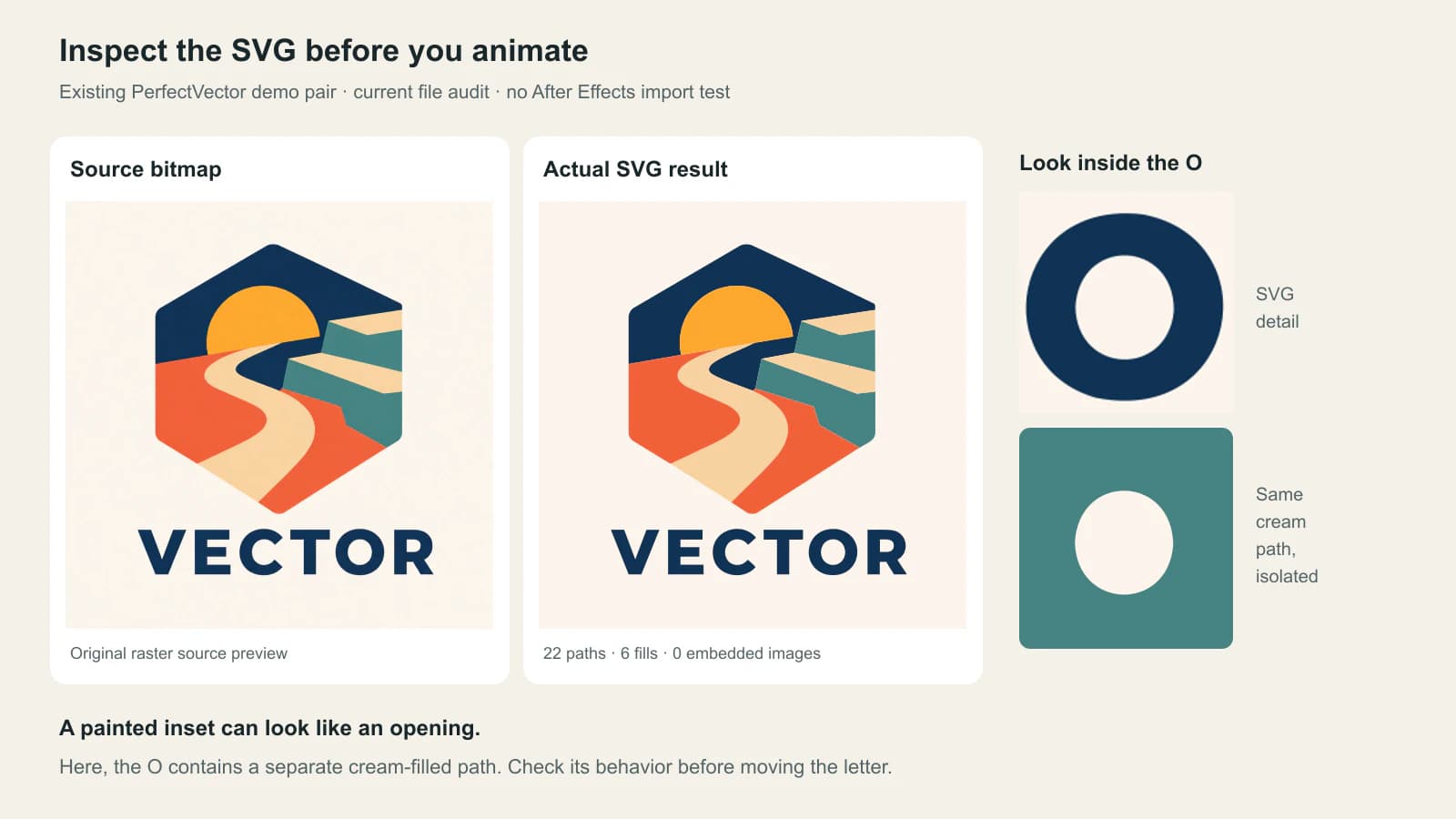
The background is a full-canvas cream path. The apparent openings inside O and R are also cream-filled paths, placed over the darker letters. They look like empty space against the cream background, but they are painted objects. Deleting every cream-colored object would be a poor shortcut: deleting the inset would expose the dark shape underneath rather than create a hole.
That matters if you plan to move O over video. Decide whether to keep the letter and its inset together on a matching background or rebuild the letter with a genuine opening. Then verify the resulting transparency against a contrasting background. The intended visual behavior determines the edit.
The logo's river and terrain also consist of separate color regions. A trace follows what is visible in the source; it does not recover scenery hidden behind the river or automatically decide which regions should move together. If the animation pulls parts apart, inspect the newly exposed edges instead of assuming the artwork is complete underneath.
The count of 22 paths is an inventory, not an animation-performance score. Look for small fragments, redundant shapes, and objects that serve no purpose in your shot. Keep deliberate detail. This file also has no text elements: the word is geometry, so changing its wording is a different task from moving its letters.
For another file, start with the embedded-raster inspection guide. If an original vector master exists, use it before reconstructing the logo from pixels. The logo vectorization guide covers when a trace or manual redraw is appropriate.
Convert only the parts that need reconstruction
If the logo exists only as a clean PNG or JPG and you need editable filled regions, vectorize the logo with PerfectVector, then inspect the SVG before importing it. Check one color region, one letter opening, and the background. After import, confirm that the objects you want to animate can be controlled independently. Keep raster footage when texture matters, and use native Auto-Trace when masks already solve the shot.
Try a small motion study before organizing the entire logo: move one part, change one fill, and place the artwork over a contrasting background. This exposes grouping and transparency decisions early. It is more useful than accepting the file because it looks correct while everything remains still.
Converting a mask path to a shape path
When you need to reuse existing mask geometry, select the Mask Path property before copying. Then target the Path property of an existing shape in a shape layer. Selecting the layer or group is not the same target; create a placeholder Bezier path if needed. Adobe documents both the mask-path selection requirement and the shape-path paste target.
After transferring geometry, inspect the shape's fill, stroke, placement, and animation. Copying a contour does not bring back colors that Auto-Trace never stored in that mask. For a multicolor logo, importing prepared artwork may be a more direct route than transferring many masks individually.
FAQ
Does After Effects Auto-Trace create shape layers? Auto-Trace creates masks. You can reuse their path geometry in a shape workflow, but that does not automatically reconstruct the source logo's colored artwork.
Can After Effects import SVG files directly? Yes. Adobe's current documentation describes footage import and composition import with editable shape layers. Check your installed version's import options and inspect the resulting objects before animating.
Why does Auto-Trace outline a rectangle instead of my logo? Check the selected channel and the source's transparency. A completely opaque image has a rectangular alpha area, even when its background looks plain. Prepare the source or select a channel that distinguishes the intended contour.
Will converting my logo to SVG restore editable text? No. Tracing reconstructs visible artwork as shapes. Keep the original text document if available, or recreate the wording with the correct font. Inspect the SVG's objects rather than assuming a readable word is live text.
Sources
- Adobe: Create masks — Auto-Trace's mask output, time range, and controls.
- Adobe: Import SVG files — Current footage and editable-composition import workflows.
- Adobe: Alpha channels and masks — Transparency, mask modes, and selecting Mask Path when copying geometry.
- Adobe: Create and customize shapes and masks — Targeting an existing shape's Path property when pasting.
Choose the object your animation needs. If the missing piece is editable artwork, convert your own logo to SVG, check its regions and openings, and test one independent movement after importing it into After Effects.
More from the blog
Illustrator Image Trace Greyed Out: Check the Object
Check whether Illustrator selected a raster image, a live trace, or expanded paths. Recover the right source before fixing an inactive Image Trace panel.
SVG Displacement Maps: Distort Your Logo Preview
Use SVG feDisplacementMap to warp a logo preview, control channels and neutral gray in sRGB, inspect two sizes, and keep the original path master for delivery.