SVGO: Optimize an SVG Without Losing Needed Structure
Run SVGO on a copy, preserve IDs used by your page, and compare the result. Follow a measured badge example that exposes a broken CSS hook after optimization.
On this page
To optimize an SVG with SVGO without breaking its use on a page, keep the original, identify the structure your page depends on, then test a separately optimized copy in that page. A smaller file and an unchanged standalone preview do not prove that CSS selectors, scripts, or references still work.
Our original badge makes that difference visible. SVGO's default preset reduced its source from 437 to 263 bytes, but removed the ID that the surrounding HTML used to recolor the sun. Disabling cleanupIds produced a 281-byte copy that retained the hook. Those measurements describe this one fixture with SVGO 4.1.0, not a compression guarantee for other artwork.
SVGO edits existing SVG markup. If you only have a PNG or JPG, create or recover vector geometry first. Optimization cannot turn the objects inside a bitmap into editable paths.
Decide which SVG structure you need to keep
Before running the optimizer, distinguish what is visible from what another document or application references. The SVGO default preset includes operations that change IDs, groups, styles, and path data. An integration can also choose a different plugin set, so check the configuration of the tool that actually processes your file.
| Dependency | What to inspect after optimization |
|---|---|
| CSS selects an internal ID | The ID still exists and the expected paint appears |
| JavaScript selects a shape | The selector resolves to the intended element |
| A gradient, clip, or mask is referenced | The reference still resolves and the affected artwork renders |
| A sprite consumer references a symbol | The exported symbol ID and consumer reference agree |
| A designer edits separate parts | The needed objects and grouping remain usable |
| The graphic scales within a layout | The viewBox, dimensions, and actual display size still work |
These are separate checks. Preserving an ID does not preserve every group, node, or editable object. Likewise, a correct rendering does not establish that an editor will recover your preferred layer structure. Keep an editable master and produce a delivery copy for the target context.
For reusable symbols, the SVG sprite guide covers the consumer side of the reference. This article focuses on what an optimization step can change before that consumer sees the file.
Reproduce a broken external CSS hook
Use an empty scratch folder with Node.js and npm available. Save this hand-authored illustration as input.svg, including the final newline. It is a configuration fixture, not a PerfectVector conversion result.
<svg xmlns="http://www.w3.org/2000/svg" viewBox="0 0 160 160">
  <title>Mountain badge</title>
  <!-- Original illustration for an SVGO configuration test. -->
  <metadata>Editable master: preserve the badge-accent CSS hook.</metadata>
  <path d="M80 12 139 46v68l-59 34-59-34V46Z" fill="#157d78"/>
  <circle id="badge-accent" cx="108" cy="53" r="12" fill="#ef8067"/>
  <path d="m38 111 32-49 21 30 10-15 25 34Z" fill="#fffdf5"/>
</svg>
Install the exact version used for this example, then produce a new output file:
npm install --save-exact svgo@4.1.0
npx svgo input.svg -o default.svg
Run this in the clean folder so an existing svgo.config.mjs does not supply unexpected settings. The official SVGO repository documents separate output filenames and configuration loading. For a project build, keep the version and configuration under version control so an upgrade is a deliberate change.
Open default.svg as text. Its circle still has a coral fill, but the badge-accent ID is gone. That ID was not referenced inside the SVG document. The cleanupIds documentation explains that the plugin removes unused IDs and shortens referenced ones. An external page's selector is outside this fixture's input.
To see the consequence, place the SVG markup directly in an HTML page with this style outside the SVG:
<style>
  #badge-accent { fill: #f5bf42; }
</style>
Use one copy per page for this test. The original SVG's sun becomes gold because the selector matches. The default-optimized sun stays coral because its ID is missing. Loading either file through an img element would be a different test: the host page would not be selecting an interior shape in the same document.
Preserve the hook, then repeat the test
Save this as svgo.config.mjs in the same folder:
export default {
  plugins: [
    {
      name: 'preset-default',
      params: {
        overrides: {
          cleanupIds: false,
        },
      },
    },
  ],
};
Now write another copy:
npx svgo input.svg --config svgo.config.mjs -o preserved.svg
wc -c input.svg default.svg preserved.svg
The override disables this one plugin while retaining the rest of the default preset. It is a starting point for the demonstrated ID dependency. It is not a universal safe configuration for arbitrary artwork, animation, accessibility relationships, or application-specific structure.
We ran the commands above in a clean folder and independently ran the equivalent configurations through SVGO 4.1.0's JavaScript API. The CLI and API outputs were byte-identical, with no trailing newline added to the optimized files. We then rendered each result in its own HTML document with the same external CSS rule. The browser reported these results:
| File | Raw bytes | Accent ID found? | Computed sun color |
|---|---|---|---|
| Original | 437 | Yes | Gold: rgb(245, 191, 66) |
| Default preset | 263 | No | Coral: rgb(239, 128, 103) |
| cleanupIds disabled | 281 | Yes | Gold: rgb(245, 191, 66) |
The ID-preserving output saved 156 bytes, approximately 35.7% of this source. It cost 18 bytes more than the default output and retained the behavior we needed. Whitespace, line endings, versions, and output formatting can change your byte counts.
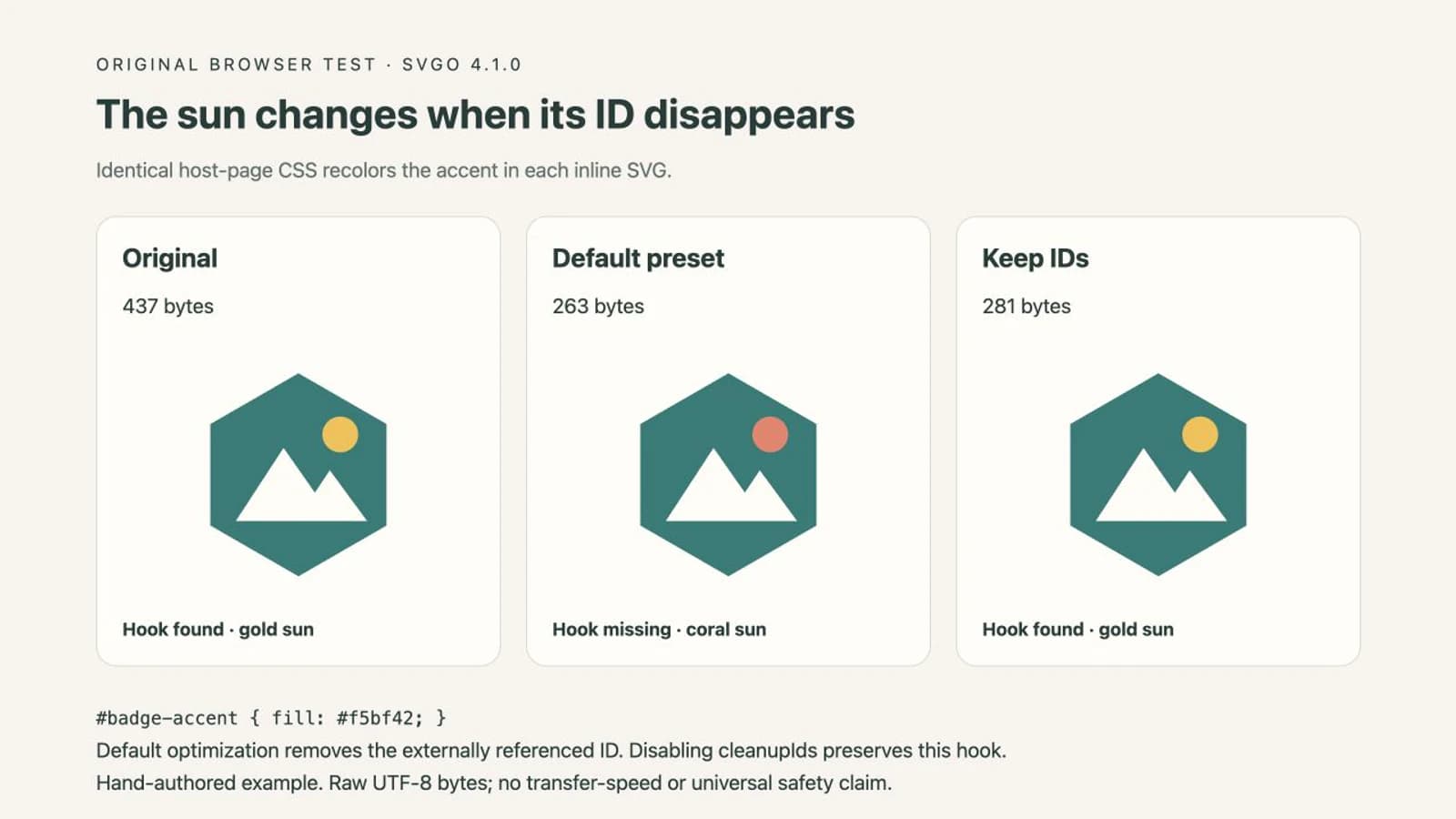
All three copies retained viewBox="0 0 160 160" in this test. We checked the visible result and the browser's computed fill. We did not measure network transfer time or test every browser, editor, SVG feature, or build integration.
Adjust settings for a specific dependency
If only a few IDs are public hooks, cleanupIds also exposes preserve and preservePrefixes options. Use them when you can name the dependency, then repeat the same consumer test. If several SVGs will be inlined together, check for duplicate IDs as well. Retaining an already duplicated ID does not make it unique; renaming one requires updating its consumers.
A style or script inside the SVG can change the optimizer's behavior. The cleanupIds documentation describes a safeguard that backs off when those elements are present. Do not extrapolate that safeguard to CSS in another document, or force cleanup without understanding which references depend on the IDs.
Treat numeric precision separately. Fewer decimal places may reduce markup, but the acceptable change depends on the artwork's coordinate scale and final display size. Inspect small gaps, corners, and curves at the sizes where the graphic will be used. A successful ID check says nothing about those details.
Keep viewBox when your layout relies on its scaling behavior. The removeViewBox plugin documentation warns about scaling and clipping consequences. It is not in the documented default preset used here; adding it explicitly is a separate decision. Avoid copying an old configuration without checking which version and preset it was written for.
For a heavily traced outline, markup optimization and intentional node cleanup also answer different questions. Use the SVG node guide to judge whether geometry needs simplification, and compare the silhouette after editing. A smaller source does not automatically mean a cleaner cut path.
Validate the delivery copy where it will be used
After choosing a configuration, place the optimized file in the actual receiving workflow. Check the default state and any hover, selected, themed, or animated states that depend on it. A static preview can miss a selector that only runs after interaction.
For a web graphic, inspect the final built output as well as your local optimized file. A framework or bundler may run its own optimization later. Repeat the test if the delivered markup differs.
For an editable handoff, open the copy in the intended editor and select the parts the recipient needs. Confirm the small lettering, holes, separate colors, and clipping. Keep the source master even when the web copy passes.
File optimization is also separate from transport compression. The SVGZ versus SVG guide demonstrates a gzip round trip that restores identical source bytes. SVGO changes that source before it is delivered; gzip can then encode those bytes. Compare each operation against its own goal.
When vectorization belongs before optimization
If the vector master is missing and the only source is a flat PNG or JPG, PerfectVector's image-to-vector workflow can help prepare an SVG candidate. Compare the result with the source and inspect holes, small details, and separate regions before accepting it. Add the IDs or groups needed by your page after checking the artwork, then optimize a delivery copy and test those hooks.
PerfectVector is not an optimizer for an existing SVG and does not reconstruct your website's selectors. Use the existing vector master when available. Keep a photo raster when its continuous-tone detail matters more than editable outlines. The blog's vector preparation guides cover those source choices.
FAQ
Does disabling cleanupIds make every SVG safe to optimize? No. It preserves IDs from that plugin's removal and minification, but other plugins can still change styles, groups, shapes, or path data. Validate the features and references your receiving workflow uses.
Why does an optimized SVG look right alone but wrong on my page? The standalone preview may not exercise external CSS or scripts. In our example, the SVG's own coral fill rendered normally, while the page's gold recoloring failed because the selected ID had been removed.
Should I optimize my only editable master? Keep the master and write an optimized delivery copy. A file can render correctly after optimization while its object structure is less useful for later editing.
Can SVGO turn a PNG into vector paths? No. SVGO processes SVG markup. Raster-to-vector tracing is an earlier operation when the artwork needs editable geometry and no suitable vector master exists.
Sources
- SVGO repository — explains installation, command-line outputs, configuration loading, and the optimize API.
- SVGO default preset — lists its plugins and documents overrides and integration differences.
- SVGO cleanupIds — documents ID removal, minification, preservation options, and related safeguards.
- SVGO removeViewBox — explains the scaling risk of explicitly removing the viewBox.
Keep the smallest copy that passes your artwork and behavior checks. If the starting file still lacks editable vector geometry, prepare an SVG from your raster artwork, inspect its shapes, and preserve the hooks you add before optimizing the delivery copy.
More from the blog

SVG Grain Texture: Keep Noise Inside Your Artwork
Add SVG grain with feTurbulence, keep monochrome noise inside SourceAlpha, tune it at two sizes, and preserve a clean path master for other destinations.

Mermaid Custom SVG Icons: Register Your Own Artwork
Package your SVG artwork as an Iconify icon set, register it in Mermaid, and test missing icons, cropped shapes, and labels with a working diagram example.