SVGZ vs SVG: Choose a File for Editing or Delivery
Compare SVGZ and SVG with a real gzip round trip. See what compression preserves, how web headers differ, and which file to send to an editor or recipient.
On this page
SVGZ is an SVG file compressed with gzip. Decompress it and you recover the SVG document, including its paths, colors, text, and any embedded images. The W3C's SVG media-type registration defines .svgz as an alias for .svg.gz.
Choose between SVGZ and SVG according to the receiving workflow. Keep an ordinary .svg when someone needs readable markup or an application expects that format. Use .svgz when the recipient supports it and you have a reason to deliver a compressed file. For a website, check HTTP compression before changing filenames: a URL ending in .svg can already send compressed content.
The example below compresses an original 332-byte badge to 243 bytes, then restores the exact original bytes. That is a result for one file, not a promise about your artwork or page speed.
What changes when SVG becomes SVGZ?
| Question | SVG | SVGZ |
|---|---|---|
| What is stored? | SVG markup as text | Gzip-compressed SVG markup |
| Can a text editor read the markup directly? | Yes | Decompress it first |
| Are paths simplified by choosing this form? | No | No |
| Does an embedded bitmap become vector geometry? | No | No |
| What must the recipient handle? | The SVG features used in the file | Gzip decoding and the SVG features used in the file |
| Is this automatically the smaller web transfer? | It may already use HTTP compression | Compare the actual delivered response |
MDN's SVG file-type guide distinguishes ordinary text SVG from gzip-compressed SVG and explains the server configuration that SVGZ requires. If the underlying document is unfamiliar, start with what an SVG file contains.
A compressed copy is useful packaging. Keep your editable master separately so you can inspect objects, make corrections, and export the form the next tool needs.
Try an SVGZ round trip with one small badge
This original illustration contains a teal hexagon, a coral sun, and a pale mountain. Save the following as badge.svg in a scratch folder:
<svg xmlns="http://www.w3.org/2000/svg" viewBox="0 0 160 160">
  <title>Mountain badge</title>
  <path d="M80 12 139 46v68l-59 34-59-34V46Z" fill="#157d78"/>
  <circle cx="108" cy="53" r="12" fill="#ef8067"/>
  <path d="m38 111 32-49 21 30 10-15 25 34Z" fill="#fffdf5"/>
  <path d="m60 78 10-16 11 16-11-5Z" fill="#a8d9d3"/>
</svg>
On a system with gzip, cmp, and wc, run these commands in that folder. Use new output filenames if those files already contain work you need to keep.
gzip -n -c badge.svg > badge.svgz
gzip -dc badge.svgz > roundtrip.svg
cmp badge.svg roundtrip.svg
wc -c badge.svg badge.svgz roundtrip.svg
The first command writes a compressed copy while retaining the source. The -n option omits the original filename and timestamp from the gzip header. The second command decodes the compressed copy into another file. cmp checks the bytes, and wc -c reports their counts.
We ran this sequence with Apple gzip 457.140.3. All commands exited successfully, and cmp found no difference between the original and decoded SVG.
| File in this test | Bytes | What it establishes |
|---|---|---|
badge.svg | 332 | The original source |
badge.svgz | 243 | The compressed representation |
roundtrip.svg | 332 | The recovered source, byte-identical to the original |
The compressed file saved 89 bytes, about 26.8% of this source's size. Different whitespace, line endings, metadata, artwork, or compression settings can change the result. The byte comparison establishes that this round trip preserved the source. It does not measure browser transfer time, rendering performance, or compatibility with an editing application.
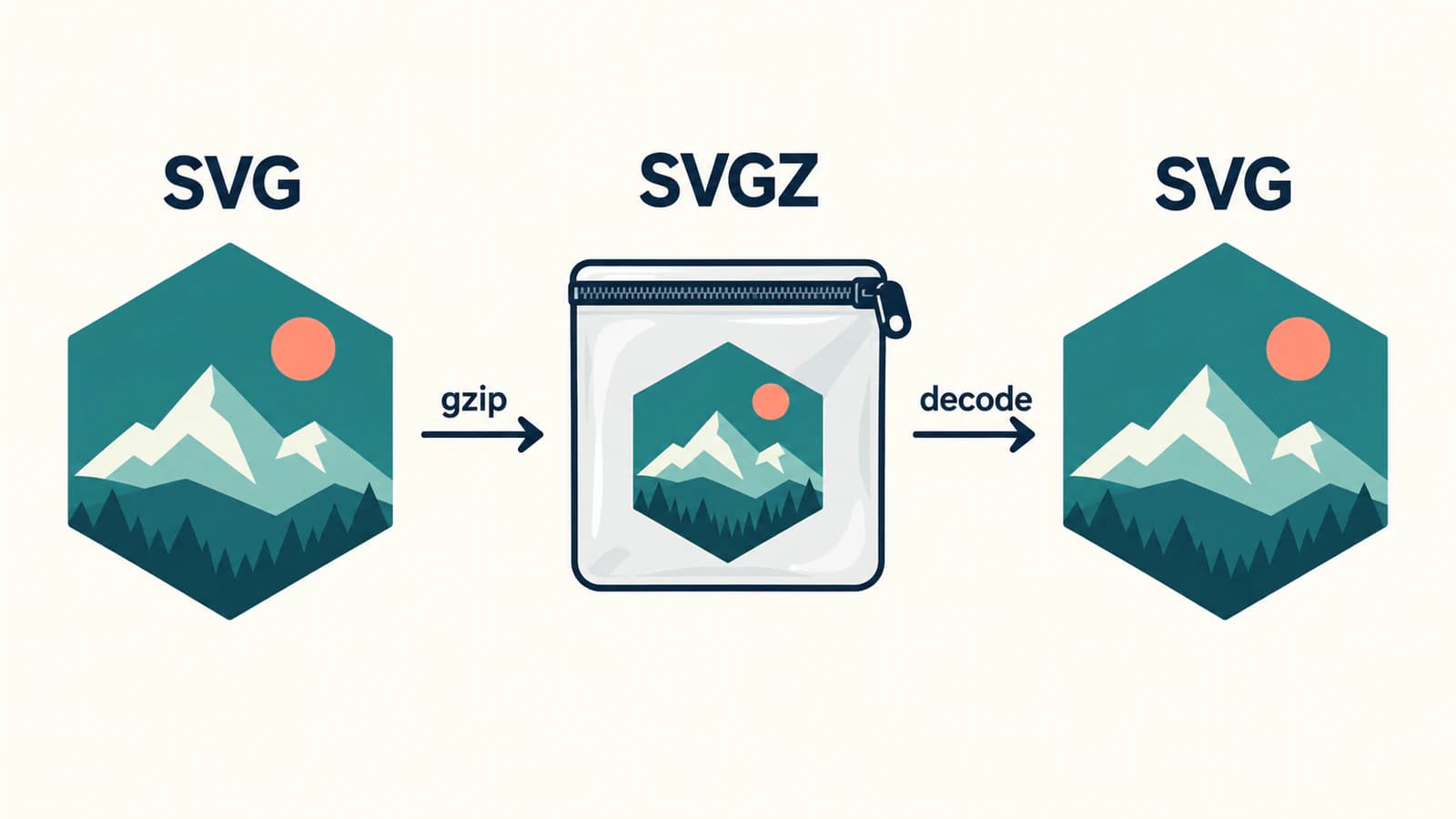
If you only need to open an SVGZ in an editor that expects SVG, the decompression step is the relevant operation. Renaming badge.svgz to badge.svg leaves the compressed bytes in place. Likewise, renaming an SVG to SVGZ does not run gzip.
Separate compression from artwork cleanup
Suppose a traced logo has a rough outline and hundreds of unnecessary points. Gzip may reduce its stored size, but decoding returns those same points. Use the SVG node-cleanup guide when the editing problem is geometric complexity. Compare the silhouette during simplification because removing points can alter the artwork.
Markup optimization is another operation. Removing metadata, rewriting numbers, or merging compatible shapes changes the source document before it is compressed. A byte-identical gzip round trip does not do any of those things. If an optimization tool also edits the SVG, review its output independently rather than attributing every change to compression. The SVGO configuration and ID-preservation guide demonstrates that review with an original badge whose external CSS hook disappears under the default preset.
An SVG can also contain a raster image. Compressing that document preserves the embedded image; it does not create editable outlines around the picture's objects. The embedded-raster diagnosis helps distinguish an image container from artwork built with vector paths.
These distinctions make the next step easier to choose: decompress to recover markup, edit to change geometry, and trace only when suitable raster artwork needs new vector shapes.
A website can compress ordinary SVG responses
HTTP compression is independent of the filename you show in a URL. A server can receive a request for badge.svg and send a compressed representation of that SVG. MDN's HTTP compression guide describes the negotiation: the request advertises supported encodings, and the response identifies the encoding it used. When the representation varies by Accept-Encoding, the response uses Vary: Accept-Encoding so caches can distinguish those versions.
For a gzip-encoded SVG response, the relevant headers are:
Content-Type: image/svg+xml
Content-Encoding: gzip
Content-Type identifies the decoded media. Content-Encoding tells the recipient how to decode the response body. MDN's Content-Encoding reference explains that distinction. These headers must describe the bytes actually sent; adding Content-Encoding: gzip to an uncompressed SVG does not compress it.
For a stored .svgz served as an SVG image, MDN's SVGZ server guidance calls for the SVG media type and gzip content encoding. Inspect the final response in the browser's Network panel, including any CDN behavior. A local file opening successfully does not verify that response.
Before replacing an existing SVG with SVGZ, check whether the ordinary SVG response is already compressed. Compare the actual responses under the same conditions, including cache state, rather than comparing a local SVG file size with a network transfer size. Our badge test above does not make that web comparison.
Send a file the next application can use
For an editable handoff, ask which format the recipient imports. If it accepts SVG but rejects SVGZ, provide the decompressed SVG and test that copy. Decompression cannot add support for SVG features the application itself does not understand.
Open the accepted file in the intended application and inspect its objects. Check lettering, clipping, embedded images, colors, and the smallest details that matter. Keep this review separate from file decoding: identical source bytes can still be interpreted differently by applications with different feature support.
If a file appears blank, first establish whether it decoded into readable SVG. Then investigate the document and its display context with the blank-SVG troubleshooting guide. Repeated compression does not repair invisible paint, missing content, or an unsuitable canvas.
Keep the master, the delivery copy, and a short note naming the receiving tool. That is more useful than choosing the smallest local file before knowing where it will go.
When the source still needs vector paths
If the vector master is missing and only a flat PNG or JPG logo remains, PerfectVector's image-to-vector workflow can help prepare an editable SVG candidate. Compare the preview with the original, inspect holes and separate regions, and open the downloaded file in your intended editor. Choose compression only after accepting the artwork.
PerfectVector is not needed to unpack an existing SVGZ. Use decompression for that task. Keep photographs or painted effects raster when that preserves the intended appearance, and use an existing vector master whenever available. The blog's format and editing guides cover those source choices before packaging.
FAQ
Is SVGZ higher quality than SVG? No. Gzip compression changes the stored representation. A correct decompression restores the SVG source; it does not improve its paths, colors, or embedded images.
How do I turn an SVGZ into an SVG?
Decompress it with a tool that handles gzip, then save the decoded SVG. For example, gzip -dc badge.svgz > roundtrip.svg writes a decoded copy. Renaming the extension alone does not perform that operation.
Does SVGZ always make a website faster? No fixed speed benefit follows from the extension. An ordinary SVG response may already use HTTP compression. Check actual response headers, transferred bytes, cache conditions, and the page's behavior.
Does compressing SVG reduce its node count? No. Gzip preserves the source through decoding. Path simplification or other SVG optimization is a separate operation that needs its own artwork review.
Sources
- W3C — SVG media-type registration — defines SVGZ as gzip-compressed SVG and its relationship to SVG.GZ.
- MDN — Getting started with SVG — distinguishes file forms and documents SVGZ response headers.
- MDN — Content-Encoding — explains decoding and the relationship between encoding and media type.
- MDN — Compression in HTTP — covers response compression negotiation and cache variation.
Match the delivery file to the receiving tool, then verify the decoded artwork. If your starting point is a raster logo that needs editable shapes, prepare an SVG candidate and review its paths before deciding how to compress it.
More from the blog

Unity SVG Import: Prepare Art for UI Toolkit or Sprites
Choose a Unity SVG import route by editor version and destination. Prepare paths, handle unsupported effects, and check UI Toolkit images or sprites in context.

How to Convert PDF to SVG: Export or Trace It
How you convert a PDF to SVG depends on what's inside it. If it's vector, you export it; if it's a scan, you trace it. Here's how to tell, and how to do both.