
SVG Transform Order: Scale and Position Artwork
Compare SVG translate and scale order with a measured logo example. Use nested groups, follow one point, and place artwork without changing its source paths.
On this page
For the SVG attribute transform="translate(60 25) scale(2)", a source point is scaled by two, then moved by 60 units horizontally and 25 vertically as it maps into the parent coordinate system. Reverse the list to scale(2) translate(60 25), and that translation is doubled too. The artwork has the same size but a different position.
When a logo jumps after you resize it, check the transform list before editing its paths. A useful arrangement is an outer group for placement and an inner group for scale. The two jobs remain visible, and the original artwork coordinates stay available for later editing.
Follow one point instead of guessing the order
Take the source point (10, 10). With a scale of 2 and translation of (60, 25), the two lists produce:
| SVG transform attribute | Point calculation | Final point in parent coordinates |
|---|---|---|
translate(60 25) scale(2) | (10 × 2 + 60, 10 × 2 + 25) | (80, 45) |
scale(2) translate(60 25) | ((10 + 60) × 2, (10 + 25) × 2) | (140, 70) |
Both points come from the same source coordinate. The second list scales the translation as well as the artwork. Its final position differs by (60, 25) from the first.
You may see apparently conflicting descriptions of the order. The SVG specification describes a list as nested coordinate systems in the order written: the leftmost transform becomes the outer group. When following a source point outward through those groups, the innermost operation acts on it first. The W3C transform-attribute definition explicitly shows the equivalent nesting.
For point arithmetic, work from the rightmost function toward the left. For the group structure, read from outer to inner. Keep the chosen interpretation consistent through the calculation.
Compare the same two-piece mark
Save this complete example as transform-order.svg and open it in a browser. Its artwork is an original square ring with a separate triangular accent. The opening is real empty space defined by the even-odd fill rule.
<svg xmlns="http://www.w3.org/2000/svg" width="700" height="400"
     viewBox="0 0 350 200">
  <g id="art" transform="translate(60 25) scale(2)">
    <path fill="#147d78" fill-rule="evenodd"
      d="M10 10H50V50H10Z M20 20H40V40H20Z"/>
    <path fill="#e5a340" d="M65 40L85 10L105 40Z"/>
  </g>
</svg>
Change only the group attribute to transform="scale(2) translate(60 25)". The mark moves farther right and down, while its size and the gap between its pieces stay the same.
We rendered both lists and a nested-group equivalent in a browser. The comparison panels use identical coordinate areas; the faint mark shows the original geometry. Each red dot marks where the source point (10, 10) lands.
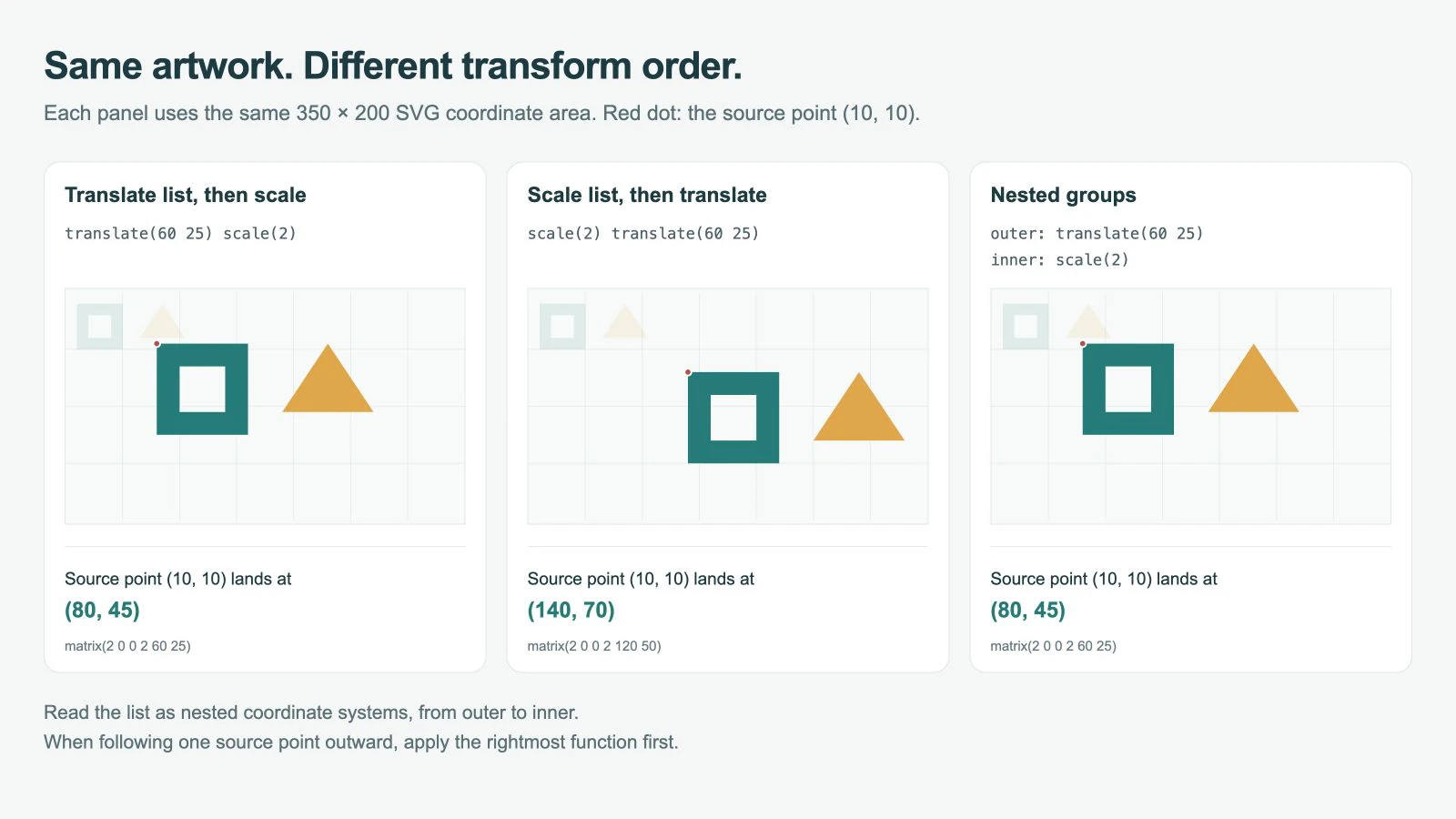
The original artwork's local box is x=10, y=10, width=95, height=40. The first arrangement produces root-coordinate bounds of x=80, y=45, width=190, height=80. The reversed list produces x=140, y=70, with the same 190 × 80 size.
These measurements describe this simple, unstroked fixture. The example has no animation or CSS transform. It demonstrates coordinate composition, not PerfectVector conversion quality or compatibility with every SVG editor.
Separate placement from size with nested groups
Replace the original group with this structure, keeping its paths unchanged:
<g transform="translate(60 25)">
  <g id="art" transform="scale(2)">
    <path fill="#147d78" fill-rule="evenodd"
      d="M10 10H50V50H10Z M20 20H40V40H20Z"/>
    <path fill="#e5a340" d="M65 40L85 10L105 40Z"/>
  </g>
</g>
This matches translate(60 25) scale(2) on one group. The outer translation positions the scaled coordinate system. Changing the inner scale leaves the outer translation values at (60, 25).
That does not mean every visible point stays fixed while you change scale. A point away from the local origin still moves as its coordinates are multiplied. Decide which source point should anchor the artwork before choosing the translation.
For example, suppose the ring's source corner (10, 10) should land at (120, 80) after scaling by 2. Calculate:
tx = targetX - scale × anchorX = 120 - 2 × 10 = 100
ty = targetY - scale × anchorY =  80 - 2 × 10 =  60
Use translate(100 60) scale(2). The corner now maps to (120, 80). Translating directly by (120, 80) would position the local origin there and leave the corner farther right and down.
This calculation assumes uniform scaling without rotation or skew. For a deliberately chosen rotation pivot, use the SVG transform-origin guide. Keep each transform on the group that owns that job instead of combining unrelated corrections by trial and error.
Read the rendered mapping when the file is nested
An imported SVG may already have transforms on several ancestors. Looking at the nearest group's attribute alone misses their combined effect. The MDN transform reference also notes that a CSS transform takes priority when the CSS property and presentation attribute target the same element. Check computed styles if changing the attribute seems to do nothing.
For a rendered inline SVG, this snippet maps the chosen group's point into the root SVG's user coordinates:
const root = document.querySelector('svg');
const art = document.querySelector('#art');
const rootMatrix = root.getScreenCTM();
const artMatrix = art.getScreenCTM();
if (!rootMatrix || !artMatrix) throw new Error('SVG is not measurable');

const toRoot = rootMatrix.inverse().multiply(artMatrix);
const point = new DOMPoint(10, 10).matrixTransform(toRoot);
const result = { x: point.x, y: point.y };
The inverse root matrix removes the root's shared screen mapping. That matters because the example's 700 × 400 display is twice its 350 × 200 viewBox. Screen pixels and SVG coordinates are different units here. MDN documents the mapping returned by getScreenCTM().
Our browser comparison produced matrix(2 0 0 2 60 25) for the first list and nested version. The reversed list produced matrix(2 0 0 2 120 50). In this scale-and-translation example, the final two numbers make the different translation explicit.
The snippet assumes invertible two-dimensional transforms. A zero scale is not suitable for this inverse-matrix check. For overlays, fitted exports, strokes, or rotated boxes, use the more detailed SVG bounds workflow.
Do not expect getBBox() on the artwork group to report the transformed root position. Its local result excludes that element's own transform and its ancestor transforms, as the getBBox reference explains. A local box can stay unchanged while the mark visibly moves.
Fix the transform before rebuilding the artwork
Work on a copy of the SVG. Identify the paths that should move together, then inspect their group and its ancestors. Record a recognizable anchor point and the intended destination for that point.
Change one transform at a time. If size is correct but placement is wrong, compare the translation produced by the two orders. If the pieces move independently, put their shared placement on a containing group. Keep a rotation pivot separate from the scale-order question.
Reopen the saved file in its destination and inspect the mark's full extent. A correct transform can still move artwork beyond the viewBox or into a clipping region. The SVG editing guide covers the broader cleanup and export process.
If the mark exists only as a PNG or JPG and you need editable contours, PerfectVector's logo vectorizer can prepare an SVG candidate. Inspect its silhouette, opening, and detached shapes, then group the recovered artwork and apply placement transforms in your editor or code.
A bitmap can be moved and scaled without vectorization. Use tracing when editable shapes are required, and preserve an existing vector master when you have one. For exact logo geometry or lettering, manual reconstruction may still be needed; the logo vectorization guide explains how to choose that starting method.
FAQ
Does SVG apply transforms from left to right or right to left? The list corresponds to nested coordinate systems in the written order, from outer to inner. When calculating where a source point ends up, apply the rightmost function first and work outward toward the left.
Why does reversing translate and scale move the logo? With scale followed by translate in the attribute list, the scale also multiplies the translation. With translate followed by scale, the translation stays outside that scale. The same values can therefore produce equal sizes at different positions.
Will an outer translation keep every point fixed when I resize the inner group? No. It keeps the outer translation values separate from the inner scale. Points away from the local origin still move as they scale. Choose an anchor point and calculate the translation needed to place it.
Sources
- W3C — SVG transform attribute — Defines the relationship between transform lists and nested coordinate systems.
- MDN — SVG transform — Documents transform syntax, matrix mapping, and CSS precedence.
- MDN — getScreenCTM — Describes the matrix used to map SVG coordinates toward the document viewport.
- MDN — getBBox — Explains local bounds and the exclusion of the measured element's transforms.
If your source logo needs editable geometry, prepare an SVG candidate with PerfectVector, inspect its contours and separate parts, then choose an anchor and verify its final position after scaling.
More from the blog

SVG Bézier Curves: Fix a Kink Without Adding Nodes
Repair an SVG cubic Bézier join by aligning its handles. Compare unequal and reflected handles, understand the S command, and preserve deliberate corners.

SVG Text Vertical Alignment: Center a Rebuilt Label
Align SVG labels with dominant-baseline, compare middle and central in two fonts, and distinguish text-box centering from the visible shape of the letters.