SVG Transform Origin: Rotate Artwork Around Its Center
Rotate a multi-path SVG around one shared center. Compare fill-box, explicit pivot coordinates, and separate child rotations with a tested browser example.
On this page
To rotate SVG artwork around its own center with CSS, put the related paths in one group and apply transform-box: fill-box and transform-origin: center to that group. Then apply the rotation there. The two properties answer different questions: which rectangle supplies the reference, and where inside that rectangle the pivot sits.
If your imported icon swings across the canvas, inspect that reference before changing its path coordinates. If its pieces turn separately, inspect which elements receive the transform. Existing vector artwork usually needs a grouping or transform fix; tracing is useful only when you first need editable paths from a raster source.
Why center alone can still move the artwork
For an ordinary SVG child such as a path or group, the default transform origin is 0 0. Root SVG elements have a different default. With the default transform-box: view-box, setting the origin to center refers to the SVG reference viewport, rather than the artwork's own bounds. MDN's SVG transform-origin reference explains both the defaults and these exceptions.
Blank space around a logo therefore matters. A small symbol placed toward one corner of a large drawing area has a different center from that drawing area. transform-box: fill-box switches the reference to the element's object bounding box. It does not crop the SVG or remove the blank space. The transform-box reference defines the available boxes, including stroke-box when a stroke-inclusive reference is needed.
Check the element that receives the rotation
Apply the center rule to the group containing the whole mark. A broad selector such as .artwork path gives every matching path its own reference box and pivot.
Rotate two paths as one mark
Save this complete example as rotation.svg and open it in a browser. It uses an original square and detached triangular accent, both positioned away from the coordinate origin. The CSS belongs inside the SVG so the standalone file carries its own rotation rule.
<svg xmlns="http://www.w3.org/2000/svg"
  width="480" height="360" viewBox="0 0 280 210"
  role="img" aria-label="Two-piece artwork rotated around its shared center">
  <style>
    .artwork {
      transform-box: fill-box;
      transform-origin: center;
      transform: rotate(35deg);
    }
  </style>
  <g class="artwork">
    <path fill="#147d78" d="M80 50H160V130H80Z" />
    <path fill="#ed9750" d="M170 70L220 90L170 110Z" />
  </g>
</svg>
Before rotation, the combined artwork spans x = 80 to 220 and y = 50 to 130. Its box is 140 units wide and 80 units high, so its center is (150, 90). The square and accent retain their relationship when the group turns.
We rendered four fixed-angle states of those same paths in a browser, read their geometry, and reopened the complete SVG above separately. The comparison uses wider viewing areas to leave room for the default-origin result. These are hand-authored demonstration paths, not PerfectVector conversion output or a test of every browser and editor.
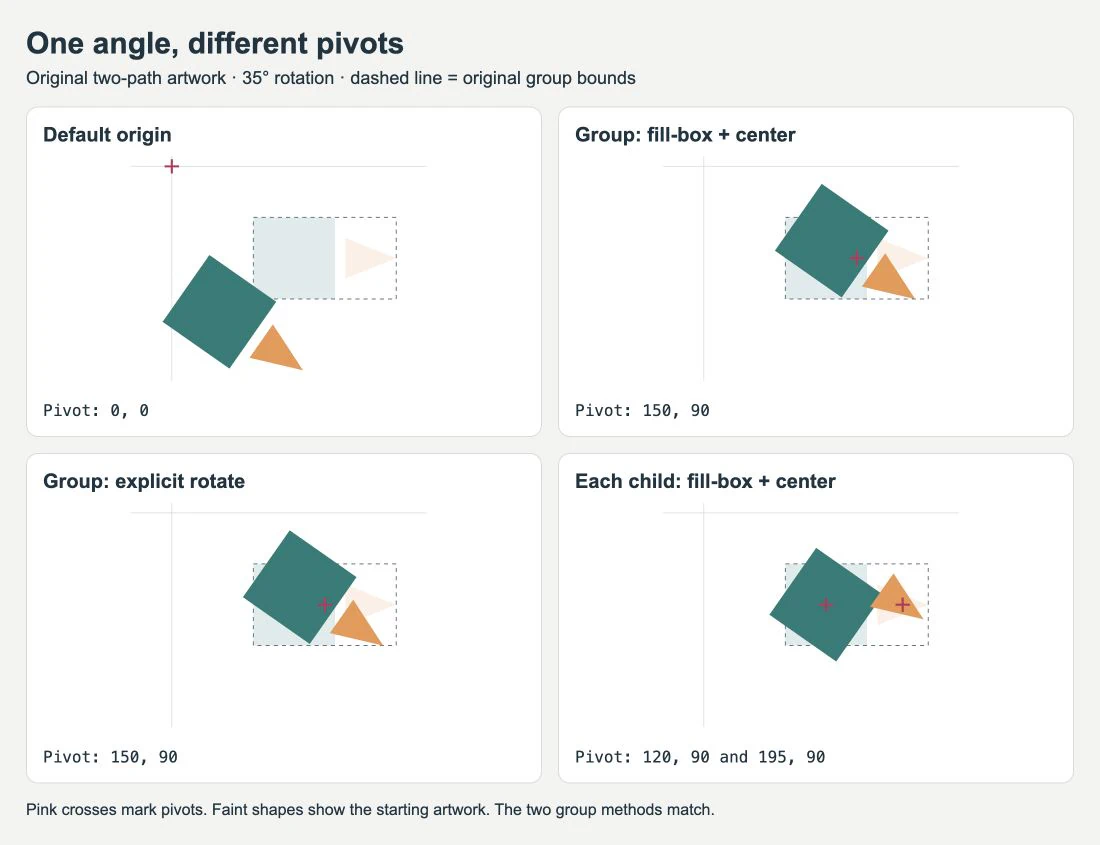
The default-origin version moves the mark around (0, 0). The two centered group versions match. In the last panel, the square rotates around (120, 90) while the triangular accent rotates around (195, 90). Each part stays near its own starting position, but the mark no longer turns as one object.
For your own file, select only the pieces that should move together. Background rectangles, registration marks, or distant stray paths can enlarge a group's bounds. The SVG editing workflow covers inspecting and cleaning the file before you add behavior.
Use explicit coordinates when the pivot is a design choice
An SVG transform attribute can state the angle and pivot directly. In the example, replace <g class="artwork"> with <g transform="rotate(35 150 90)">. Leave the two paths inside it. Removing the class also stops the CSS transform from overriding the attribute.
The attribute's rotate(angle cx cy) form uses degrees followed by the pivot in the current user coordinate system. CSS rotate(35deg) has different syntax and takes its origin from the separate property. If both a CSS transform and the SVG transform attribute target the same element, CSS takes priority. See MDN's transform attribute reference.
Explicit coordinates are useful for a hinge, needle, or deliberately offset logo pivot. Keep them in the same local coordinate system as the group you rotate. A coordinate measured on the screen is not automatically a coordinate you can paste into a nested SVG group.
If the existing group already has a placement transform, preserve it and put the rotation on a new inner group containing the artwork. Then test the exported file. Replacing an existing transform can discard the translation or scale that positioned the mark. If changing scale also shifts the mark, the SVG transform-order example shows how translation and scaling combine.
Read the bounds before calculating a center
For a plain group like this example, the center calculation is:
cx = x + width / 2
cy = y + height / 2
In our browser measurement, getBBox() on the group returned x: 80, y: 50, width: 140, and height: 80. Its own rotation did not change those local box values. The getBBox documentation distinguishes these user-space values from getBoundingClientRect(), whose rectangle is relative to the browser viewport.
For selection outlines or a fitted viewBox, the SVG bounding-box workflow shows how to convert between those coordinate systems and check stroke margins.
Measure the element you intend to rotate. Child transforms can affect the containing group's bounds: our group with separately rotated children had different bounds from the original pair. A wrapper, a nested scale, or a stray shape deserves inspection before you reuse the simple numbers above.
A box center is not always the visual center
The square in this example occupies much more area than its triangular accent. The midpoint of their combined box still lies halfway between the far left and far right edges. That is a geometric rule; it does not judge whether the design looks balanced while turning.
Start with the box center, inspect the mark at several angles, and move to an explicit pivot if the design calls for it. A clock hand usually needs its attachment point. A logo with an off-center accent may need a designer-chosen center. Keep that decision separate from correcting an accidental viewport-based origin.
Rotation also needs space. A tight export around the unrotated artwork can cut off corners after it turns. Leave enough room in the viewing area and inspect any parent clipping. If the whole file imports at the wrong scale, use the SVG size diagnosis before changing individual pieces.
This workflow turns an existing shape without rewriting its contour. If your goal is to turn one outline into another, the SVG morph guide covers the separate problem of matching path geometry.
Prepare the source before setting the pivot
If your icon exists only as a PNG or JPG and you need to edit its separate shapes, PerfectVector can help prepare an SVG candidate. Convert the artwork to vector, inspect its silhouette and detached details, then group the pieces that should rotate together. Check for unwanted background shapes before measuring the group.
A bitmap can rotate as a whole without tracing. Use vectorization when editable geometry is part of the job. If you already have a usable vector master, keep it; changing the transform origin does not repair a damaged contour, and tracing a raster copy adds an unnecessary reconstruction step.
Before handing off the file, reopen the exact SVG in its destination. Confirm that the intended pieces turn together, the pivot stays where you chose it, and the rotated artwork has room. Keep an unchanged master for later editing. The blog's SVG workflow articles cover related preparation and export checks.
FAQ
Why does transform-origin: center rotate my SVG around the canvas? For an SVG child using the default view-box reference, center refers to the SVG reference viewport. Set transform-box to fill-box on the element you intend to rotate if you want its object bounding box instead.
Should I rotate the group or each path? Rotate the group when the pieces should move as one mark. Applying fill-box and center to each path gives each piece its own pivot, which changes their combined arrangement.
Will fill-box center make an asymmetric logo look balanced? It selects the center of the object's bounding box. Visual balance may call for a different pivot, so inspect the logo at several angles and choose explicit coordinates when needed.
Sources
- MDN — SVG transform-origin — Defines SVG origin defaults, root-element exceptions, and the reference-box relationship.
- MDN — transform-box — Defines object, stroke, and viewport reference boxes.
- MDN — SVG transform — Documents explicit rotation coordinates, group transforms, and CSS precedence.
- MDN — getBBox — Explains local geometry measurements and their difference from viewport rectangles.
Need editable shapes from a raster source? Prepare an SVG with PerfectVector, inspect the recovered pieces, then group them and check the chosen pivot in the final exported file.
More from the blog

SVG Pattern Transform: Rotate the Fill, Keep the Outline
Rotate or shift repeated SVG paint inside a fixed emblem with patternTransform. Compare a whole-object rotation and verify source, geometry, and browser pixels.

SVG Motion Paths: Move a Custom Icon Along a Curve
Move SVG artwork along a curve with animateMotion and mpath. Fix off-center icons, choose automatic rotation, and provide a static version for reduced motion.