
SVG Motion Paths: Move a Custom Icon Along a Curve
Move SVG artwork along a curve with animateMotion and mpath. Fix off-center icons, choose automatic rotation, and provide a static version for reduced motion.
On this page
Use animateMotion to move an SVG element along a route, and put an mpath inside it to reference an existing path. rotate="auto" turns the moving artwork to follow the route's direction. The artwork's local origin is the point that travels along the path, so an imported icon needs a deliberate anchor.
This is useful when a custom arrow, emblem, or small illustration should travel without changing its shape. For a line that appears to draw itself, use stroke animation. For one silhouette changing into another, use path morphing. Those techniques solve different visual tasks.
Keep the route separate from the artwork
The route defines where the icon moves. The icon defines what the reader sees. MDN's animateMotion reference describes the motion element, while its mpath reference shows how to reuse a path by reference.
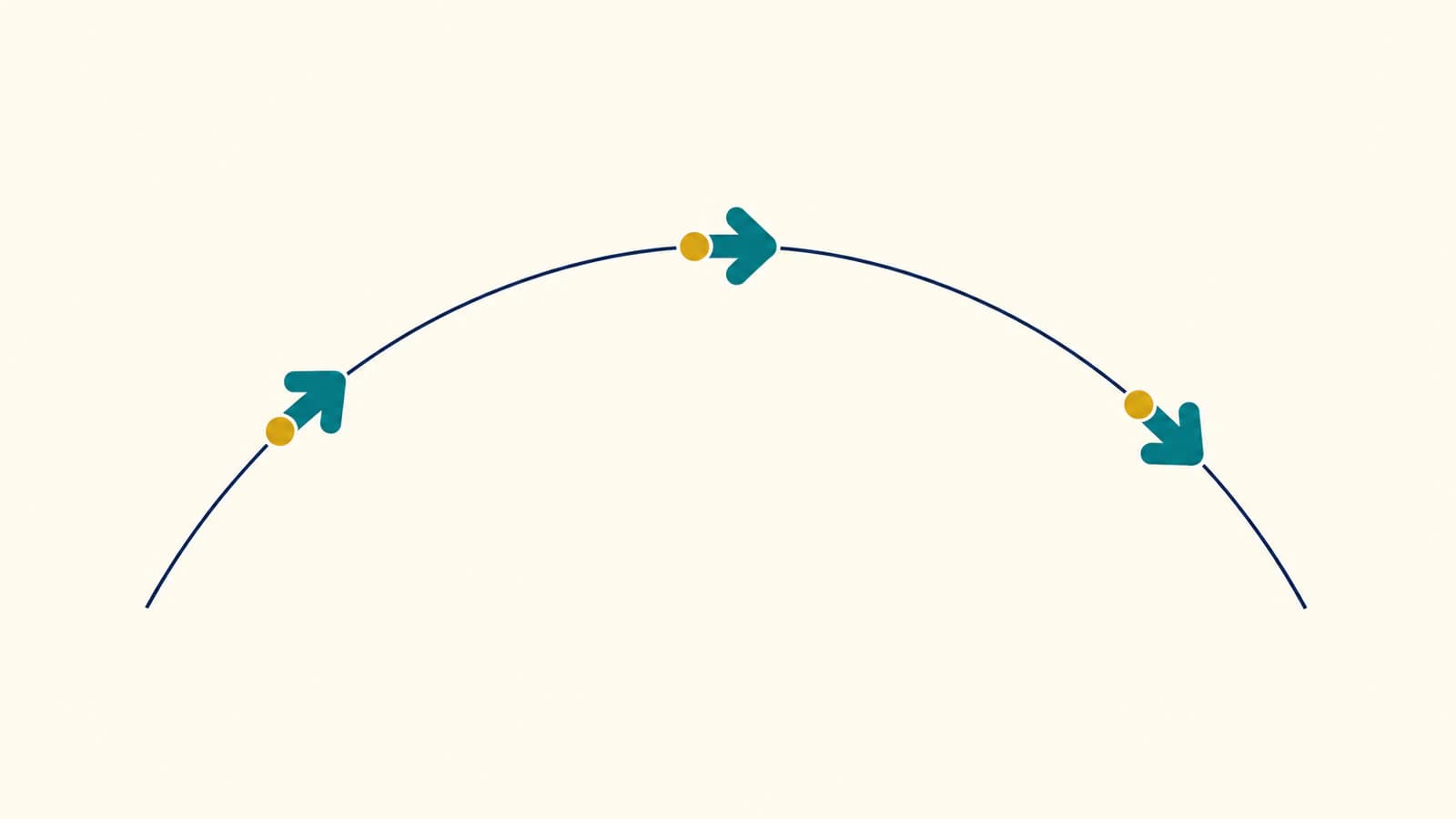
The original example below has a teal arrow and a gold dot. Its arrow points along positive X, which makes the effect of automatic rotation easy to inspect. The artwork is drawn around (0, 0) rather than far across a large exported canvas.
Save this as motion.html and open it in a browser. The static emblem appears first. Press Play to run one four-second pass; Show static restores the starting illustration.
<!doctype html>
<meta charset="utf-8">
<title>Arrow following a curve</title>
<style>
  svg { display: block; width: min(100%, 800px); }
  .moving { display: none; }
  .playing .moving { display: inline; }
  .playing .still { display: none; }
</style>

<svg id="scene" viewBox="0 0 480 240"
     xmlns="http://www.w3.org/2000/svg"
     role="img" aria-label="An arrow emblem follows a curved route">
  <defs>
    <path id="route" d="M60 180 C160 20 300 20 420 180" />
    <g id="emblem">
      <path fill="#147d78"
            d="M-18-12 H4 V-22 L30 0 L4 22 V12 H-18 Z" />
      <circle cx="-7" cy="0" r="4" fill="#e5a340" />
    </g>
  </defs>

  <use href="#route" fill="none" stroke="#a9bab6" stroke-width="2" />
  <use class="still" href="#emblem" transform="translate(60 180)" />
  <g class="moving">
    <use href="#emblem" />
    <animateMotion id="motion" dur="4s" begin="indefinite"
                   fill="freeze" rotate="auto">
      <mpath href="#route" />
    </animateMotion>
  </g>
</svg>

<button id="play" type="button">Play</button>
<button id="stop" type="button">Show static</button>
<script>
  const scene = document.querySelector("#scene");
  const motion = document.querySelector("#motion");
  const preference = matchMedia("(prefers-reduced-motion: reduce)");

  function showStatic() {
    scene.pauseAnimations();
    scene.classList.remove("playing");
  }

  document.querySelector("#play").addEventListener("click", () => {
    if (preference.matches) return;
    scene.pauseAnimations();
    scene.setCurrentTime(0);
    scene.classList.add("playing");
    motion.beginElement();
    scene.unpauseAnimations();
  });
  document.querySelector("#stop").addEventListener("click", showStatic);
  preference.addEventListener("change", showStatic);
  showStatic();
</script>
The visible gray curve is a separate use of the route. Remove that use if the path should be invisible; keep the definition in defs so the animation can still reference it. The motion element belongs inside the group whose arrow and dot should move together.
fill="freeze" retains the final animation state. It is unrelated to the teal paint on the arrow. This example runs once, which makes its final position easier to check than an endless loop.
Fix an icon that floats away from the route
Motion is applied to the element's coordinate system. It does not automatically find the visual center of a logo. If your imported paths occupy coordinates around (200, 120), moving the enclosing group along a route leaves that offset inside the group.
Choose the artwork point that should touch the route, then translate that point to (0, 0) inside the moving group. For an anchor at (200, 120), the structure is:
<g class="moving">
  <g transform="translate(-200 -120)">
    <!-- Place the original artwork paths here. -->
  </g>
  <animateMotion dur="4s" rotate="auto">
    <mpath href="#route" />
  </animateMotion>
</g>
The inner translation prepares the artwork; the outer group receives motion. Keep those jobs separate when adding a scale or a corrective rotation. The SVG animation specification defines motion as a supplemental transformation, so existing transformations still affect the final placement.
For a badge, the center may be a sensible anchor. For a vehicle, you may want a wheel-contact point; for a pointer, you may want its tip. A bounding-box center is only a starting guess. Inspect the intended contact point at more than one position on the route.
A stationary rotation has its own pivot problem. The SVG transform-origin guide explains that case without adding a travel path.
Choose whether the artwork should turn
| Desired result | Motion setting | Artwork preparation |
|---|---|---|
| Arrow follows the curve's direction | rotate="auto" | Point its forward direction along positive X |
| Badge stays upright as it travels | rotate="0" | Keep the desired fixed orientation in its local artwork |
| Artwork faces opposite the route direction | rotate="auto-reverse" | Check the source's forward direction before using it |
These values are documented in MDN's motion rotation reference. auto-reverse changes facing; it does not reverse the order in which the route is traversed.
If your source points upward, auto does not know that upward means forward. Rotate an inner artwork group until it points along positive X, then apply motion to the outer group. Avoid rotating the route itself just to correct the icon's local orientation.
Sharp route corners can produce abrupt direction changes. A curved route is a better starting point when you want a visibly smooth turn. Also leave room around the route: an icon can extend beyond the path centerline and be clipped near the SVG viewport edge.
Check the start, middle, and end
We opened the same route and emblem in Chrome and used a small test harness to pause the SVG timeline at 0, 2, and 4 seconds. The icon began at the lower left, crossed near the crest, and finished at the lower right. With auto, its facing changed along the curve. With rotation set to 0, the midpoint position was unchanged while the arrow stayed horizontal.
That check covers this fixture in one browser. It is not an animation-import test for design tools or a guarantee for every browser embedding mode.
For your own artwork:
- Check the contact point at the route's start. Fix source offsets before adjusting timing.
- Pause near bends and confirm that the intended part of the emblem follows the line.
- Compare automatic and fixed rotation. Choose based on the artwork, especially when it includes text.
- Check the end pose for clipping and confirm that replay starts correctly.
- Test the actual delivery context. This example uses inline SVG inside an HTML page with JavaScript controls.
animateMotion uses paced movement by default, as MDN documents. Half the duration therefore represents approximately half the traveled distance, not necessarily the curve parameter halfway between its control points. Our asymmetric cubic route's two-second pose was slightly to the right of its geometric crest.
Provide a useful static version
The example starts with a static use of the emblem, and its motion starts only after the Play button is activated. If JavaScript does not run, the static artwork remains visible. When the reduced-motion preference is active, the handler leaves it in that state.
The prefers-reduced-motion media feature lets the page respond to the user's motion preference. Here JavaScript reads that preference before starting SVG motion, and restores the static version if the preference changes.
We also tested the static branch with an explicit reduced-motion preview switch in the harness: it hid the animated group and displayed the emblem at the starting location. That switch exercised our fallback logic; it did not change the computer's accessibility setting.
Keep meaning outside the animation when possible. The user should not have to watch a moving emblem to learn a status or read essential instructions. For a decorative icon beside already descriptive text, adapt the accessibility labeling to avoid announcing the same content twice.
Prepare your own motif before animating it
If your custom motif exists only as a PNG or JPG, PerfectVector can help recover editable SVG artwork before you build the motion. Inspect the recovered silhouette and small openings, group the parts that should travel together, and choose the anchor point. PerfectVector supplies source geometry; the route, timing, and motion behavior are authored separately.
An existing SVG can go straight to grouping and anchor preparation. For simple arrows like this demonstration, drawing the geometry directly is also practical. The image-vectorization overview explains when tracing a raster source is useful.
For a raster-only custom mark, try your image in PerfectVector, check its contours and small details, then test that SVG at the start, middle, and end of your route. Keep a static version alongside the animated one.
FAQ
Why does my icon move beside the path instead of on it? The artwork may be offset from its local origin. Choose the point that should follow the route and translate that point to zero inside the moving group. Check the result at the start and at a bend.
Does automatic rotation change the icon's shape? No. Motion changes the artwork's placement and orientation. It does not morph its path geometry. The source's forward direction should point along positive X for the automatic rotation used in this example.
Can I remove the visible guide line? Yes. Keep the route definition and its ID, but remove the separate element that draws the guide line. The motion can still reference the path through mpath.
Sources
- MDN animateMotion — Describes motion paths, rotation values, and default paced movement.
- MDN mpath — Explains referencing an existing route inside the motion element.
- SVG animation specification — Defines motion transformations and their relationship to artwork coordinates.
- MDN rotate attribute — Documents fixed, automatic, and reverse-facing motion orientation.
- MDN reduced-motion preference — Explains detecting the user's motion preference.
More from the blog
SVG Bounding Boxes: Measure the Right Coordinates
Compare getBBox and getBoundingClientRect on transformed SVG artwork. Place overlays correctly, test stroke bounds, and fit a viewBox with an explicit margin.

SVG preserveAspectRatio: Fit Artwork Without Stretching
Choose meet, slice, or none for SVG fitting. Test alignment, clipping, and empty canvas with one emblem, and separate SVG mapping from CSS object-fit.