SVG Stroke Animation: Prepare a Single Drawing Route
Make an SVG line draw on with dasharray and dashoffset. Compare an open path with a filled outline, check direction, and provide a static reduced-motion result.
On this page
SVG stroke animation can reveal a line by moving a dash along its path. Use stroke-dasharray to define the dash and gap, then animate stroke-dashoffset until the stroke is visible. MDN documents these as stroke-painting properties.
The source path determines what appears to draw. An open path can follow a pen route through the middle of a mark. A filled outline describes the mark's boundary. Adding a stroke to that outline sends the animation around its edges; dash settings alone do not reveal its fill.
Start with one small shape before timing a complete logo. The hand-authored examples below separate the drawing route, filled artwork, and perimeter so you can choose the geometry your animation needs.
To move a whole icon along a curve, use the SVG motion-path workflow, which keeps the travel route separate from the artwork.
Begin with an open stroked path
This original path travels right, then up. Its fill is disabled, so the visible mark comes entirely from its stroke:
<div class="playing">
  <svg viewBox="0 0 140 130" role="img" aria-label="Open bent line">
    <path class="reveal route" pathLength="100" d="M30 90H100V30" />
  </svg>
</div>
Use this CSS for a two-second reveal:
.reveal {
  stroke-dasharray: 100;
  stroke-dashoffset: 0;
}

.route {
  fill: none;
  stroke: #147d78;
  stroke-width: 16;
  stroke-linecap: butt;
}

.playing .reveal {
  animation: draw 2s linear forwards;
}

@keyframes draw {
  from { stroke-dashoffset: 100; }
  to { stroke-dashoffset: 0; }
}

@media (prefers-reduced-motion: reduce) {
  .playing .reveal {
    animation: none;
    stroke-dashoffset: 0;
  }
}
pathLength="100" calibrates distance-based operations to an authored length of 100. The pathLength reference describes this normalization. A single dash-array value repeats as a dash and a gap, so 100 supplies a full-length dash followed by an equally long gap. Offsetting that pattern by 100 hides the stroke in this example; moving the offset to zero reveals it.
Use unitless numbers here. stroke-dashoffset: 100% is not a substitute for 100 normalized path units. MDN's dash-offset reference states that percentage values use the SVG viewport's normalized diagonal, rather than the path's total length.
The example uses a butt cap to make the paused start easier to inspect. Other cap styles can change how the ends of a dash look. Choose the cap for the artwork, then check the initial and final frames at the size the icon will actually appear. For decorative repeats, compare dotted outlines and cap spacing before choosing the dash and gap lengths.
Compare the route with a filled outline
A thick bent strip can look similar to that stroked line while containing different geometry. This second hand-authored path goes around the strip's boundary and closes with Z:
<path class="reveal filled" pathLength="100"
  d="M30 82H92V30H108V98H30Z" />
With the following paint, changing its dash offset has no visible effect:
.filled {
  fill: #ef8067;
  stroke: none;
}
The strip remains filled because there is no stroke to dash. W3C's SVG painting specification distinguishes painting a shape's interior from painting its stroke.
If you instead set fill: none, add a stroke, and animate that closed path, the stroke follows the perimeter: along one edge, across an end, and back along the other edge. It does not become a single route through the strip's center.
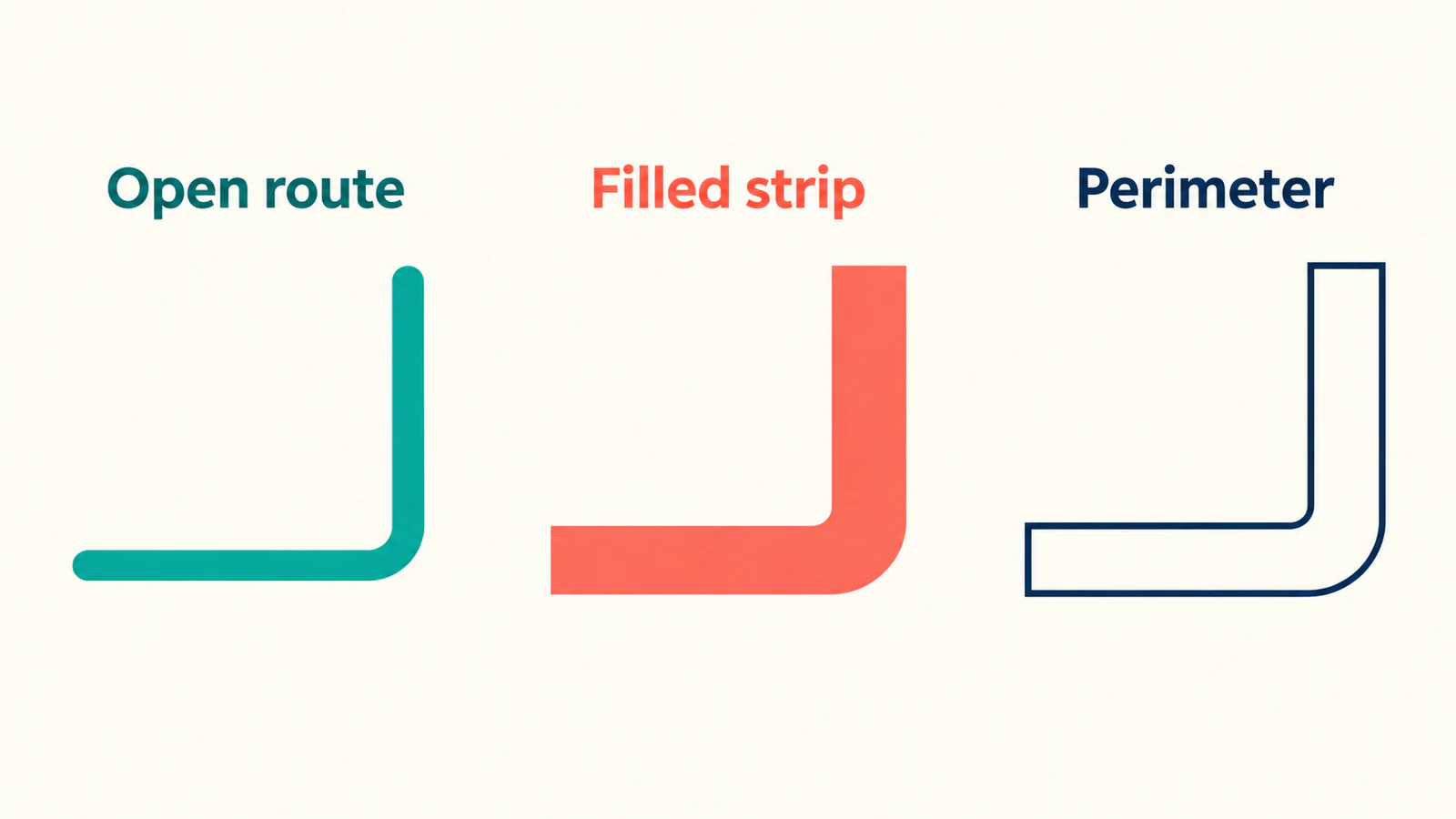
This distinction also explains why a trace can produce double cutting lines. In an animation, the unwanted result may be a line running around the outside of a pen mark. If the intended effect requires a center route, use the single-line SVG guide to inspect or prepare that geometry.
Check start, midpoint, and finish
For a paused inspection of the example, disable its animation and set stroke-dashoffset to 100, 50, and 0. Those values correspond to the start, halfway reveal, and final state for this normalized path. They are not percentages typed into the CSS property.
| Paused setting | Open stroked route | Filled strip | Stroked perimeter with no fill |
|---|---|---|---|
| Offset 100 | Stroke hidden | Entire fill visible | Stroke hidden |
| Offset 50 | Part of the open route visible | Entire fill visible | Part of the boundary visible |
| Offset 0 | Complete bent line | Entire fill visible | Complete closed boundary |
Keep all three versions in a small test page with buttons for those states. The middle setting is particularly useful: the finished shapes can appear similar, while their drawing routes become obvious partway through the reveal.
We checked these hand-authored paths in a browser at offsets 100, 50, and 0, and ran the two-second animation once. The filled strip stayed visible while the route and perimeter revealed differently. This test demonstrates those original paths; it is not a PerfectVector trace or a test across all browsers.
Inspect the actual element's paint and computed styles if a result differs. A CSS rule can override a presentation attribute, and a path without a visible stroke cannot demonstrate a dash reveal. The missing-stroke checklist helps isolate paint and display problems before you adjust animation timing.
Decide the starting point and path order
The first path begins at M30 90, travels horizontally to x=100, then vertically to y=30. That sequence gives the reveal a direction. If the drawing should begin at the upper end, prepare the path in that direction rather than assuming the animation knows the intended pen movement.
For a logo with separate marks, decide which path should appear first and which should follow. Starting the same animation on every path produces simultaneous reveals. A sequence requires explicit delays or another timeline arrangement. Check intersections and overlaps at paused states because later shapes can cover a stroke that is still being drawn.
A drawing made from several disconnected subpaths may need to be separated into elements for useful timing control. Keep the visual design and animation route decisions distinct. Joining unrelated pieces simply to obtain one path can introduce a connection the artist never intended.
An animation library can help control the sequence, but its input still needs the right geometry. Motion's SVG animation documentation offers line drawing through its animated pathLength value. That library control is a separate API from the native SVG pathLength="100" calibration used here; do not copy one example's values into the other without checking the API.
Keep the completed artwork available without motion
The CSS example defaults to an offset of zero and changes it only while the animation runs. Its reduced-motion media query disables the reveal and shows the completed line. MDN's prefers-reduced-motion guide explains how the query detects the user's preference.
For an interactive demo, provide a static-result control as well as a replay button. For an interface icon, retain the visible text label or accessible name that explains the action. The animation should not be the only way a reader discovers what the graphic means.
Test the initial, interrupted, and completed states in the actual placement. If an essential icon stays invisible when animation does not run, fix the base style before extending the effect to the whole interface. A successful isolated demo does not establish every browser, assistive-technology, or performance outcome.
Prepare raster artwork without promising a pen route
If the vector master is missing and a flat PNG or JPG mark needs editable artwork, PerfectVector's image-to-vector workflow can prepare an SVG candidate. Compare its silhouette, holes, and separate regions with the source, then inspect the downloaded paths in an editor. Use that geometry as artwork to review before planning the animation.
Vectorization does not establish the original pen order, create your timeline, or guarantee single centerline paths. If the reveal needs one route through a stroke, draw or prepare that route deliberately. Keep an existing vector master when available. An SVG that only embeds a raster image also needs the embedded-image check before you assume its visible mark is editable path geometry.
Accept the static artwork first, then accept the draw-on sequence. The blog's editing guides cover source cleanup before the animation layer.
FAQ
Why does my SVG remain visible at the start of a stroke animation? Check whether the visible part is a fill. Dash-array and dash-offset settings affect the stroke, so a filled region can remain visible while its stroke is hidden.
Why does the animation draw around both sides of a line? The path may describe a closed outline around a thick mark. Stroking that path follows its perimeter. Prepare an open drawing route when the effect needs a single line through the center.
Can I use 100% for the entire path length? Not as a general substitute in stroke-dashoffset. Its percentages refer to the viewport's normalized diagonal. The example uses native pathLength="100" with unitless dash values.
Does converting a PNG to SVG make it ready for handwriting animation? No automatic pen-order or centerline guarantee follows from vectorization. Inspect the resulting geometry and prepare the drawing paths and timing separately.
Sources
- MDN — stroke-dasharray — defines alternating dash and gap lengths for stroke paint.
- MDN — stroke-dashoffset — explains pattern offsets and the reference used by percentages.
- MDN — pathLength — documents native distance calibration for paths and strokes.
- W3C — SVG painting — separates fill and stroke behavior.
- MDN — prefers-reduced-motion — documents the user preference used for a static result.
- Motion — SVG animation — describes the library's separate line-drawing API.
Test one route at the start, halfway point, and finish before sequencing the full artwork. If your source is a raster mark, prepare an editable SVG candidate, inspect its geometry, and plan the drawing route separately.
More from the blog
Measure SVG Path Length Without Confusing Scale
Measure SVG paths in browser user units, account for transforms and nominal size, and distinguish contour totals from pathLength calibration or machine travel.

Dashed SVG Lines for Laser Cutting: Check the Paths
Diagnose dashed SVG lines that become solid in a laser preview. Compare stroke paint, separate centerlines, and outlined dashes before preparing your own file.