SVG in .NET MAUI: Keep SVG, Reference the PNG
Add an SVG to a .NET MAUI project, reference its PNG output, and separate BaseSize from layout size. Check filenames, image metadata, and the finished artwork.
On this page
- Follow the source through the build
- Add a small SVG with clear bounds
- Update an existing item once
- Reference the PNG and set the display area
- BaseSize and layout size solve different problems
- Check a missing or unexpected image in order
- When you need SVG behavior at runtime
- Prepare a vector master when only a PNG remains
- FAQ
- Sources
To use SVG in .NET MAUI's bundled-image workflow, keep the SVG in your project and reference its generated PNG name from XAML or C#. MAUI processes the vector source during the build. An Image pointing at compass.png can therefore be correct even when the file you added is compass.svg. Microsoft's project-image guide documents this conversion.
That explains the filename, but it leaves a design question: what size should MAUI generate, and what should you inspect afterward? Follow one small compass emblem through the source, project metadata, and display declaration.
Follow the source through the build
The editable SVG and the packaged image have different jobs. Keep the source so you can adjust its shapes, whitespace, or colors later. Use the generated name in the view that displays it.
| Stage | Compass example | Your decision |
|---|---|---|
| Artwork source | Resources/Images/compass.svg | Set the drawing bounds and preserve the ring opening. |
| Project item | MauiImage with a baseline size | Choose the image dimensions used to derive target-density outputs. |
| View | Image Source="compass.png" | Choose the display area and scaling behavior. |
The Image control documentation describes the target-density images entering the app package and the operating system selecting an appropriate resolution. Keeping an SVG master does not mean this particular workflow delivers a live SVG document to the view.
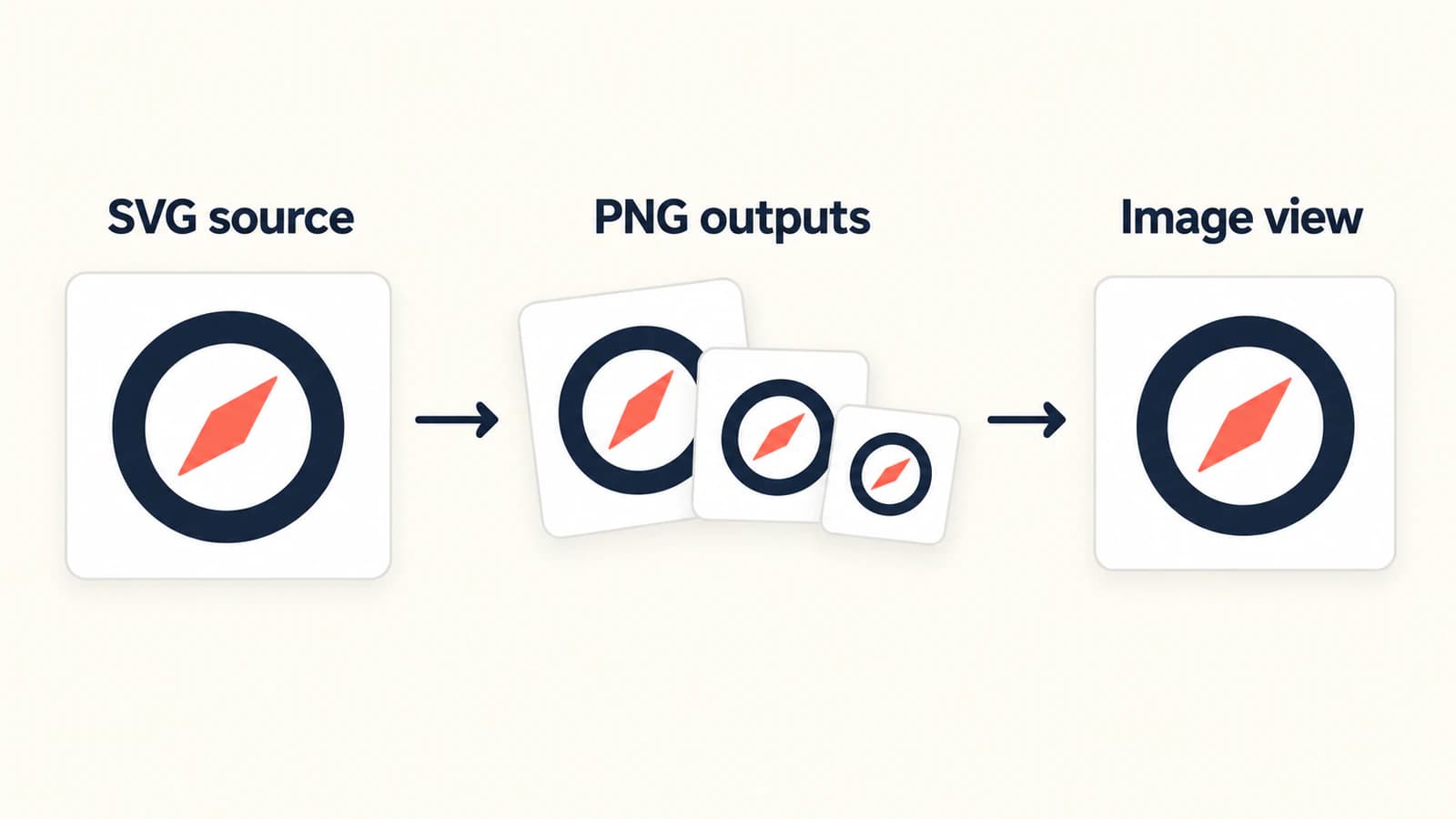
Add a small SVG with clear bounds
Save this original example as Resources/Images/compass.svg:
<svg xmlns="http://www.w3.org/2000/svg" width="96" height="96" viewBox="0 0 96 96">
  <circle cx="48" cy="48" r="34" fill="none" stroke="#173e52" stroke-width="8"/>
  <path d="M58 28L52 52L28 58Z" fill="#ed765e"/>
</svg>
The ring leaves a transparent center, and the coral needle is a separate shape. Those details give you something specific to check after import. The declared dimensions and square viewBox also make the intended framing clear. See the SVG file guide for how vector geometry differs from a bitmap embedded inside an SVG wrapper.
In your project, confirm that the file has the MauiImage build action. Microsoft documents the Resources/Images folder as the normal location. Before adding XML, inspect the existing project items: your project may already include that folder with a wildcard. Project-image setup explains placement and build action.
Update an existing item once
If an existing MauiImage wildcard already includes the compass file, put this metadata update after that inclusion:
<ItemGroup>
  <MauiImage Update="Resources\Images\compass.svg" BaseSize="48,48" />
</ItemGroup>
Update changes metadata on an item that already exists. It does not add a missing file to the item list. If your project has no matching inclusion, add the file once with the MauiImage build action or an explicit Include instead. Microsoft's MSBuild Item reference distinguishes these operations.
This avoids a tempting repair: repeatedly adding Include entries while debugging a missing image. First establish whether the file is included, then change its metadata.
Reference the PNG and set the display area
Place this declaration inside an existing MAUI page or layout:
<Image Source="compass.png"
       WidthRequest="48"
       HeightRequest="48"
       Aspect="AspectFit"
       SemanticProperties.Description="Compass" />
The .png extension is intentional. The width and height request a square display area; AspectFit keeps the whole image visible inside it. If your illustration is rectangular, use a display area suited to it rather than stretching it to fill a square. Microsoft's Image scaling reference distinguishes fitting, cropping, and stretching.
The compass code is an original setup example, not a recorded device-rendering test. Build it in your own target project and inspect the resulting view. A correct filename alone cannot establish that your particular artwork renders as intended.
BaseSize and layout size solve different problems
BaseSize="48,48" supplies the baseline dimensions from which MAUI derives density-specific images. Without an explicit base size, MAUI uses the SVG's own dimensions. Microsoft documents both rules in Resize an image.
In this example, the source drawing uses a 96-by-96 coordinate space, while the requested baseline and view are 48 by 48. Those numbers are deliberate authoring choices, not measured output dimensions from a build. The ring should retain its proportions when scaled.
If you later use the same emblem in a much larger view, revisit the build size and inspect that use too. Changing WidthRequest does not edit the source artwork or its build metadata. Conversely, changing BaseSize does not remove empty margins inside the SVG. Tighten the drawing bounds in the source if the emblem itself looks too small within an otherwise correctly sized view.
Avoid using Resize="false" as a general sharpness fix. It disables vector-image resizing in this pipeline. Choose it only when that is the behavior you intend, following the documented resize option.
Check a missing or unexpected image in order
- Confirm the filename and project item. Use a lowercase name such as
compass.svg, and check for another image with the same name. Microsoft's naming rules require unique image names and Android-compatible characters. - Check the view's source. For the bundled SVG workflow, use
compass.pngin XAML or C#. - Compare the intended display area with the baseline size. A view-size change and a build-size change belong in different places.
- Inspect the artwork itself. Is the ring center still open? Is the coral needle distinct? Is the emblem centered, or does invisible source whitespace push it aside?
Also inspect any image metadata that changes paint. The project-image guide documents TintColor and Color for tint and background color. Leave those unset for this two-color example unless you intend to change its appearance. Check the image against the actual page background, where a lost transparent opening is easier to spot.
When you need SVG behavior at runtime
Downloaded SVG content, interactive paths, or runtime edits need a separate implementation decision. The bundled-image instructions above do not establish support for those jobs.
For example, the Vapolia SVG sample project documents its own SvgImage and SvgImageSource controls and embedded-resource setup. That is a different loading contract. Evaluate the renderer's supported features and target platforms using your actual file before introducing it; swapping the filename extension in a normal Image declaration does not install a renderer.
The same artwork also needs different setup in Flutter's SVG image workflow, SwiftUI's asset catalog, and an Android VectorDrawable import. Reuse the source master, then follow each destination's rules.
Prepare a vector master when only a PNG remains
If the compass or logo exists only as a PNG, PerfectVector can help create editable SVG artwork before you add it to the MAUI project. Convert the PNG to SVG, then inspect the ring opening, small detached pieces, and spacing in an editor. Keep a clean master for later size or color changes.
Vectorization does not repair a MauiImage declaration or turn the bundled-image pipeline into a runtime SVG parser. If the source is already an editable SVG, work on the project configuration or drawing directly. Photos and textured artwork may be more useful as raster images; tracing them solely because the app accepts SVG sources adds a separate artwork decision.
FAQ
Why do I reference a PNG when I added an SVG? .NET MAUI converts bundled SVG image sources to PNG during the build. Keep the SVG in the project and reference the PNG filename from XAML or C#.
Does BaseSize set the size of the Image control? BaseSize sets the baseline dimensions used to derive density-specific build images. The view's layout and size requests control its display area.
Should I add another MauiImage Include to change BaseSize? Check whether the file is already included, including through a wildcard. Use Update to change metadata on an existing item; use Include only when the item needs to be added.
Will this load an SVG downloaded after the app was built? The bundled-image workflow does not cover downloading and parsing SVG at runtime. Choose and test a runtime rendering approach for that requirement.
Sources
- Microsoft — Add images to a .NET MAUI app project — SVG-to-PNG processing, image items, filenames, base size, and build metadata.
- Microsoft — Image — Local image references, target-density selection, view sizing, and scaling behavior.
- Microsoft — Item element (MSBuild) — The difference between adding an item with Include and changing existing metadata with Update.
- Vapolia — SVG samples — A separate runtime SVG control and resource-loading workflow.
Working from a raster-only app emblem? Turn your PNG into an editable SVG, check its openings and spacing, then add that master to MAUI and inspect the generated image in your target app.
More from the blog

fpdf2 SVG Images: Keep Paths in Your Python PDF
Place an SVG logo in a Python PDF with fpdf2, control its size, inspect the saved paths, and diagnose missing text or shapes before using a raster fallback.

Inkscape Command Line Export: Page, Drawing, or Object
Choose page, drawing, or object bounds for Inkscape command-line PNG exports. Compare actual outputs, make two sizes, and keep your original SVG master intact.