PNG to Android Vector Drawable: An Import Checklist
Convert a PNG into real SVG paths, import them as Android VectorDrawable XML, and check fills, gradients, masks, viewport sizing, and path complexity.
On this page
- Choose between a direct converter and the SVG route
- Stage 1: turn the PNG into real SVG paths
- Trace the pixels
- Simplify only where it helps
- Stage 2: import the SVG into Android Studio
- What survives the SVG-to-VectorDrawable import?
- Read the generated XML before you accept it
- Width, height, and viewport
- Paths and paint
- Groups and clipping
- Test the drawable where the app will use it
- When to keep the PNG
- What this looks like with PerfectVector
- FAQ
- Sources
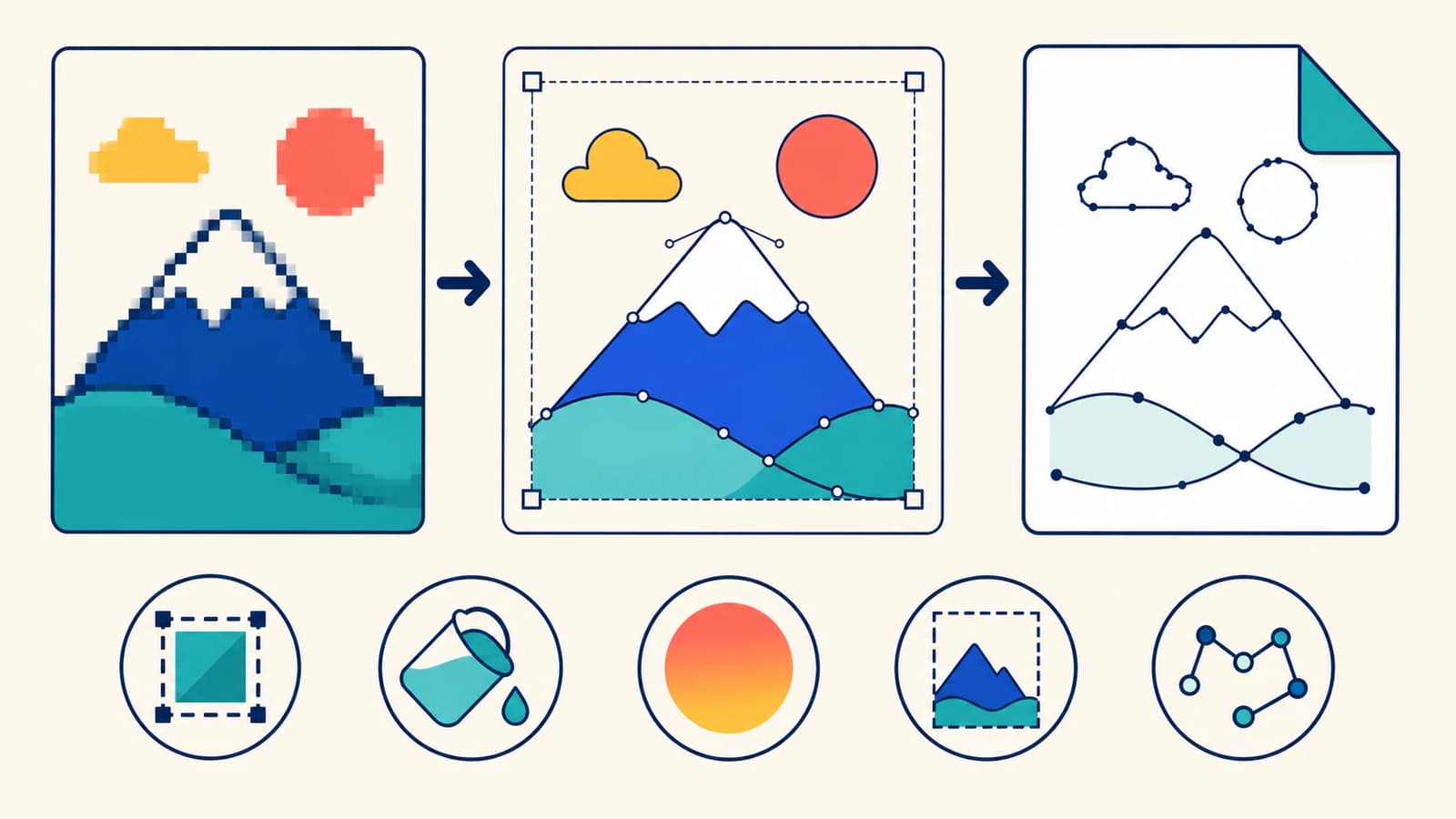
Android Studio does not trace a PNG into vector paths. Its Vector Asset Studio imports SVG or PSD files and converts supported geometry into VectorDrawable XML. That makes a reliable PNG workflow two stages: trace the pixels into a real SVG, then import that SVG into Android Studio.
A direct PNG-to-VectorDrawable converter may combine both stages. It can be convenient for a simple icon, but the same checks still apply. Confirm that the output contains paths, matches the source, uses the intended viewport, and avoids features the Android importer cannot represent.
For a Flutter interface, follow the Flutter SVG asset workflow. It declares and renders the SVG through flutter_svg rather than converting it into native Android VectorDrawable XML.
For a .NET MAUI project, use the MAUI image-resource checklist to check the source, build output, and display size. Follow that project's image pipeline before applying native Android VectorDrawable import steps.
The short workflow
- Start with a clean, icon-like PNG rather than a photograph or texture.
- Trace it into SVG and confirm the file contains editable paths, not an embedded PNG.
- Simplify stray shapes and excessive nodes without changing the silhouette.
- Import the SVG through Android Studio's Vector Asset Studio.
- Inspect the generated XML for viewport, path, fill, stroke, gradient, and clipping behavior.
- Test the drawable at its real size on the oldest Android version your app supports.
Choose between a direct converter and the SVG route
The two routes end at the same destination, but they expose different checkpoints.
| Route | Best fit | Main tradeoff |
|---|---|---|
| PNG directly to VectorDrawable XML | A simple icon and a converter you already trust | Fast, but it may hide how the bitmap was traced and simplified |
| PNG to SVG, then SVG to VectorDrawable | Production assets that need visual and structural review | One extra file, but the SVG becomes an editable checkpoint before Android import |
| Manual redraw, then Android import | Geometric icons, brand marks, or sources that trace poorly | More hands-on work, with the most control over shape and node placement |
The SVG-intermediate route is usually easier to audit. You can compare the trace with the PNG, inspect individual shapes, repair holes, and reduce path clutter before Android Studio translates the file again.
Direct converters are not automatically wrong. For example, SVG2Vector currently advertises PNG-to-VectorDrawable conversion alongside SVG and other inputs. Treat its XML as a candidate rather than a finished asset: preview it in Android Studio, inspect the paths, and run the same device checks described below (SVG2Vector).
Stage 1: turn the PNG into real SVG paths
Start with the cleanest source available. Flat icons with clear edges and a limited palette are strong candidates. Photographs, soft shadows, glows, and texture can produce many small shapes without becoming useful Android assets.
Use the PNG's original resolution. Enlarging a blurry icon adds pixels, not missing edge information. Remove any accidental background rectangle and decide whether the intended asset is monochrome, multicolor, or gradient-based before tracing.
Trace the pixels
Upload the source to PerfectVector's PNG-to-SVG converter or use another tracing tool that lets you inspect the result. If the source is on a phone and you need a standard SVG first, follow the Android phone SVG workflow. Compare the SVG with the PNG at the intended interface size, then open it in a vector editor and select the shapes.
Check for:
- a clean outer silhouette;
- preserved holes and negative spaces;
- the expected number of color regions;
- no stray specks or background box;
- smooth curves without dense chains of points;
- a
viewBoxthat frames the artwork correctly.
An .svg extension does not prove that tracing happened. SVG can contain raster content through an <image> element, according to the W3C embedded-content specification. If the artwork selects as one rectangle or becomes blocky at deep zoom, use the embedded-raster diagnosis before moving to Android Studio.
Simplify only where it helps
Path complexity matters because Android must parse and draw the generated geometry. There is no universal node target. A simple curve with dozens of tightly packed points deserves investigation; an irregular illustrated edge may genuinely need more.
Remove isolated fragments and simplify obvious point chains while comparing the result with the source. If cleanup changes corners or closes small holes, undo it. The guide to SVGs with too many nodes explains how to distinguish useful detail from path clutter.
Stage 2: import the SVG into Android Studio
Android's current Vector Asset Studio workflow accepts a local SVG or PSD file, previews it, and generates an XML vector drawable (Android Developers).
- In the Project window, right-click the
resfolder. - Choose New > Vector Asset.
- Select Local file (SVG, PSD) as the asset type.
- Choose the SVG and review the preview for errors or visible changes.
- Set the resource name and intended size.
- Continue through Next, confirm the destination, and select Finish.
The generated resource belongs under the app's drawable resources as XML. Keep the reviewed SVG as the editable master. If the asset needs a visual change later, edit the SVG and regenerate the drawable instead of maintaining two unrelated versions by hand.
What survives the SVG-to-VectorDrawable import?
VectorDrawable is not a full SVG renderer. Vector Asset Studio supports a defined subset, so an SVG can look correct in a browser and still change during import.
| SVG feature | Android import expectation | What to check |
|---|---|---|
| Paths and primitive shapes | Supported; primitive shapes are converted to paths | Silhouette, counters, and path order |
| Solid fills and strokes | Supported | Exact colors, centered stroke placement, caps, and joins |
| Linear, radial, and angular gradients | Supported by the importer | Gradient position and behavior on the app's supported API levels |
| Transforms | Applied during import | Final position, scale, and rotation in the preview |
| Group opacity | Not supported by the importer | Flatten or rebuild the appearance with supported fills |
| Clipping masks | Limited to one clipping mask per group | Missing or changed clipped regions |
| Text | Not supported | Convert required lettering to outlines before import |
| Filters, pattern fills, blend modes, and dashed strokes | Not supported by the importer | Remove, flatten, or redesign these effects |
| Embedded raster image | Not a vector path and unsuitable for this route | Return to the tracing stage |
These boundaries come from the current Vector Asset Studio compatibility table. The importer also notes that only centered strokes are supported. If the source uses an inside or outside stroke, expand it to a filled shape or redraw the edge before import.
Gradients need an extra version check. The VectorDrawable API documents gradient or color-state-list values for fillColor and strokeColor from API level 24. It also documents the evenOdd and nonZero fillType options from API level 24 (VectorDrawable API reference). If your app supports older versions, test the exact compatibility path your build uses instead of assuming the Android Studio preview settles the question.
Read the generated XML before you accept it
You do not need to hand-author VectorDrawable XML, but a quick structural review catches many import problems.
Width, height, and viewport
The root <vector> element separates displayed size from drawing coordinates:
android:widthandandroid:heightare the default drawable dimensions, usually indp;android:viewportWidthandandroid:viewportHeightdefine the coordinate space used by the paths.
Changing only the width and height scales the same geometry. Changing the viewport changes how path coordinates map into that displayed area. If the icon looks cropped, padded, or stretched, compare these four values with the SVG's viewBox and the intended asset size.
Paths and paint
Each <path> contains android:pathData, whose commands follow the same general path syntax as SVG's d attribute. Review fillColor, strokeColor, strokeWidth, line caps, line joins, and fillType when they are present.
Do not optimize by deleting unfamiliar path commands. Compare the preview with the source first, then simplify in the SVG master where the shape remains easier to inspect.
Groups and clipping
Groups can carry translation, scale, rotation, and pivot values. A <clip-path> limits visible geometry. If the result is offset or a masked region disappears, inspect the group hierarchy and compare it with the source SVG's transforms and clipping structure.
Test the drawable where the app will use it
The import preview proves that Android Studio parsed the file. It does not prove that the asset is correct at runtime.
Use this acceptance checklist:
- The drawable matches the PNG's intended silhouette at normal UI size.
- Holes, counters, and overlapping regions remain correct.
- Solid fills and strokes use the intended colors.
- Gradients render correctly on the oldest supported Android version.
- The viewport preserves the intended padding and aspect ratio.
- The icon remains legible in light, dark, disabled, and tinted states used by the app.
- The XML contains no accidental fragments or obviously excessive path data.
- The asset is tested in the real component, not only the import preview.
- The original PNG and editable SVG master remain archived.
Test at the actual dp size on at least one emulator or device that represents your minimum supported version. Also check any state or theme that changes tint. A technically valid path can still fail when its padding, visual weight, or color assumptions differ from the surrounding icon set.
If you are converting a whole family, first apply this process to a representative sample. The UI-kit conversion workflow covers shared viewports, optical size, color behavior, and set-level delivery checks.
When to keep the PNG
VectorDrawable works best for simple icons and illustrations. Android's guidance warns that detailed graphics, including many app launch images, can be better served by raster assets. It also notes that the initial loading cost of a vector drawable can be higher than a raster image and recommends keeping vector assets at 200 by 200 dp or smaller to avoid long draw times (Android Developers).
Keep or redesign the raster when the source depends on:
- photographic detail;
- soft texture, blur, or complex shadows;
- many tiny color regions;
- an unsupported effect that defines the appearance;
- geometry so dense that the XML becomes difficult to review and maintain.
The goal is not to replace every PNG. It is to use VectorDrawable where scalable path geometry makes the Android asset smaller, clearer, or easier to theme without turning a detailed picture into a costly pile of paths.
What this looks like with PerfectVector
PerfectVector handles the first conversion. For a suitable icon, convert the PNG to SVG, compare the traced shapes with the source, and download the SVG you want to keep as the editable master. Then import that file through Vector Asset Studio and audit the generated XML.
Judge the result on the full chain:
- Did the trace preserve the source silhouette and holes?
- Are the SVG shapes editable and free of an embedded raster?
- Does Android Studio import the required fills, gradients, clips, and transforms?
- Does the drawable render correctly at its real size and minimum API level?
A clean SVG improves the handoff, but it does not make unsupported Android features work. Simplify the design or keep the PNG when the destination cannot reproduce the appearance faithfully.
FAQ
Can Android Studio convert a PNG directly to VectorDrawable? No. The current Vector Asset Studio imports local SVG or PSD files, not PNG files. Trace the PNG into a real SVG first, or use a direct converter and audit the resulting XML in Android Studio.
Is an SVG always a real vector? No. SVG can embed raster content with an image element. Open the file in a vector editor or inspect its markup and confirm that the intended artwork consists of paths or other vector shapes before importing it.
Do SVG gradients work in Android VectorDrawable? Vector Asset Studio supports linear, radial, and angular gradients, but runtime support depends on the generated XML and your Android version strategy. The VectorDrawable API documents gradient fill and stroke colors from API level 24, so test the asset on the oldest version your app supports.
Why did holes, masks, or text change after import? The importer supports a limited SVG subset. Fill rules require version-aware testing, clipping is limited, and text is unsupported. Outline required text, simplify clipping structures, and compare the Android preview with the SVG before accepting the drawable.
Should every PNG in an Android app become VectorDrawable XML? No. Simple icons and illustrations are the strongest candidates. Keep photographs, texture-heavy images, complex effects, and overly detailed artwork as raster assets unless a deliberate redraw produces simpler path geometry.
Sources
- Android Developers — Add multi-density vector graphics — Documents Vector Asset Studio's SVG and PSD import workflow, supported SVG subset, performance cautions, and generated drawable resources.
- Android Developers — VectorDrawable API reference — Defines vector, path, group, and clip-path XML attributes, including viewport, paint, fill-rule, and API-level behavior.
- W3C — SVG Embedded Content — Confirms that SVG may contain raster image content through the image element.
- Inkscape Manual — Tracing an Image — Explains the distinction between tracing raster pixels and working with the original bitmap.
- SVG2Vector — PNG to VectorDrawable conversion — Provides the current direct-converter route discussed in the workflow comparison.
Ready to test a production icon? Convert the PNG to SVG, inspect the paths, then import the reviewed file into Android Studio. Keep the drawable only after its viewport, colors, holes, and runtime rendering pass the checklist.
More from the blog

How to Convert PNG to SVG Without Losing Quality
Convert a PNG into a sharp, editable SVG by checking path quality, node count, colors, and structure—and learn when keeping the raster is the better choice.

Unity SVG Import: Prepare Art for UI Toolkit or Sprites
Choose a Unity SVG import route by editor version and destination. Prepare paths, handle unsupported effects, and check UI Toolkit images or sprites in context.