Vectorize an Image on Android: Get a Real SVG
Convert a photo or drawing to SVG on an Android phone, verify that it contains real paths, and avoid confusing a standard SVG with Android VectorDrawable XML.
On this page
You can vectorize an image on an Android phone without moving it to a desktop. A browser-based converter can take a PNG, JPG, or WebP, reconstruct the visible shapes, and download an SVG. The important part is checking that the result contains usable vector paths rather than trusting the .svg extension alone.
There is also a naming trap: a standard SVG used by browsers and design tools is not the same file as Android's VectorDrawable XML used in apps.
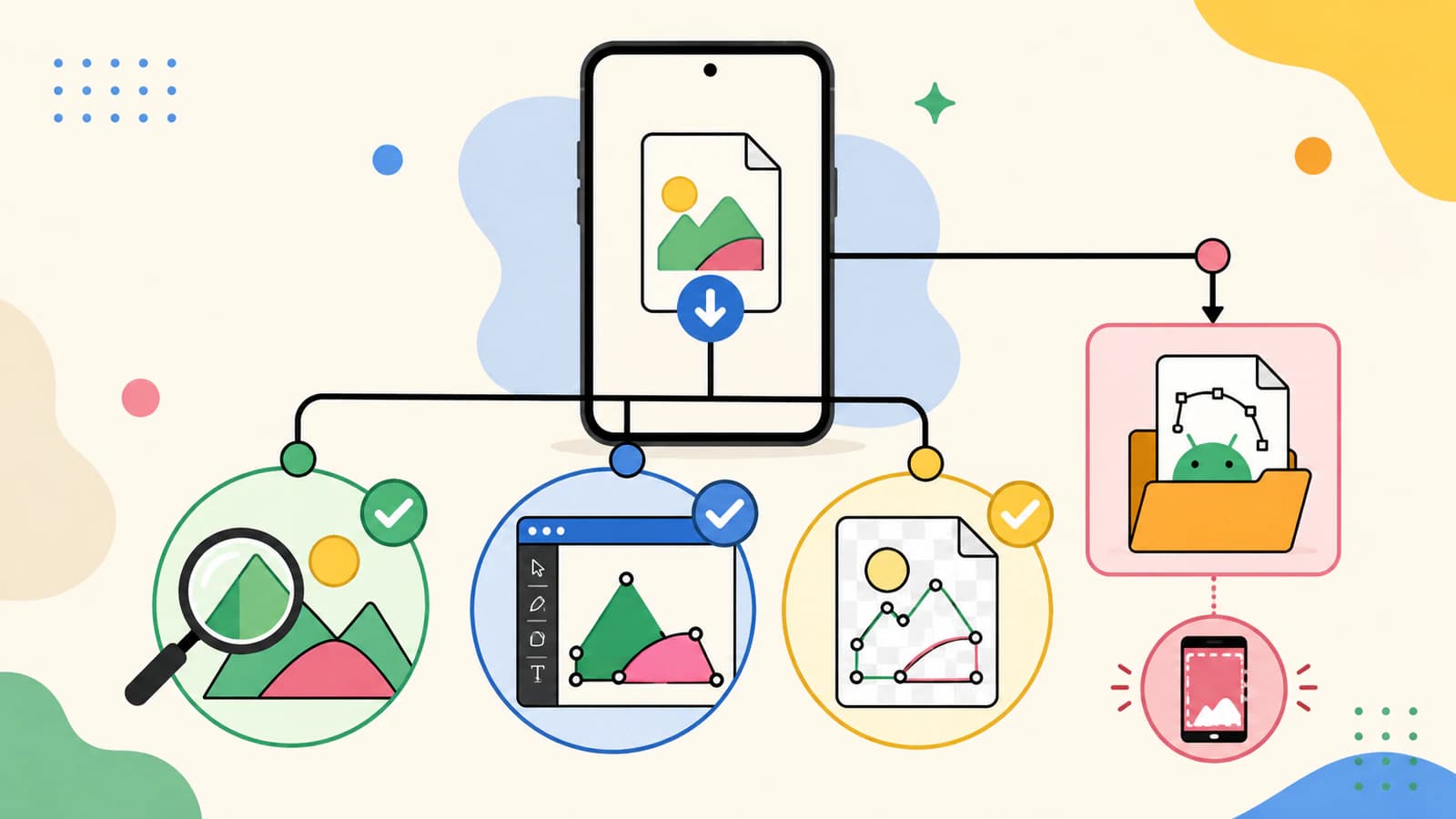
The phone workflow
- Choose a clear image with a simple subject and clean background.
- Upload it to a browser-based vectorizer and inspect the preview.
- Download the SVG to the phone's files or downloads location.
- Open it in the destination app and verify paths, layers, and scale.
- For Android app development, convert a compatible SVG through Vector Asset Studio rather than renaming the file.
First decide which vector file you need
Most people searching on a phone want a normal SVG for Cricut, printing, a logo handoff, or later editing. That is a web-standard vector document.
Android developers may instead need a VectorDrawable resource. Google's Vector Asset Studio documentation explains that Android Studio can import supported SVG or PSD artwork and generate a VectorDrawable. The formats are related in purpose but not interchangeable. A standard SVG may use features that VectorDrawable does not support.
If the file is going to a design or cutting app, make an SVG. If it is going into an Android app's resources, make or obtain the SVG first, then use the Android Studio conversion and inspect the result.
Vectorize the image in your Android browser
- Find the largest, cleanest source on the phone. Avoid a screenshot if the original file is available.
- Crop away the background and straighten photographed artwork.
- Open a browser-based converter such as PerfectVector's image vectorizer.
- Upload the image and inspect the reconstructed shapes at high zoom.
- Reduce stray colors or regions when the tool provides those controls.
- Download the SVG, then locate it in the browser's downloads list or the phone's file manager.
The browser route avoids committing to an app before you can judge its output. Adobe Capture is another mobile option; Adobe describes it as a way to turn mobile photos into design assets, including shapes. If you already use Infinite Design, its native Vectorize feature and SVG checks offer another route. Whichever tool you use, judge the exported file, not the marketing label.
Check that the SVG is genuinely useful
An SVG container can embed a raster image, so crisp browser display alone is not complete proof. Run practical checks:
- Open it in the destination app. Shapes should import as vector objects or paths, not as one flat picture.
- Zoom in. Path edges should stay crisp, but remember that an embedded bitmap can sit inside an SVG wrapper.
- Inspect layers or objects. A flat logo should have a sensible number of shapes, not thousands of fragments.
- Check small holes and negative spaces. Letter counters are often the first details a trace loses.
- Confirm the physical size. Cutting and print apps may interpret document dimensions differently.
If you can view the file as text, real traced artwork commonly includes path elements. An image element pointing to embedded pixel data is a warning that the container may still be raster. You do not need to edit the code; the destination-app object test is usually enough.
What converts well on a phone
Phone hardware is not the limiting factor. Source quality is.
Good candidates include logos, stickers, silhouettes, line-free flat illustrations, and drawings photographed square-on against clean paper. Difficult candidates include faces, landscapes, fur, reflections, shadows, gradients, and tiny compressed images. Those can be stylized into vector art, but they will not become faithful, simple logos through ordinary tracing.
For art photographed on paper, crop tightly, correct rotation, and brighten the paper without erasing faint lines. Keep the original so you can retry with different preparation.
SVG versus VectorDrawable
Do not rename an SVG to an XML filename and place it in an Android project. Use Vector Asset Studio or another deliberate conversion route. After conversion, preview the resource at the sizes and themes the app will use. Complex SVG filters, masks, text, and other features may need to be simplified before import.
For nondeveloper work, stop at the standard SVG. Cricut, sign, print, and browser workflows generally want that file, not Android resource XML.
FAQ
Can I vectorize an image on Android without an app? Yes. A browser-based vectorizer can upload an image, generate a preview, and download a standard SVG. Save it to the phone and test it in the app where you plan to use it.
What is the best Android image type to vectorize? Use the largest, sharpest PNG, JPG, or WebP available. Flat artwork with clear edges and few colors converts more cleanly than a shaded photo or a small screenshot.
How do I know an SVG contains real vector paths? Import it into a vector-aware destination and check whether shapes are selectable as objects or paths. Zooming helps, but an SVG can embed a raster image, so object inspection is stronger evidence.
Is an SVG the same as an Android VectorDrawable? No. SVG is a web vector format; VectorDrawable is Android resource XML with a different supported feature set. Android Studio's Vector Asset Studio can convert compatible SVG artwork into a VectorDrawable.
Sources
- Android Developers — Add multi-density vector graphics — Official Vector Asset Studio and VectorDrawable import guidance.
- Android Developers — Understanding VectorDrawable — First-party technical explanation of Android's vector resource format.
- Adobe — Capture — Official description of mobile photo-to-design-asset and shape workflows.
- PerfectVector — Image to Vector — First-party description of browser-based vectorization, preview, and SVG download.
For a standard SVG you can use outside an Android project, vectorize the image in your mobile browser, inspect the reconstructed paths, and test the download in its destination before relying on it.
More from the blog

Can ibisPaint Vectorize an Image? Vector Layers vs Real SVG
Learn what ibisPaint Vector Layers can do, why they do not auto-trace a raster image, and how to turn suitable PNG or JPG artwork into a portable SVG.
Can Adobe Fresco Vectorize an Image? Use the Right Workflow
Fresco creates scalable art with vector brushes, but existing pixel images need a different route. Choose Capture, Illustrator, redraw, or a vectorizer.