Can ibisPaint Vectorize an Image? Vector Layers vs Real SVG
Learn what ibisPaint Vector Layers can do, why they do not auto-trace a raster image, and how to turn suitable PNG or JPG artwork into a portable SVG.
On this page
ibisPaint can create and edit scalable strokes on a Vector Layer, but its current first-party guide does not document an automatic command that turns an existing PNG or JPG into vector paths. Its “trace” tutorial means drawing over a reference by hand. If you already have raster artwork and need a portable SVG, convert or redraw that source outside ibisPaint, then inspect the resulting paths.
That distinction prevents a common disappointment: adding a raster image to a Vector Layer does not make its pixels vector. The layer type describes how new brush shapes are recorded, not a conversion applied to everything visible on the canvas.
Three jobs that sound like vectorizing
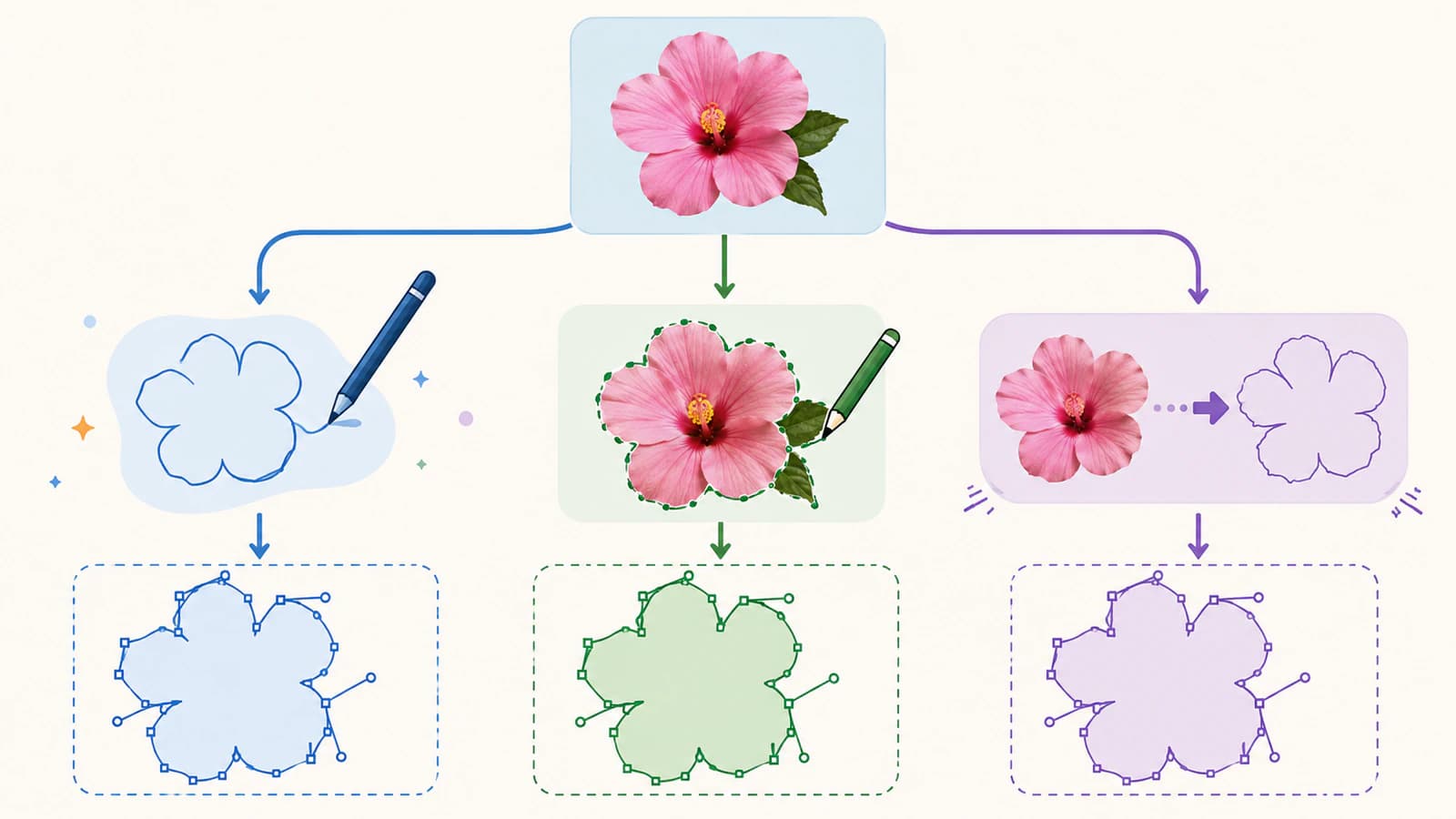
- Draw on a Vector Layer: create new editable ibisPaint brush shapes.
- Trace by hand: place a sketch underneath and redraw its lines yourself.
- Vectorize an existing image: reconstruct the raster's visible regions as paths in an SVG or another vector format.
What ibisPaint Vector Layers actually do
ibisPaint's official Vector Layer guide says these layers record lines with vertices and paths. The app calls each line a brush shape. Unlike a line on a normal raster layer, a vector-layer line can be scaled repeatedly without the same pixel degradation.
You can also select a brush shape and edit its vertices, stacking order, pen type, thickness, and color. That makes Vector Layers useful for clean line art, lettering strokes, speech balloons, and shapes you expect to revise.
The guide documents two ways to start: add a special Vector Layer from the Layer window, or draw with a Vector Dip Pen or Vector Felt Tip Pen. Both create new vector-layer content. Neither procedure analyzes an existing photo or flattened drawing and turns its pixels into paths.
This is why two statements can both be true:
- ibisPaint has real vector-based drawing features;
- ibisPaint is not documented as an automatic bitmap-to-SVG vectorizer.
“Let's Trace” means manual tracing
The official lesson named Let's Trace can sound like an auto-trace feature in a search result. The steps tell you to select a drawing layer, choose the Brush tool, zoom into a sketch, and draw over it with a pen. It is a traditional manual tracing exercise.
Manual tracing is often the right choice. A signature, character outline, or stylized illustration may need artistic judgment that an automatic converter cannot infer. You decide which wobble belongs to the drawing, where a stroke should taper, and whether two marks should join.
It is also labor. If the input is a flat logo with several filled regions, tracing every boundary by hand may take longer than generating one automatic SVG candidate and cleaning the few paths that need attention.
Can you turn an existing ibisPaint drawing into SVG?
You can use an ibisPaint export as the source for a separate conversion, but that is a new trace. It does not transfer the internal Vector Layer's brush shapes directly into portable SVG paths.
The current ibisPaint feature and export documentation describes the artwork Share menu as Image (PNG/JPEG/PSD). It does not list SVG in that documented flow. Check the Share menu and release notes for your installed version because formats can change, but do not assume that “Vector Layer” guarantees an SVG export.
Choose the handoff that matches the work:
| Starting point | Practical route | What you retain |
|---|---|---|
| New line art drawn in ibisPaint | Keep the editable ibisPaint file; export a clean high-resolution PNG or supported layered format for the next tool | The native working document stays editable; the exported PNG is raster |
| Existing flat PNG or JPG | Convert the original source directly to SVG, then inspect it in a vector editor | Reconstructed paths and fills from the source |
| Precise logo, type, or geometric mark | Redraw with deliberate curves and shapes in a vector editor | Controlled geometry rather than an automatic interpretation |
| Painting, photograph, or textured illustration | Keep a high-resolution raster unless the style can be simplified honestly | Continuous tone and texture |
Do not add an extra raster generation if you still have the original. Converting the clean source is better than screenshotting it in ibisPaint, exporting that screenshot, and tracing the new copy.
A reliable raster-to-SVG workflow
For suitable flat artwork, the shortest route is:
- Find the best source. Use the original PNG, JPG, or WebP rather than a social-media screenshot.
- Crop and clean it. Remove unrelated canvas space, shadows, paper texture, and compression noise that should not become shapes.
- Decide what must survive. List the silhouette, color regions, holes, line weight, and small gaps that define the artwork.
- Create one vector candidate. Convert the image to vector paths from the original source.
- Inspect structure, not just appearance. Confirm the result contains selectable paths, sensible color layers, and no hidden raster image.
- Compare at the final size. A thin gap that survives on a tablet screen may close in a small print, sticker, or cut file.
- Keep an editable master. Save the SVG separately from the ibisPaint source and from flattened delivery images.
PerfectVector fits when the source is flat, shape-based art and the next application needs SVG paths. It does not recover ibisPaint's native layers, brush history, or artist intent. It reconstructs visible regions from the raster you upload. A photo or textured painting will usually be more faithful as pixels.
For an Android handoff to a vector editor, follow the Infinite Design tracing and SVG export checks. Inspect the exported paths against the original drawing instead of assuming an app's vector label guarantees the result.
When to stay with an ibisPaint Vector Layer
Stay in ibisPaint when you are drawing or revising line work and the final deliverable can be one of the formats your current version supports. Vector Layers are especially helpful when you want to change a stroke's color or thickness after drawing it, move vertices, or scale line art during composition.
Be aware of the layer's limits. The official guide says features including blur, smudge, alpha lock, perspective or mesh transformation, and filters require rasterization. It also warns that once you rasterize the layer, you cannot turn that layer back into a Vector Layer. Duplicate the editable layer or file before making that change.
Vector Layers are not automatically the best place for coloring and texture. ibisPaint itself frames normal raster layers as the flexible option for general painting and processing, while Vector Layers specialize in lines. A mixed document can use each where it is strongest.
When an external SVG is the better master
Use a separate SVG master when the artwork needs to move between websites, vector editors, layout tools, cutters, printers, or developers. SVG is an interchange format; an app-specific vector layer is an editing feature inside one document system.
The external route is useful when:
- a client specifically asked for SVG;
- a logo must scale across many print and web sizes;
- another operator needs selectable shapes and fills;
- a cutting or fabrication workflow requires closed contours;
- the artwork needs a transparent, inspectable vector master.
For line art, decide whether you need filled outlines or a single centerline. Ordinary raster vectorization usually follows both visible edges of a thick stroke and makes a closed shape. That suits printing and shape cutting. A plotter, pen, or engraver may need one path down the middle instead. The single-line drawing guide explains the difference.
How to judge the converted SVG
A successful download is not the finish line. Open the SVG in a vector editor and check:
- Silhouette: curves and corners still match the reference.
- Negative space: counters in letters and holes in icons remain open.
- Color count: edge anti-aliasing did not become dozens of tiny fills.
- Nodes: there are enough points for the shape, but not a point for every noisy pixel.
- Strokes and fills: the structure matches how the next tool will use the art.
- Embedded images: the SVG does not merely contain the original bitmap in a wrapper.
- Final dimensions: the file opens at the size the project expects.
If the trace is rough, improve the source before randomly simplifying paths. Higher contrast may remove gray edge fragments; a cleaner background may remove a page-sized rectangle; a larger source may preserve a small counter. The line-art-to-SVG workflow covers those source decisions in more detail.
FAQ
Does ibisPaint have vector layers? Yes. ibisPaint Vector Layers store newly drawn brush shapes as vertices and paths, so those lines can be scaled and edited without the same degradation as raster strokes. They do not automatically convert an existing raster layer.
Can ibisPaint automatically vectorize a PNG or JPG? The current official Vector Layer and tracing guides do not document an automatic bitmap-to-vector command. The tracing tutorial shows manual drawing over a sketch. Use a separate converter or redraw the source when you need paths from existing pixels.
Does ibisPaint export SVG files? The current official Share documentation lists PNG, JPEG, and PSD for image export and does not list SVG in that flow. Check the export menu and release notes for your installed version, because product formats can change.
Can I vectorize an ibisPaint drawing with another tool? Yes. Export the cleanest, highest-resolution raster the current app provides, then use it as the source for a vectorizer. Inspect the resulting SVG because the conversion rebuilds visible shapes; it does not recover the original ibisPaint Vector Layer structure.
Should I use a Vector Layer or a raster layer in ibisPaint? Use a Vector Layer for editable line work that may be resized or restyled. Use raster layers for painting, texture, blur, smudge, filters, and other pixel-based processing. Many illustrations benefit from both.
Sources
- ibisPaint — Vector Layer — Official description of vector-layer paths, editing controls, creation steps, limitations, and rasterization behavior.
- ibisPaint — Let's Trace — Official tutorial showing tracing as drawing over a sketch with the Brush tool.
- ibisPaint — New Feature — Current first-party feature and documented PNG/JPEG/PSD Share-flow information.
If the artwork already exists as pixels and the deliverable must be SVG, convert the original image to vector paths, compare the trace with the source, and keep the ibisPaint file as a separate editable drawing master.
More from the blog

Blender Trace Image to Grease Pencil: Choose Your Route
Trace an image to Grease Pencil in Blender, fix missing commands and dense strokes, or prepare a color SVG for import. Choose the route your drawing needs.

OpenToonz Raster to Vector: Choose a Conversion Mode
Convert selected OpenToonz drawings into vector levels. Choose Centerline or Outline, inspect stroke structure, and understand where PLI and SVG files fit.