Can Infinite Design Vectorize an Image? SVG Checks
Use Infinite Design's native Vectorize feature, distinguish it from Infinite Painter, and inspect exported SVG paths before relying on a converted illustration.
On this page
Yes. Infinite Design has a native Vectorize feature. Its official Google Play listing describes image conversion into editable vector paths and supports SVG import and export. You do not have to redraw every image manually or move it to another converter first.
The next question is what you need to edit. Recoloring a flat shape, changing a character's pose, and preserving painted shading are different jobs. A vector file may help with the first while still requiring substantial work for the others.
Automatic tracing and manual drawing solve different tasks
Vectorize reconstructs shapes from an existing image. Manual drawing lets you decide which contours and color regions to create. Infinite Design also lists a pen tool and path editing, so both approaches belong in the app's workflow.
| Your goal | A useful starting approach | The check that matters |
|---|---|---|
| Recolor a simple flat motif | Try the native trace | Can the intended region change independently? |
| Simplify a portrait into a few shapes | Draw or revise selected contours | Did you choose the features that make the face recognizable? |
| Reuse a shaded illustration | Trace a copy and compare it | Are the new tone boundaries acceptable? |
| Continue painting with the original brushes | Keep the painting project | Are the original layers and brush controls still available? |
A tutorial in which someone draws over a photograph demonstrates manual interpretation. It does not establish that the app lacks automatic tracing. Conversely, a successful automatic conversion does not make those drawing skills unnecessary.
Start with a copy of the source, use Vectorize in the installed app, and inspect the resulting objects before committing to detailed cleanup. The developer listing establishes the feature; it does not provide a complete sequence of current menu taps or guarantee an equally useful result from every image.
Infinite Design and Infinite Painter are separate workflows
If the file began in Infinite Painter, keep its project before exporting a picture for tracing. Painter's export documentation describes PNG, JPEG, WebP, PSD, and its PNTR project format. That is different from Infinite Design's documented SVG route.
A PNG export is a composite image. Painter's Background toggle can preserve transparency in PNG, but it does not preserve editable painting layers in that image. Use PNTR when you need to continue the original project; consider PSD for a transfer of layers, while checking features that may not export faithfully.
The distinction also applies when a painting app has shape or path-shaped selection tools. Those controls do not, by themselves, establish that the delivered picture contains SVG geometry. The Krita vectorization guide explains a similar separation between painting, vector shapes, and tracing an imported image.
What a real trace preserves, and what it changes
This example uses an original synthetic illustration of a fox and duck in raincoats. It was converted with PerfectVector on September 4, 2026. The existing SVG production copy removed only the plain canvas background shape; its artwork paths were not manually repaired.
The file contains 381 paths, 24 distinct solid fill colors, and no image elements. It has no groups or gradient definitions. These are measurements of this particular SVG, not results from Infinite Design or a comparison between converters.
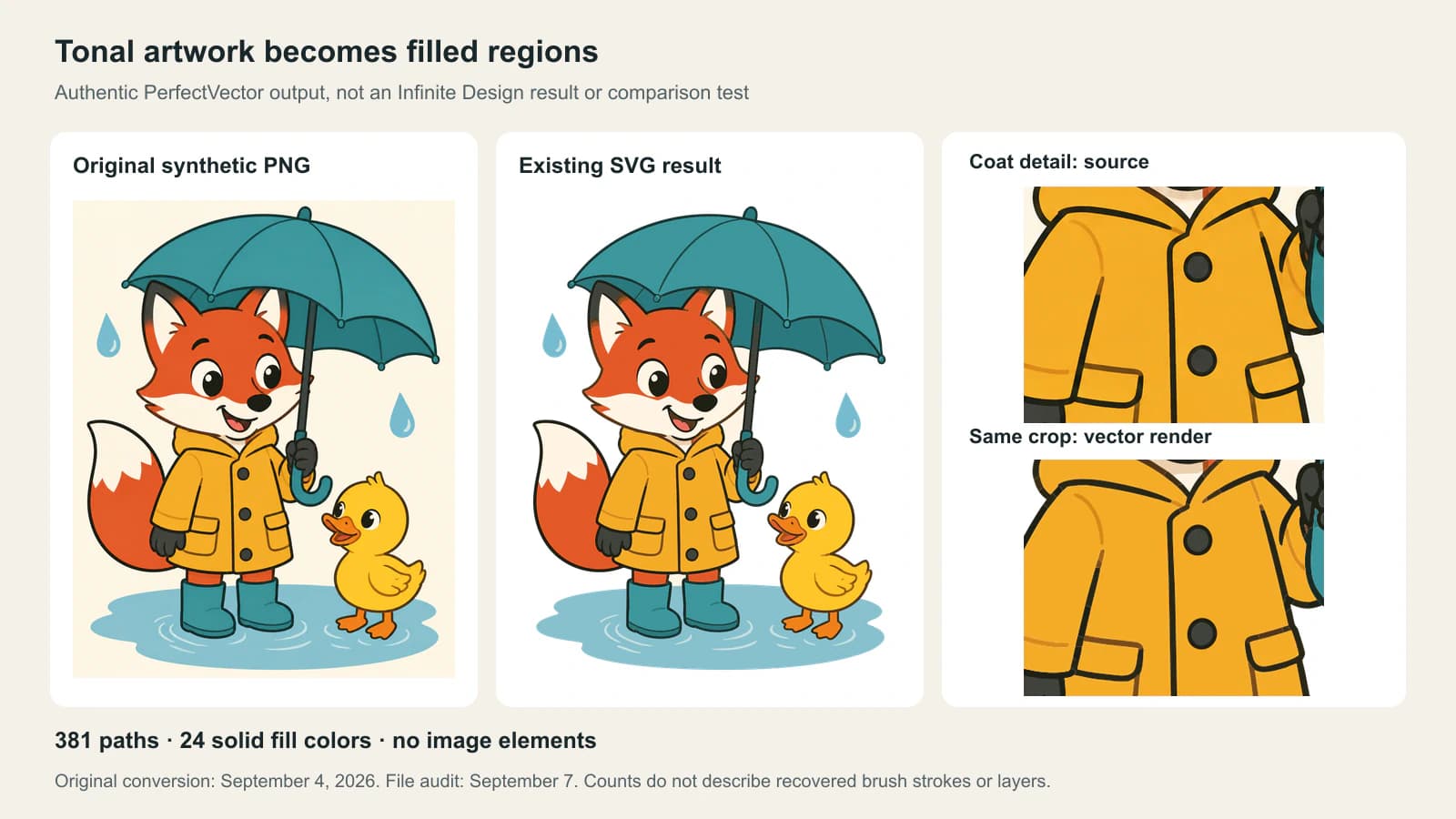
Look at the yellow coat. The source has soft tonal variation; the SVG render uses flatter areas and distinct boundaries. The crop also exposes small interruptions and joins that deserve inspection before reuse. The recognizable scene survives, but that alone does not settle whether the file is suitable for a sticker, a large illustration, or a character edit.
For this file, changing the coat color is an object-selection task. Changing the fox's pose would require much more: the visible shapes do not describe a complete hidden body under the coat or umbrella. Tracing cannot recover the original artist's brush strokes, layer names, or drawing sequence from a flattened picture.
Treat the path count as an inspection clue. A shaded source can become many small regions. Removing regions indiscriminately may erase a useful contour; keeping them all may make an otherwise simple recolor tedious.
Test one edit before cleaning the whole image
Use the same small acceptance check for a native Infinite Design trace or an SVG imported from elsewhere:
- Choose one region. Pick the coat, umbrella, or another clearly defined part. Change its color and see which objects move with that edit.
- Inspect one boundary. Zoom into a sleeve seam, eye opening, or narrow gap. Compare the shape with the source rather than judging smoothness alone.
- Hide the source picture. Confirm that the visible artwork you intend to deliver is carried by the new paths.
- Save an SVG copy and reopen it. Check the same region and boundary in the destination editor. Keep the editable app project too.
Infinite Design's paint-tool help describes recoloring an object with Fill and keeping line work separate from fills. That suggests a useful cleanup goal: organize the artwork around the edits you will actually make. It does not mean an automatic trace will recover those layers for you.
If everything selects together, inspect the object structure before repeatedly pressing Ungroup. A group, compound path, and embedded picture require different fixes. The SVG ungrouping guide explains how to tell them apart.
When an external conversion is useful
Try Infinite Design's native feature first when it already fits your project. An external route is useful when you want to prepare a standard SVG separately, compare a second interpretation, or work from the same source across several editors.
For original flat artwork, PerfectVector's image-to-vector tool provides an optional source-to-SVG route. Inspect the result, import the SVG into your intended editor, and repeat the one-region check. Keep the native project and original bitmap so you can return to painting or redraw a difficult contour when that is the better fit.
If you are managing the files entirely on a phone, the Android image-to-SVG workflow covers download and destination-file checks. For textured painting, a high-quality raster export may remain the right deliverable.
FAQ
Can Infinite Design automatically vectorize an image? Yes. Its current developer listing includes Vectorize and SVG import and export. Inspect the resulting paths before relying on the conversion for a particular edit.
Is Infinite Painter the same as Infinite Design? No. They have different workflows and documented export options. Keep the Painter project for continued painting; exporting a flat picture for tracing does not retain its painting history.
Does exporting SVG restore my original painting layers? No. A trace reconstructs shapes from the flattened image. It does not recover the source project's brush strokes, layer names, hidden artwork, or editing history.
Should I redraw the image or use automatic tracing? Try a trace for an existing flat motif. Draw or revise contours when you need deliberate simplification, a changed pose, or precise control over which details remain. Test one representative edit before choosing.
Sources
- Infinite Studio — Infinite Design on Google Play — Developer description of Vectorize, path editing, and SVG import and export.
- Infinite Studio — Infinite Painter export documentation — Distinguishes composite image exports, layer transfers, and PNTR project files.
- Infinite Studio — Infinite Design paint tools — Object recoloring and separation of fills from line work.
Need an SVG prepared outside the app? Convert your original flat artwork with PerfectVector, reopen it in the destination editor, and test a color region and a narrow boundary before finishing the full illustration.
More from the blog

VectorStyler Image Trace: Live Trace, Expand, and Cleanup
Use VectorStyler Image Trace to tune a linked trace, expand it into editable paths, inspect clipping, and choose manual Tracing Guides when needed for your art.

Can Sketchbook Vectorize an Image? Export First
Keep your layered Sketchbook master, export a clean PNG, then trace it to SVG. Check desktop and mobile options, transparent backgrounds and editable shapes.