Can Adobe Fresco Vectorize an Image? Use the Right Workflow
Fresco creates scalable art with vector brushes, but existing pixel images need a different route. Choose Capture, Illustrator, redraw, or a vectorizer.
On this page
Adobe Fresco can create vector artwork, but its current documentation does not describe a Convert Pixel Layer to Vector Layer command for an image you already painted or imported. Fresco's native vector route is to draw with Vector Brushes, which create scalable strokes on a vector layer. Its documented layer conversion goes the other direction: Convert to Pixel.
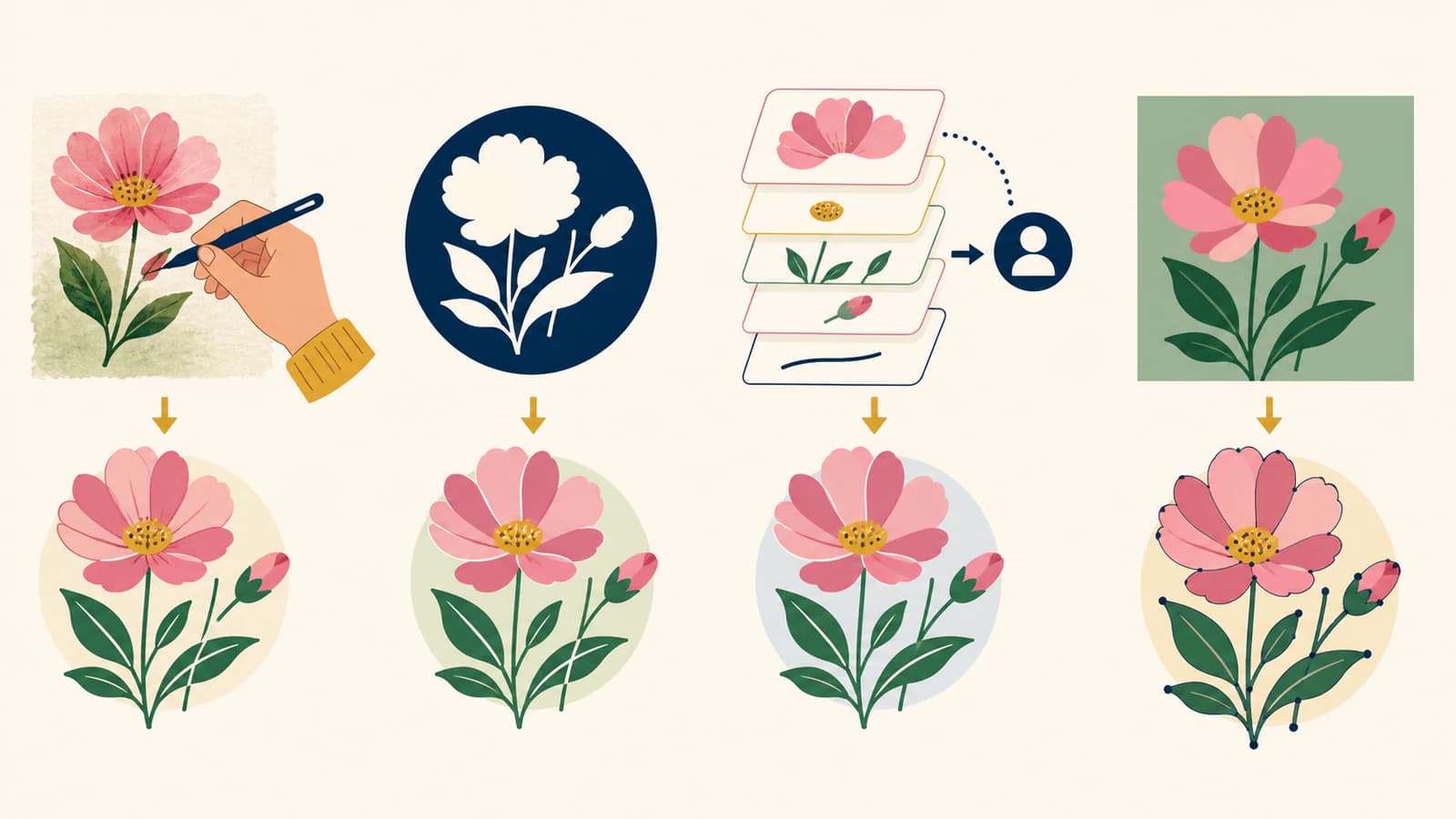
For an existing image, choose among four honest routes: redraw it with vector brushes, turn a suitable silhouette into an Adobe Capture shape, send the document to Illustrator for tracing or editing, or use a separate raster-to-vector tool before bringing the result into your workflow.
Choose the route by what you have
- Starting a new drawing: use Fresco Vector Brushes from the beginning.
- Simple high-contrast shape: capture it with Adobe Capture and place the saved SVG shape from your library.
- Mixed Fresco document: send it to Illustrator while vector and pixel layers are still separate.
- Existing logo, icon, or flat illustration: vectorize or redraw outside Fresco, then use the resulting paths in a vector-capable app.
- Painting or photograph: keep it raster unless a simplified, shape-based interpretation is intentional.
Fresco is both vector and raster
Fresco keeps different brush systems on different layer types. Adobe's current vector-brush guide says Vector Brushes create strokes that can scale without losing fidelity, and the vector icon appears in the layer thumbnail. Pixel Brushes and Live Brushes create raster content instead.
That distinction survives inside one document, which is useful: sketch with pixels, ink with vectors, and paint with Live Brushes. It also means the word “Fresco file” does not tell you whether a particular layer is vector. Check the layer thumbnail and the brush used to make it.
Adobe's current layers guide documents Convert to Pixel when you want to use pixel or live brushes on vector art. It does not document a reverse Convert to Vector layer action. Painting with a vector brush on top of a pixel sketch creates new vector strokes; it does not translate the old pixels automatically.
Route 1: redraw with Vector Brushes
This is the cleanest Fresco-native route when you want expressive linework rather than an automatic copy.
- Import or keep the pixel image as a reference layer.
- Lower its opacity and lock it.
- Create a new layer and choose a Vector Brush.
- Redraw the important contours and strokes.
- Use smoothing, brush size, taper, and other current vector-brush settings deliberately.
- Hide the pixel reference and inspect the vector-only result.
Manual redrawing takes longer, but you choose every stroke. It fits lettering, character inks, icons, and logo geometry where an automatic trace might follow compression damage or fuzzy edges.
Do not trace every bit of texture. If the source is a painterly Fresco piece with live watercolor, grain, or soft blending, a faithful version is the raster artwork. A vector redraw is a new interpretation.
Route 2: use Adobe Capture for a reusable shape
Adobe documents a cross-app route for simple shapes. Its current Fresco shapes guide says Adobe Capture can turn an image into a shape, save it as SVG in Creative Cloud Libraries, and make it available in Fresco's Shapes panel.
This route fits a high-contrast silhouette, stamp-like mark, or simple object that you want to fill, erase, mask, or place repeatedly. Adobe Capture's current FAQ describes controls for selecting dominant trace lines, inverting, cleaning, cropping, refining, smoothing, and reducing colors in color-shape mode.
It is still a trace. Small type, rough antialiasing, soft shadows, and photographic detail can become distorted or excessively complex. Review the shape at the size where you will use it.
Route 3: send the Fresco document to Illustrator
Fresco's Share workspace includes Send to Illustrator. Adobe's Fresco and Illustrator guide says Illustrator recognizes and preserves separate Fresco vector and pixel layers. Vector layers remain editable; pixel layers remain pixels.
One caveat matters: Adobe says that when vector and pixel layers are combined, they are converted to pixel layers. Keep them separate before the handoff if the vector strokes need to remain editable.
Once the document is in Illustrator, you can edit the vector strokes directly and use Illustrator's own tracing or manual drawing tools on the pixel layers. Sending a pixel layer does not silently vectorize it.
Route 4: vectorize an existing image separately
Use a separate image vectorizer when you already have flat artwork and want editable shapes rather than a hand-redrawn brush interpretation. Good sources include logos, icons, badges, clean line art, and limited-color illustrations. Photos and soft paintings are usually poor candidates unless you want an intentionally posterized result.
PerfectVector's image-to-vector workflow reconstructs supported raster images as editable vector shapes in a browser. Inspect the preview for silhouette, holes, colors, and path structure before downloading. It does not recover original fonts, layers, or precise brand curves that were flattened into the image.
Can Fresco export SVG directly?
Adobe's current Publish, export, and share guide lists PNG, JPG, PSD, and PDF under Export image. It also documents Send to Illustrator. It does not list SVG as a direct Export image format.
A PDF can contain vector and raster content, but choosing PDF does not convert every pixel layer into paths. Likewise, a PSD preserves a layered handoff but is not an SVG substitute. Use Send to Illustrator when you need the editable vector layers outside Fresco, or use the Capture/library route for a reusable SVG shape.
Protect vector layers before delivery
Before you send or export the document:
- identify vector, pixel, and live-brush layers;
- duplicate the Fresco document before merging;
- keep vector and pixel content separate for the Illustrator handoff;
- hide pixel references when checking a vector-only result;
- inspect the destination file, not just the Fresco canvas;
- verify that the final size, line thickness, colors, and negative spaces remain correct.
If the output will be cut, printed, or used as a logo, continue with the vector trace quality scorecard. “Made with a vector brush” describes the data type, not whether the geometry is production-ready.
FAQ
Can Adobe Fresco turn a photo into vector art? Fresco can use a photo as a reference while you redraw with Vector Brushes, but its current documentation does not show a native pixel-layer-to-vector-layer command. Use Adobe Capture, Illustrator, or another vectorizer for an automatic shape interpretation.
Are Fresco Vector Brushes really vector? Yes. Adobe says Vector Brushes create scalable strokes on vector layers. Keep those layers separate from pixel layers if you want them preserved as editable vectors in an Illustrator handoff.
Can I convert a pixel layer to a vector layer in Fresco? Adobe's current layer documentation describes Convert to Pixel for vector layers, not the reverse. Create new vector strokes with a Vector Brush or move the existing pixel artwork through a documented tracing workflow.
Can Adobe Capture vectors be used in Fresco? Yes. Adobe says a Capture shape is saved as SVG in Creative Cloud Libraries and appears in Fresco's Shapes panel, where it can be placed and modified with shape actions.
Does exporting a Fresco file as PDF make every layer vector? No. PDF is a container that can hold both vector and raster content. Fresco's documented Illustrator handoff preserves separate vector and pixel layers; pixel layers remain pixels.
Sources
- Adobe Fresco — Vector brushes — Current vector-brush behavior, scalable strokes, vector-layer identification, and settings.
- Adobe Fresco — Layers — Current layer actions, including the documented vector-to-pixel conversion.
- Adobe Fresco — Shapes and Adobe Capture — Capture-to-SVG library workflow and Fresco shape placement.
- Adobe Capture — FAQ — Current Shapes capture, refinement, vector, platform, and library behavior.
- Adobe Fresco — Work with Illustrator — Layer preservation and rasterization behavior in the Illustrator handoff.
- Adobe Fresco — Publish, export, and share — Current direct export formats and Send to Illustrator procedure.
Already have a flat PNG rather than strokes you want to redraw? Compare an editable vector reconstruction, inspect its shapes, and keep the raster original whenever its texture matters more than path editability.
More from the blog

Xara Bitmap Tracer: Tune the Trace and Inspect the Shapes
Use Xara Bitmap Tracer modes and controls to turn a bitmap into editable shapes. Check curves, corners, color regions, and exported artwork before delivery.

VectorStyler Image Trace: Live Trace, Expand, and Cleanup
Use VectorStyler Image Trace to tune a linked trace, expand it into editable paths, inspect clipping, and choose manual Tracing Guides when needed for your art.