Flutter SVG Images: Bundle, Size, and Check Assets
Add an SVG asset to Flutter, match its bundle path, set widget dimensions, and check colours and semantics. Separate loading problems from unsupported artwork.
On this page
- Start with a small source you can inspect
- Add the package and declare the exact file
- Load the artwork into a defined box
- Distinguish a loading placeholder from an error
- Decide whether to preserve the palette or apply a tint
- Simplify features only after the file loads
- Use vectorization when the source needs recovery
- FAQ
- Sources
To display an SVG asset in Flutter, add flutter_svg, declare the file in pubspec.yaml, and load that same path with SvgPicture.asset. Give the widget dimensions or suitable layout constraints, then inspect the artwork in your app. The package's asset constructor documents that loading route.
Keep two questions separate: did the app load the intended file, and did the renderer reproduce the intended artwork? Re-exporting a drawing will not repair a misspelled asset key. Correcting the key will not simplify an unsupported effect.
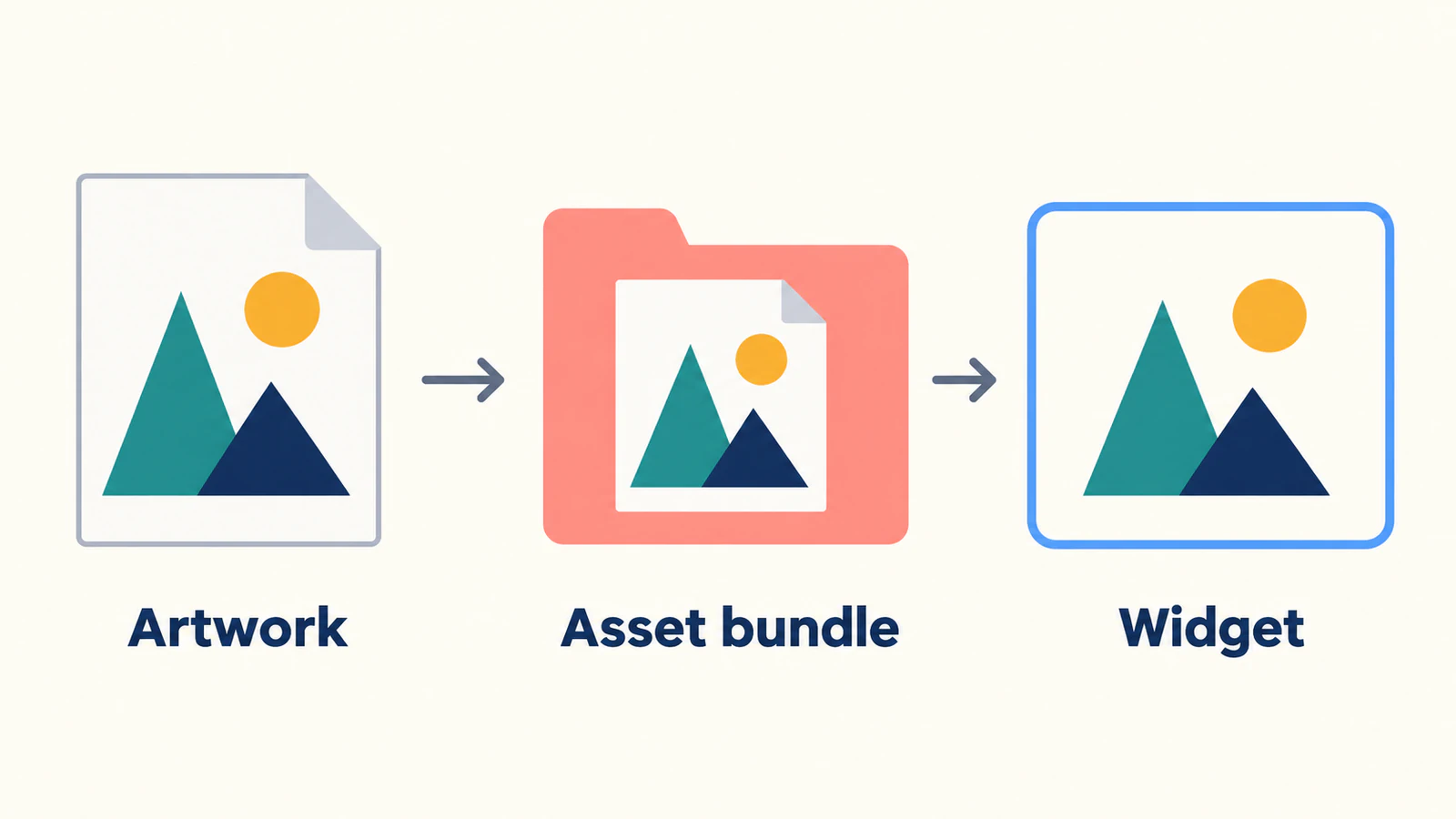
This walkthrough uses an original hills-and-sun illustration to make those checks manageable. The code follows the documented API; it is not a report of a compiled app test.
Start with a small source you can inspect
Create assets/illustrations/hills.svg in your Flutter project:
<svg xmlns="http://www.w3.org/2000/svg" viewBox="0 0 64 48">
  <circle cx="49" cy="11" r="6" fill="#e99b30"/>
  <path d="M4 42L24 14L44 42Z" fill="#167d8d"/>
  <path d="M28 42L43 23L60 42Z" fill="#233b63"/>
</svg>
The source has two overlapping triangular hills and a detached amber sun. It uses explicit fills, has no text or linked images, and leaves a visible gap between the sun and the hills. Those details give you a short acceptance list when checking the app.
Keep a copy of this simple file while introducing your own artwork later. If the small source works but the replacement fails, compare their structure before changing the entire loading setup.
A Flutter SVG asset is also a different delivery route from Android VectorDrawable XML. If your destination is a native Android drawable, use the Android VectorDrawable preparation guide instead of treating the two file formats as interchangeable.
Add the package and declare the exact file
From the Flutter project's root, use the official installation command:
flutter pub add flutter_svgThen add this asset entry under the existing flutter: section of pubspec.yaml:
flutter:
  assets:
    - assets/illustrations/hills.svg
Merge the entry into your current configuration rather than creating a second flutter: section. Keep the indentation shown. Flutter's asset documentation defines these paths relative to pubspec.yaml and explains how the listed files enter the app bundle.
Use the same spelling, capitalization, and directory structure in the filename, declaration, and Dart call. For this first check, an explicit file entry is easier to compare than a broad folder entry. If you later declare directories, Flutter documents that a directory entry covers its direct files; nested directories need their own entries.
After changing the asset configuration, rebuild and run the app with your normal development workflow. Do not assume that a file visible in your editor is already included in the app you are looking at.
Load the artwork into a defined box
Add these imports to the Dart file containing your widget:
import 'package:flutter/material.dart';
import 'package:flutter_svg/flutter_svg.dart';
Place this widget in a suitable part of your screen:
SvgPicture.asset(
  'assets/illustrations/hills.svg',
  width: 128,
  height: 96,
  fit: BoxFit.contain,
  semanticsLabel: 'Sun above two hills',
  errorBuilder: (context, error, stackTrace) =>
      const Text('Illustration unavailable'),
)
The box follows the source's proportions. Inspect the detached sun, both hill colours, and the outside margins before trying a smaller size. Then use the dimensions required by your actual component; the numbers above are an example, not a minimum size or a performance recommendation.
The constructor documentation recommends explicit dimensions or tight layout constraints so loading does not unexpectedly change the layout. If the artwork looks too small inside the box, inspect blank space in its viewBox as well as the widget's dimensions.
The label describes this standalone picture's purpose. The semanticsLabel API connects it to the picture's semantic label. For a decorative image beside text that already conveys the meaning, consider excluding the picture from semantics instead. The constructor's excludeFromSemantics option takes precedence over its label. Review the whole component's spoken meaning rather than labeling every shape separately.
Distinguish a loading placeholder from an error
A loading indicator is not proof that an SVG was accepted. The package provides placeholderBuilder for the acquisition or decoding period, while the current errorBuilder API supplies a widget when image loading fails.
The example above uses a short text fallback. During development, deliberately change the Dart path to a nonexistent filename and check that you can recognize the failure. Restore the correct path before continuing. This tests your failure presentation without changing the drawing itself.
Then test your real source. If it still fails, inspect the diagnostic output and compare the declared path first. A network example that happens to display a different SVG does not establish that your local file is bundled or that its features are supported.
Decide whether to preserve the palette or apply a tint
Leave colorFilter unset when the hills need to stay teal and navy with an amber sun. For a deliberately single-colour treatment, add a filter such as:
colorFilter: const ColorFilter.mode(
  Color(0xFF175CD3),
  BlendMode.srcIn,
),
The package documents this tinting pattern. Flutter's BlendMode reference explains that srcIn uses the destination's opacity while ignoring its colour channels. A uniform tint therefore removes the source palette distinction; it is a design choice, not a colour-preservation repair.
For the hills, check whether losing the contrast between the two overlapping triangles makes the illustration harder to read. Keep the original palette if those regions need to remain distinct. The package also documents ColorMapper for selective substitutions, but start with the simpler unfiltered case while diagnosing a mismatch.
Simplify features only after the file loads
The flutter_svg documentation recommends presentation attributes when exporting from Illustrator because CSS support is incomplete, and embedded rather than externally linked images. It also provides a compiler-based compatibility check. Follow that check in your own Flutter/Dart environment when a complex asset needs investigation.
A browser preview is a useful reference for the intended appearance; it does not prove that every SVG feature will render identically through the package. Keep the original artwork and simplify a copy one change at a time.
| What you observe | Next comparison |
|---|---|
| Nothing appears | Asset key, declaration, fallback, and diagnostic output |
| The simple hills display but another drawing does not | Source structure and renderer compatibility |
| All regions become one colour | Widget colour filter before editing source fills |
| The drawing is tiny within its box | ViewBox whitespace and layout constraints |
| Text differs or disappears | Font dependencies and the intended text treatment |
| A detail is missing at component size | Original geometry, overlaps, and available space |
If the source contains lettering, decide whether it should remain app text or fixed artwork. The SVG font-change guide explains why appearance can depend on text and font handling. Do not trace a label just to solve an asset-path problem.
For a family of UI assets, compare their visual size and spacing together. The UI-kit icon preparation guide helps with that consistency check.
Use vectorization when the source needs recovery
Keep a clean existing SVG. A photograph or textured background may be better delivered as an appropriate raster asset; changing the extension does not make it useful vector geometry.
If a simple illustration survives only as a rough PNG, PerfectVector's PNG-to-SVG workflow can help prepare an editable candidate. Crop to the artwork, inspect the preview for missing shapes and unwanted background regions, and download the SVG. Add that file to the app bundle and repeat the loading, palette, size, and semantics checks.
For the hills example, look for the detached sun and the separation between the two coloured slopes. Confirm the file contains the structure you intended; the embedded-raster guide explains why an SVG wrapper can still hold pixels.
Judge the asset in the app before choosing an optimization strategy. This workflow makes no general promise that an SVG is smaller or faster than a PNG.
If you reuse the artwork in a .NET MAUI app, follow the MAUI source-to-PNG workflow. The project keeps the SVG master while the view references a PNG prepared during the build.
FAQ
How do I add an SVG image to Flutter? Add flutter_svg, declare the SVG asset in pubspec.yaml, and load the matching path with SvgPicture.asset. Set dimensions or appropriate constraints and inspect the result.
Why does my local SVG not appear? Check the asset declaration, exact path, loading error, and layout first. If a simple source works, compare the failing artwork's structure and supported features.
Why did all the colours become the same? A uniform srcIn colour filter replaces the visible palette with its tint. Remove that filter when the original colours should remain distinct.
Must I turn a PNG into SVG for Flutter? No. Use a suitable raster asset when it fits the artwork. Vectorization is optional when recovering editable shapes from a simple raster source.
Sources
- flutter_svg — Installing — Package installation and Dart import.
- Flutter — Adding assets and images — Asset declarations, paths, and bundling.
- flutter_svg — SvgPicture.asset — Asset loading, dimensions, fitting, and semantics controls.
- flutter_svg — errorBuilder — Failure presentation distinct from loading placeholders.
- flutter_svg — semanticsLabel — The picture's semantic purpose.
- Flutter — BlendMode — The opacity-based srcIn colour treatment.
- flutter_svg — Package documentation — Tinting, selective colour mapping, export guidance, and compatibility checks.
Start with one declared asset and check its path, palette, size, and meaning in your app. If a raster illustration needs recovery, prepare an SVG candidate, inspect its shapes, and run the same checks before adding it to your asset family.
More from the blog
SVG in SwiftUI: Add Assets and Control Their Color
Add an SVG to an Xcode image set, load it by asset name, and choose original or template rendering. Check color, spacing, and the delivered app at its real size.
SVG in WPF: Choose a Renderer or a XAML Drawing
Use SVG artwork in WPF with a renderer, a native DrawingImage, or a PNG export. Follow an original icon example and check bounds, colors, and dependencies.